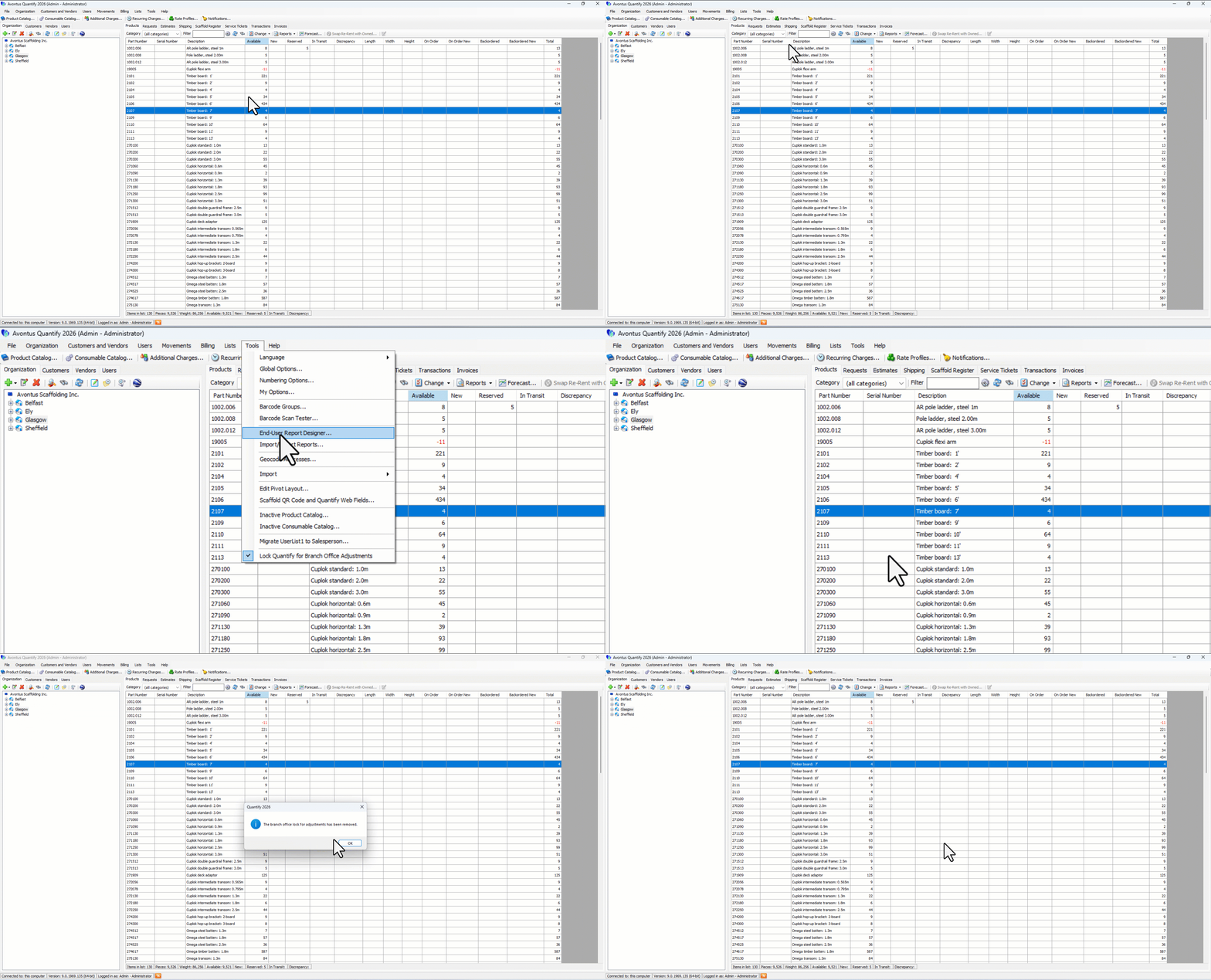
Once serialized items have been added to the Product Catalog, you can add them to a Branch Office through Quantify's Adjust Products feature. But first, you must lock the database.
Note: Once Quantify is locked no changes can be made to the inventory through Purchases, Returns, Shipments or any other means until Quantify is unlocked.
Note: You cannot use the inventory adjustment method to add items that another company owns. You must add these items through the Re-Rent transaction method.
To use Adjust Products to stock a serialized product:
Click the Tools menu and select Lock Quantify for Branch Office Adjustments.
Click Yes.
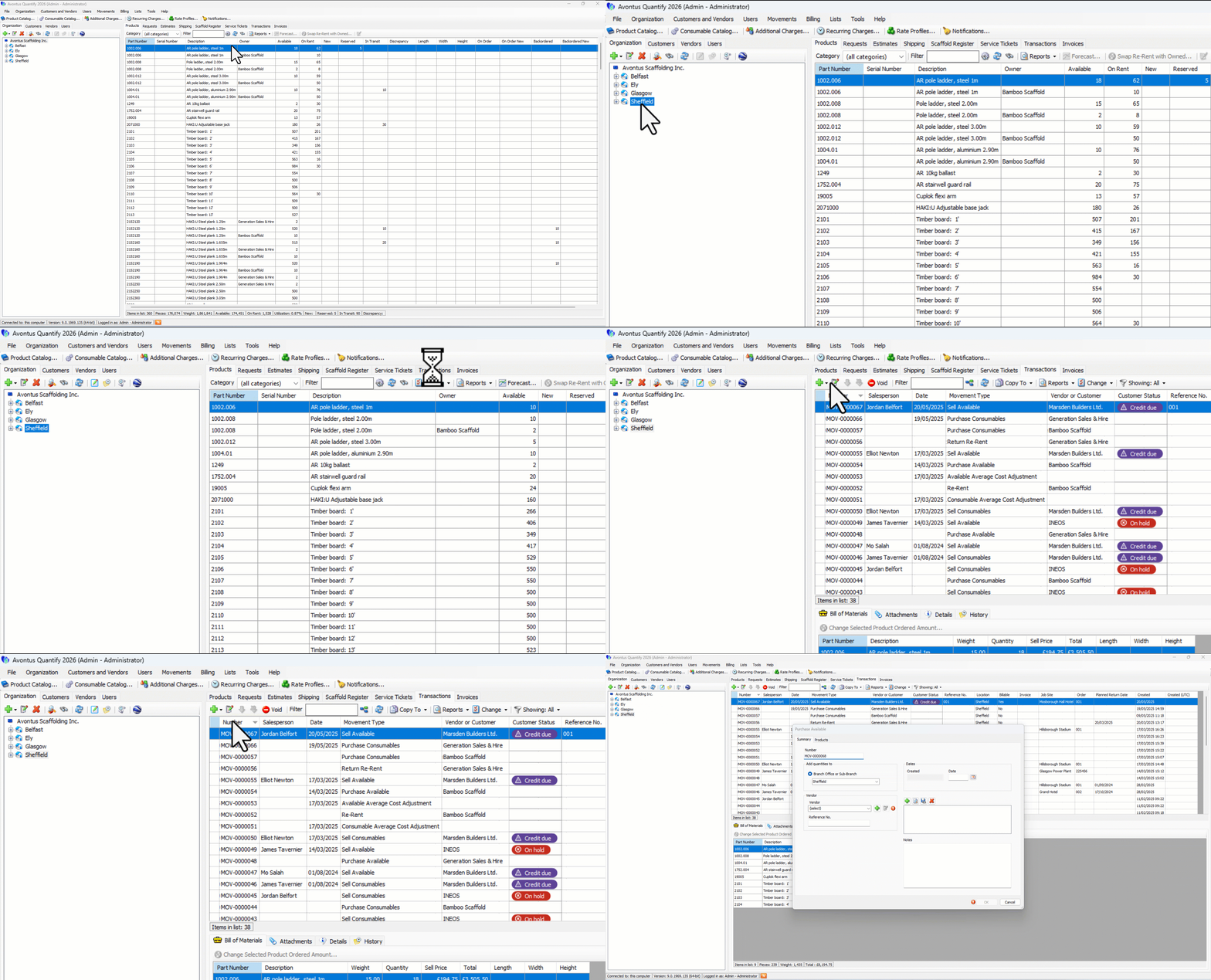
Click the appropriate Branch Office and click the Adjust Quantities for Selected Location button (
 ).
).
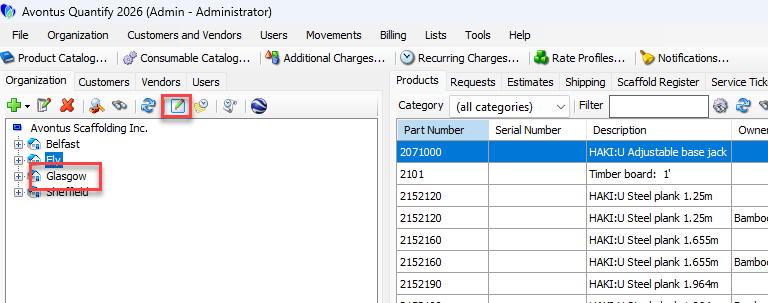
The Adjust Products dialog appears.Find the Product in the Product Grid and click its Serial Number button
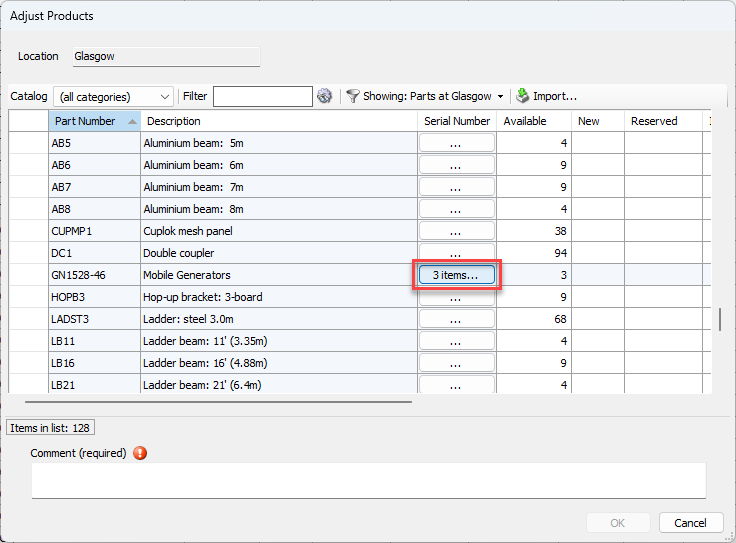
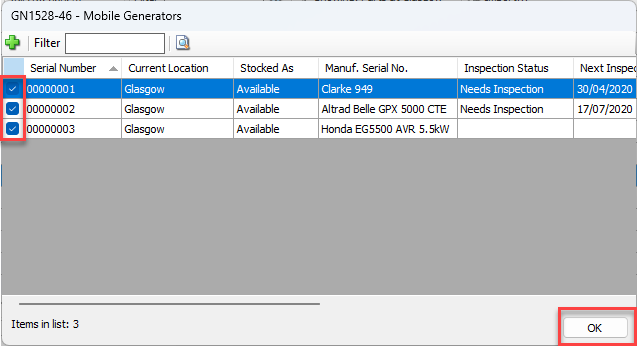
The Serial Number dialog appears, displaying all the serial numbers that were added to the Product Catalog and are available to be added to the inventory.Click the checkbox for the serial numbers to be added and click OK.
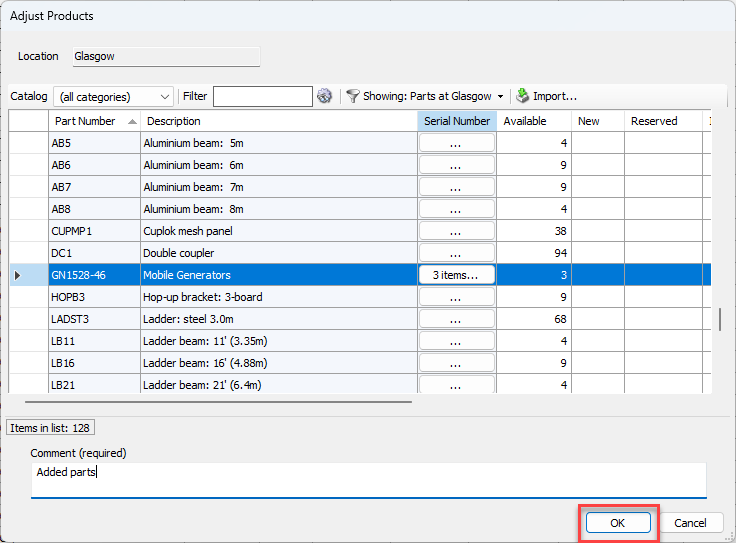
The Adjust Products dialog returns.Click in the Comment text field and document the adjustment (required) and click OK.
Click the Tools menu and select Lock Quantify for Branch Office Adjustments.
This unlocks the database.