You can select Quantify Invoices for synchronization by clicking individual Invoices or groups of Invoices in the Invoices tab. When Accounting Integration is set to QuickBooks, a global option allows for synchronization of all eligible Invoices to be synced at once.
Note: This synchronizes every single Invoice, including previously synced Invoices. Previously synched Invoices are not re-created. Quantify simply checks their status and ensures that their status matches with the Quickbooks status.
Note: To be able to synchronize all Invoices, you must turn on the Synchronize All option in the database. Therefore, the procedures below start with this process.
To sync all Invoices with QuickBooks:
- Click the Tools menu and select Global Options.
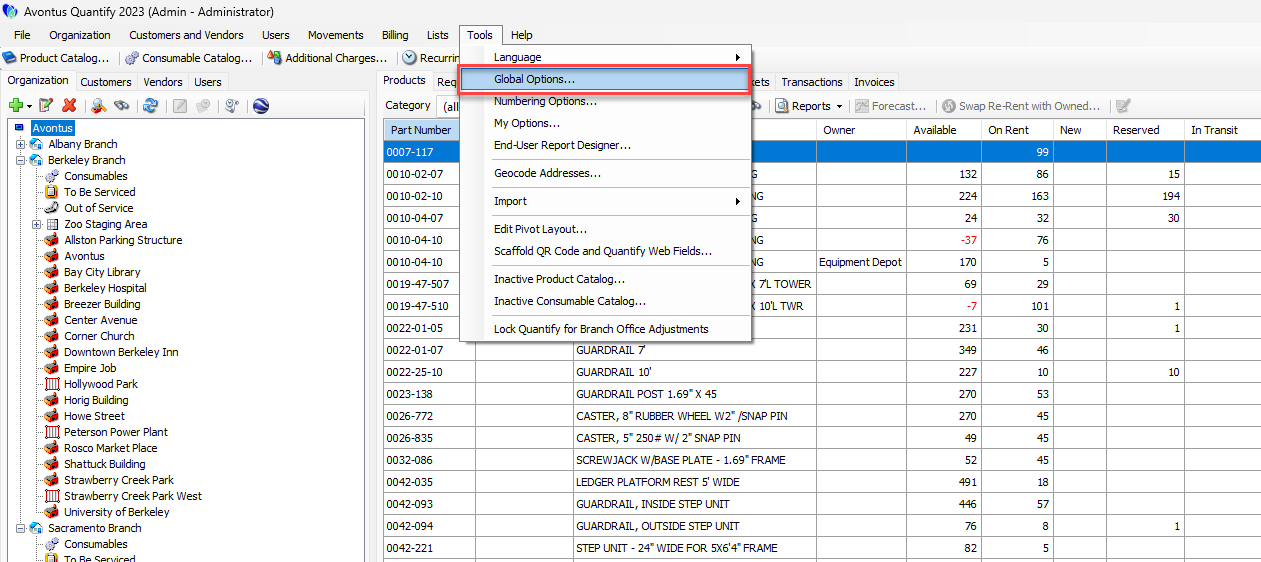
The Global Options dialog appears. - Click the Billing tab.
Note: You can also access this tab by clicking the Quickbooks menu and selecting Accounting Options. - Click the Allow synchronizing all QuickBooks invoices at once checkbox in the Accounting integration section.
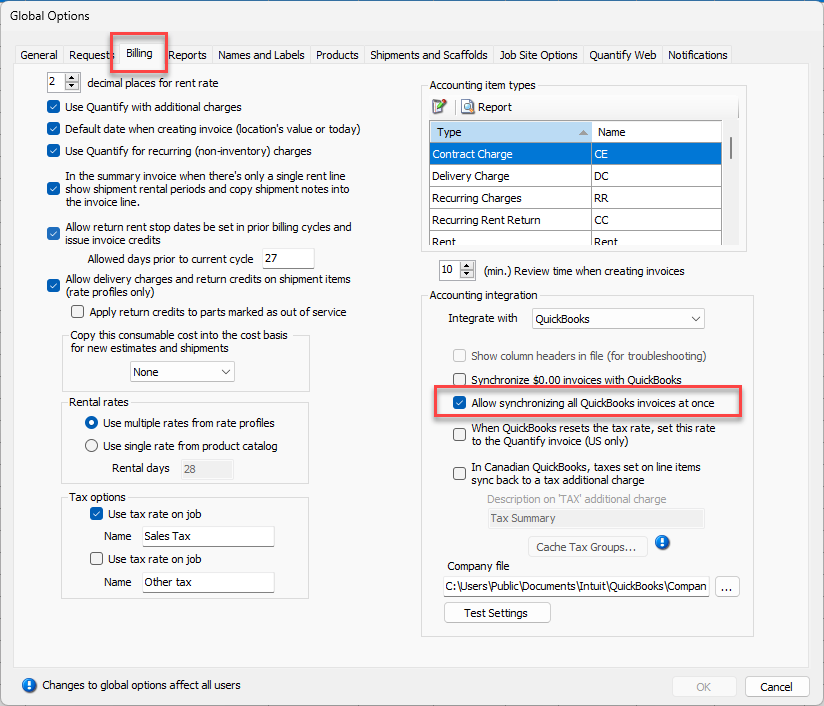
- Click OK.
This enables all eligible Invoices in the database to be synchronized at once. - Click the Invoices tab.
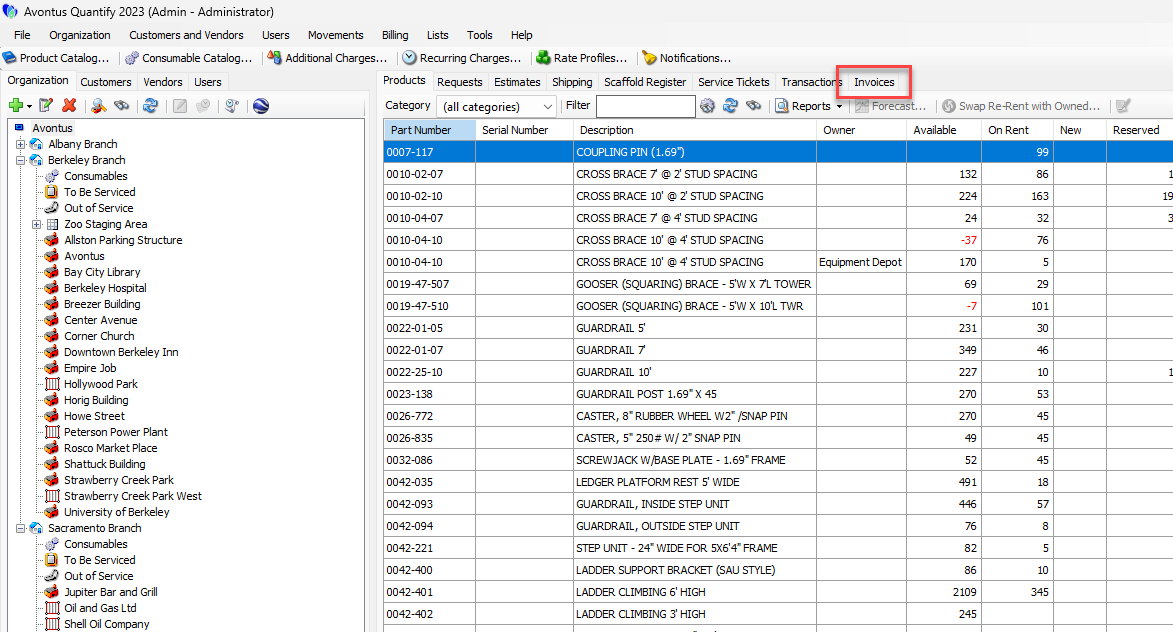
- Click the Quickbooks menu and select Synchronize All Invoices.
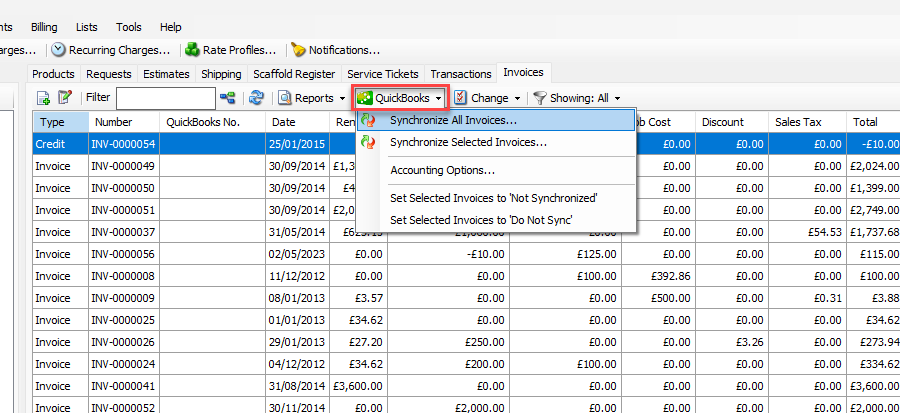
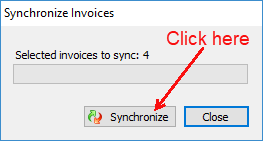
The Synchronize Invoices dialog appears.
The Selected invoices to sync section displays the number of Invoices to be synced. This is the count of selected Invoices in an eligible status. - Click Synchronize.
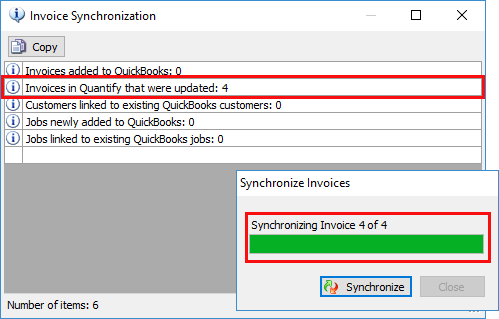
The dialog displays the progress of the sync request.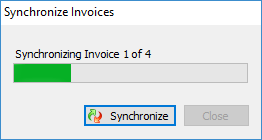
Note: The synchronize process cannot be stopped or interrupted.
When completed the Invoice Synchronization dialog appears. It will either notify of errors to be corrected, or, in the sample below, of a successful synchronization. In this example, four Invoices were synced to QuickBooks without errors.