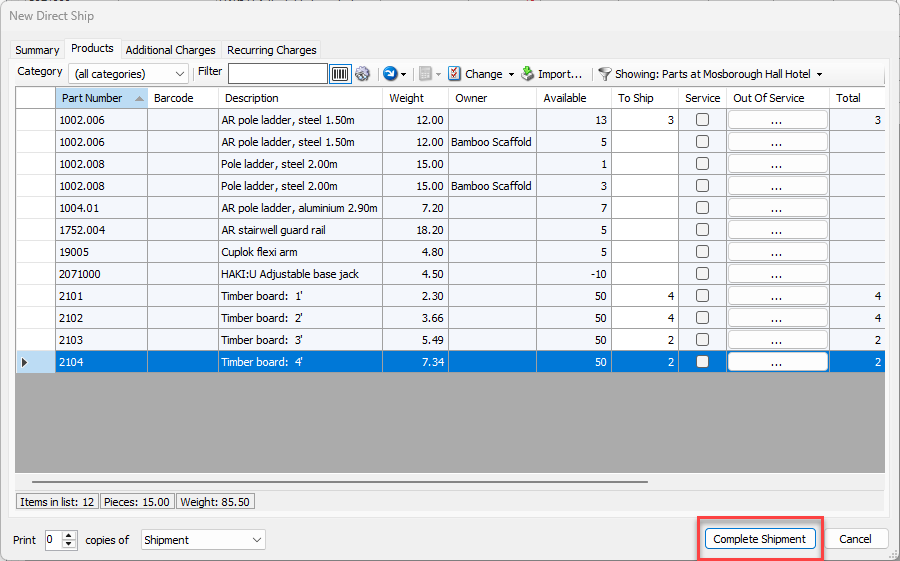
Using a Barcode scanner, you can scan parts to complete the To Ship column of a Shipment. The scanner will read the barcode of a part, and for each scan, the To Ship column will populate.
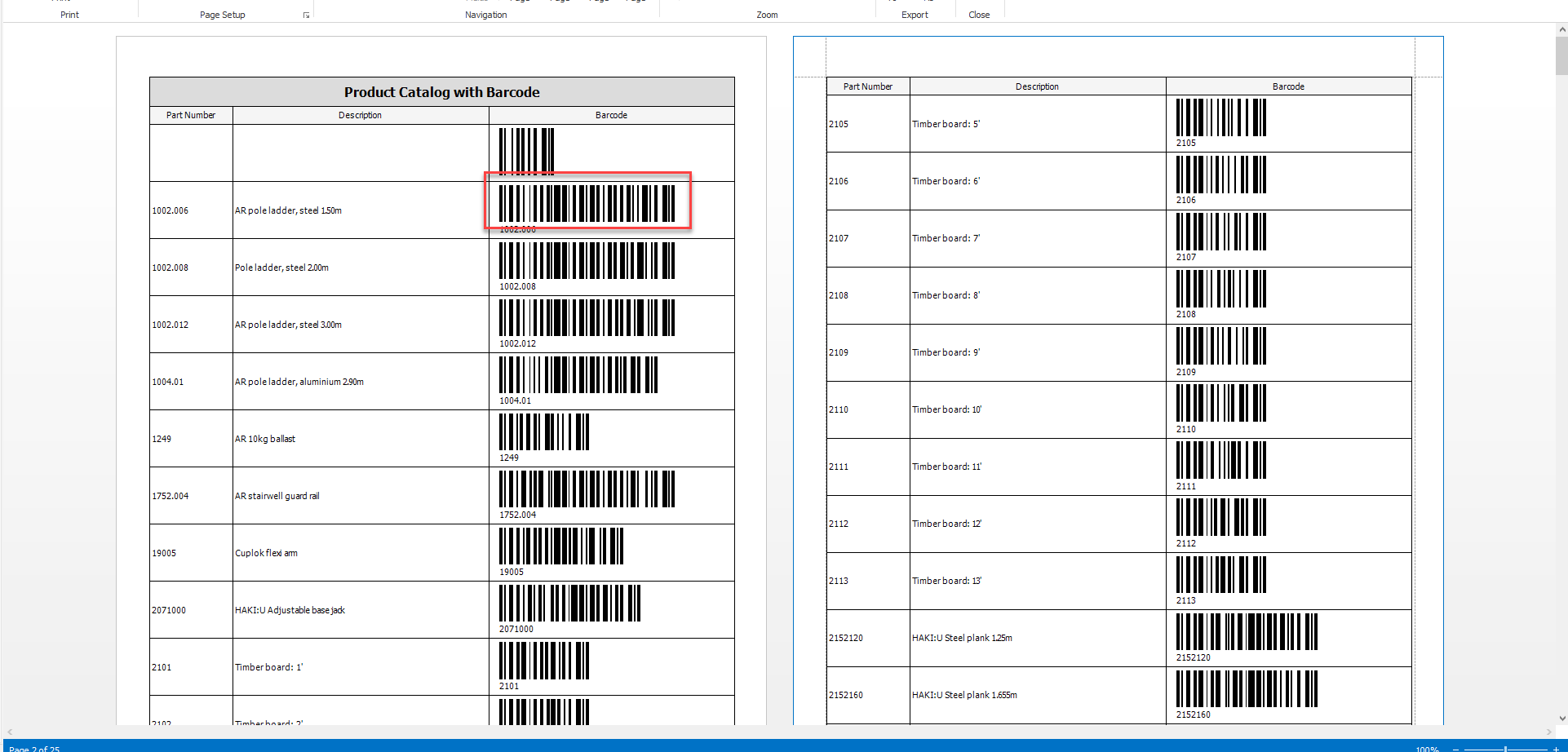
To generate barcodes for products, please see Products with Barcodes
You will need to connect your barcode to your laptop using the wire provided with the scanner, and you’ll need the printed bar codes.
To scan parts into a Shipment
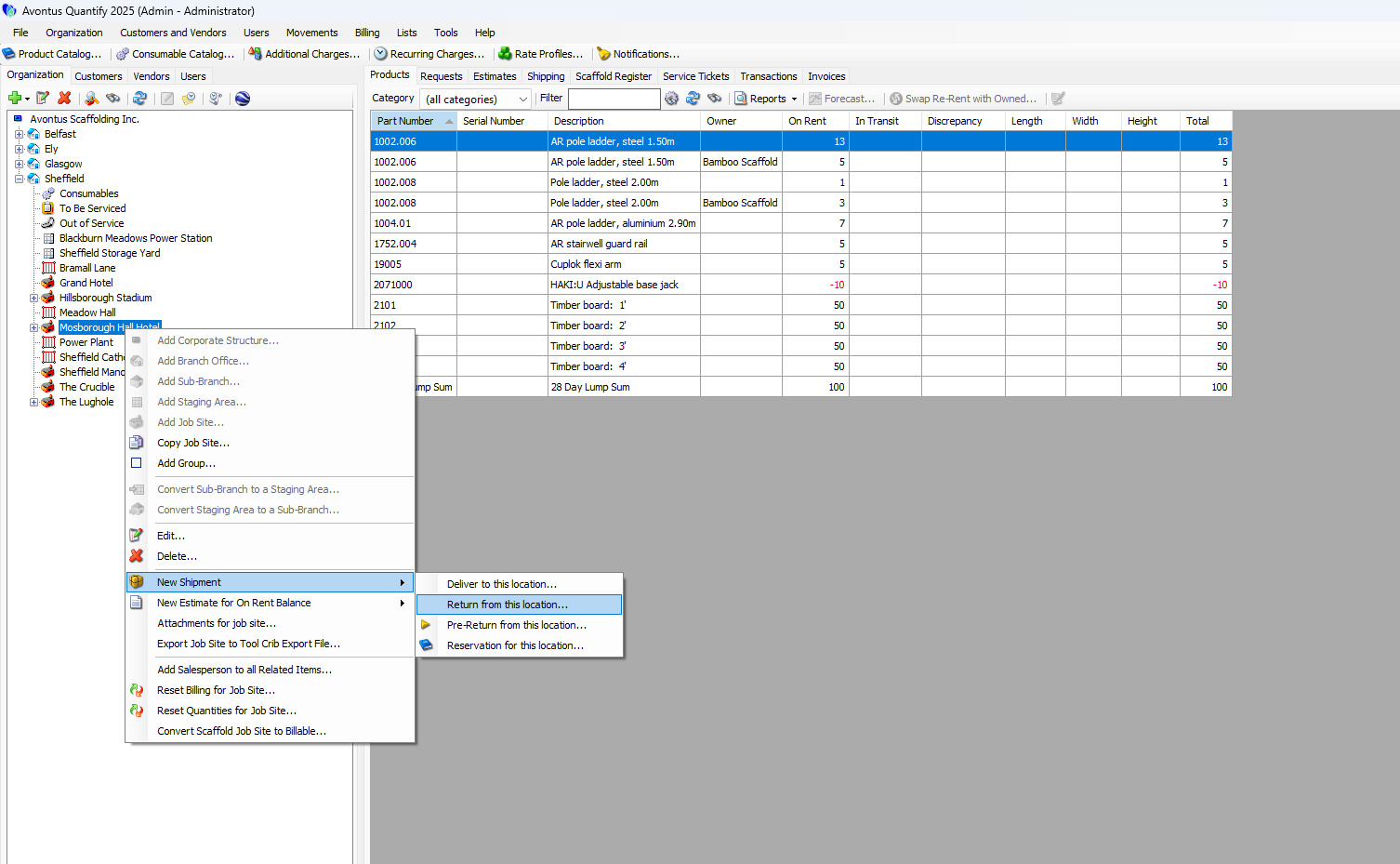
Launch a Shipment
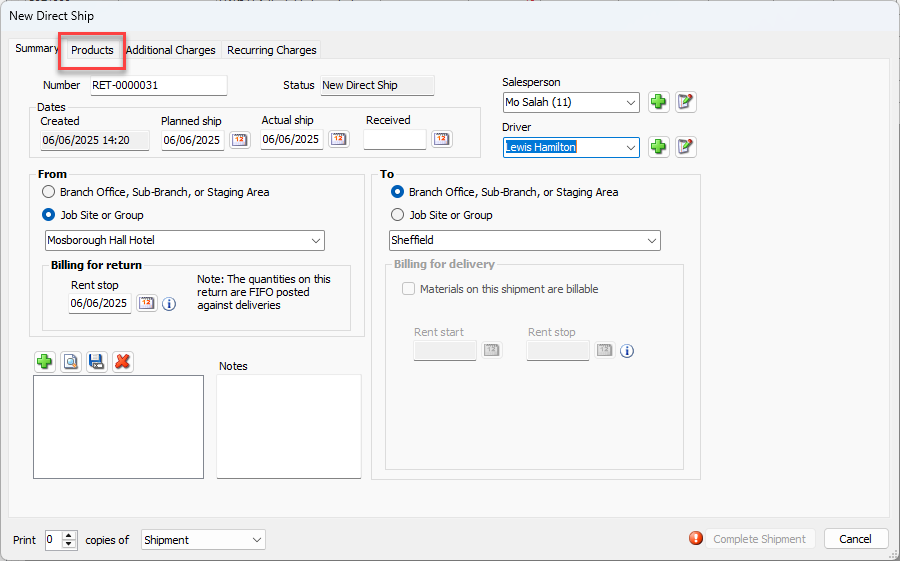
Complete the Summary page, including the mandatory fields.
Select Products
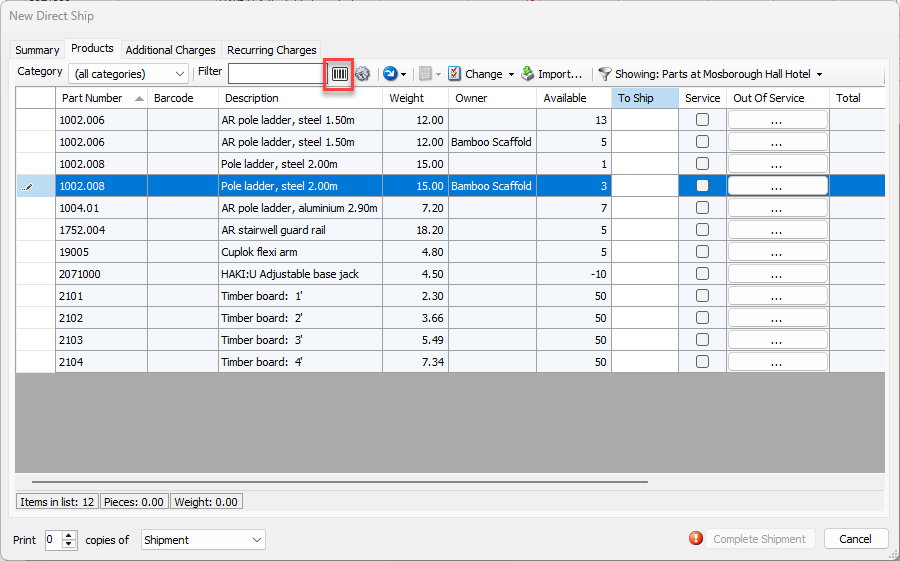
Click the barcode icon - This will toggle to the barcode mode. Click it again to exit barcode mode.
 5. Scan the barcode of the relevant parts - we will scan some timber boards and 1.50m steel pole ladder
As you scan each part, the To Ship column will be populated by the scanned part.
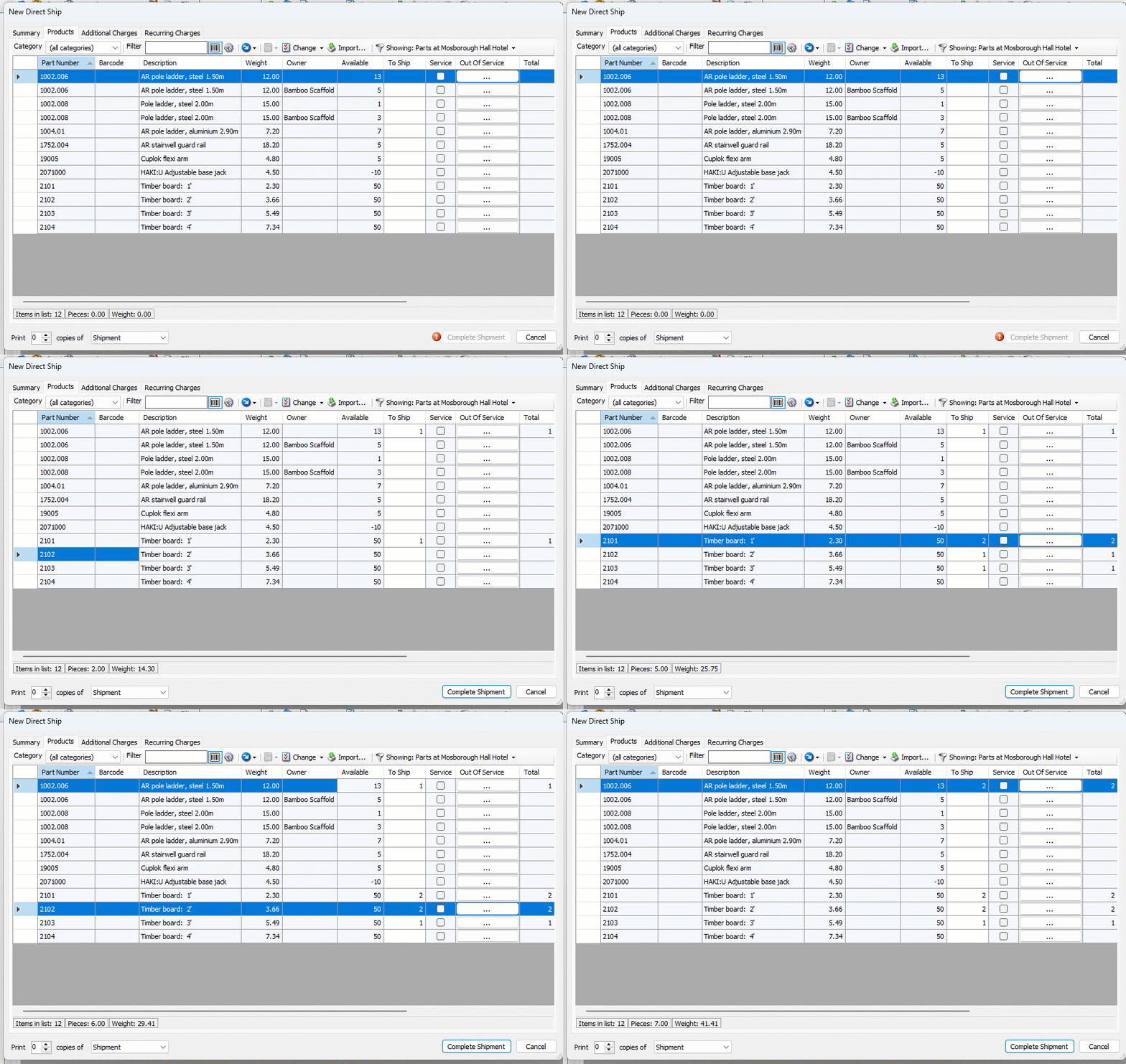
When all parts have been scanned, complete the Additional Charges and Recurring Charges tabs, or click Complete Shipment.