Quantify enables you to create and use calculators that determine rent or sell prices for use in Rate Profiles, the means through which you apply rental rates charged for Products and Consumables.
Creating a Rent Price Calculator
Quantify enables you to quickly add a new rent Price Calculator. Before you begin, make sure you have the following information:
Whether the rate used will be cost or list
Whether the price calculation will use percentage of base rent, price/area (W x H) or price/volume (L x W x H) and its amount
A description of the new calculator
To create a rent Price Calculator:
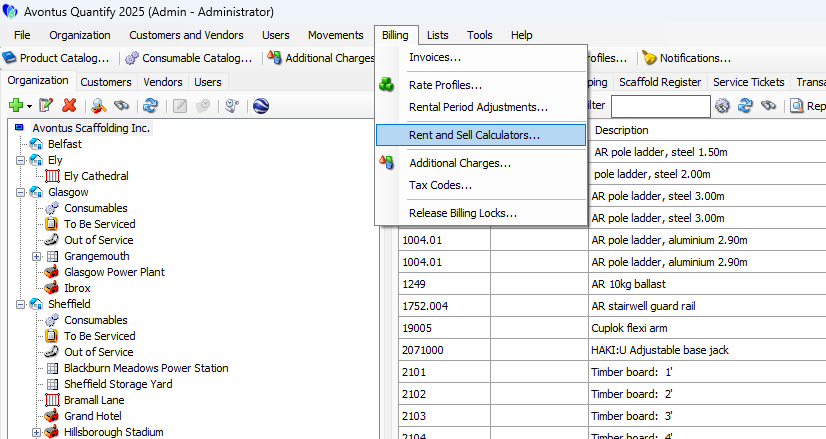
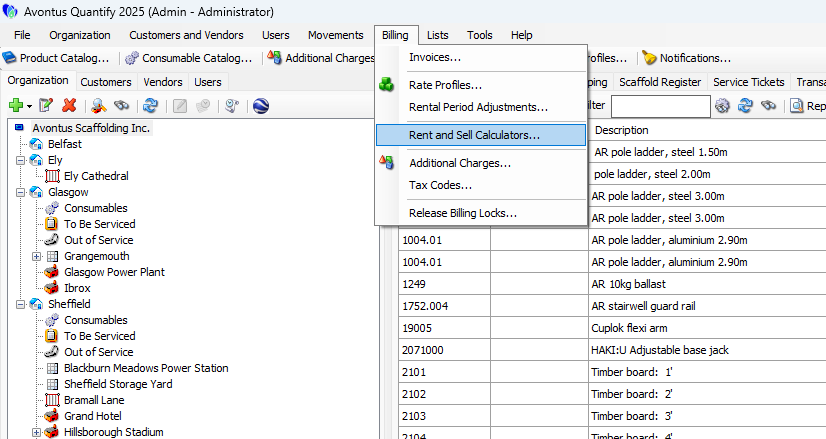
Click the Billing menu and select Rent and Sell Calculators.
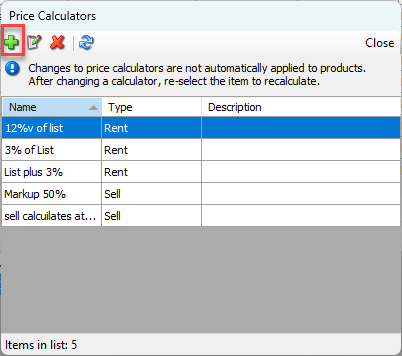
The Price Calculators dialog appears.Click the Add price calculator button.
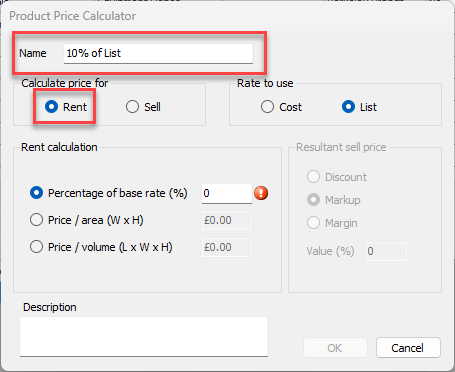
The Product Price Calculator dialog appears.Click in the Name text field and enter a name for the new calculator.
Click the Rent radio button.
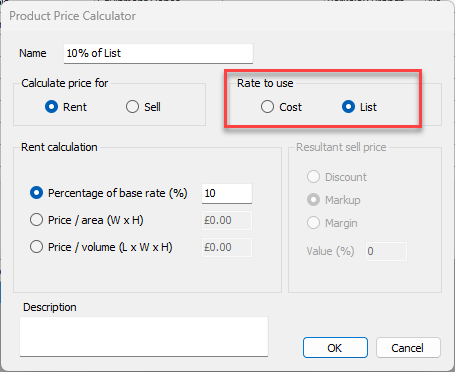
Click the appropriate Rate to use radio button: Cost or List.
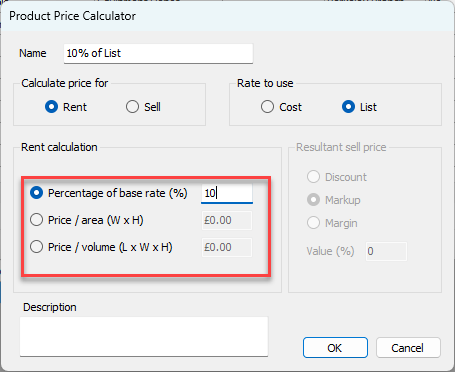
Click the appropriate Rent Calculationradio button:
Percentage of base rent (%)
Price/area (W x H)
Price/volume (L x W x H)
Click in the text field for your Rent Calculation selection and enter the appropriate amount.
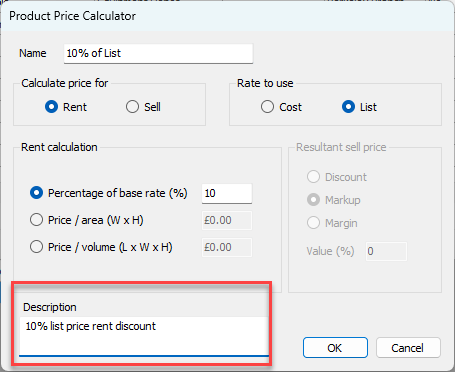
Click in the Description text field and enter a short description of the new calculator.
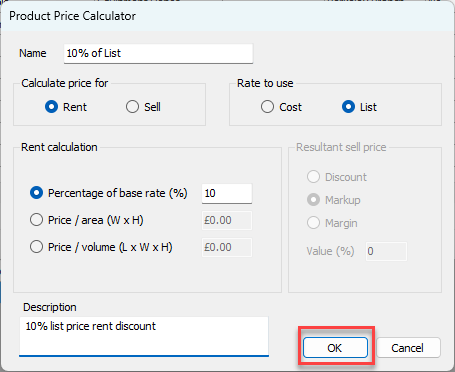
Click OK.
The Price Calculators dialog returns, with the new calculator in the list of calculators.
Creating a Sell Price Calculator
Quantify enables you to quickly add a new sell Price Calculator. Before you begin, make sure you have the following information:
Whether the rate used will be cost or list
Whether the price calculation will use discount, markup or margin and its amount
A description of the new calculator
To create a sell Price Calculator:
Click the Billing menu and select Rent and Sell Calculators.
The Price Calculators dialog appears.Click the Add price calculator button.
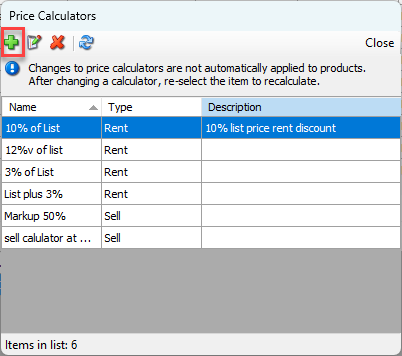
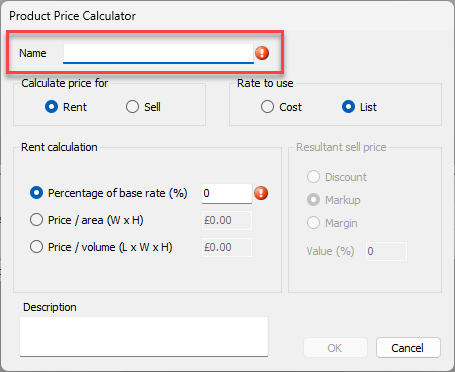
The Product Price Calculator dialog appears.Click in the Name text field and enter a name for the new calculator.
Click the Sell radio button.
.gif)
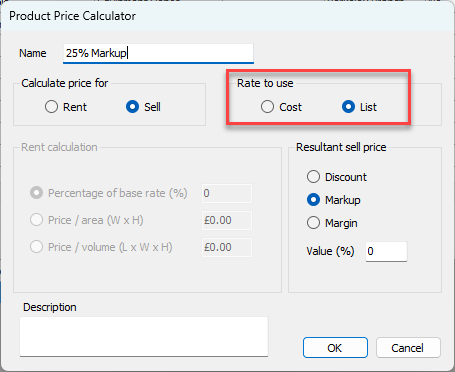
Click the appropriate Rate to use radio button: Cost or List.
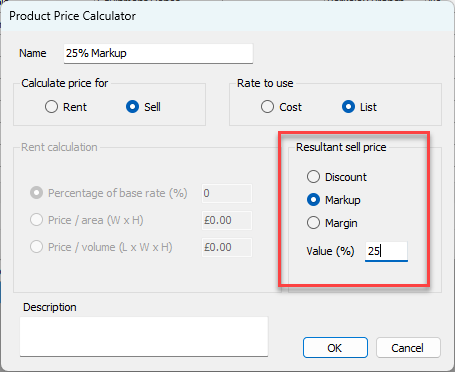
Click the appropriate Resultant sell price radio button:
Discount
Markup
Margin
Click in the Value (%) text field and enter the appropriate percent.
Click in the Description text field and enter a short description of the new calculator.
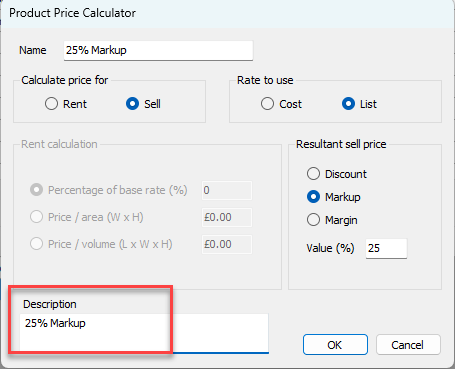
Click OK.
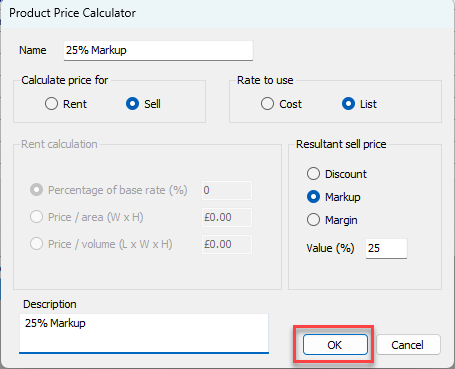
The Price Calculators dialog returns, with the new calculator in the list of calculators.
Deleting a Price Calculator
Quantify enables you to delete a Price Calculator with just a few mouse clicks.
To delete a Price Calculator:
Click the Billing menu and select Rent and Sell Calculators.
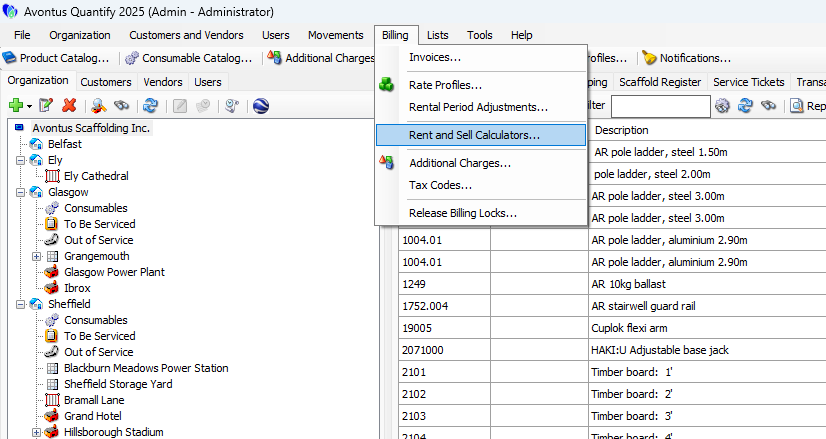
The Price Calculators dialog appears.Click the calculator you want to delete, then click the Delete selected price calculator button (
 ).
).
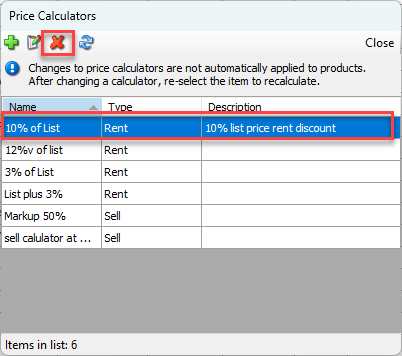
A confirmation dialog appears.Click Yes.
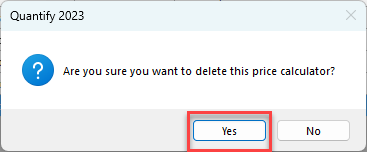
The Price Calculators dialog returns, minus the calculator in the list of calculators.