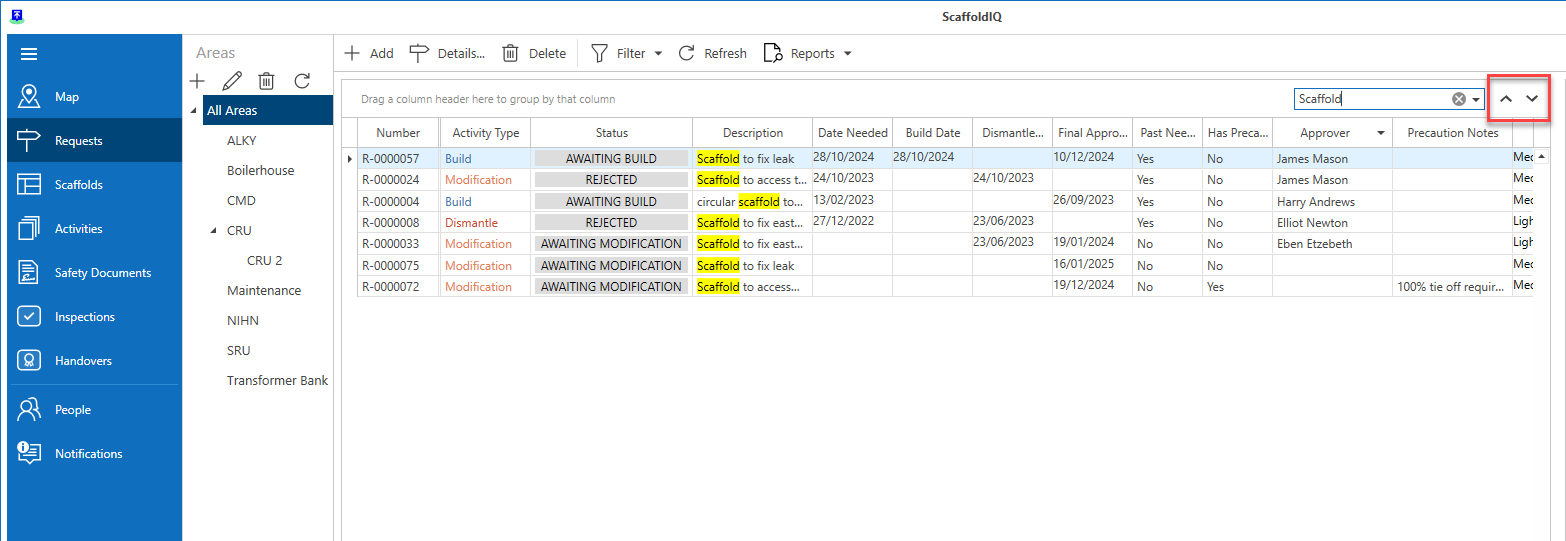
The Requests screen provides an overview of all requests in the database. The Request screen allows for the monitoring of all requests on your job site where you can view the details of that request and move the request along the approval process. Creating a request is the first step in erecting a scaffold.
There are three types of requests:
Build- A request to erect a new scaffold.
Modify- A request to modify a standing scaffold.
Dismantle- A request to dismantle a standing scaffold.
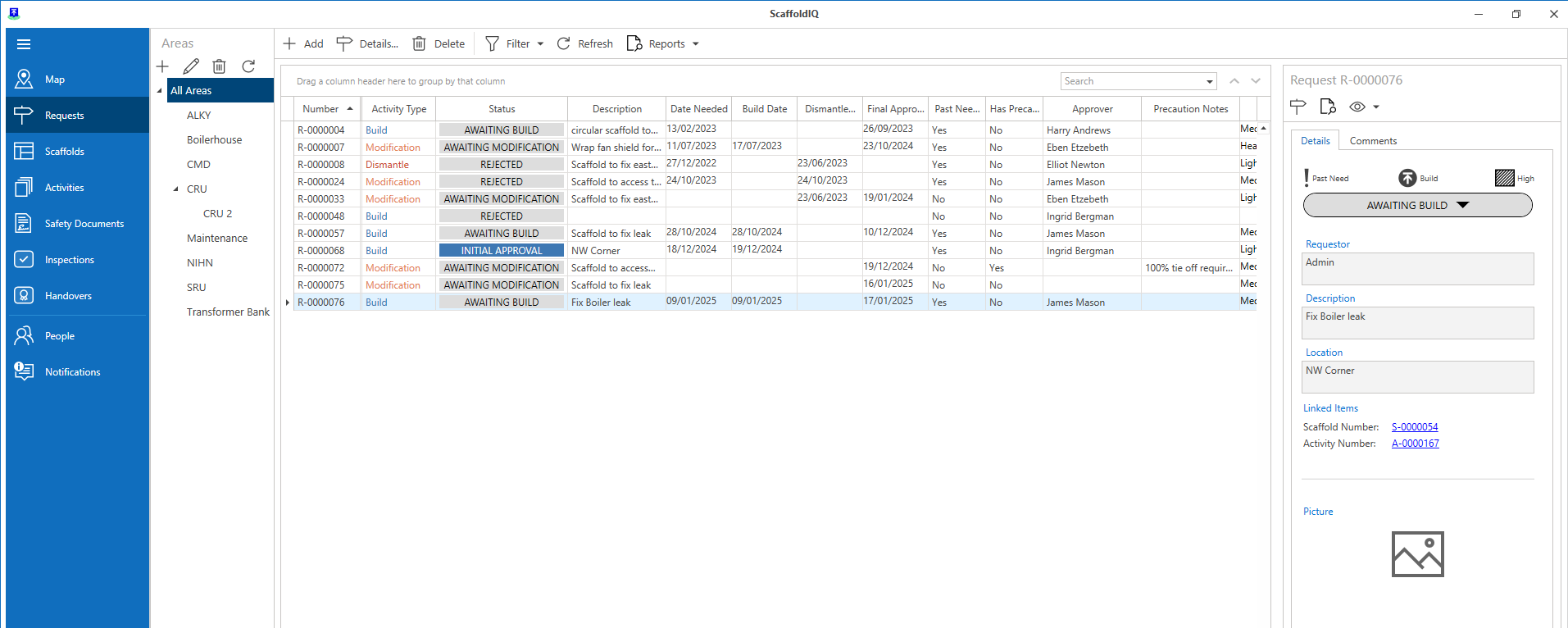
Note: A Request's ID will be prefixed with an R.

The request's details are displayed in a table where you can find the status of the request, its priority, and which user made the original request. The type of data displayed within the table can be modified by selecting to show or hide specific columns by selecting Show Column Chooser.
Double-clicking on a row will display the Request Details dialog box where you can view more details for the selected request and modify the request’s details.
Add
Click this button to be taken to the Map screen to add a request.

For more information on adding a request, please visit the Adding a Scaffold/Request guide.
Details
View the Request Details.

For more information on Request Details, please visit the Request Details section.
Delete
Delete the selected request.

Filter
Filter the Requests to display in the table

Refresh
Refresh the request table.

Reports
Run and view a series of Reports related to the Requests
For more information please see Viewing a Report
Filter
When you hover the cursor over a column heading, a small key-like icon will appear, which will allow you to filter on that column.
For instance, you can filter results, so the table only displays results where the Approver is James Mason.
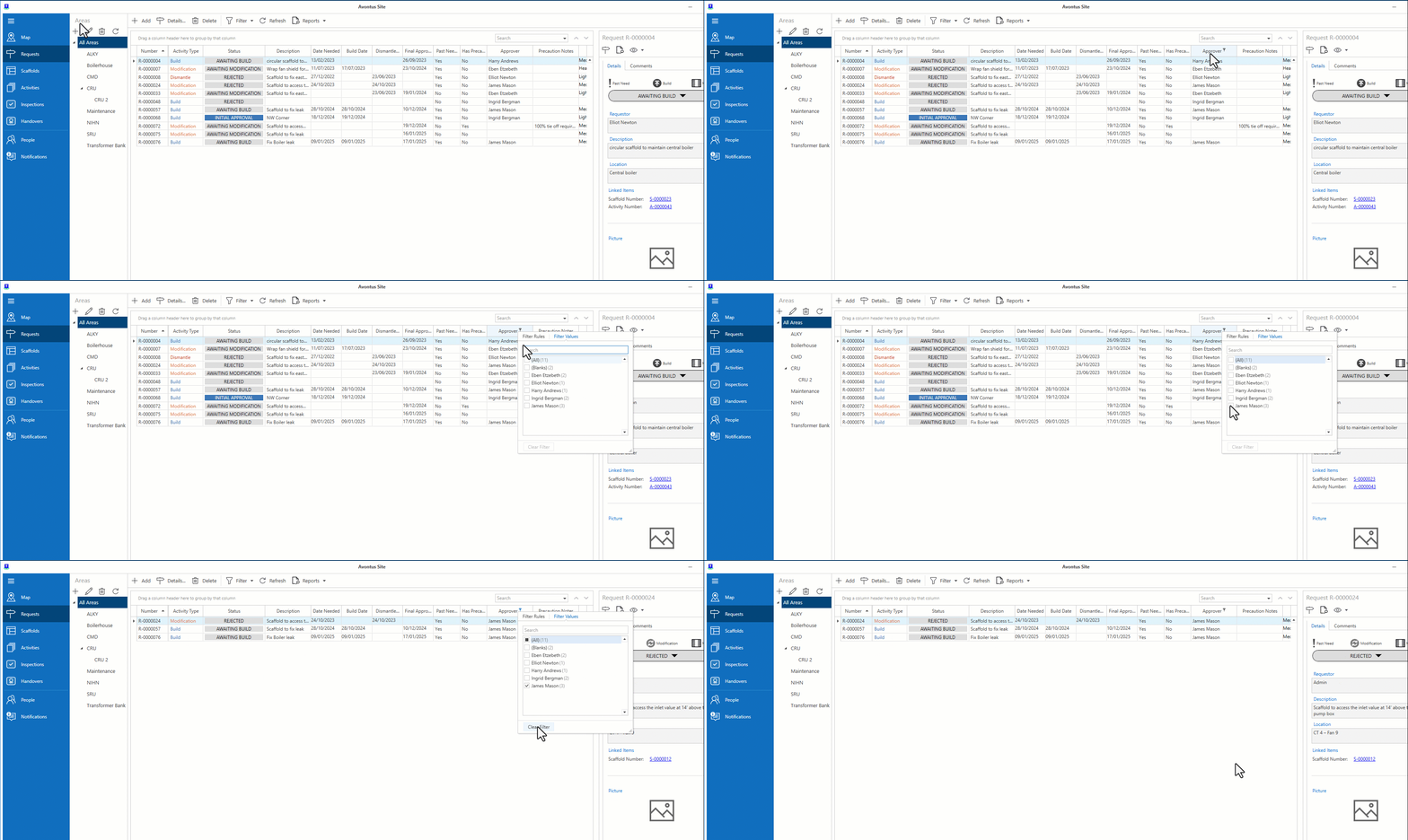
For more information, please view the Working with Filters guide.
Searching
The search box can be used to filter content to a specific word or phrase.
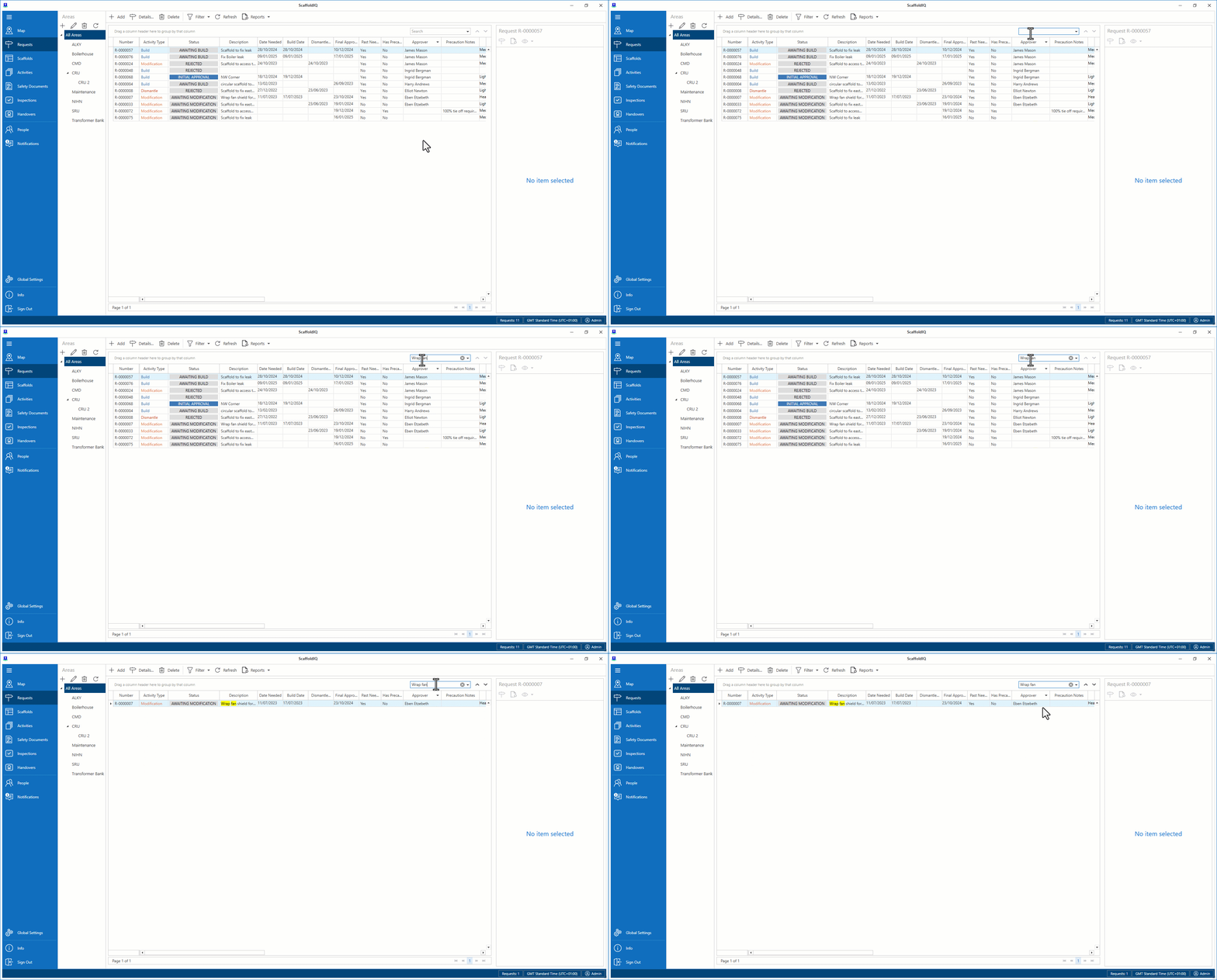
Use the chevron buttons to cycle through the displayed content.
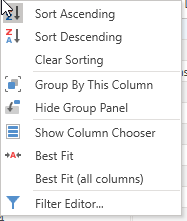
Left-click on the column to switch between ascending and descending order of that column. Right-click on the column to reveal more options, including:
Group by column.
Hide/show group column.
Show column chooser.
Best Fit.
Best Fit (all columns).
Filter Editor.
Request Table
The request table contains the following columns:
Column Heading | Purpose |
|---|---|
Number | The ID number of the request. |
Activity Type | The activity type of the request (build, dismantle, modify). |
Status | The status of the request. |
Description | Text explaining the purpose of the request. |
Date Needed | The date the request is required to be completed. |
Date Created | The date the request was created. |
Dismantle Date | The date the requested scaffold is due for dismantle. |
Has Precautions | Indicates if there are any precautions to take when erecting the scaffold. |
Precaution Notes | Explains what the precaution is. |
Location | The location where the requested scaffold is to be erected. |
Requestor | Who made the request. |
Priority | The level of importance of the request. |
Approver | The request approver. |
End User | The end-user. |
Assigned to | Who the request is assigned to. |
Contractor | The contracting company erecting the scaffold. |
Area | The area assigned to the request. |
Project | The project assigned to the request. |
Order | The order number. |
Load Rating | Indicates how much load the Scaffold will endure. |
Length | Length of the requested scaffold. |
Width | Width of the requested scaffold. |
Height | Height of the requested scaffold. |
Legs | The number of legs on the requested scaffold. |
Decks | Number of decks. |
Base Elevation | The base elevation. |
Hours | Estimated hours work required to erect the scaffold. |
Weight | The weight of the requested scaffold. |
Pieces | Number of pieces required to erect the scaffold. |
Volume | The volume of the planned scaffold. |
Plan Area | The plan area size. |
Deck Area | The deck area size. |