NOTE: The features mentioned in these articles are only available in the Industrial Edition of Quantify.
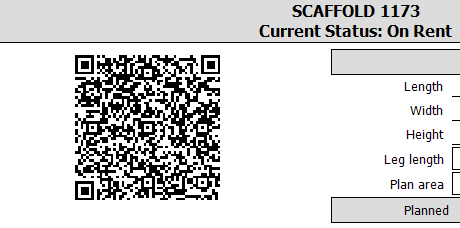
You can print QR code labels and attach them to scaffold tags in the field. Anyone in the field can use any QR code reader on a smart phone to scan and view the details of the tag. The QR code is on the Scaffold Tag report and Label report (to print many at once).
Quantify enables you to print QR code labels on a DYMO LabelWriter printer (models 400, 450 or SE450). Use this link to get more information on DYMO LabelWriter printers: http://sites.DYMO.com/pages/Home.aspx. Quantify currently supports Dymo LabelWriter software version 8.7.
Note: Quantify accommodates tag names with up to 50 characters. However, QR code output will truncate tag names to 30 characters.
The image below shows a QR code as it appears on a Scaffold Tag report in Quantify:
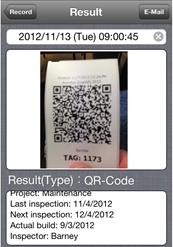
This image shows the tag information that results from scanning a QR code, as shown on a smart phone.
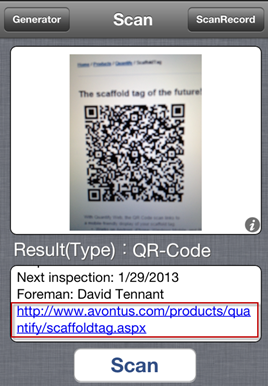
If Quantify Web is installed and you scan a QR code, the result displays a hyperlink that, when clicked, displays the tag details from Quantify Web.
The Update Location button enables Quantify Web to capture your current location, updating the latitude and longitude in the scaffold tag.
When you tap the View on Map button, Quantify Web displays the tag's location on a Google Map.