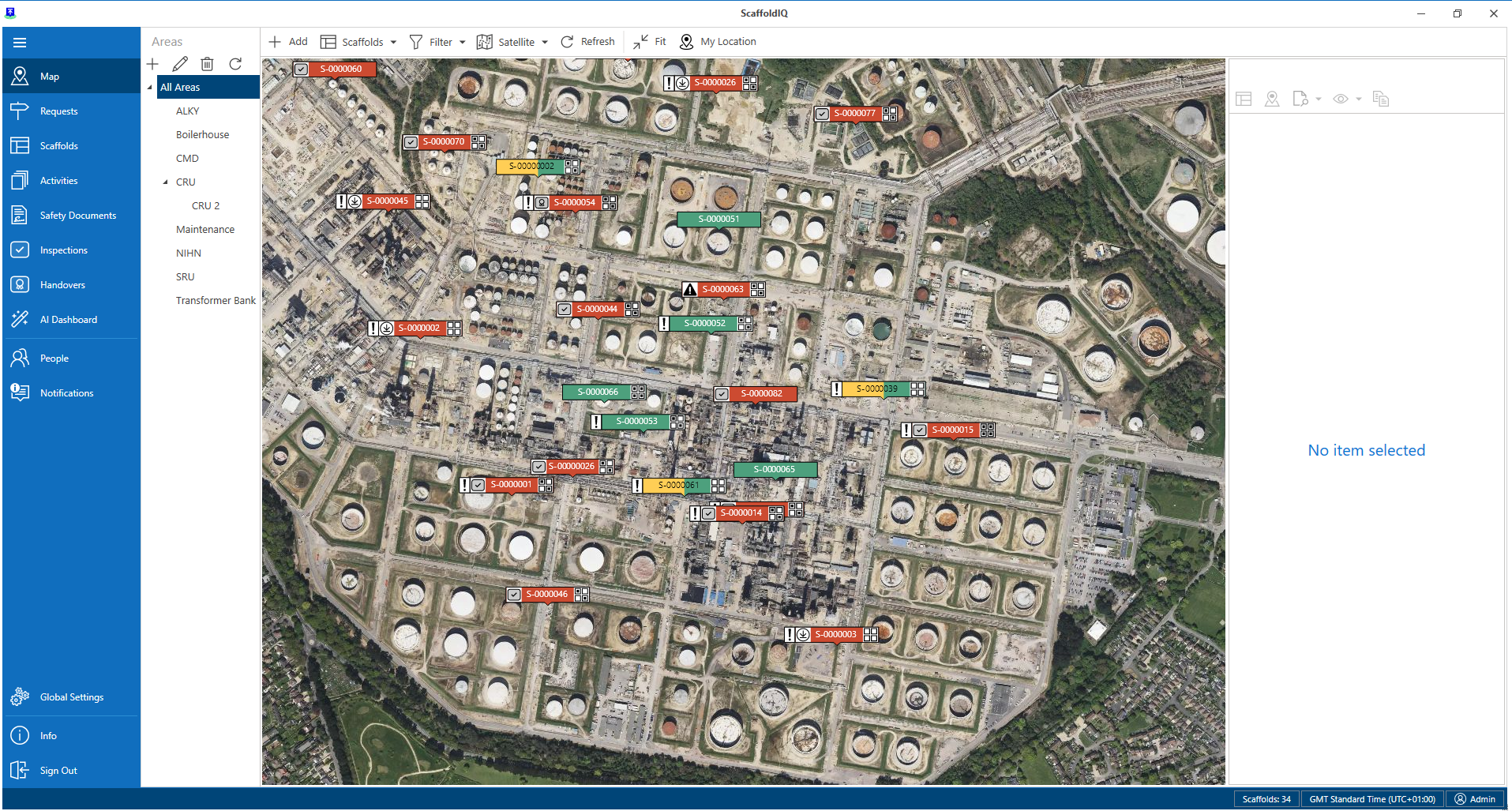
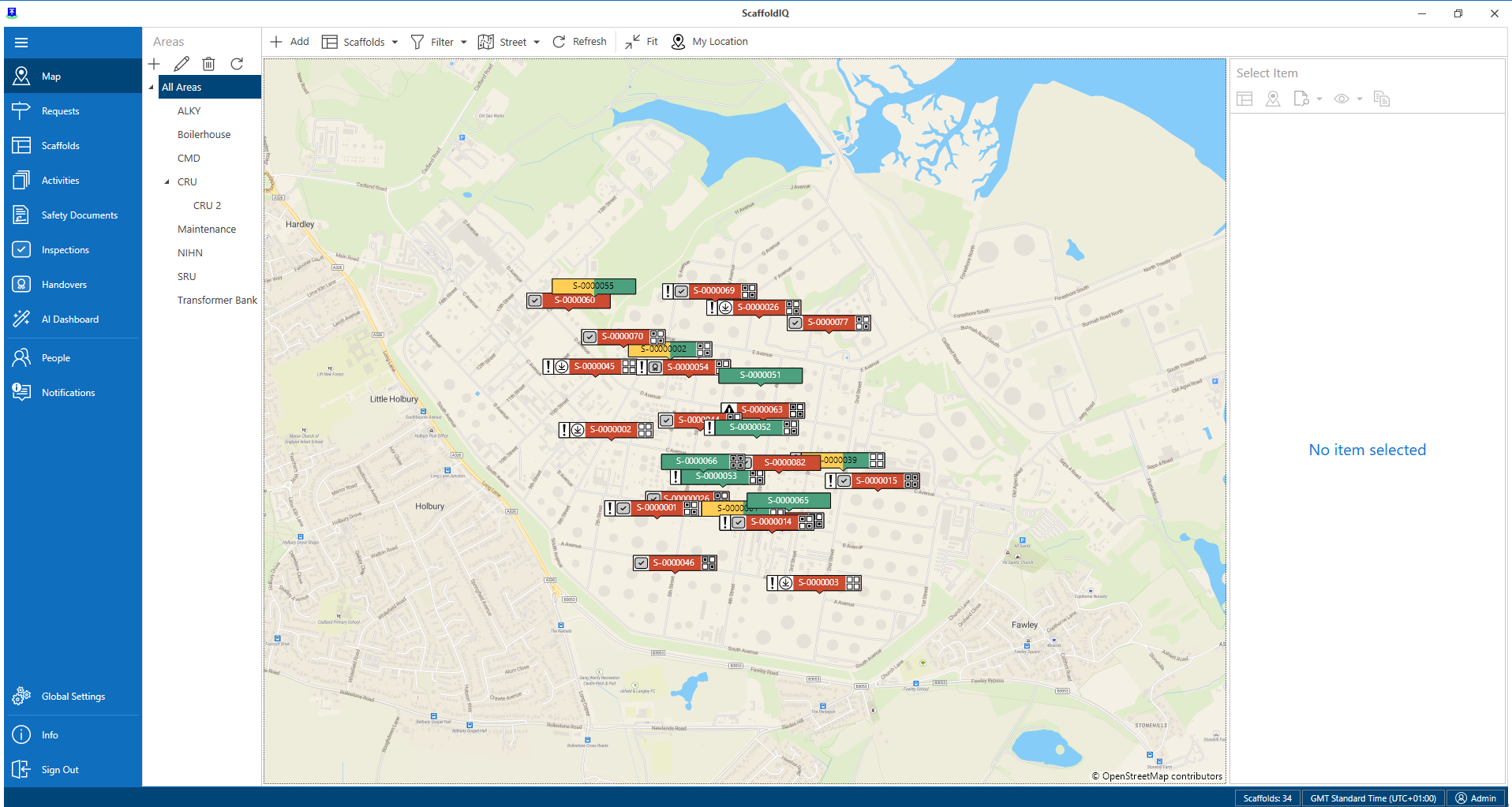
The Map screen provides a map view of your requests or scaffolds. This is particularly useful in finding the exact location of a request or scaffold on a job site. On the Map screen, requests and scaffold will be indicated by a pin and will denote the location of the request or scaffold.
Note that the Map is configured in the Settings screen. This is where you can add a Mapbox token to use satellite maps.
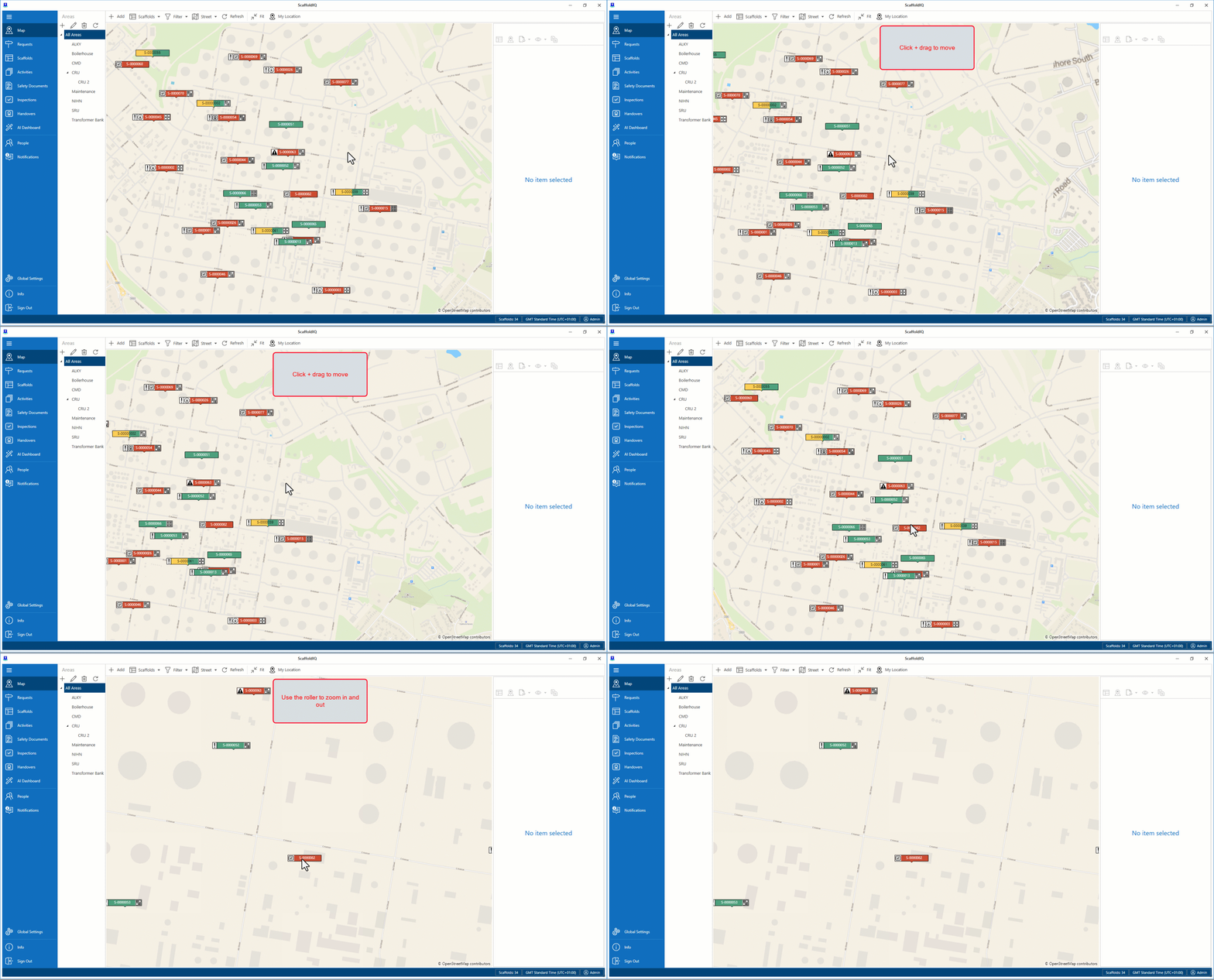
To scroll around the map, click and hold the left mouse button and move the mouse. Use the roller to zoom in and out.
Any scaffold that has been created within the system will be marked by a pin. These pins’ color will vary depending upon the status of the request or scaffold. Please see the table below for examples.
Icon | Purpose |
| This means that the scaffold has been approved but is waiting to be built. |
| This means that the scaffold is currently being built. |
| This means that the scaffold is now ready to use with precautions. |
| This means that the scaffold has been built with no precautions. |
| This means that the scaffold cannot be used. |
| This is a request and yet to approved. |
| This means that the request is rejected. |
| This means that the scaffold is awaiting handover. |
| This means that the scaffold is awaiting inspection. |
| This means that modifications are currently being made to the scaffold. |
| This means that the scaffold is currently being dismantled. |
| This means that the scaffold has been dismantled. |
| This means that the scaffold is undergoing repairs. |


Click on a pin to view details of that scaffold or request. Details for the scaffold or request will be displayed to the right of the map. Here you can see the status of the scaffold or request plus an image and a 3D model of the scaffold.
The request/scaffold map pin will also display the request type, the ID, and the priority. For more information on the Request section, please see the Request Details section.

The scaffold pin differs slightly. Please see below for details.

Viewing the Map
The scaffold map pin will also display the load ratings relevant to your geographic area. Please see below for examples for the US.
Load Icon | Load Meaning |
| Low Load Duty |
| Medium Load Duty |
| Heavy Load Duty |


Map View
The map can be viewed in two ways.
Street View
Street maps are the typical default maps that you see on applications like Google Maps and other online mapping sites. When zoomed in, they show the streets, landmarks, and individual structures.
Satellite image
A satellite image is a photographic view of the map, much like you would see on Google Earth.
You can change the map view to a satellite image map view by selecting Satellite from the Street/Satellite button.
Note: You need to add a Mapbox token to use satellite maps.