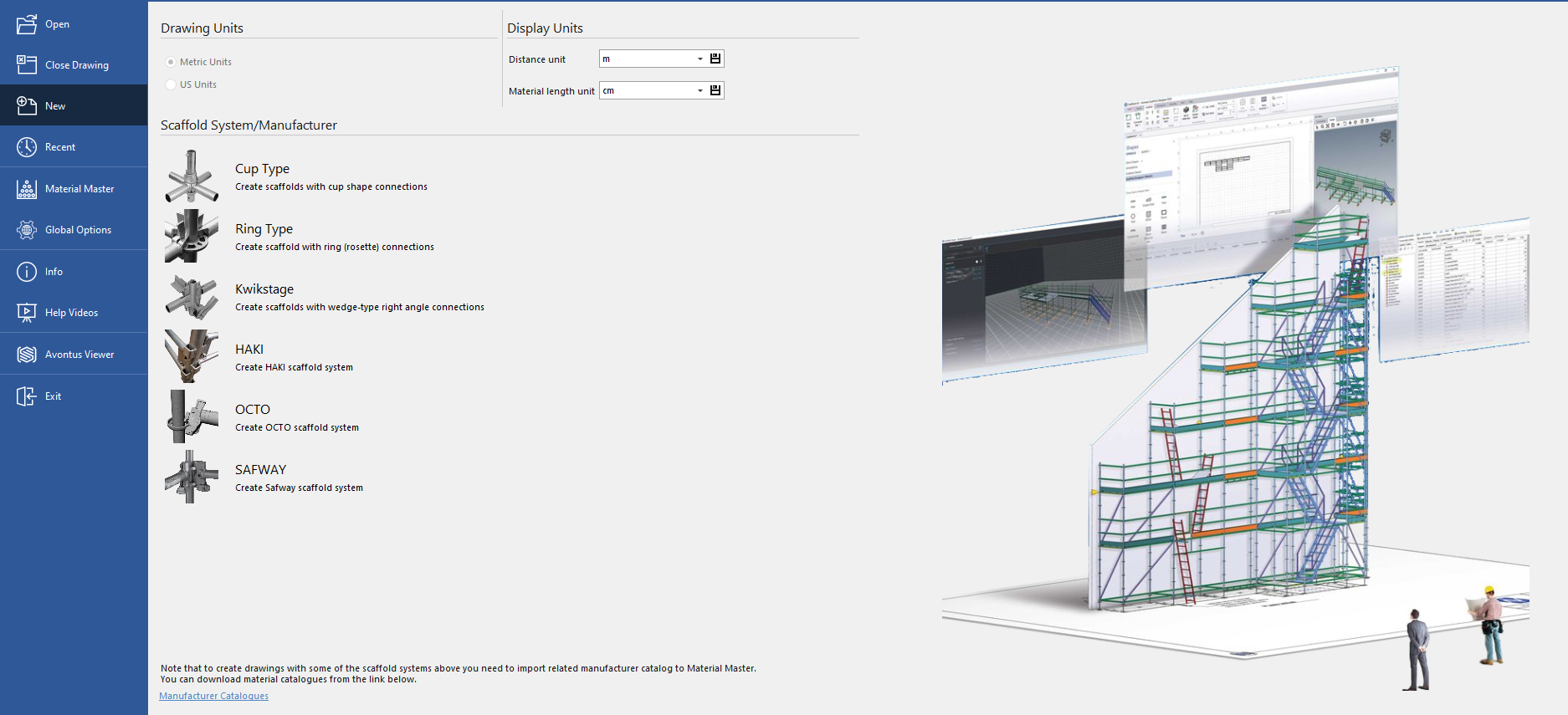
When you launch Avontus Designer, the Backstage is the first interface that appears. It is also part of the Start tab. The descriptions below provide an overview of what you will find in this interface.
Open
When you click Open , the Select file name to open dialog appears.
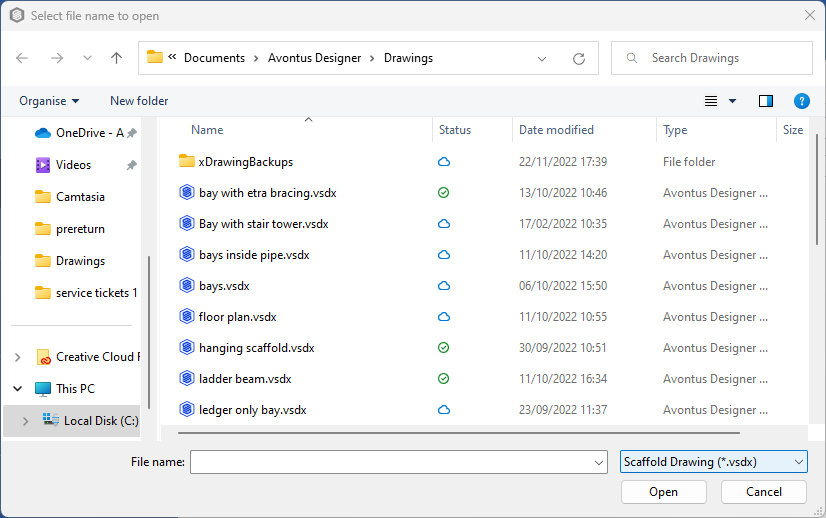
Use it to locate and open saved Avontus Designer files, which will have a file extension of .vsdx.
Close Drawing
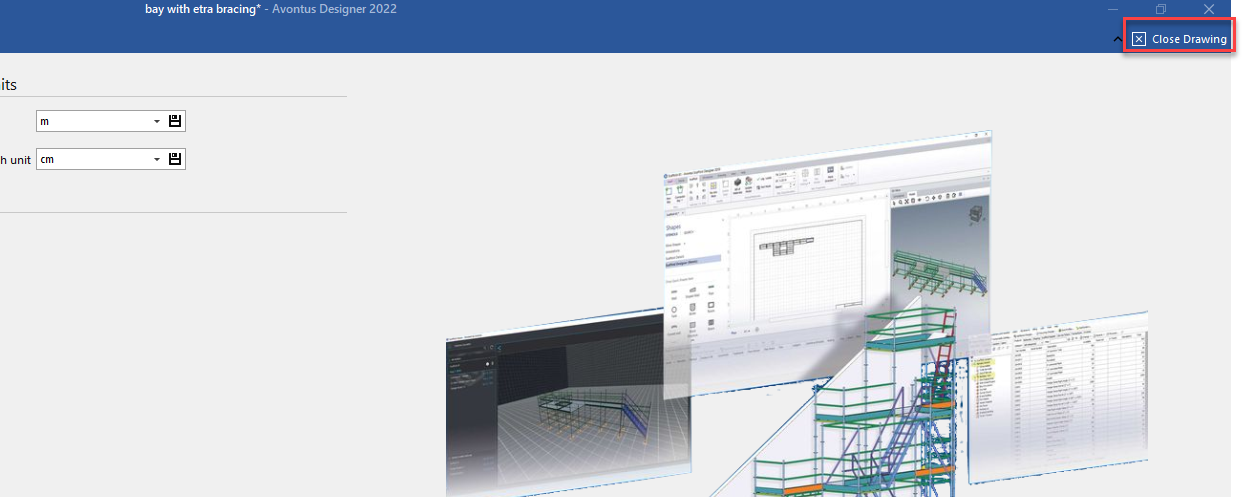
When you click Close Drawing  , Avontus Designer closes the currently open drawing. If you have updated or changed a drawing since the last time it was saved, Avontus Designer will prompt you to save the drawing before closing it.
Note: You can also close the drawing in the top-right
New
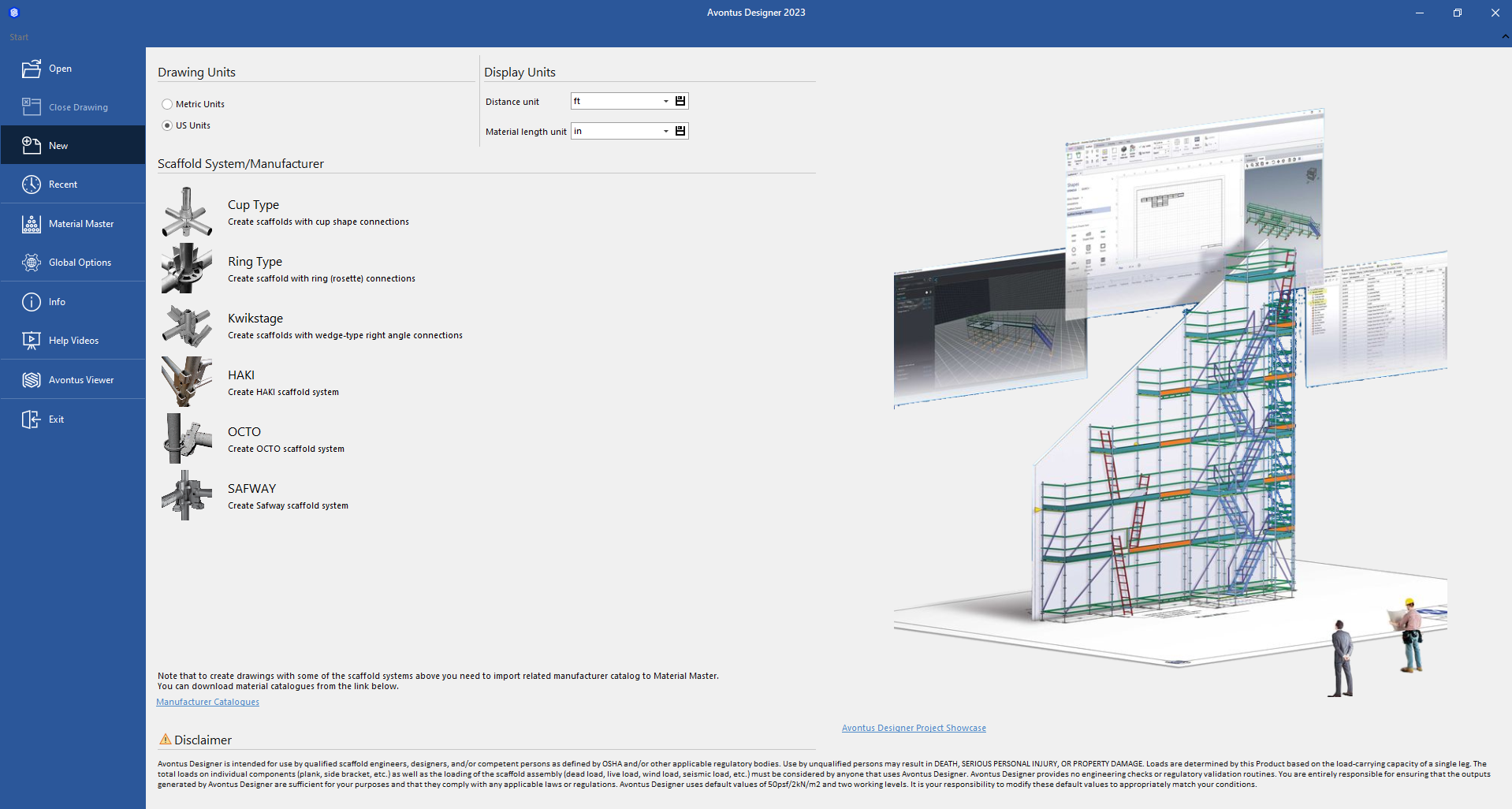
When you click New  , Avontus Designer enables you to create a new, blank drawing. However, you must first determine two characteristics of the new drawing: the scaffold type and the drawing units.
Recent
When you click Recent  , Avontus Designer displays a list of any Avontus Designer drawings and drawing locations recently used on your computer.
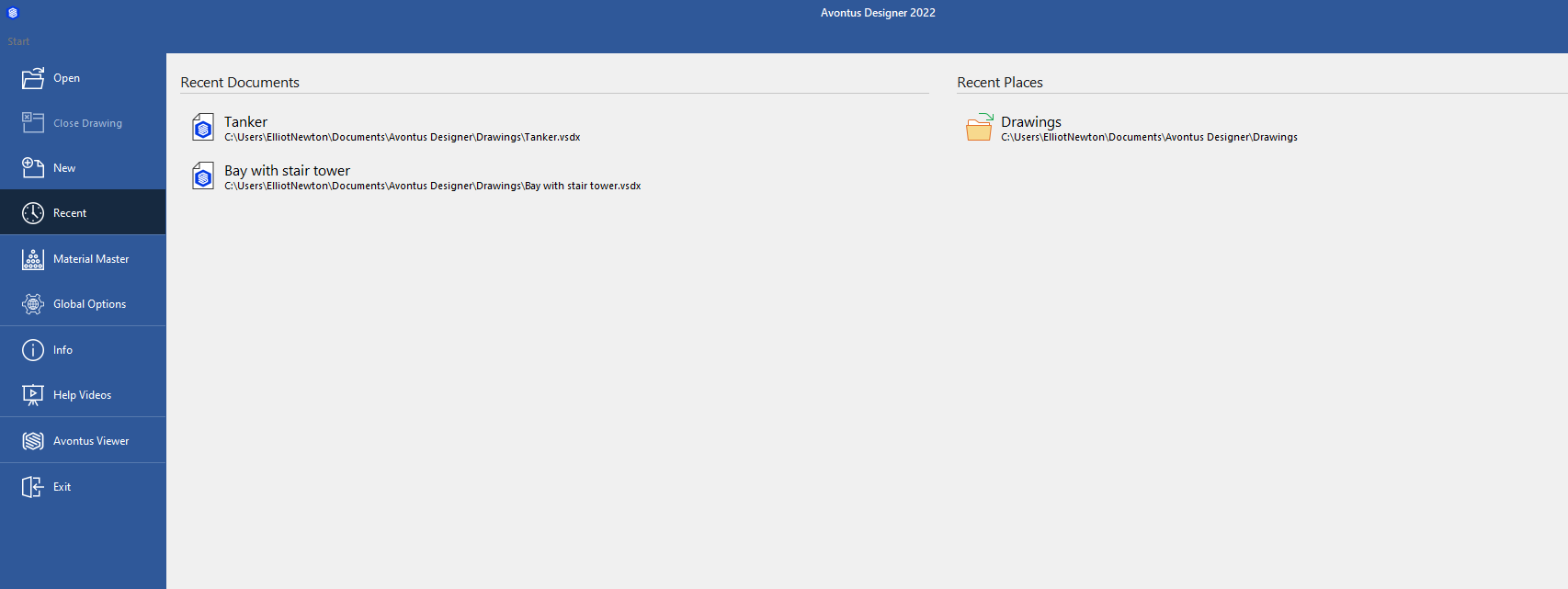
This enables you to select a drawing and open it, or select a drawing location and open an existing drawing from there.
Material Master
When you click Material Master,  Avontus Designer launches the Material Master, the core parts list used for drawings (the Bill of Materials) and scaffold calculations in Avontus Designer. For more information about the Material Master, refer to Working with the Material Master.
Global Options
When you click Global Options  the Avontus Designer Options dialog appears, in which you set global options for Avontus Designer.
Info
When you click Info , Avontus Designer gives you access to the following tools:
| Activation Manager | Click this option to manage Avontus Designer activation. For more information about Activation, refer to Activating Avontus Designer. |
| Automatic Updates | Click this option to check for Avontus Designer updates. |
| Contact Us | Click this option send an email addressed to Avontus Software. |
| Documentation | Click this option to access the Avontus Designer online help home page, via your default web browser. |
| Help Videos | Click this option to view Avontus Designer help videos in the Avontus Video Player (refer to the next section below). |
Working with Help Videos
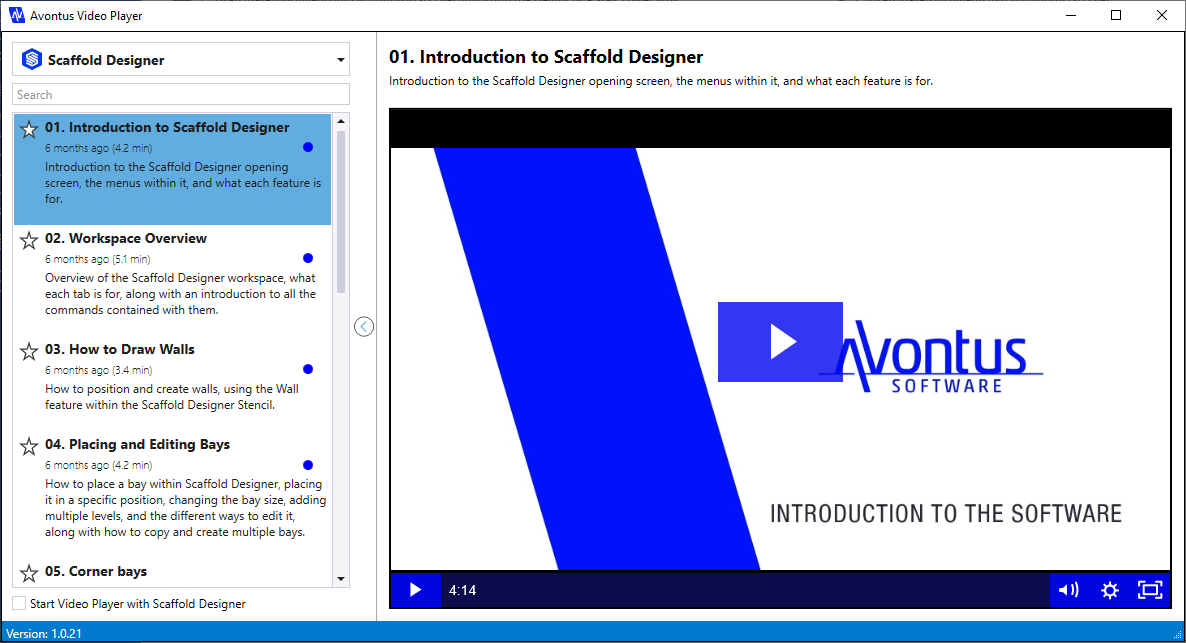
When you click Help Videos  , the Avontus Video Player appears. It provides you with video lessons in many of Avontus Designer's features.
Avontus Viewer Documentation
If you have Avontus Viewer installed on your machine, click Avontus Viewer  to launch it from the Backstage.
Select Scaffold System Area
The Select Scaffold System section of the Backstage enables you to determine which scaffolding system to use in a new scaffold drawing,
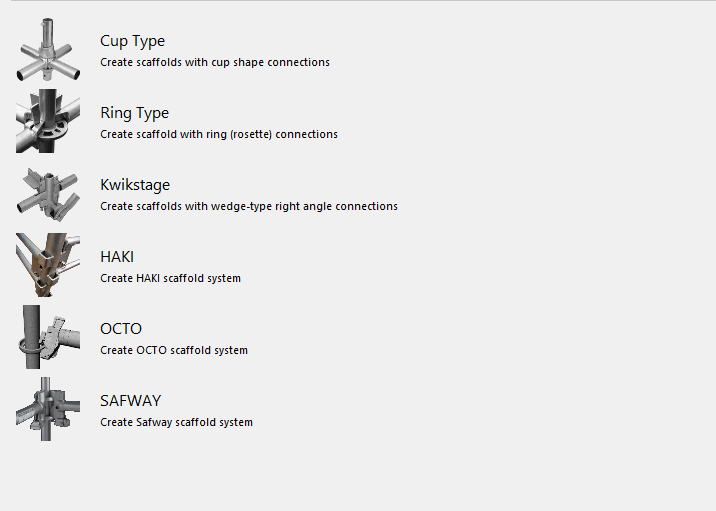
The Scaffold System you select determines what materials, options and default settings Avontus Designer will use in the new drawing. For example, If you select Ring Type, Avontus Designer will exclude any Kwikstage-only materials from the new drawing, but will include materials applicable to All scaffold materials.
Select Drawing Units Area
The Select Drawing Units section enables you to choose between Metric or US units for the scaffold bays and parts in a new scaffold drawing.
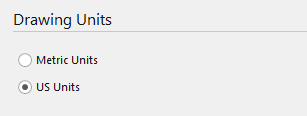
By default, US Units is selected. Click the Metric Units radio button if this will be your standard of measurement for the new drawing.
Display Units Area
The Display Units section enables you to choose the default units of measure for new drawings. The Display Units section includes dropdowns for distance and length of materials. Units determine the drawing's unit of measure for page size, scale, scaffold calculations, etc. You cannot change this characteristic after the new drawing appears.
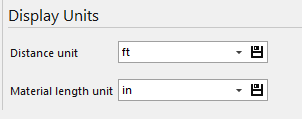
The options available in the Display Unit and Material Length Unit dropdowns are: m, cm and kg, in, ft, in and lbs. Either selection will use the same materials from the Material Master, with dimensions converted based upon this selection.