The Shapes Stencil contains all available Drawing Shapes. Adding one onto the Drawing Page is a simple click-and-drag procedure.
To add a shape to a drawing:
Locate the shape you want to add
Click and drag the new shape to the exact location you want.
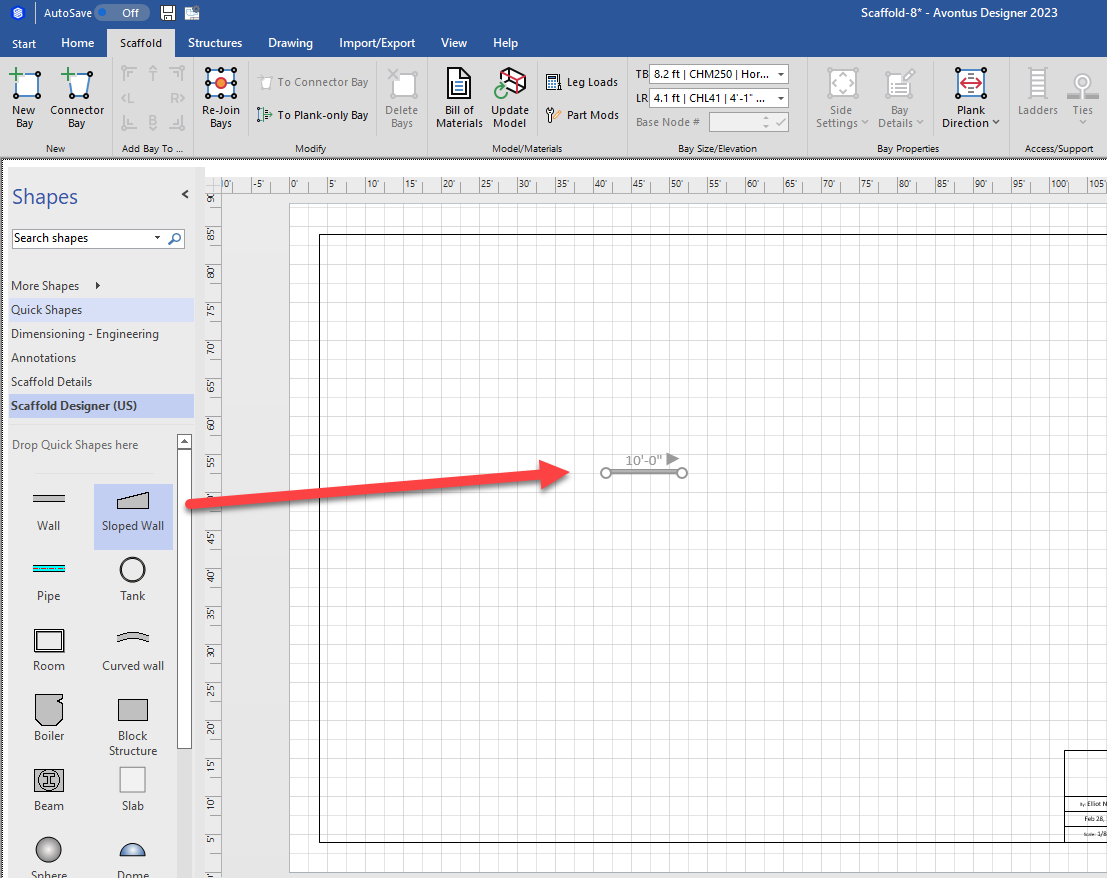
Avontus Designer adds the new shape. If the 3D window is open, Avontus Designer updates it accordingly.
Resizing a Drawing Shape
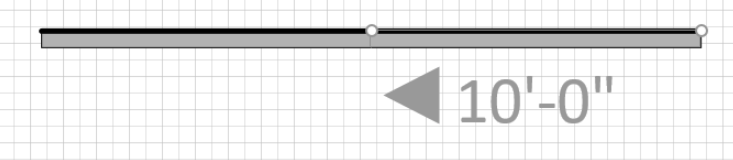
Each shape has handles that enable you to adjust its length and angle. For example:
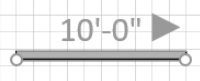
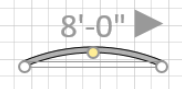
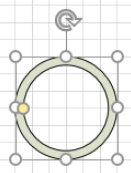
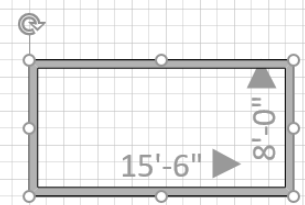
To resize a shape. click its handle and drag it in the direction you want.
.gif)
Avontus Designer adjusts the shape accordingly.
Joining/Gluing Shapes
You can join two shapes together. This is called gluing them together. Glue is a property of shapes that causes them to stay connected even when one of the shapes is moved. Visio connections stay glued when you move the shapes they're attached to. For example, when you move a wall shape that is connected to another wall, the connector adjusts to keep the two walls connected. The type of connector you use and the type of connection you use determine how the connection behaves.
Before you can glue shapes, you will need to enable the Glue option in the View tab.

To join two shapes together:
Click one of the shapes and drag it into the other.
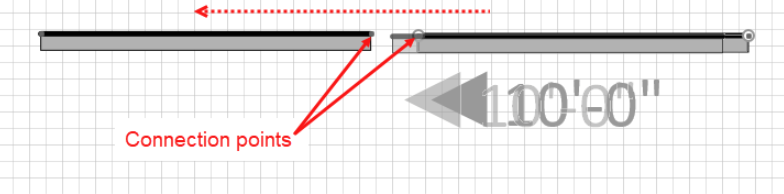
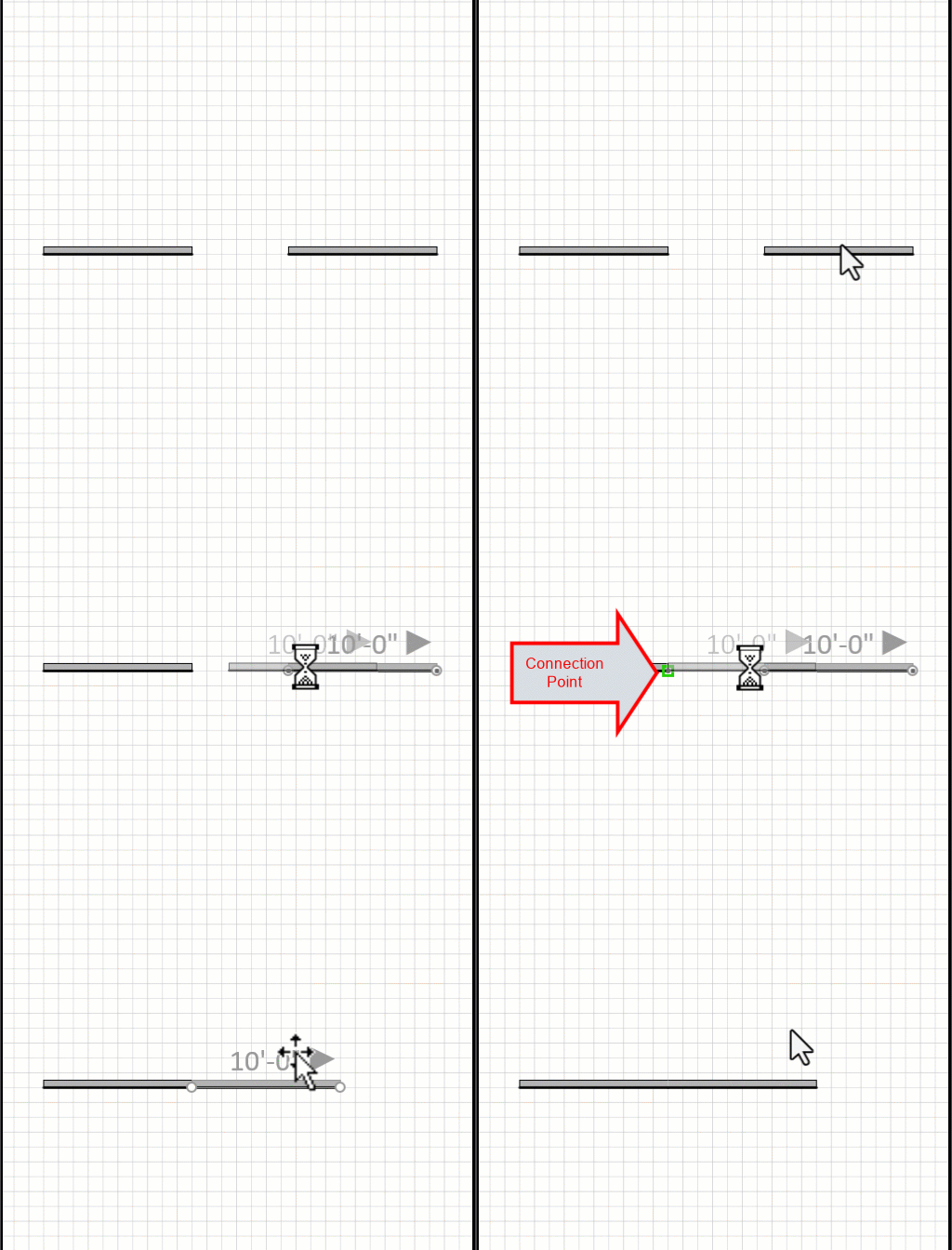
The green box that indicates you are gluing walls together appears. It is important to make sure each wall's connection points are aligned when you connect a wall to the corresponding wall's connection point.
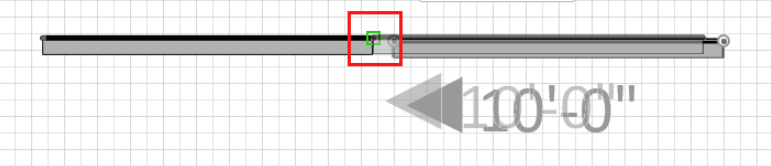
Release the mouse button.
Once you glue the walls together, the intersections automatically clean up.
You can see this in action below.