When necessary, Quantify enables you to manually adjust quantities of Product associated with a Job Site. The procedures below show you how to do that.
Note: Adjust Quantities can only be used to adjust inventory counts displayed in the Product tab for Branch Office or Sub-Branch locations.
To adjust quantities for a location:
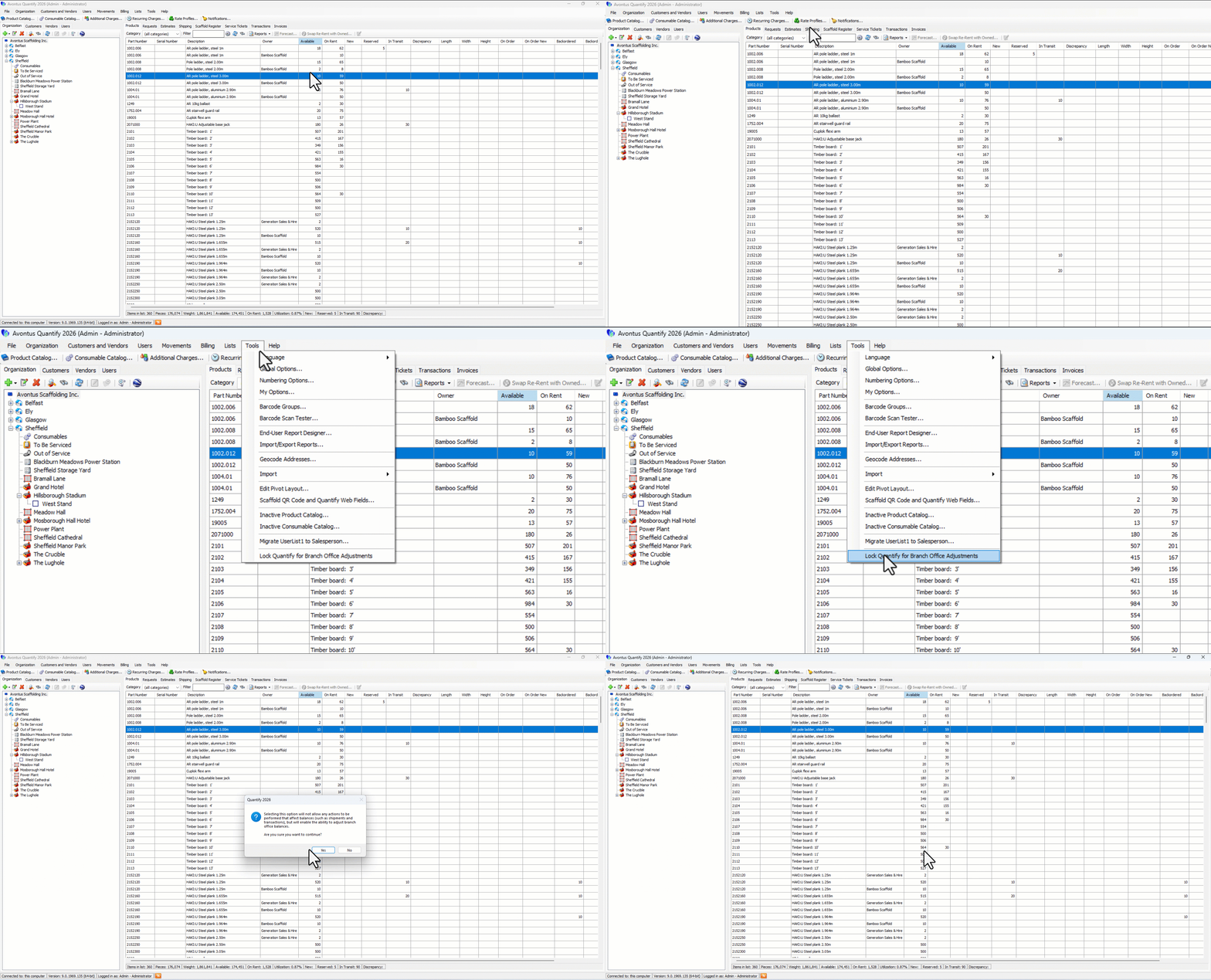
Click the Tools menu and select Lock Quantify for Branch Office Adjustments.
Note: When Quantify is locked for inventory adjustments, the entire database is locked from activities that affect inventory. This includes creation of Deliveries or returns;, editing Shipments and creating Transactions.
An Acknowledgement dialog appears.
Click Yes.
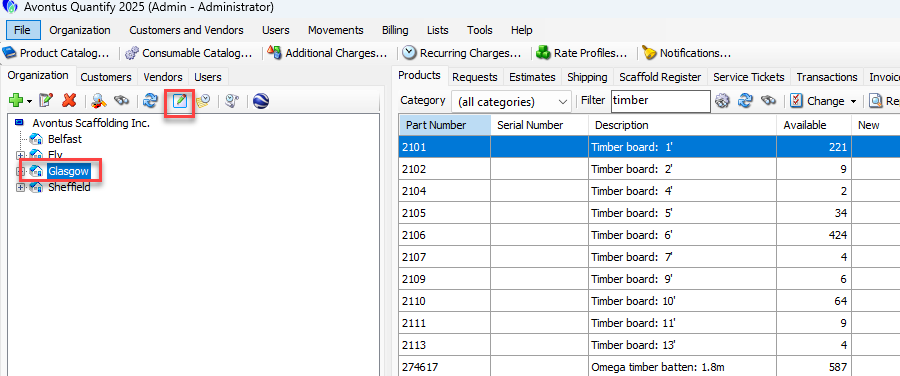
Click the appropriate Branch Office or Sub-Branch in the Organization Tree.
Click the Adjust Quantities for Selected Location button (
 ).
).
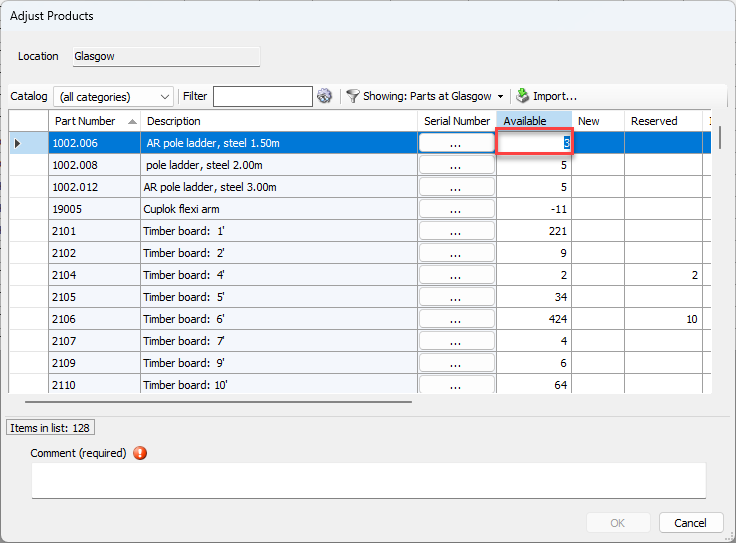
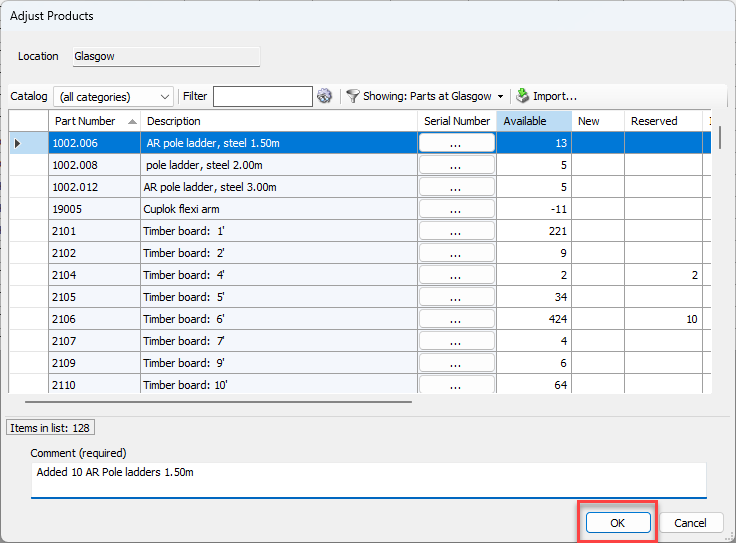
The Adjust Products dialog appears.
Locate the appropriate part(s) in the grid.
Note: The grid displays current balances. The Showing filter must be changed to All if adding inventory for a part that doesn't currently have a balance.
Click in its cell in the Available column and enter the correct available quantity.
Repeat the two steps above as many times as necessary.
Click in the Comment text field and enter a comment.
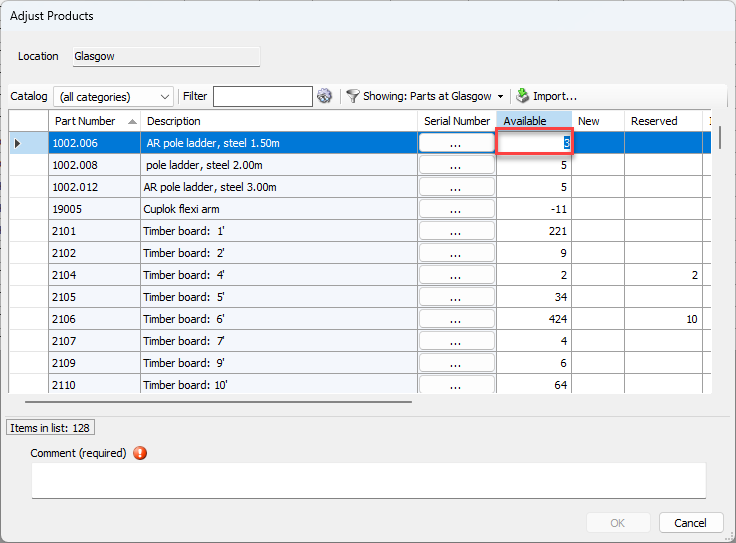
Click OK.
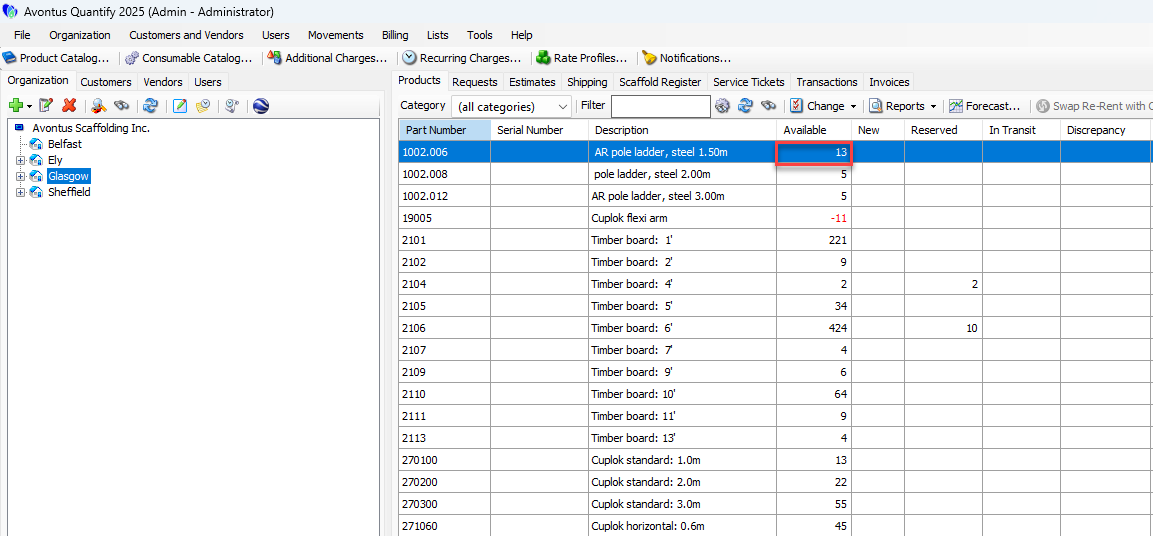
The total will be updated for the part.
Click the Tools menu and select Unlock Quantify for Branch Office Adjustments.
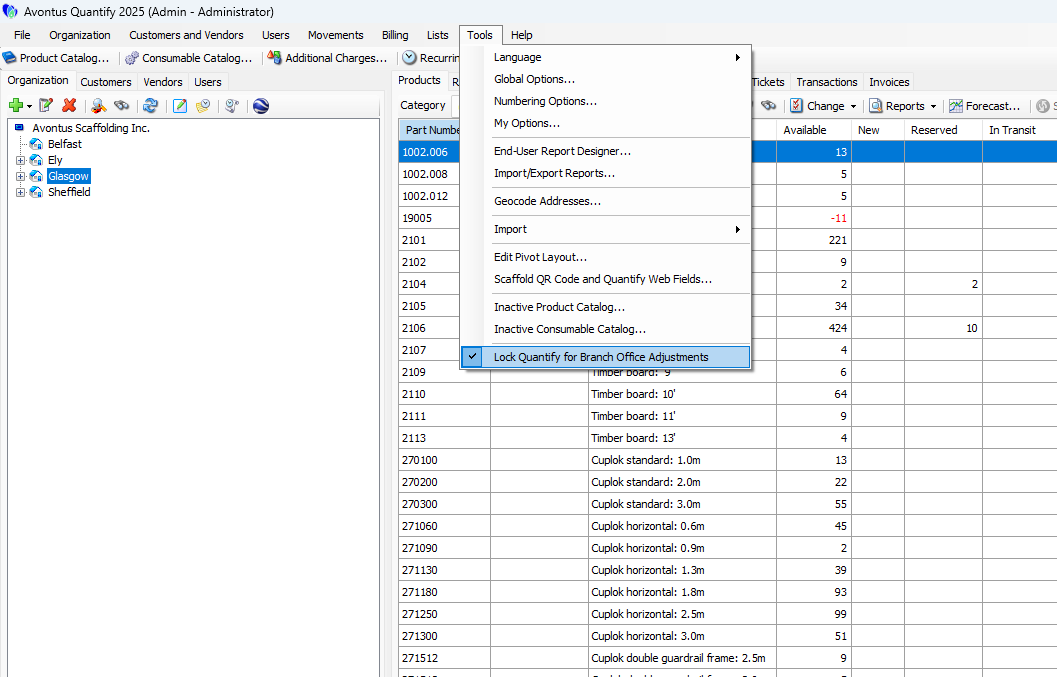
This unlocks the database so others can create shipments, returns, etc.
An Acknowledgement dialog appears.
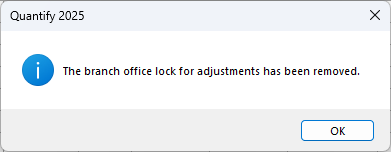
Click OK.