When work has been completed on the scaffold, the scaffold will need to be dismantled. There are two ways to dismantle a scaffold. You can create a dismantle request or a scheduled dismantle. A scheduled dismantle allows a user to skip the request process.
Arranging a Scaffold Dismantle from the Map Screen
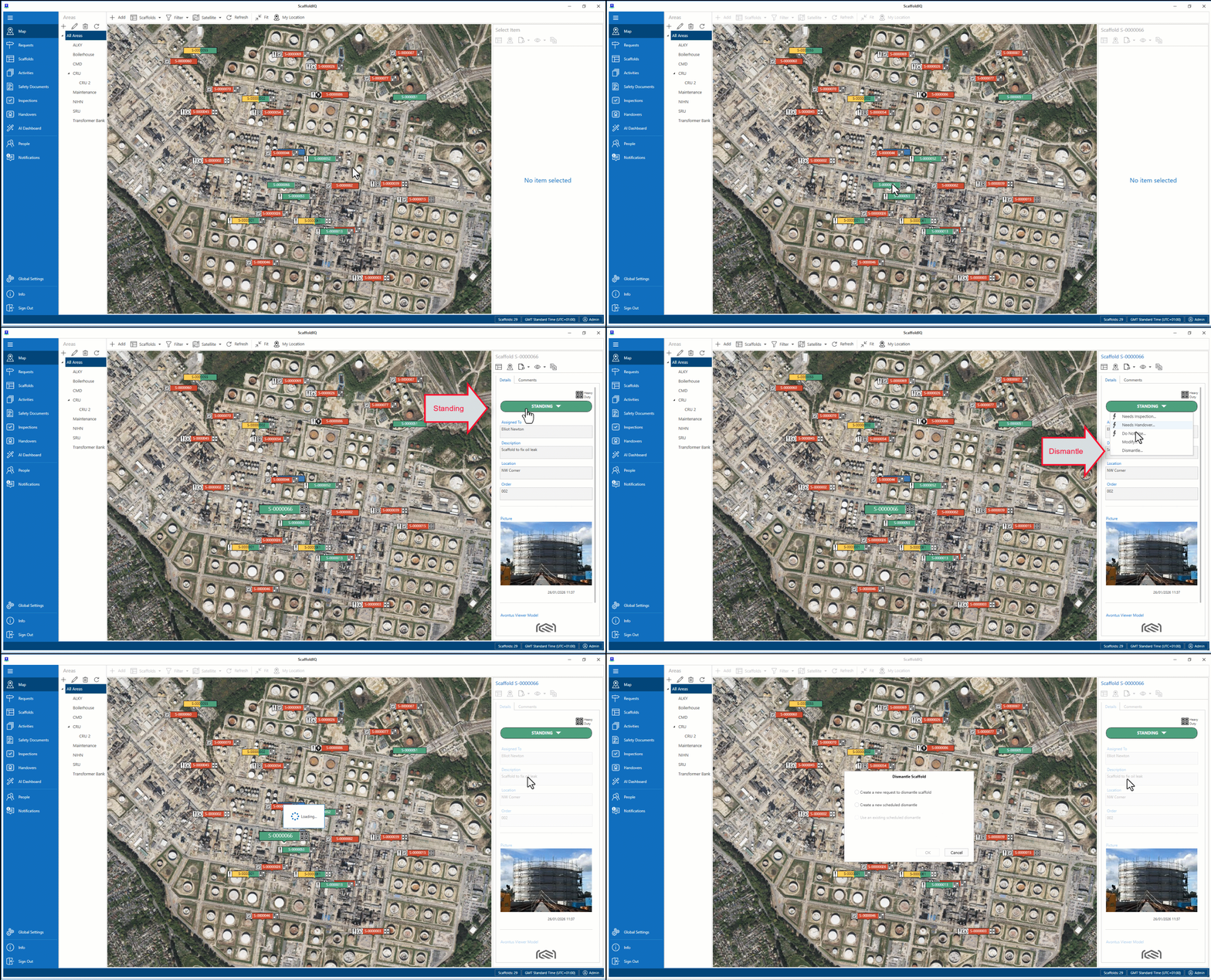
On the Map screen, select the Scaffold to be dismantled
Select Standing
Select Dismantle
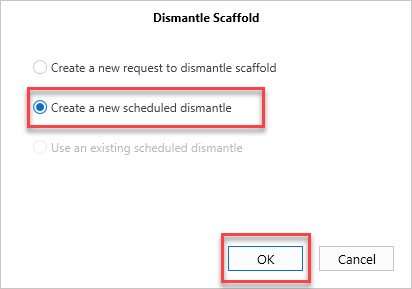
Click Create a new scheduled dismantle and click OK
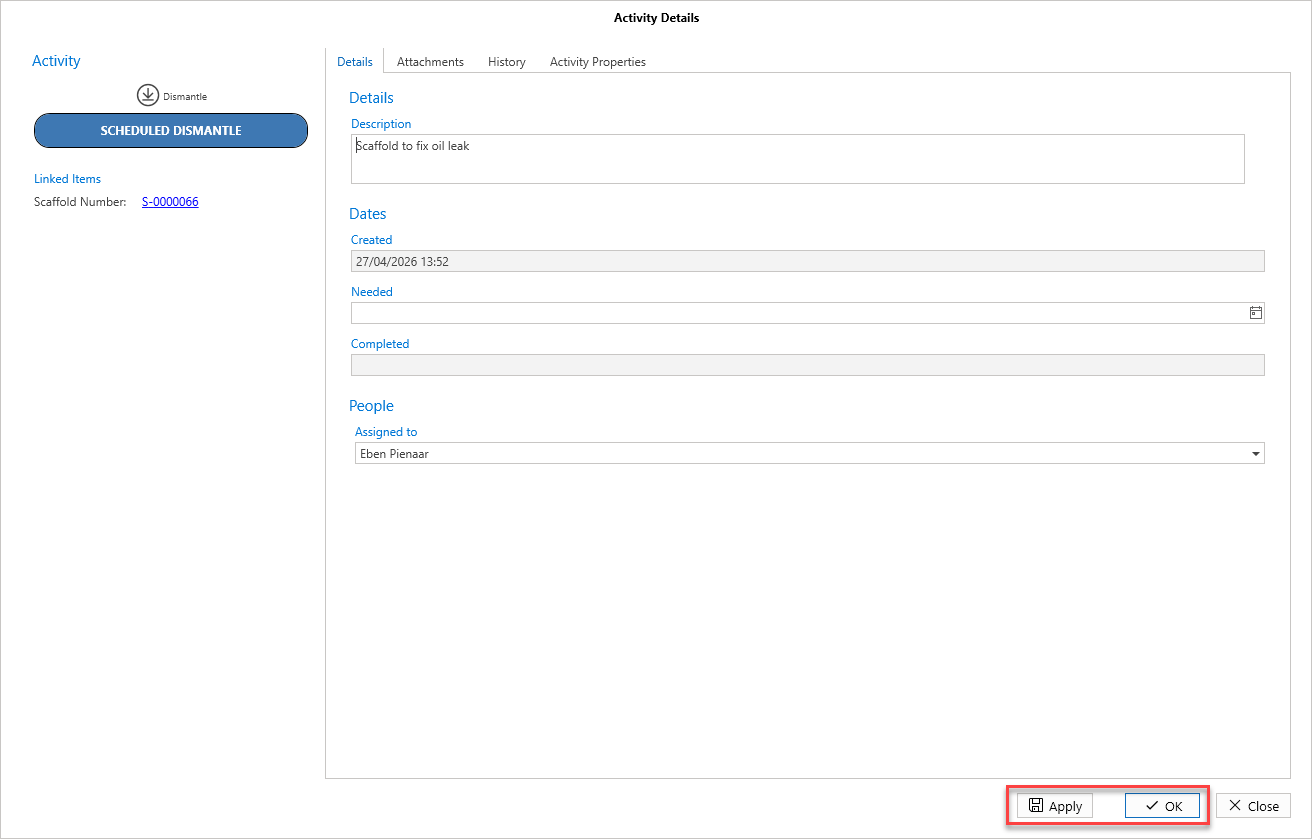
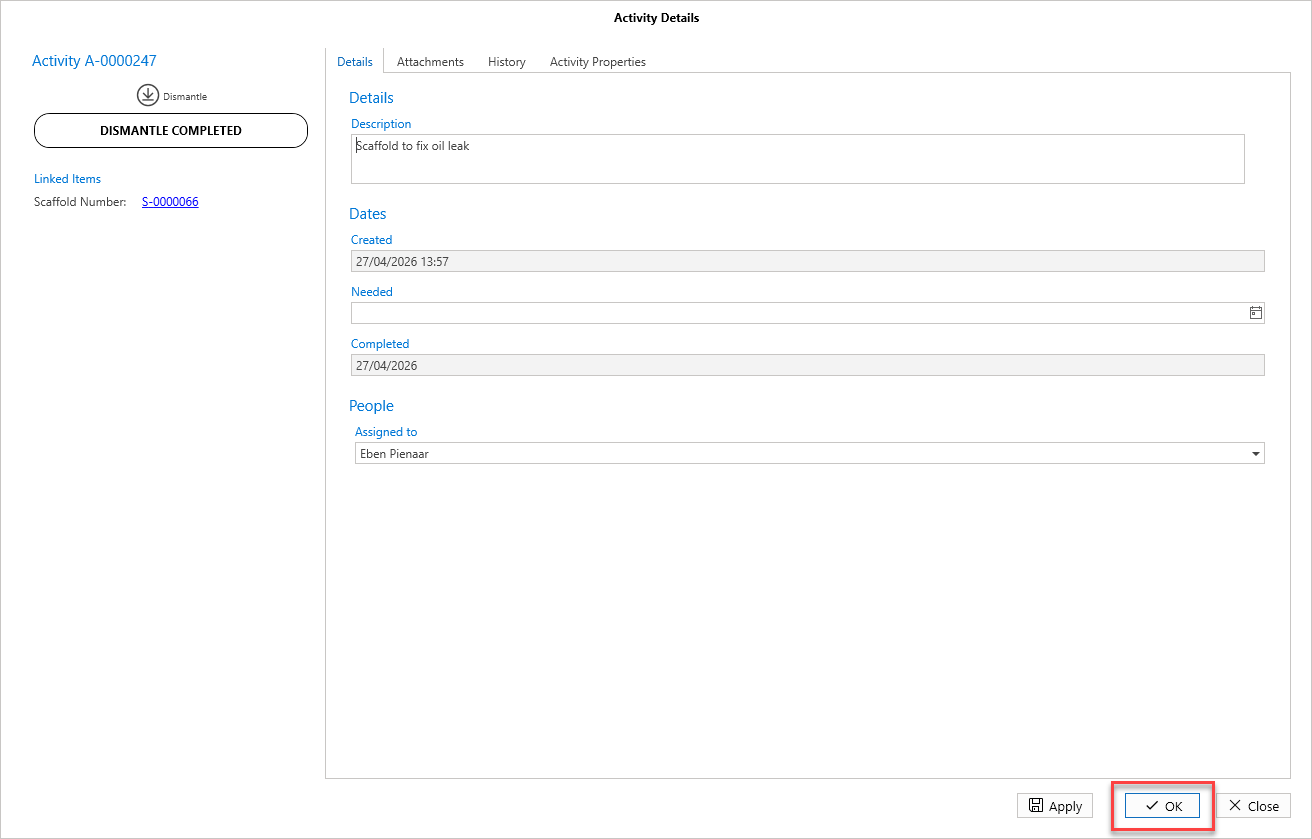
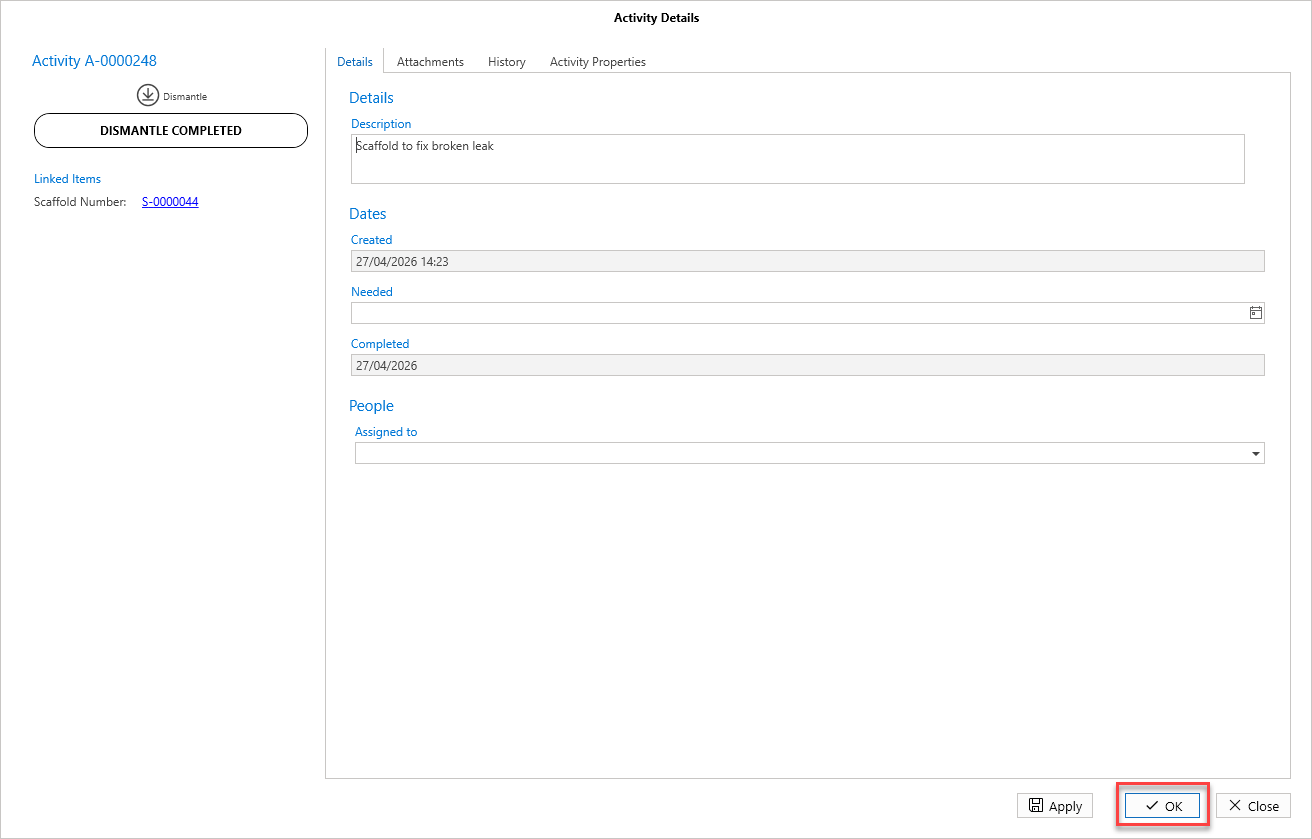
In the Activity Details, click OK
Select the Scaffold again and then select Standing
Select Dismantle
Select to use an existing scheduled dismantle and click OK
.gif)
Click OK
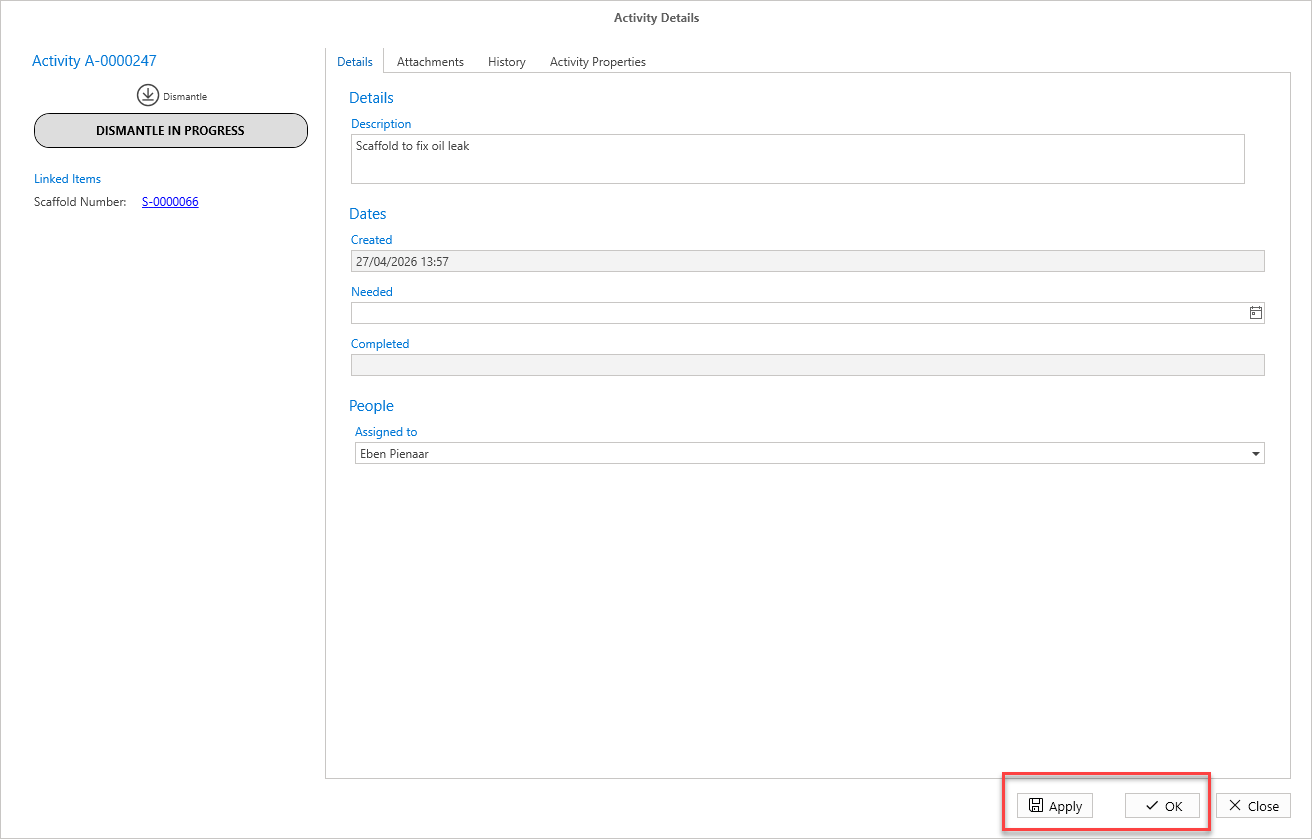
The status will change to Dismantle in Progress
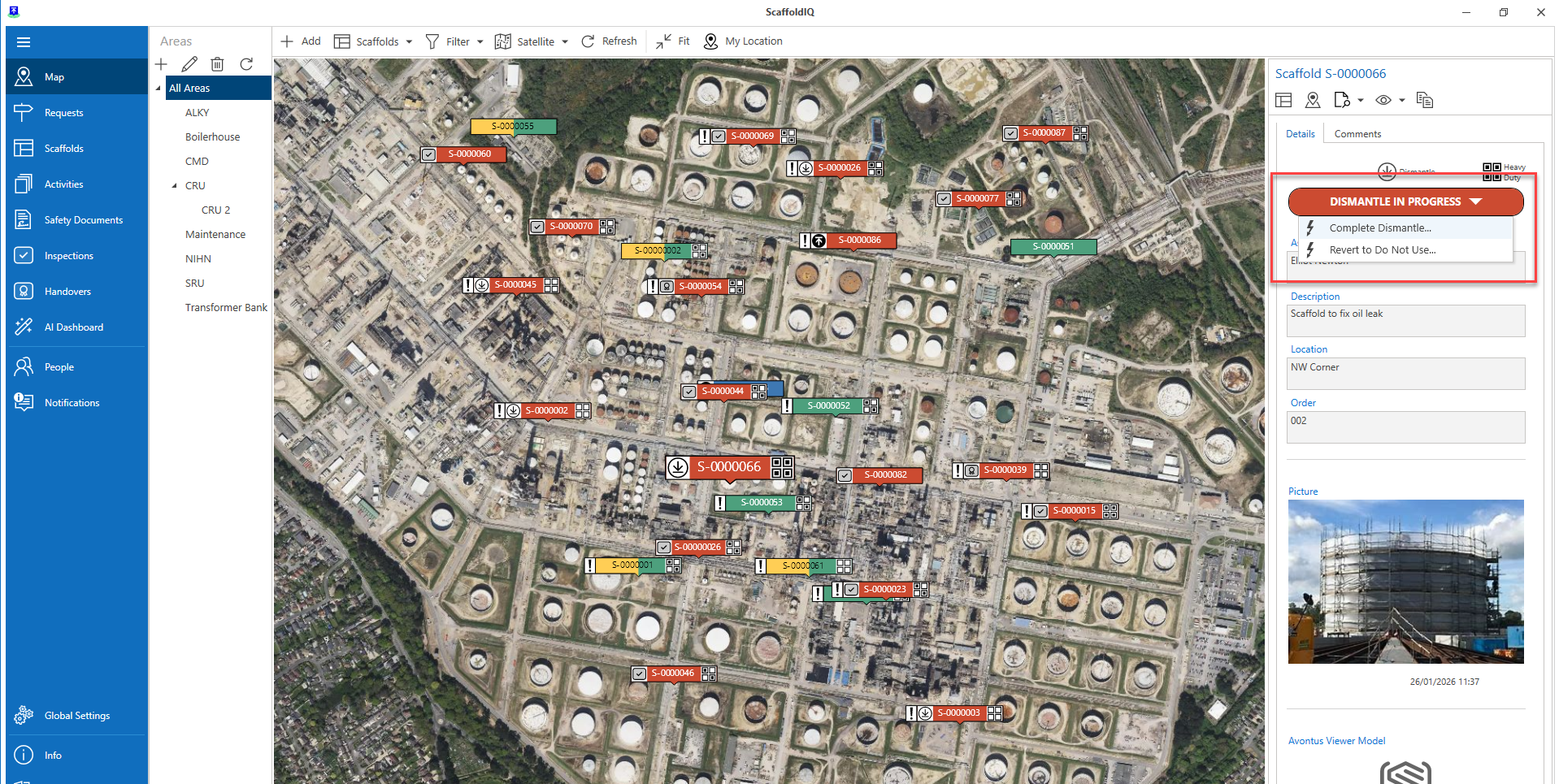
Select the scaffold pin
Click Dismantle in Progress and then select Complete Dismantle
Click OK
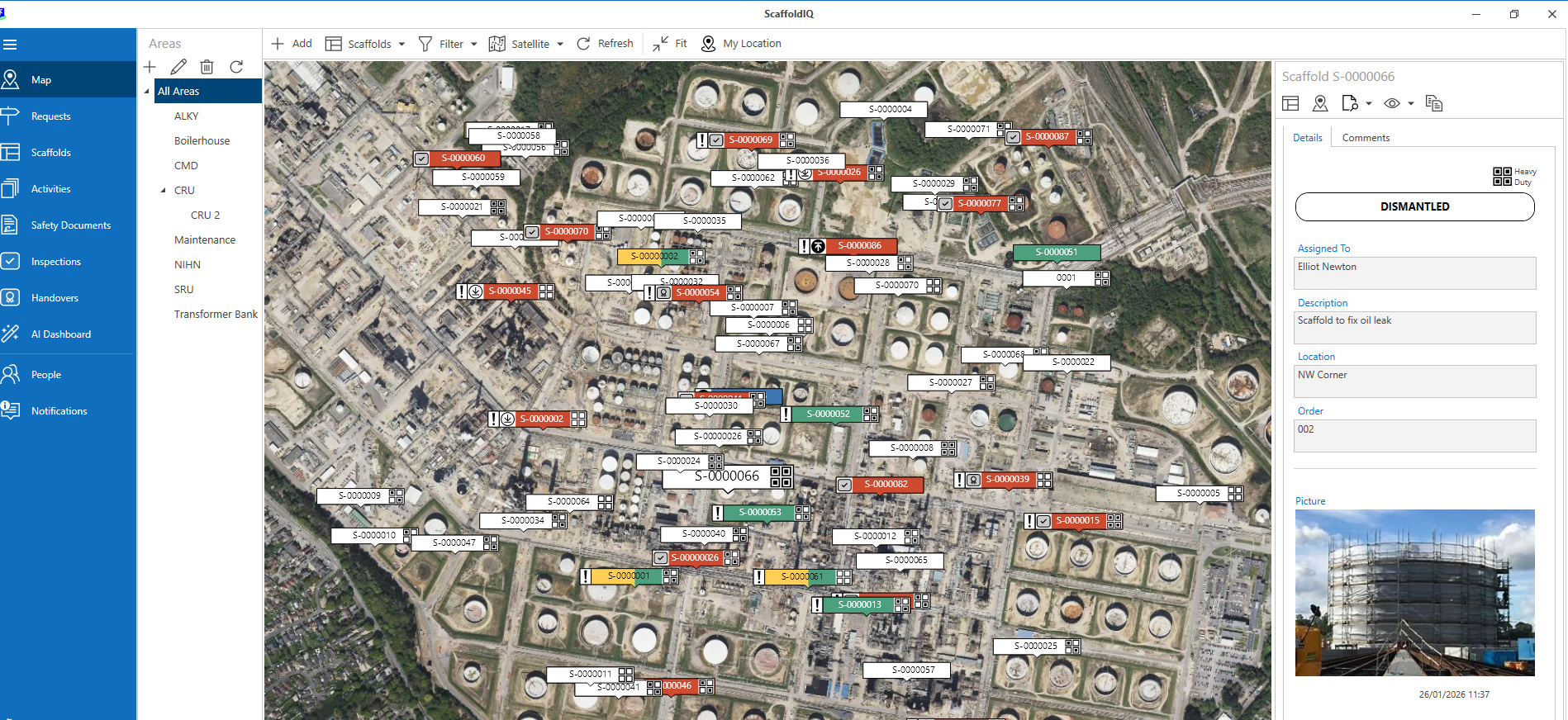
The Scaffold will be dismantled.
Arranging a Scaffold Dismantle from the Scaffold Details Screen
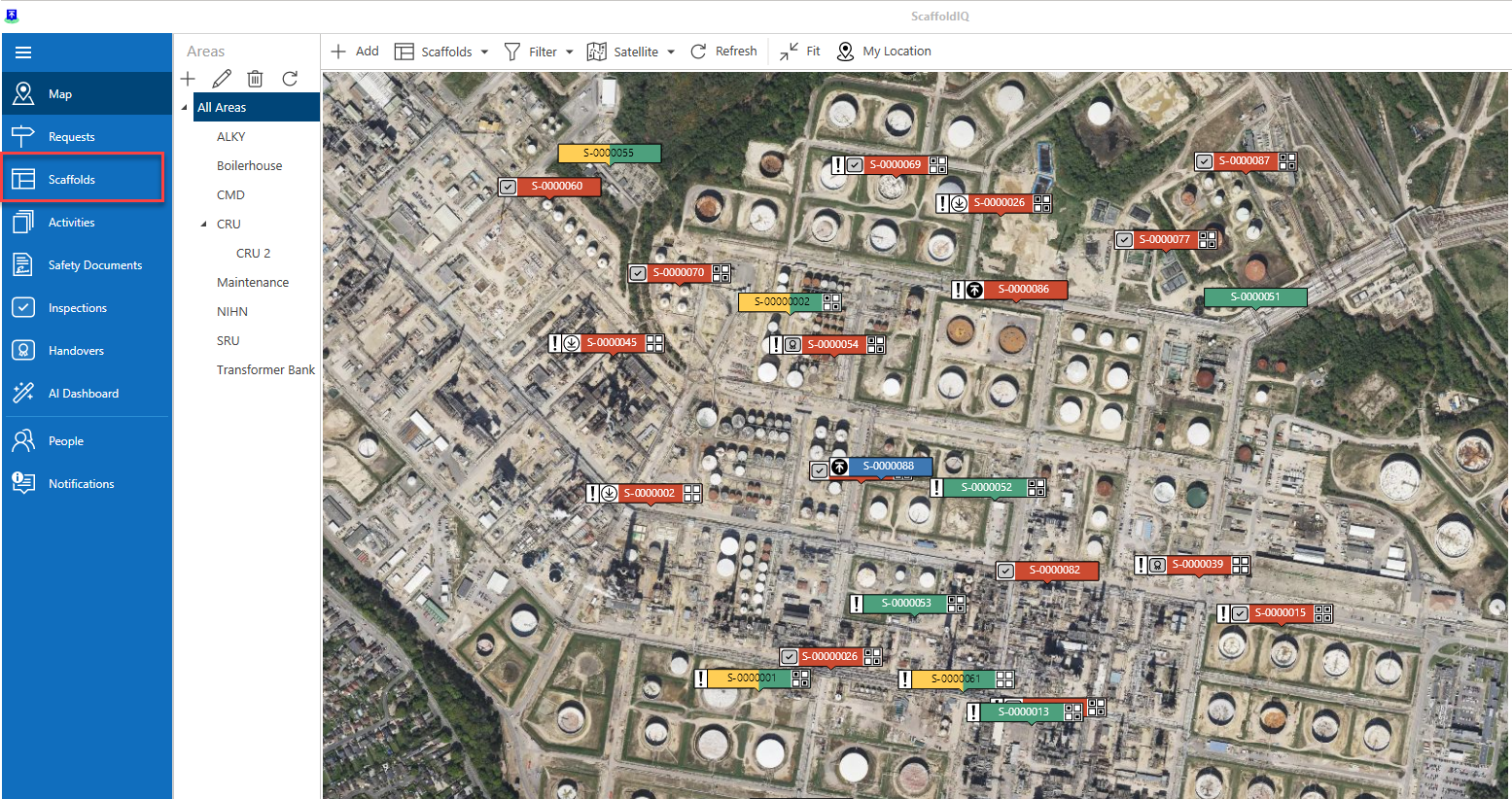
From the Map screen, select Scaffolds
Note: You can also select the scaffold pin on the Map screen and click Scaffold Details.
Double-click the scaffold to dismantle or select details
Note: You can also access the Scaffold details via the Map screen
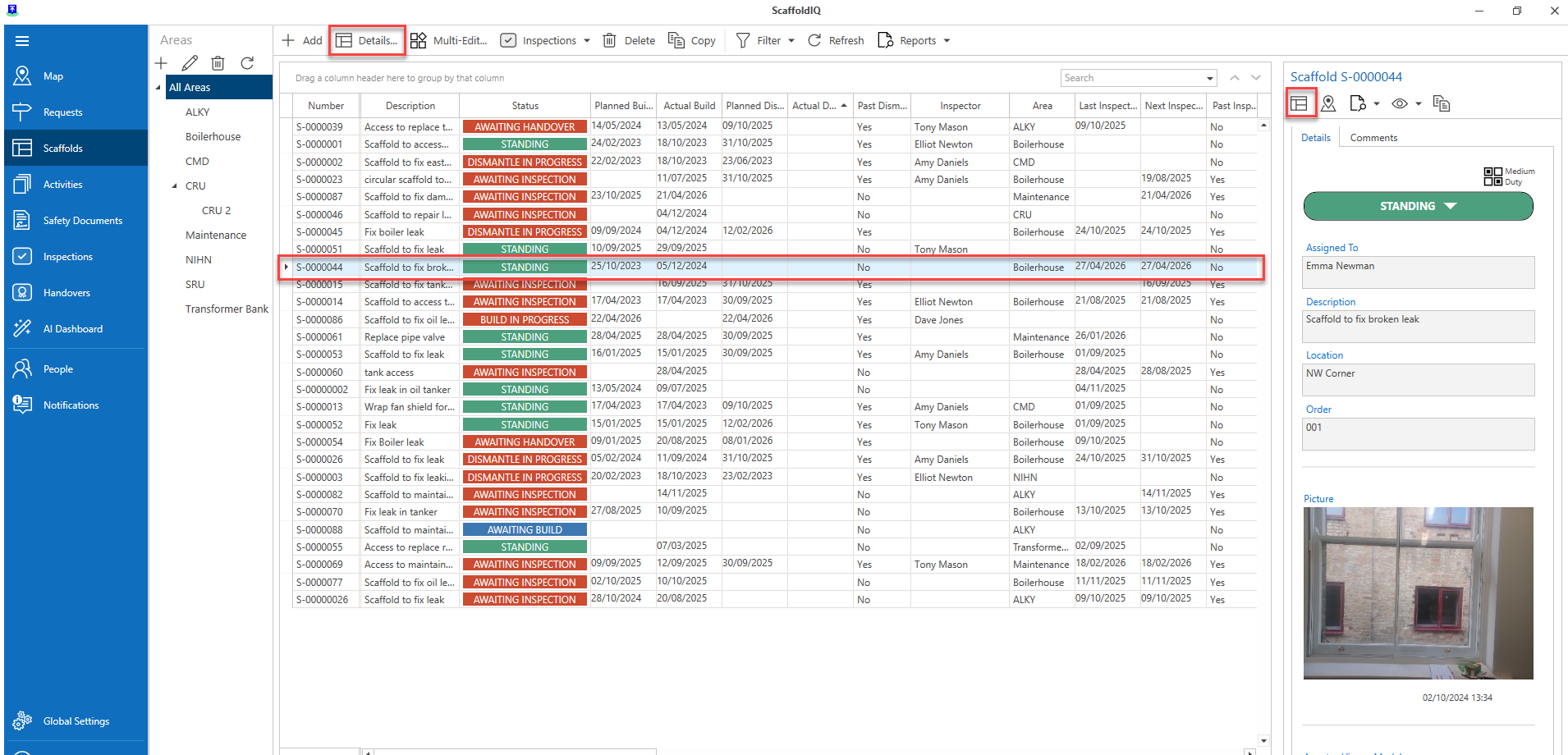
In the Scaffold Details screen, select Dismantle
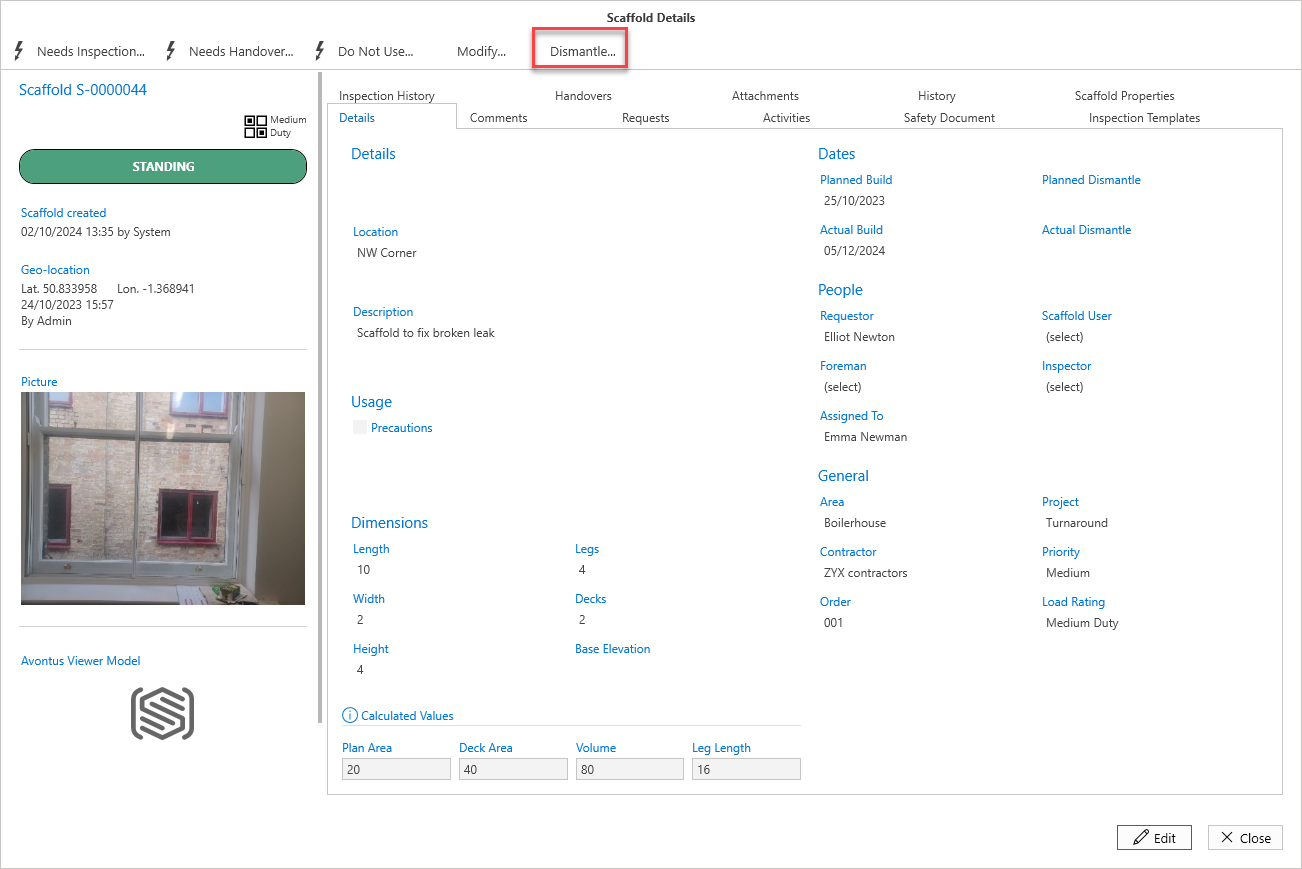
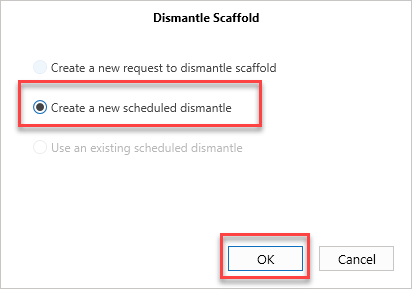
From the three options, select Create a new scheduled dismantle and then select OK.
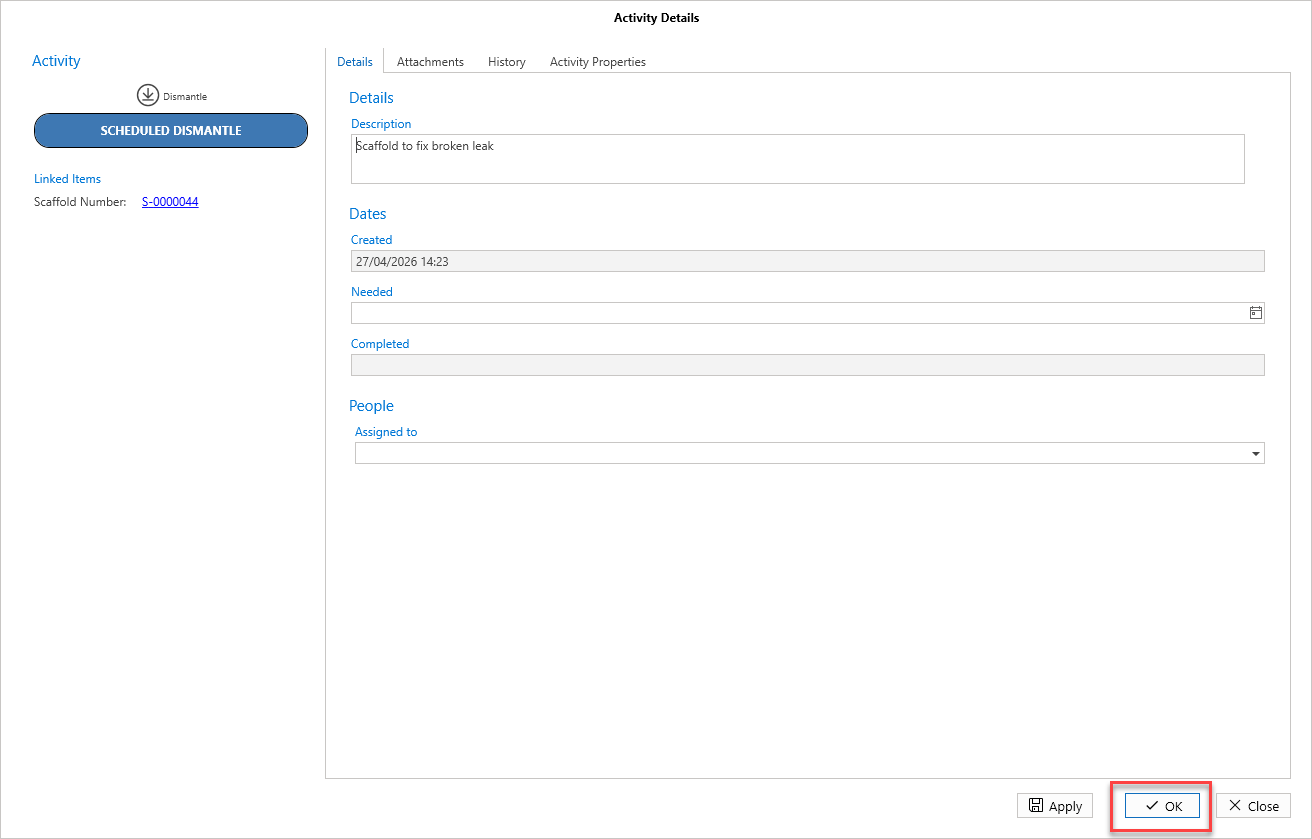
In the Activity Details screen, enter the required details and click Apply or OK
In the Scaffold Details screen, select Dismantle
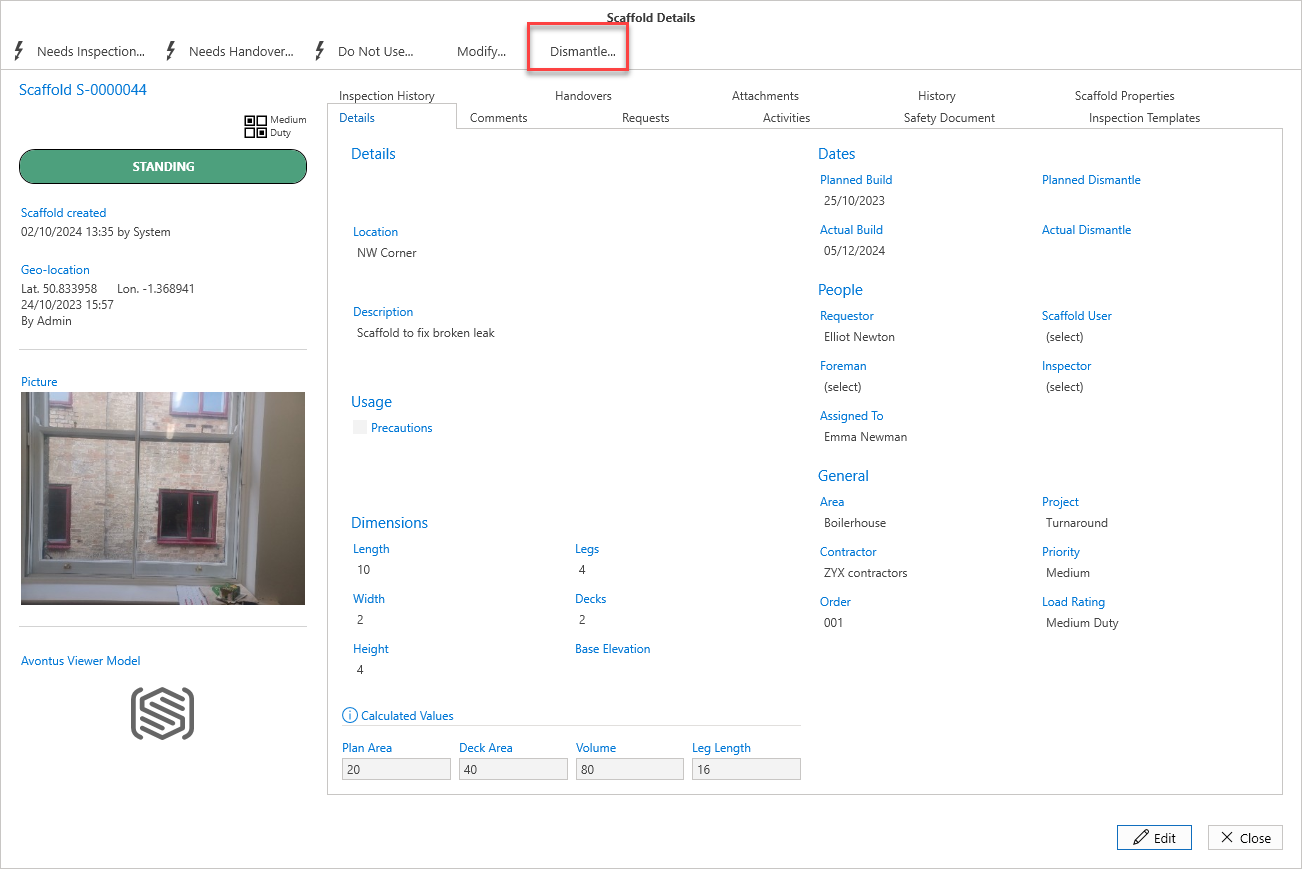
Select use an Existing Scheduled dismantle and OK
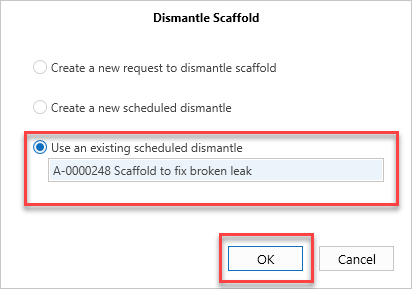
Click OK
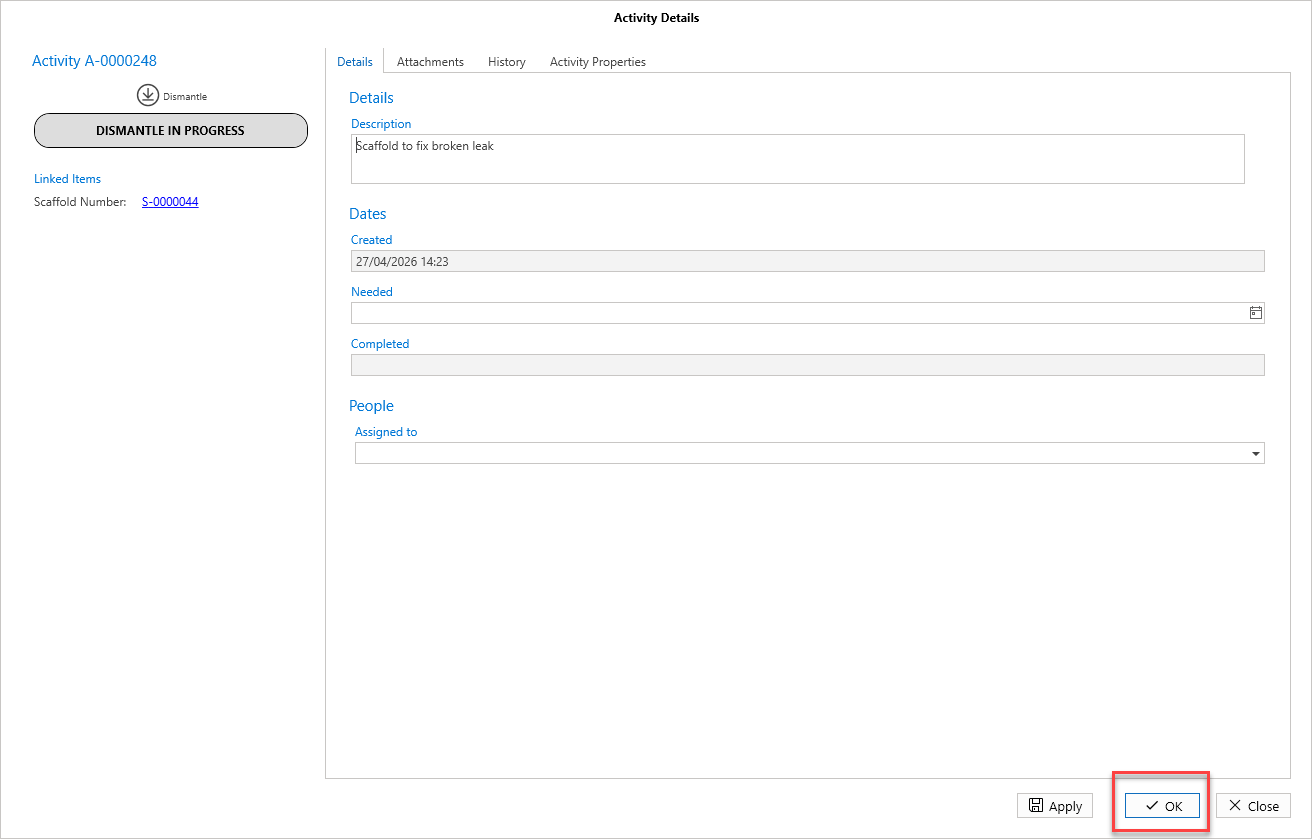
The status will change to Dismantle in ProgressIn the Scaffold Details screen, select Complete Dismantle
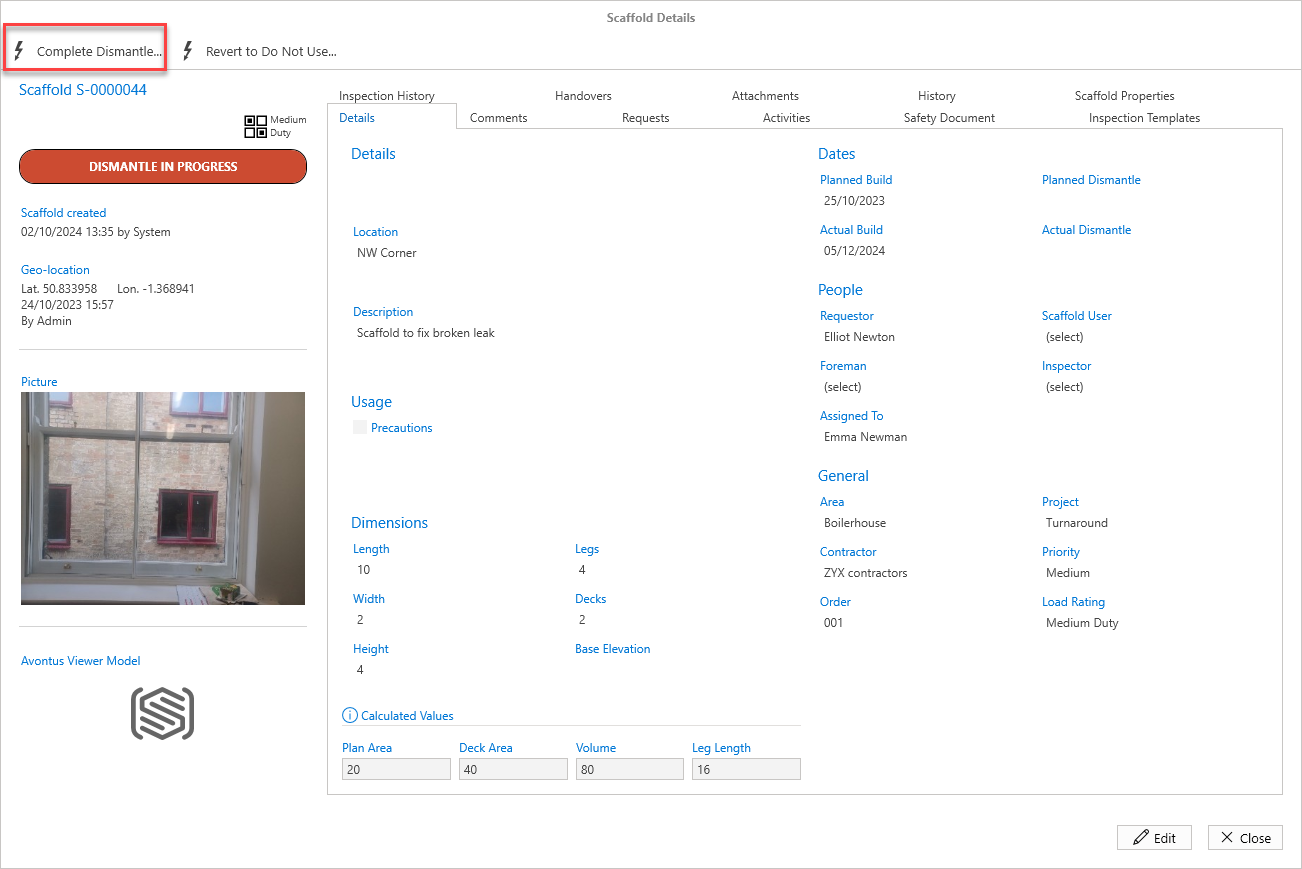
Select OK
The scaffold status will change to Dismantled. The scaffold can now be deleted and removed from the ScaffoldIQ application.