It is possible to drag a column from the table to the group panel to group by that column. To do this, drag the selected column that header and place it in between the toolbar and the table (see below). You will then be able to group by column.
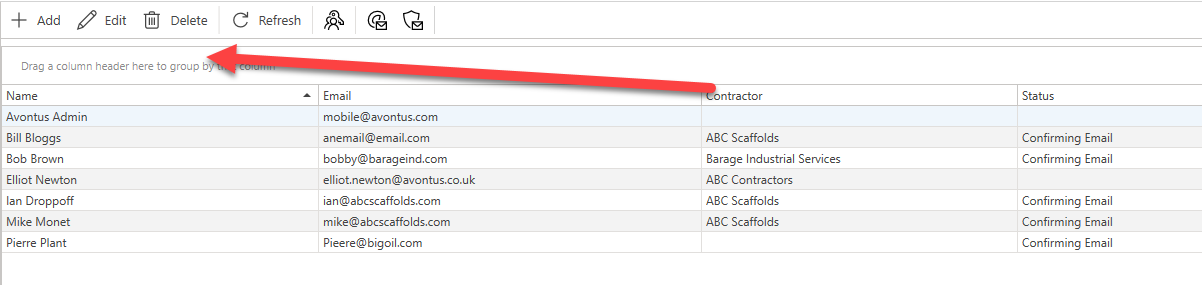
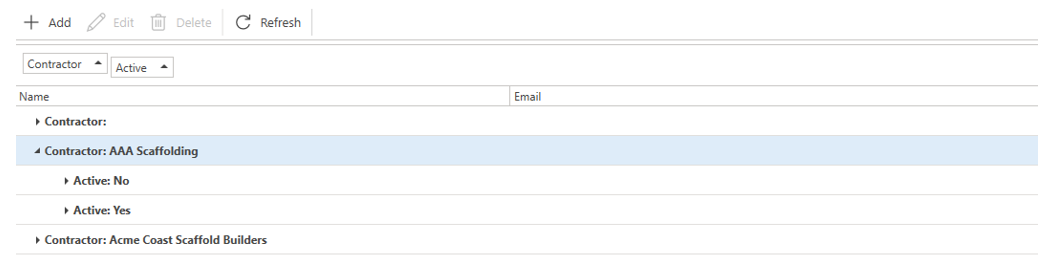
When you group by a column, each unique entry in the column will have its own group.

Note: You can group by more than one column by dragging a second column to the group panel.
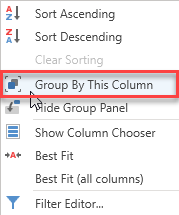
Note: Alternatively, you right-click a column heading and select Group By This Column.
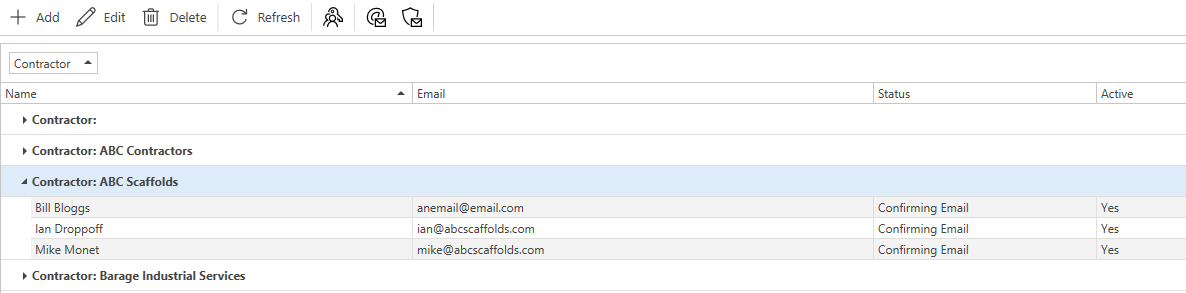
Click on a group to expand it.

Expanding the group will display all entries and show information contained within the group.
Note: You can group by more than one column by dragging a second column to the group panel.
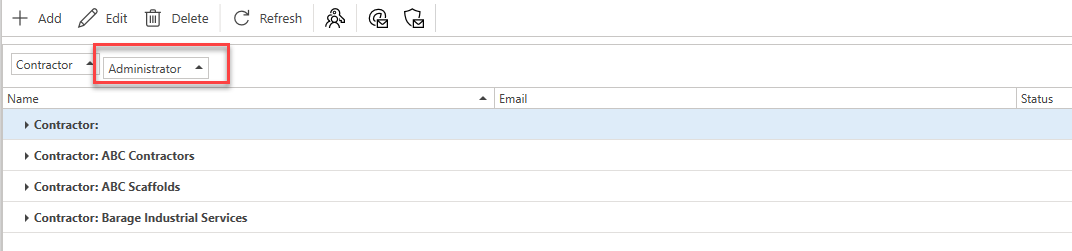
Note: Alternatively, you right-click a column heading and select Group By This Column.
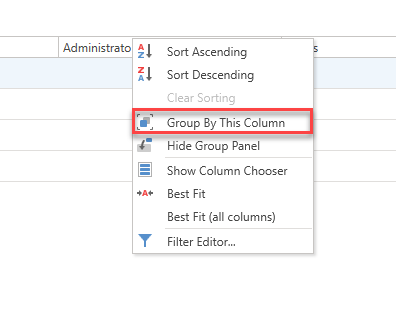
Full Expand
Expand all entries in the table to show further information for each group.
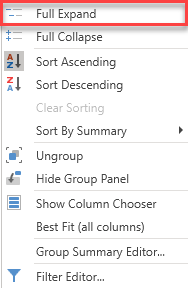
Full Collapse
Collapse all groups in the table.

Sort Ascending
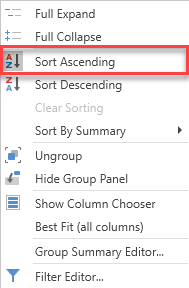
Sort the groups in ascending order either alphabetically or numerically.

Sort Descending
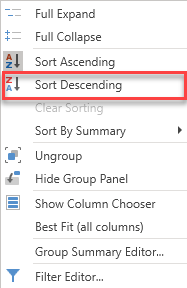
Sort the groups in descending order, either alphabetically or numerically.

Clear Sorting
Clear any column sorting currently active.
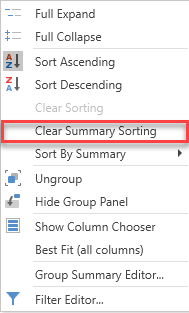
Clear Summary Sorting
When sorting by summary (see below) clear any column sorting currently active.
Sort by Summary
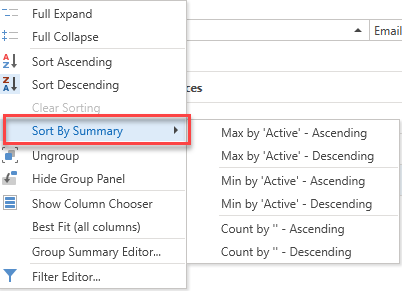
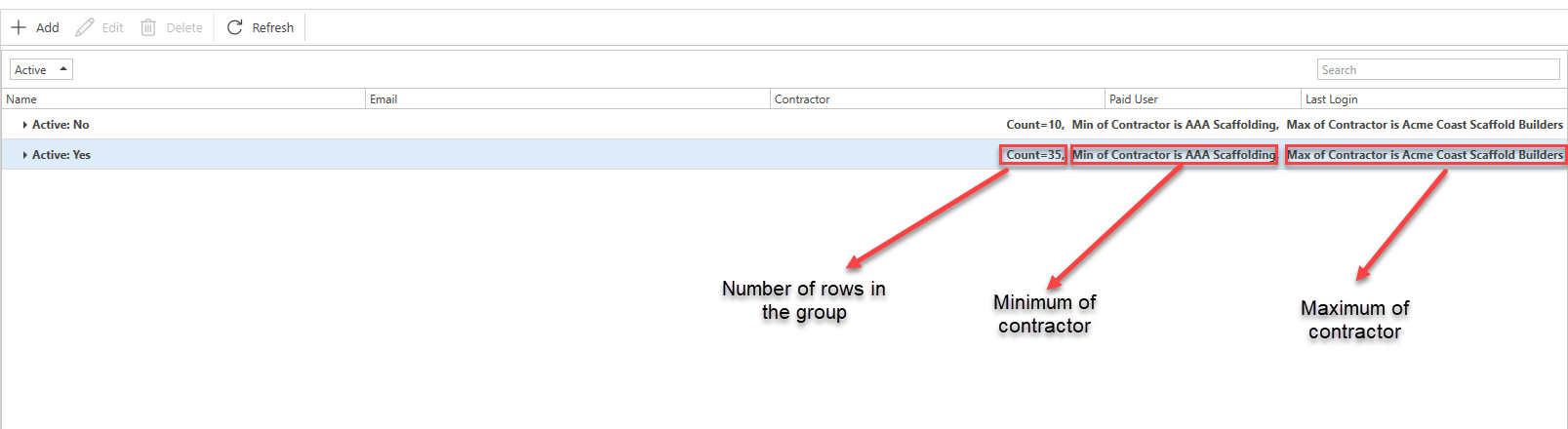
A summary is a brief overview of what content is held within that group. This summary contains information about that group such as the number of rows within that group and the maximum or minimum entry in a group from a selected column.
For example, you could select to display information from the Contractor column for each group. The summary would then provide an overview of the data pulled from the Contractor column including the number of entries in each group and the minimum and/or maximum status of each group.
Note: The Sort by Summary becomes available when the Show Row Count option in the Group Summary Editor is enabled. For more information, see the Group Summary Editor section below.
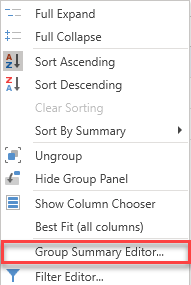
When grouping, this option allows the people to adjust what is displayed in the group summary, such as the maximum and minimum value within that group and the number of rows within the group.
To the left-hand side are the columns in the table and to the right are the summary options. Select a column on the left and this will be the column where the information is pulled from.
Selecting Max and Min will enable Max by – Ascending, Max by - Descending, Min By – Ascending, and Min by – Descending summary options for the chosen column.
In the example below, the maximum and minimum contractor within a group will be displayed for each group.
Click the Show row count to enable a count for the number of rows within the group.
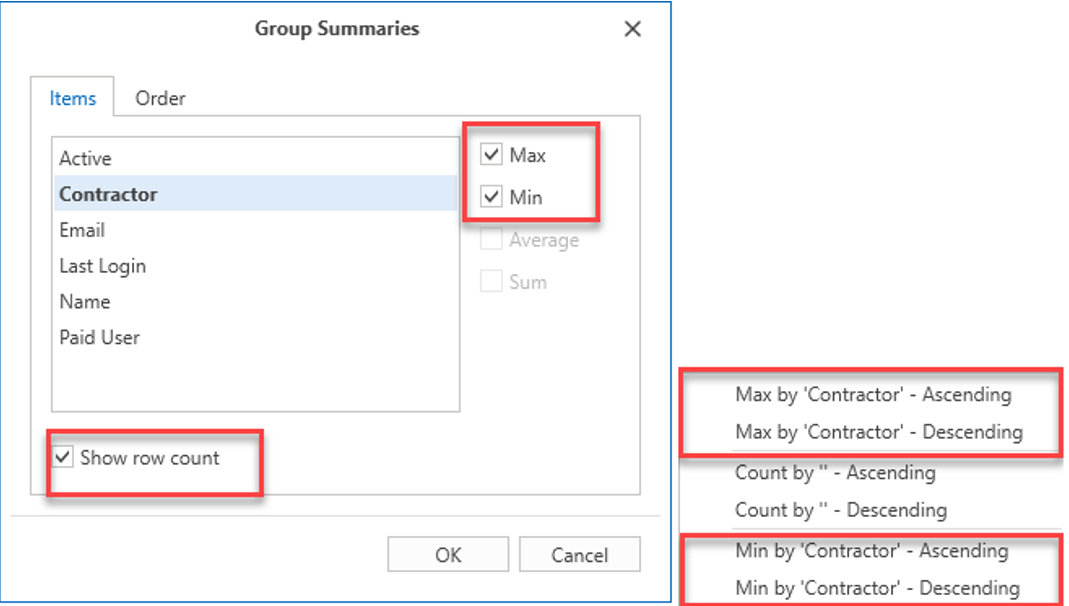
Note: The Max by 'Contractor' summary options will change depending upon the selected column. For example, selecting Last Login in the Group Summary Editor will set the summary option to Max by Last Login.
Order
The Order tab of the Group Summary Editor allows the people to modify how the summary is presented.
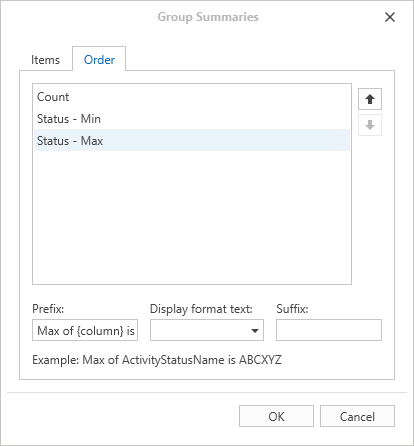
The box in the middle lists the columns you selected in the Items tab. You can use the arrow buttons to the right to adjust in which order the summaries are displayed.
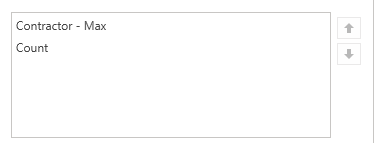
If you selected to display the summaries as defined in the image above, then the group summary will appear like so in the main table.
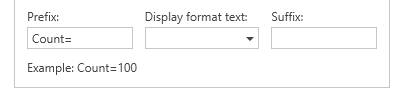
Prefix is the text before the maximum/minimum displayed content for the group.
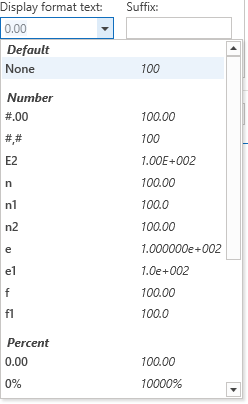
Display format text is used with the group row count and this adjusts how the numbers are displayed.
The Suffix is the text that goes after the maximum/minimum displayed content for the group.
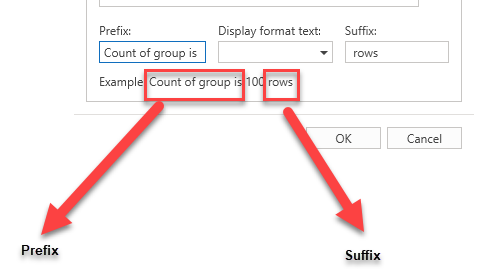
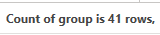
Using the settings above will display the row count like so
Count by Ascending
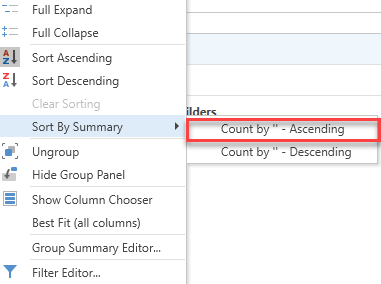
When grouping, count the number of entries in a group and sort by ascending order.

Count by Descending
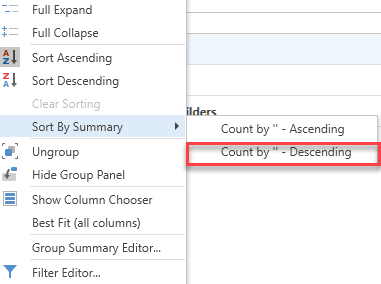
When grouping, count the number of entries in a group and sort by descending order.

Ungroup
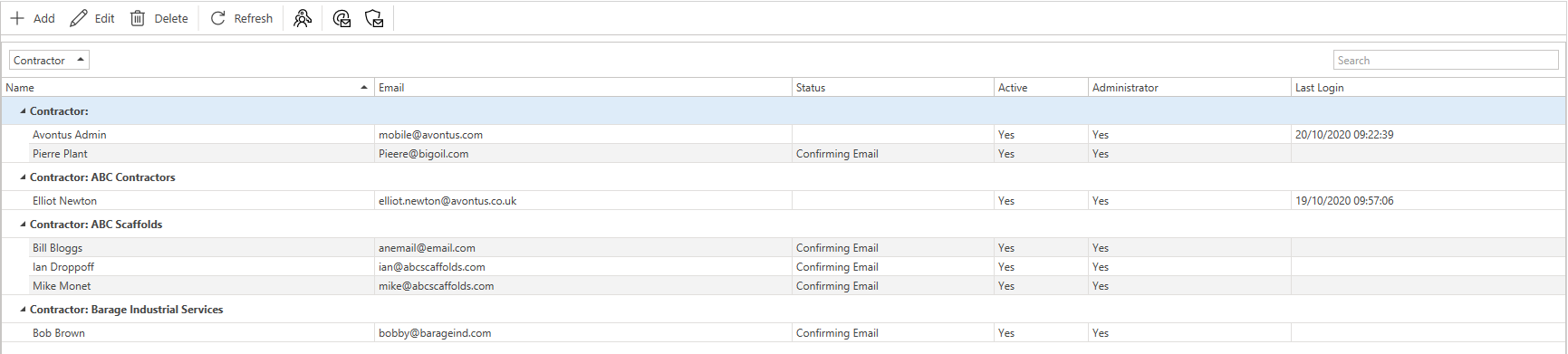
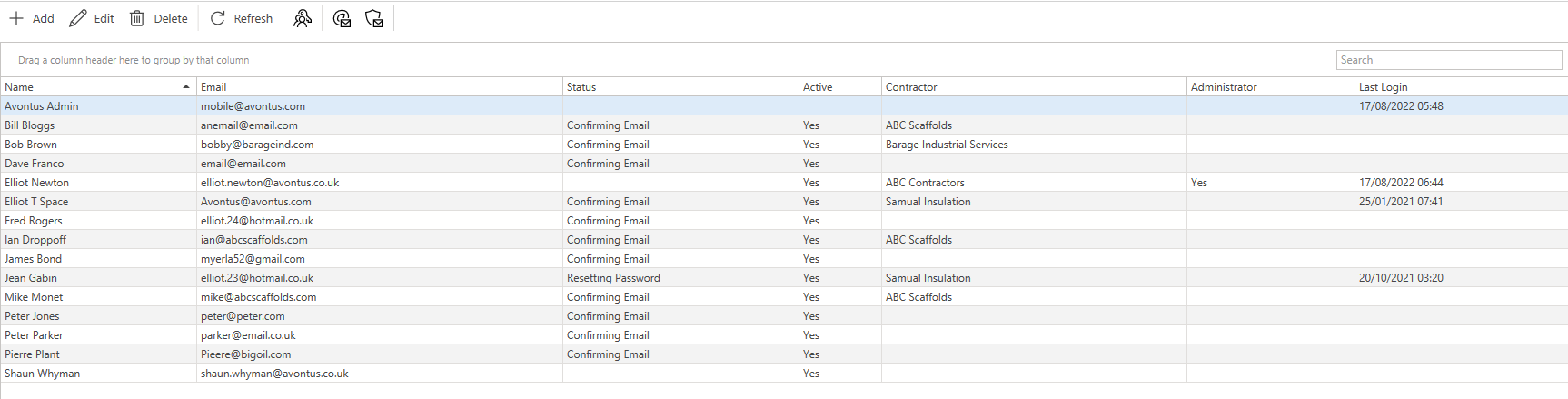
This is what the People screen will look like when grouped.
Grouped
This is what the People screen will look like when ungrouped.

Hide Group Panel
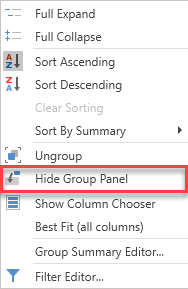
Hide the group panel. Hiding the group panel means you will be unable to group by a column.
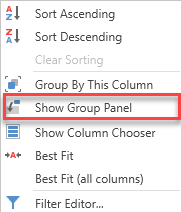
Note: When hiding the Group Panel, you can select to show the Group Panel. Right-click on a column heading and select Show Group Panel.
Group Interval (date columns only)
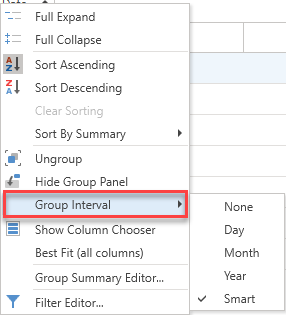
This is for date columns only and allows people to group by daily, monthly, or yearly intervals. The below example is grouped on a daily basis.

Show Column Chooser
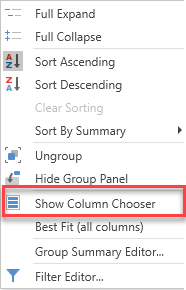
The Column Chooser allows the person to specify which columns to display in the table. This allows you to reduce (or increase) the amount of data displayed on the table so that you can, at a glance, see more relevant information that is of greater use to you.
To enable/disable the column, select the checkbox of the relevant column.
For example, you can specify to show only the select columns below.
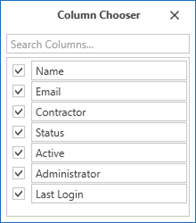
Selecting to display these columns will mean only these columns will be displayed in the table.
Best Fit
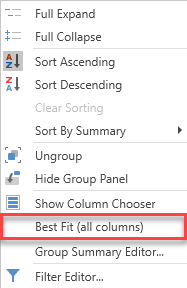
Size all columns to best fit the content within these columns.
Filter Editor
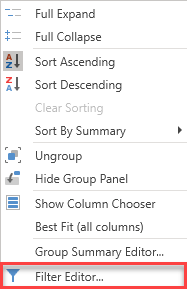
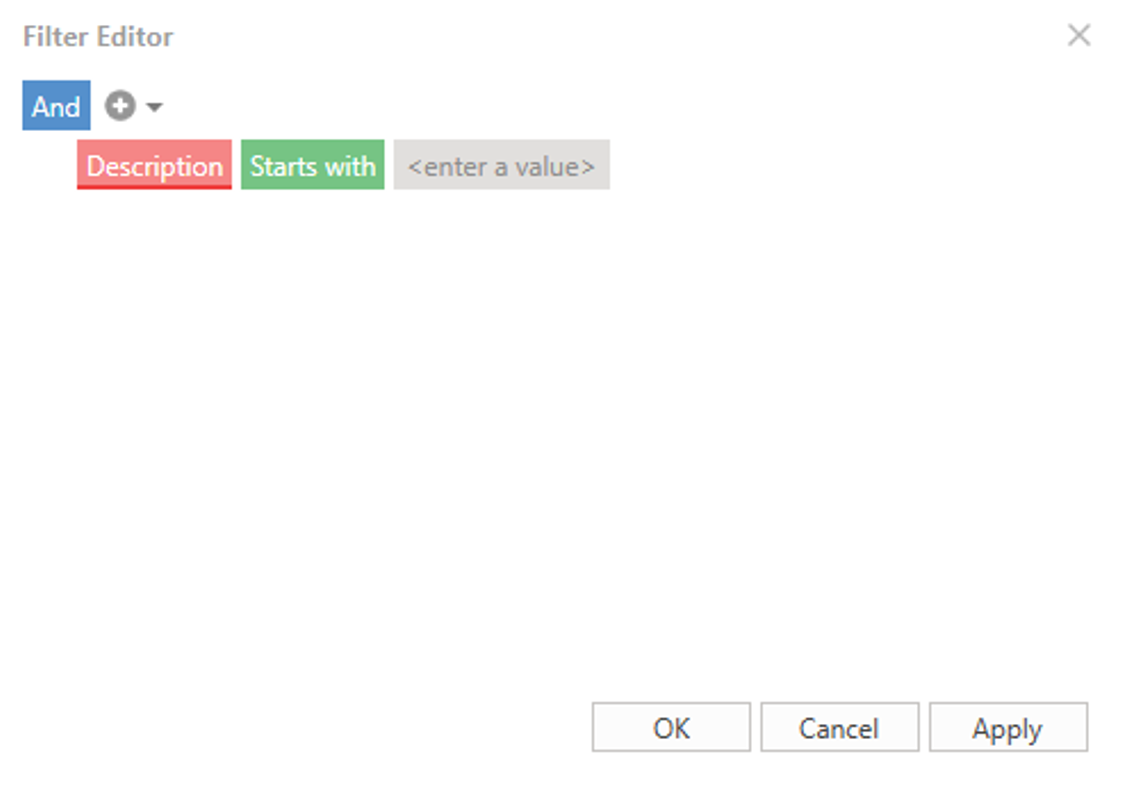
The Filter Editor allows the people to filter the table to display specific data.
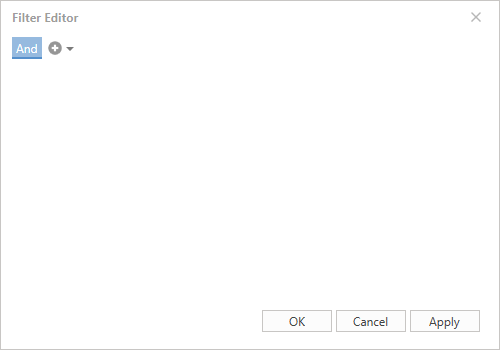
The Filter Editor uses conditional formulas to select the display data. The conditions for formulas are selected by clicking the And button and then the +.
For more information on Filters, please visit the Working with Filters guide.