Installation takes only a few minutes. Use the links below to download the Microsoft Visio 2019 and Avontus Designer installers:
Procedures
Installing Microsoft Visio 2024
First, after downloading the installation file above, install Microsoft Visio 2024:
Navigate to the location of the Visio 2024 installation file:
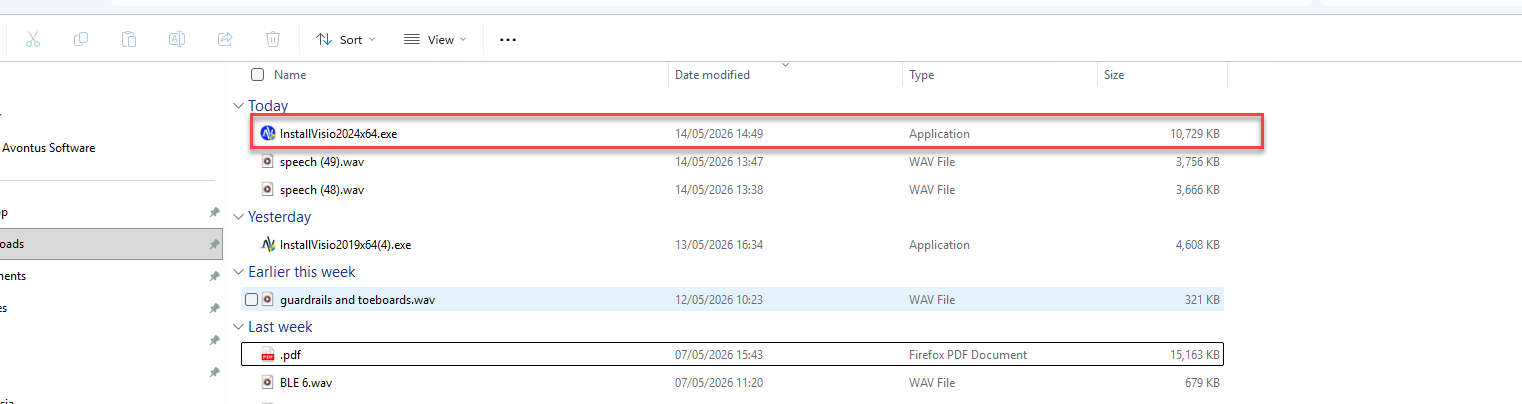
The Visio installer dialog appears.

The download begins
The installer installs Visio 2024.

The installer informs you when the installation is complete.
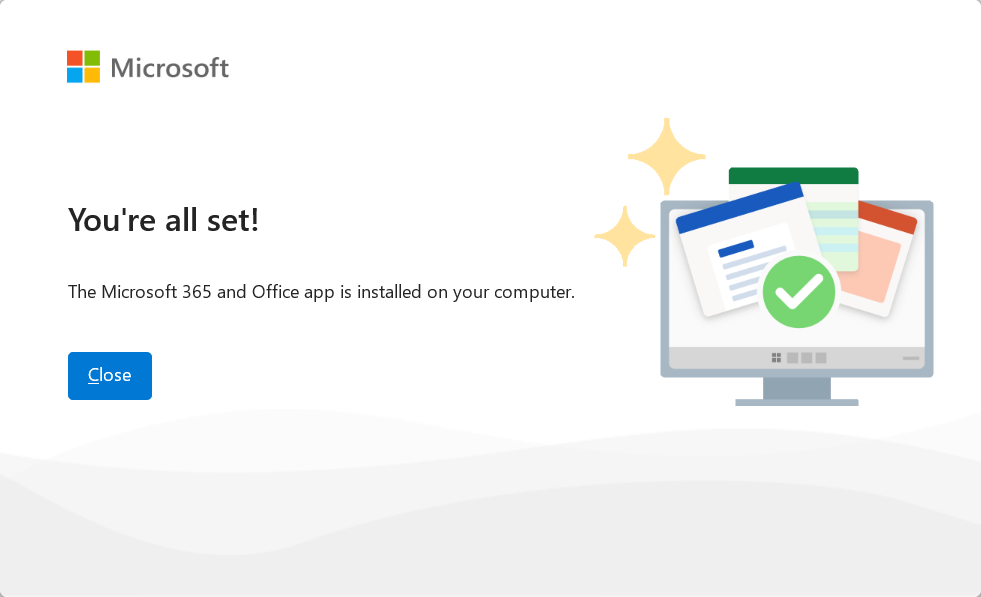
Click Close.
Activating Visio
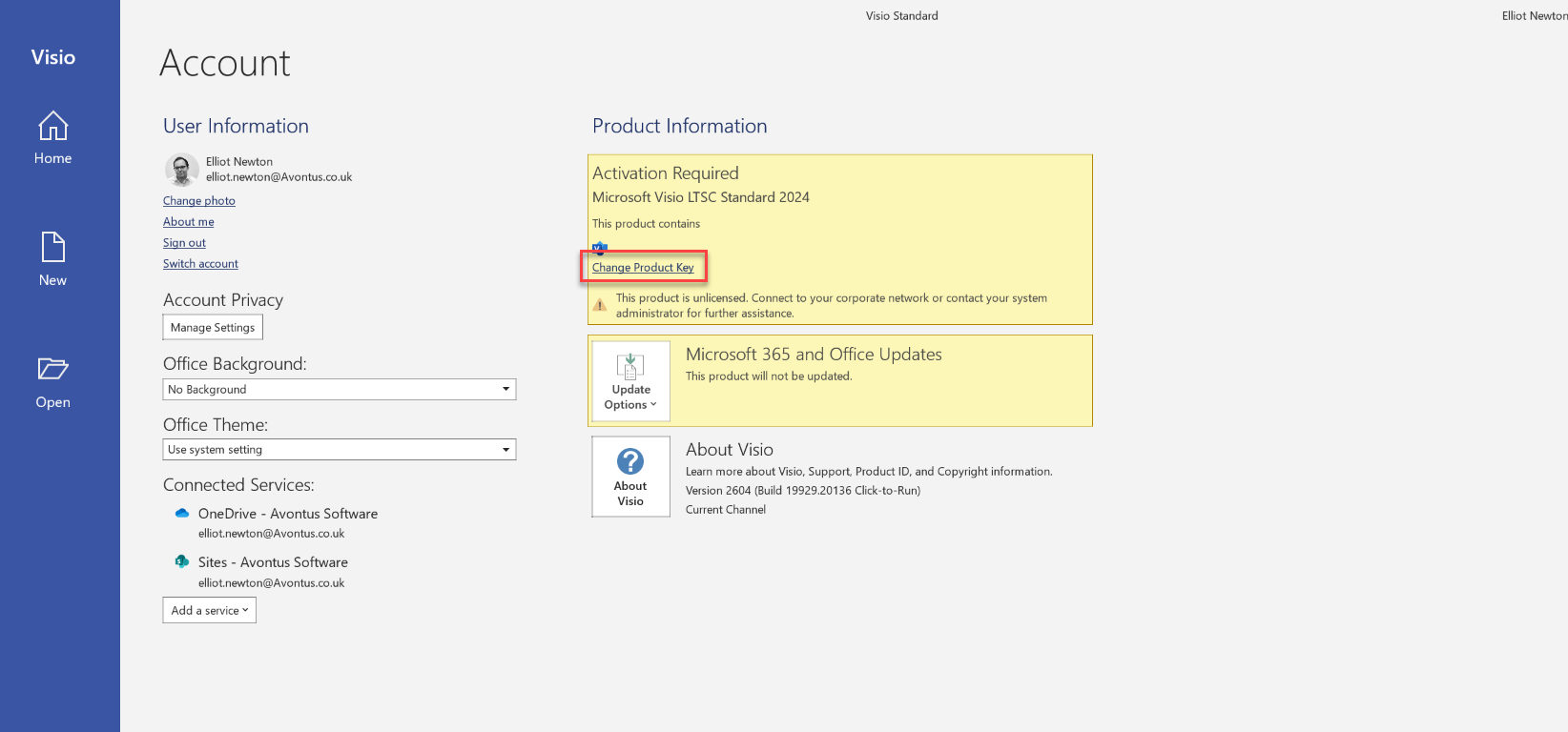
You can Activate Visio straight after the installation. If not, you can change the Product Key in the Account section. To do this
In Visio, select Account

Select Change Product Key
Enter your Product Key
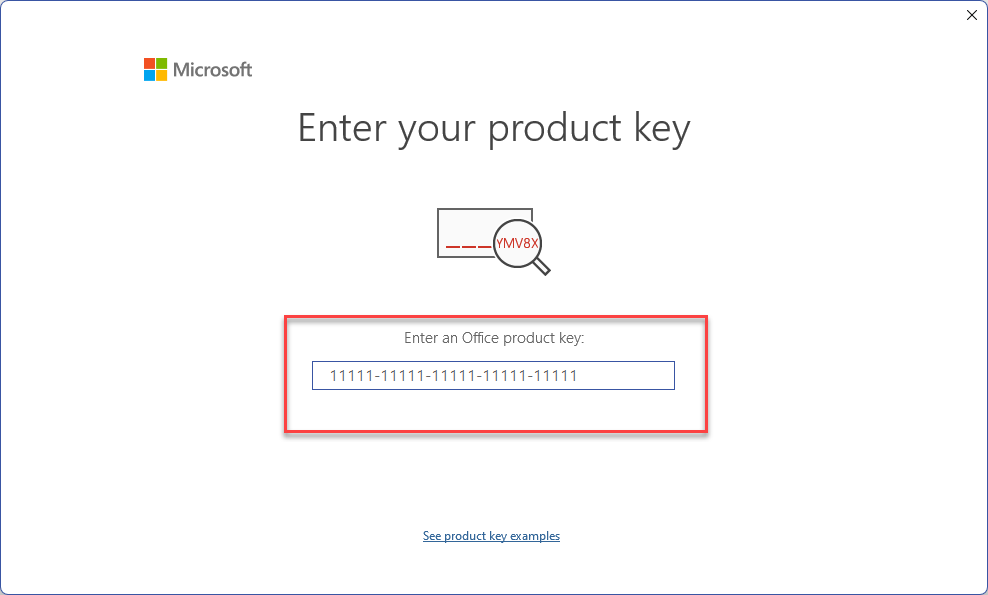
Click Activate Office

Installing Avontus Designer
To install Avontus Designer:
Double-click the Avontus Designer installation file that was previously downloaded.
Click the I accept the terms in the license agreement checkbox
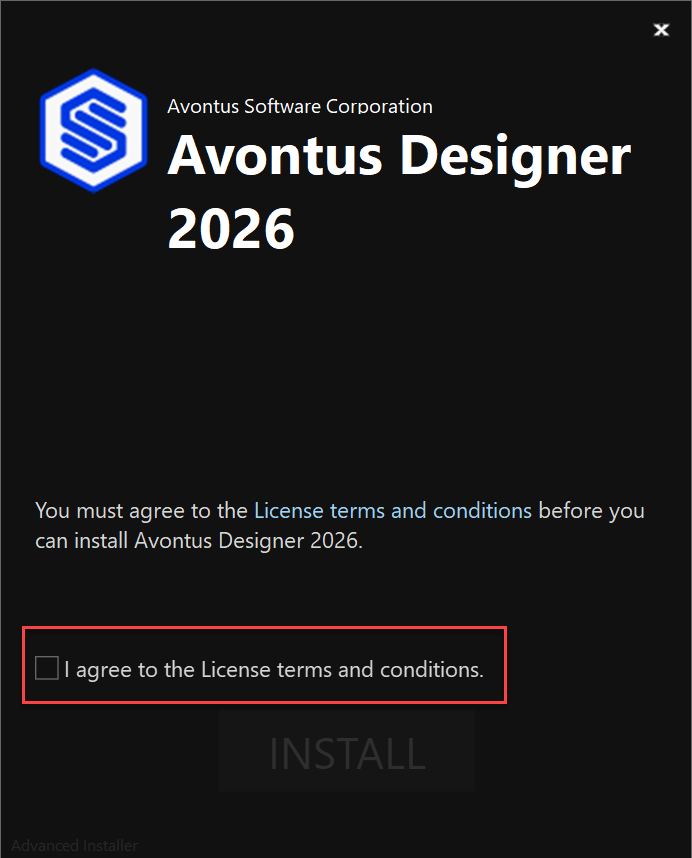
Click Install.
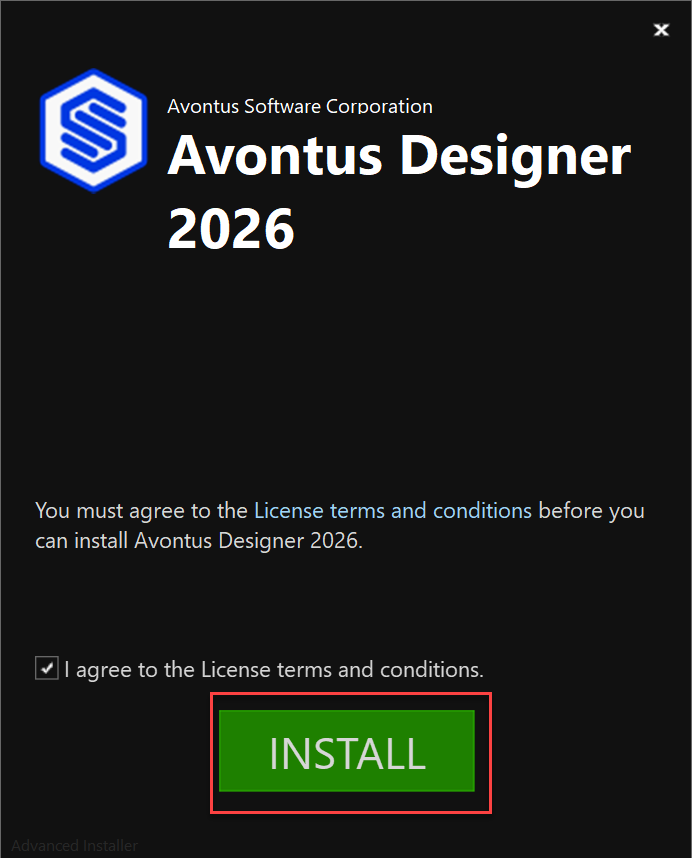
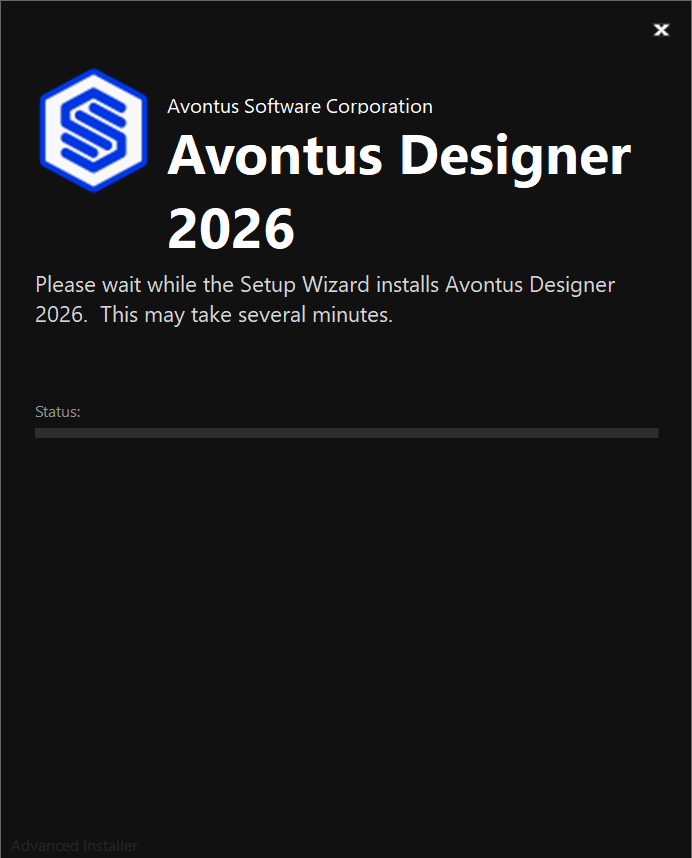
The installation will begin
Click Run or Finish
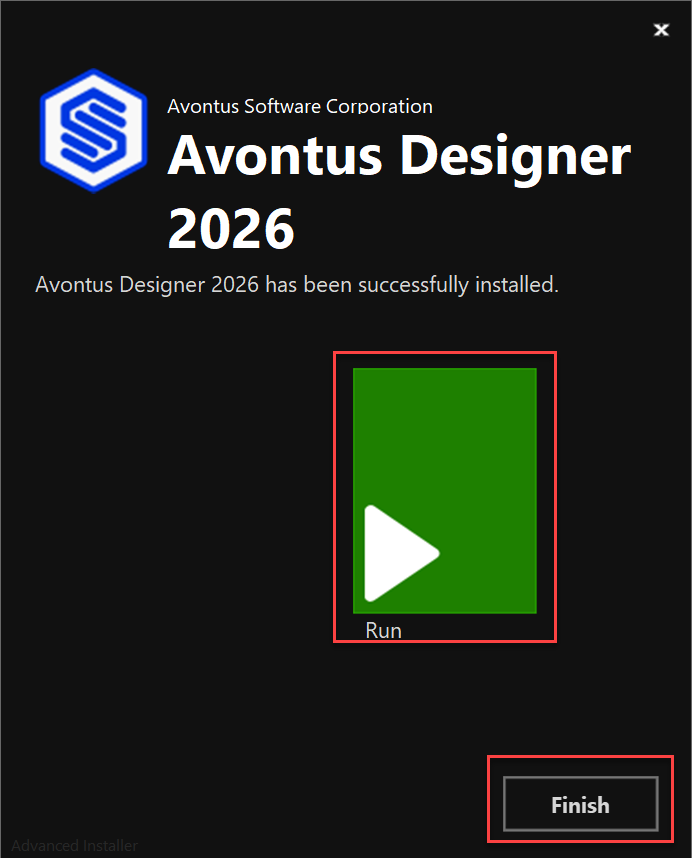
Next, you will need to activate Avontus Designer, please see Activating Avontus Designer for more information.