NOTE: The features mentioned in these articles are only available in the Industrial Edition of Quantify.
You can use Inspection records to track the inspection history of a specific scaffold. This includes the date of inspection, if the scaffold passed or failed inspection, the inspector, etc. While adding Inspection records, you can increment the next Inspection date of a Scaffold to update Notifications and reports.
Enabling Inspections for a Job Site
NOTE: The features mentioned in this article are only available in the Industrial Edition of Quantify.
The Inspections feature must be enabled on the Job Site before Inspections can be added and tracked for individual Scaffolds. Inspections must also be enabled on the individual Scaffold. If this feature is not enabled, you will receive a message like the one below:
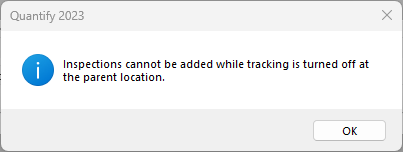
To enable Inspections for a Job Site:
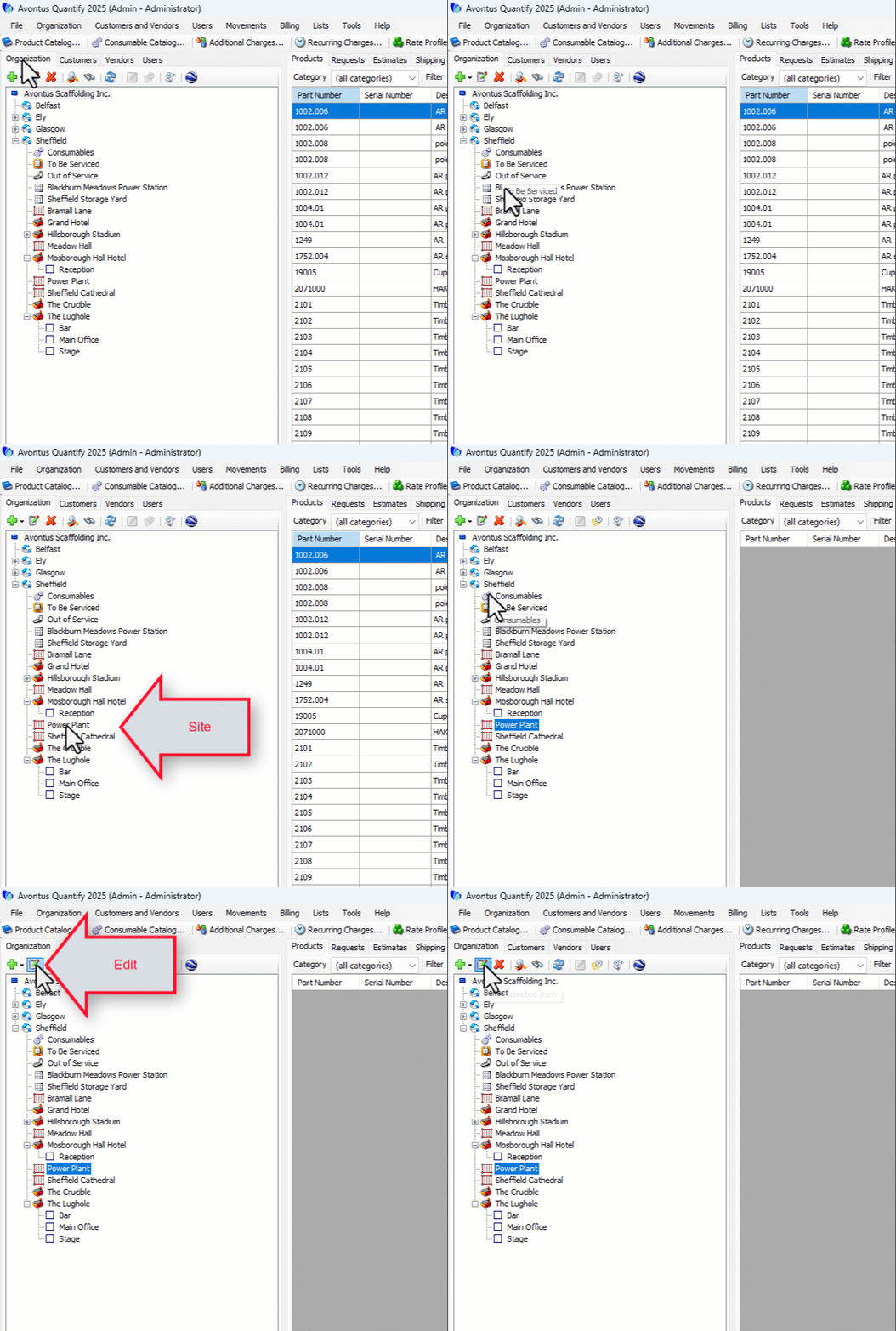
Locate and select the appropriate Job Site, then click the Edit Selected Item button (
 ).
).
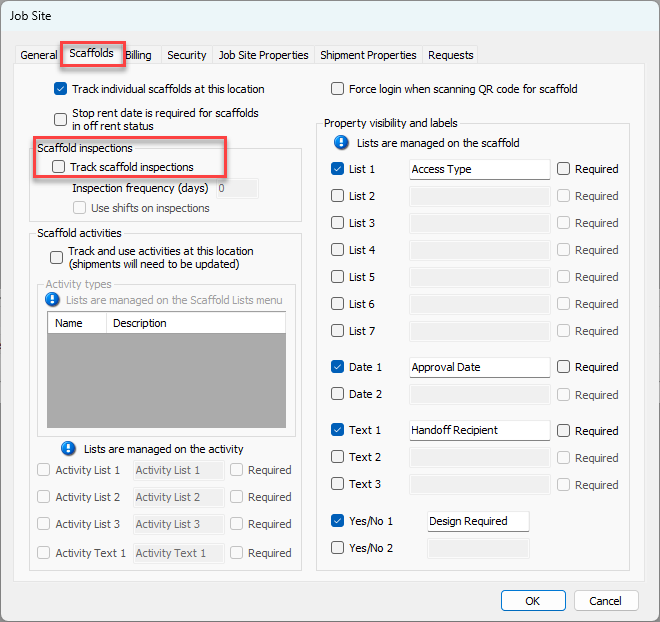
The Job Site dialog appears.Click the Scaffolds tab, then click the Track Scaffold Inspections checkbox.
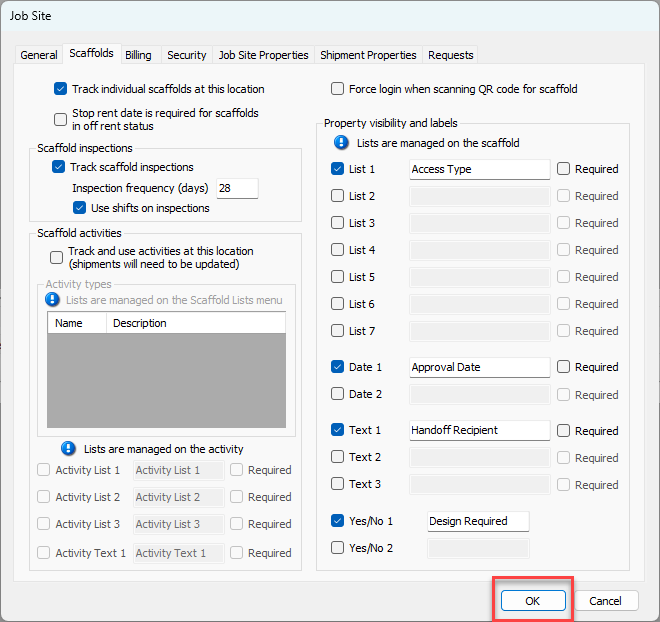
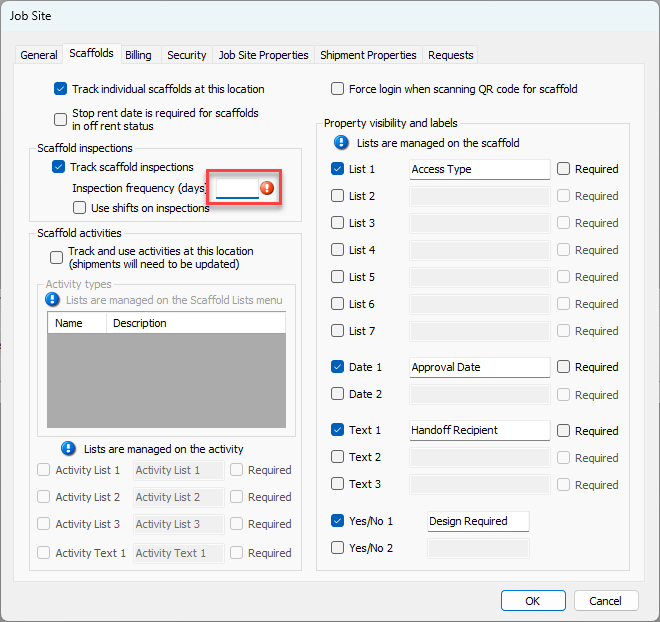
Click in the Inspection Frequency (days) text field and enter an appropriate number of days.
Quantify uses this when enabling Inspections for multiple Scaffolds at once.
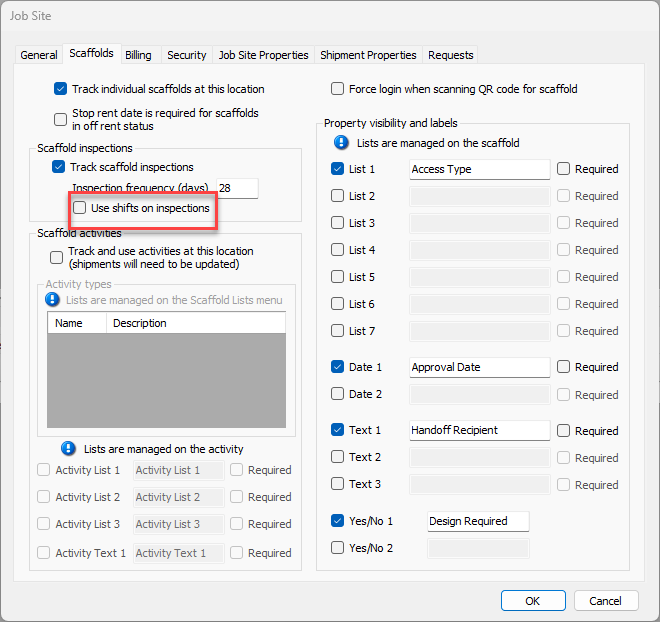
If you would like to include the shift during which the inspection should be performed, click the Use Shifts on Inspections checkbox.
TIP: You can customize shifts from the Scaffold Register tab. Click the Scaffold Lists dropdown and select Shifts to add, edit or remove shifts from the list.
Click OK.