When you select a Scaffold Tracking Job Site from the Job Site dropdown, this tab displays the Unit-Hour Profile for that site. Use this tab to configure standardized charges for the Estimate. To learn more about Unit-Hour Profiles, refer to Adding a Unit-Hour Profile.
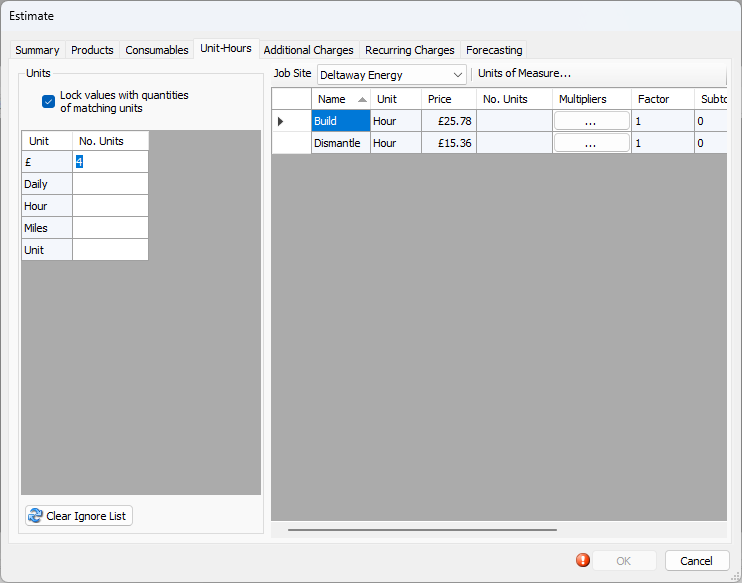
Left Side
The left side of this tab enables you to apply units (days, hours, linear feet, surface area, etc.) to Unit-Hour profiles, which automates the process of determining charges for standardized activities.
| Lock values with quantities of matching units | Quantify displays any amounts entered into the No. Units column in left side of the dialog in the No. Units column in the right side of the dialog. When this checkbox is checked, users cannot change the amounts that appear in the No. Units column in the right side of the dialog. |
| Unit | The Unit column displays all of the available Units. |
| No. Units | Use this column to enter the amount of Unit-Hours the current Estimate will require. When you enter these amounts, Quantify automatically populates the columns in the right side of the dialog. |
Right Side
As you enter units into the left aside of this tab, Quantify populates cells in the right side, showing how much to charge for specific activities for a specified time period.
| Job Site | Use this dropdown to select the Job Site to which you want to assign selected Unit-Hour profiles. |
| Units of Measure | Use this button to create and manage Units of Measure created in Quantify. When you click this button, the Units of Measure dialog appears. Use it to add, edit and delete Unit-Hour profiles. For these procedures, refer to Working with Units of Measure. |
| Name | This column displays the name of each available Unit-Hour Rate. |
| Unit | This column displays the name of the Unit assigned to each available Unit-Hour Rate. |
| Price | This column displays the price/hour for each assigned Unit-Hour Rate. |
| No. Units | This column displays the number of units entered in the No. Units column in the left side of this tab. |
| Multipliers | Use the buttons in this column to assign Quantity Factor Multipliers to a Unit-Hour profile. To learn about Quantity Factor Multipliers, refer to Working with Quantity Factor Multipliers. |
| Factor | This column displays the unit factor for each assigned Unit-Hour profile. |
| Subtotal | This column displays the product of the number of units entered for a Unit-Hour profile multiplied by the factor assigned to it. |
| Split | This column displays the split percent for each assigned Unit-Hour profile. |
| Total Hours | This column displays the quotient of the number of units applied to each Unit-Hour profile divided by the factor assigned to it. |
| Total | This column displays the price applied to each Unit-Hour profile multiplied by the Total Hours assigned to it. |
Units of Measure Dialog
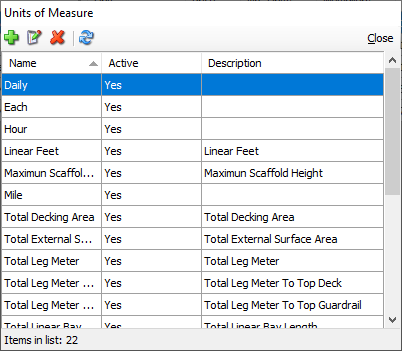
The Units of Measure dialog appears when you click Units of Measure in the top of the Unit-Hours tab. For more information about Units of Measure, refer to Working with Units of Measure.
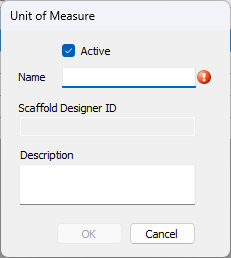
Add ( | Use this button to add Unit of Measure. When you click it, a blank Unit of Measure dialog appears.
|
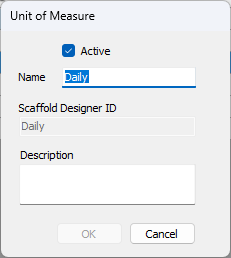
Edit ( | Use this button to edit a selected Unit of Measure. When you click it, the Unit of Measure dialog for the selected Unit of Measure appears.
|
Delete ( | Use this button to delete a selected Unit of Measure. |
Refresh ( | Use this button to refresh the list in this dialog. |
| Name | This column displays the name of each current Unit of Measure. |
| Active | This column displays whether each current Unit of Measure is active/useable or not. |
| Description | This column displays the description for each current Unit of Measure. |
 )
)
 )
)
 )
) )
)Select Multipliers Dialog
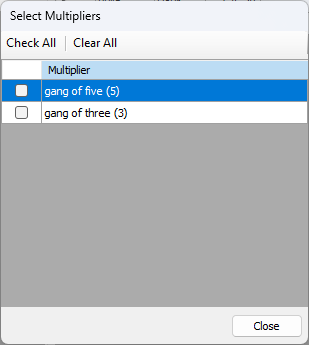
The Select Multipliers dialog appears when you click a button in the Multipliers column. Use it to assign one or more multipliers to a Unit-Hour Rate. To learn more about Quantity Factor Multipliers, refer to Working with Quantity Factor Multipliers.
| Check All | Use this button to select all current Factor Multipliers. |
| Clear All | Use this button to deselect all current Factor Multipliers. |
| Multiplier | This columns displays the name of each current Factor Multiplier. |