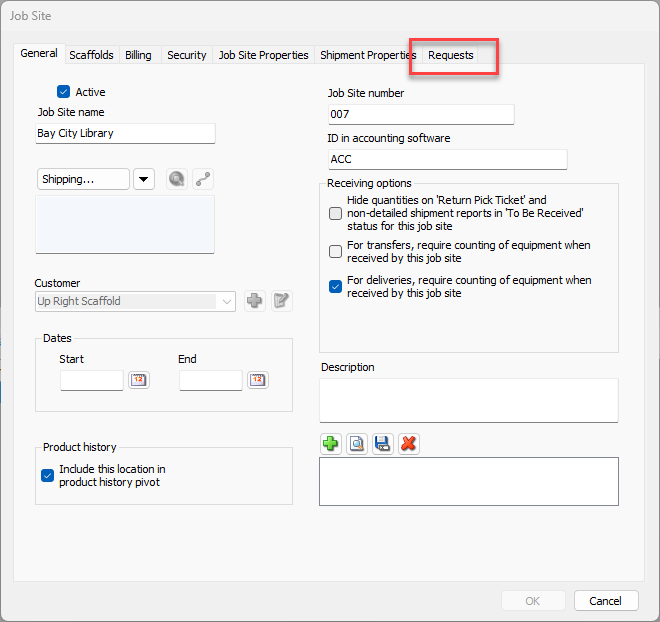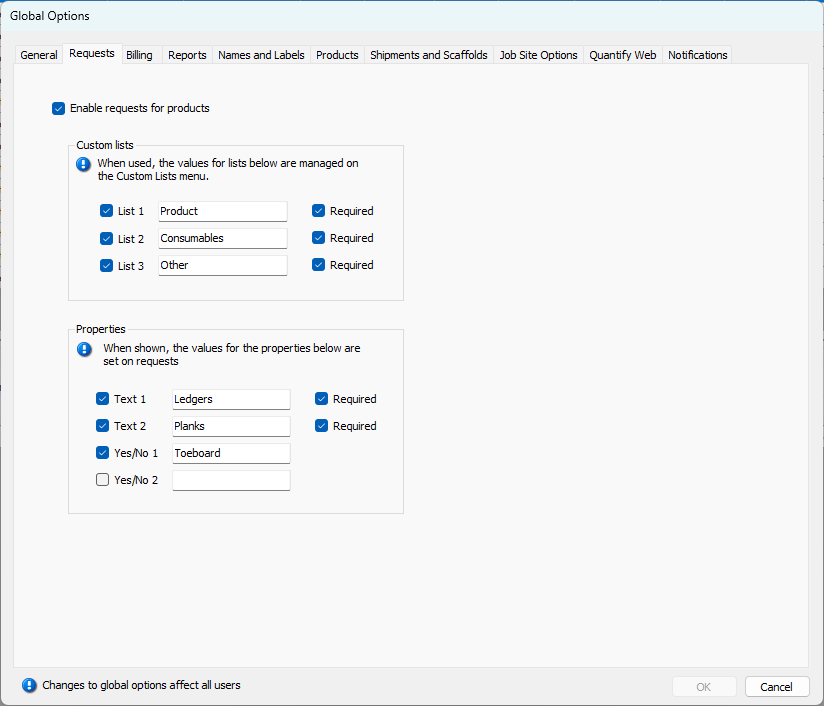
The Requests tab enables you to enable/disable Requests. When you enable Requests, Quantify adds the Requests tab to the interface. When Requests are enabled, users in the field can access the Request Portal, through which they can request material for Job Sites. This feature is available to those who purchased Quantify Web licenses and is available for both the Enterprise and Industrial Editions of Quantify. The ability to request items is available for both the desktop version of Quantify and from mobile apps (iOS, Android).
The Top Section
| Enable requests for products | When this checkbox is checked, Quantify allows the creation and management of Requests on a Job Site-by-Job Site basis. |
The Custom Lists Section
The lists defined in this section appear in the left side of the Properties tab of the Request dialog.
| List | When one or more of these checkboxes are checked, Quantify enables users to create custom lists that can be assigned when creating or editing Requests. Use the text field beside the checkbox to enter a label for each list. |
| Required | When one or more of these checkboxes are checked, Quantify requires users to select an item from the list when creating or editing Requests. |
The Properties Section
The properties defined in this section appear in the right side of the Properties tab of the Request dialog.
| Text | When one or more of these checkboxes are checked, Quantify enables users to create custom text fields that can be assigned when creating or editing Requests. |
| Yes/No | When one or more of these checkboxes are checked, Quantify enables users to create custom Yes/No question/answer checkboxes that appear in the Scaffold dialog. A check in the checkbox means the answer is Yes. Use the text field beside the Yes/No checkbox to configure the appropriate label/question for the checkbox. |
| Required | When one or more of these checkboxes are checked, Quantify requires users to make an entry into the text field when creating or editing Requests. |
Enabling Requests Globally
Use these procedures to enable the creation and management of Requests and allow users to use the Request Portal.
To enable Requests Globally:
- Click the Tools menu and select Global Options.
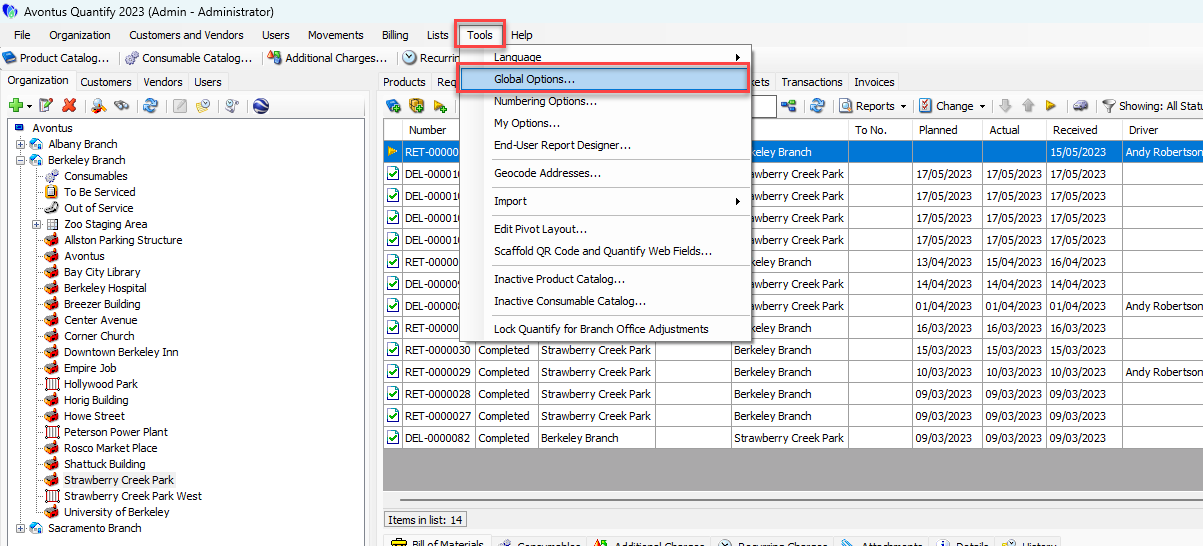
The Global Options dialog appears. - Click the Requests tab.
- Click the Enable requests for products checkbox, to put a check in it.
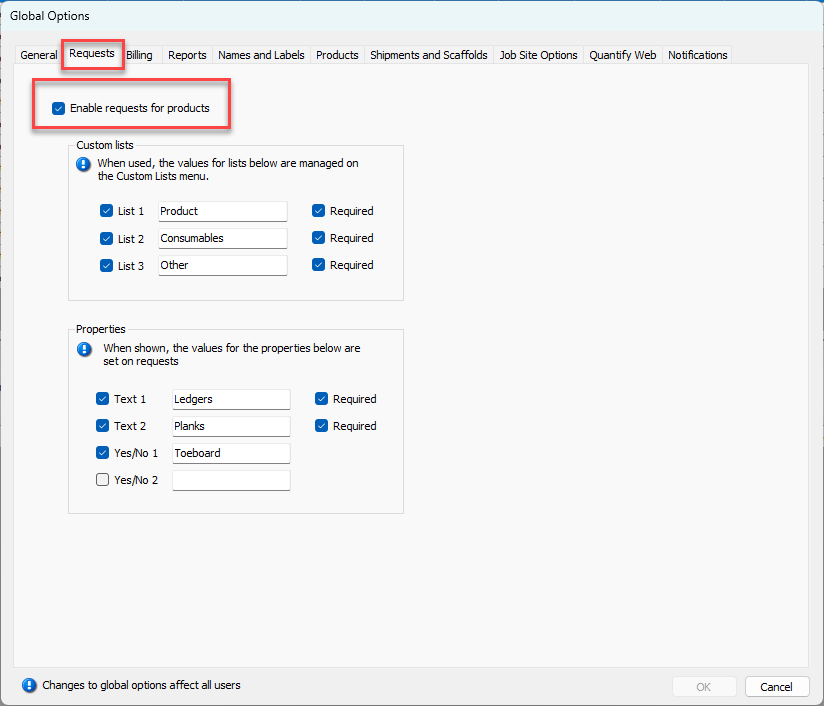
- Click OK.
Quantify displays the Requests tab.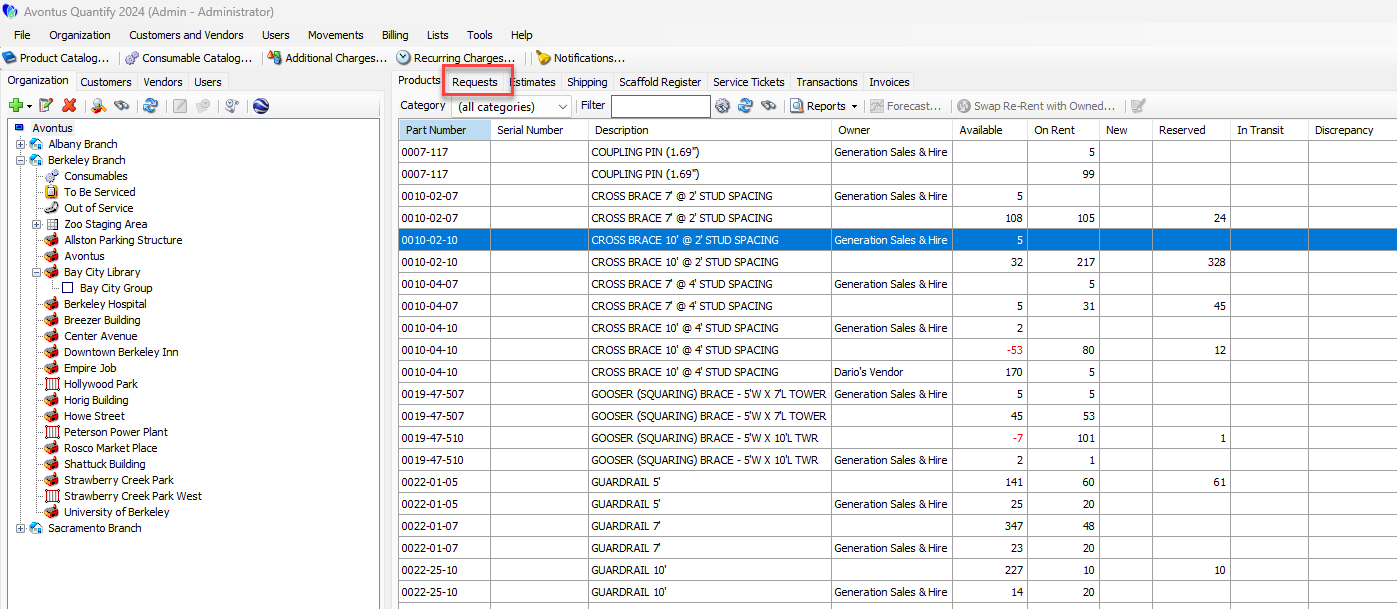 Quantify also adds the Requests tab to the Job Site dialog: