On the Global Options, you can add a Domain Name so that any username with an email address on this domain can log in via Microsoft Entra ID/Azure Active Directory (AAD).
You can create an Entra ID login on the Microsoft Azure Website. More information can be found here: Azure Active Directory.
To Register a Domain Name:
Select Tools
Select Global Options
.png "image(59).png")
In the General tab, select the green + icon
.png "image(60).png")
This will display the Domain App Registration dialog
.png "image(61).png")
Provide the details of the Domain Name. These can be found when you created an Entra ID login on the Azure portal.
Click Verify Login
Note: Click OK to save the domain without verifying the login..png "image(80).png")
Pick an Account from those available
.png "image(76).png")
Enter the Password, and click Sign in.
.png "image(63).png")
Provide the Enter code sent to your authenticator app.
.png "image(78).png")
Your login will be verified.
.png "image(81).png")
You can find your domain in the Global Options..png "image(88).png")
You would then have to create or edit a user with their email address on that domain added as their username.
.png "image(84).png")
Return URLs
Active Directory logins utilise OAuth which requires an HTTP listener to be present at the client side in order for the server to communicate with it. For security reasons, the specific listener URLs must be present in the list of registered redirect URIs in the Azure Portal.
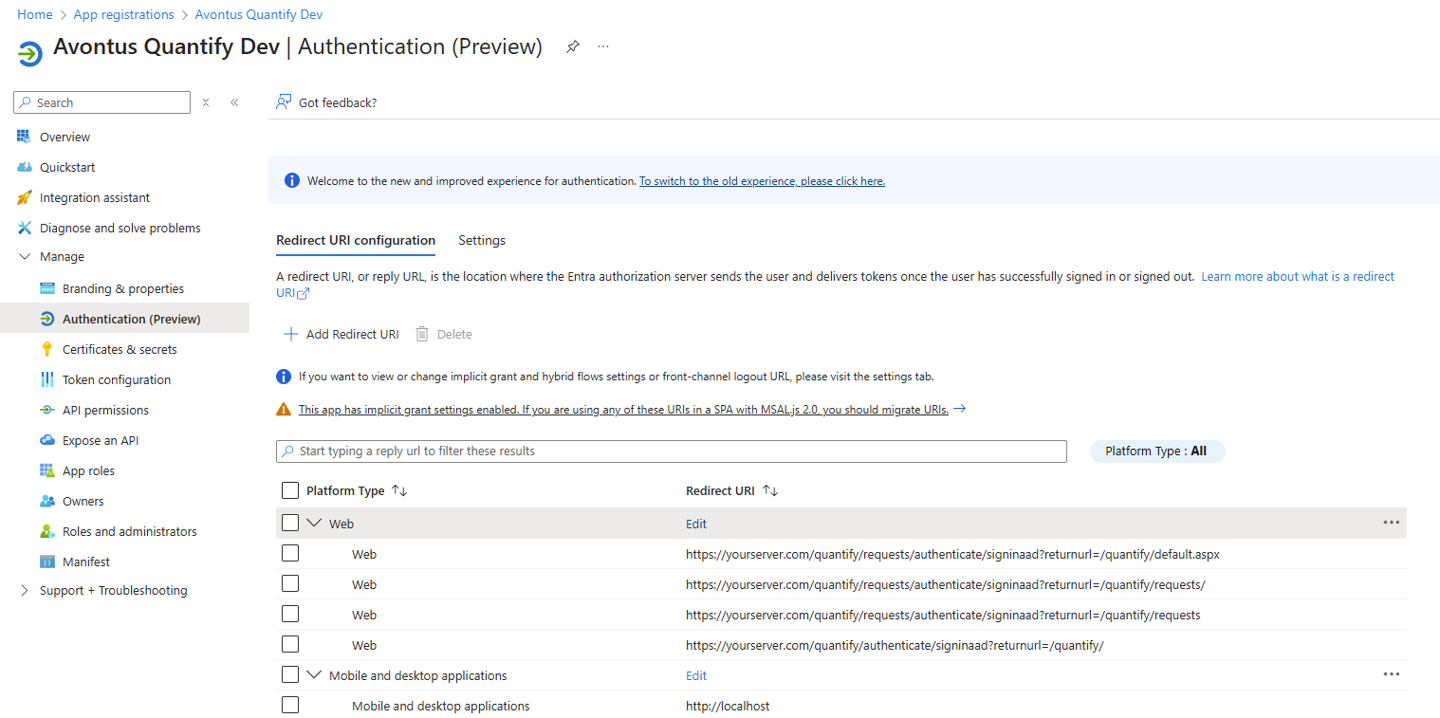
Edit the App Registration you wish to configure
Click Authentication.
Add the 5 Urls below. The desktop app just requires http://localhost, but Quantify Web requires four URLs, for the different component parts of Quantify Web including the request portal. Add these as listed, replacing yourserver.com/quantify with your specific web URL.
Note - the ?returnUrl= part of the path needs to match the subdirectory of your server too. So if your Quantify Web server is hosted at https://yourserver.com/quantify, ?returnUrl=/quantify is valid. However if you hosted Quantify web under https://yourserver.com, ?returnUrl=/ would be valid.