To access the Activity screen, double-click on an Activity. You can also select the Details button.
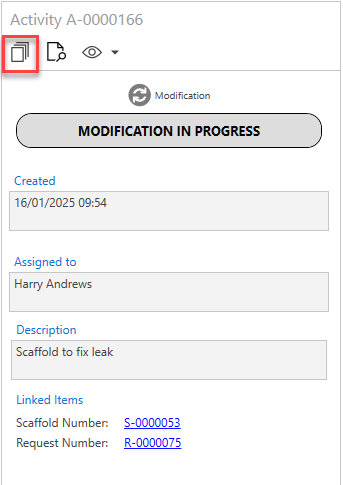
The Activity Details screen provides an overview of the selected Activity. This screen will display details about the Activity, such as the description and the date the Activity was created.
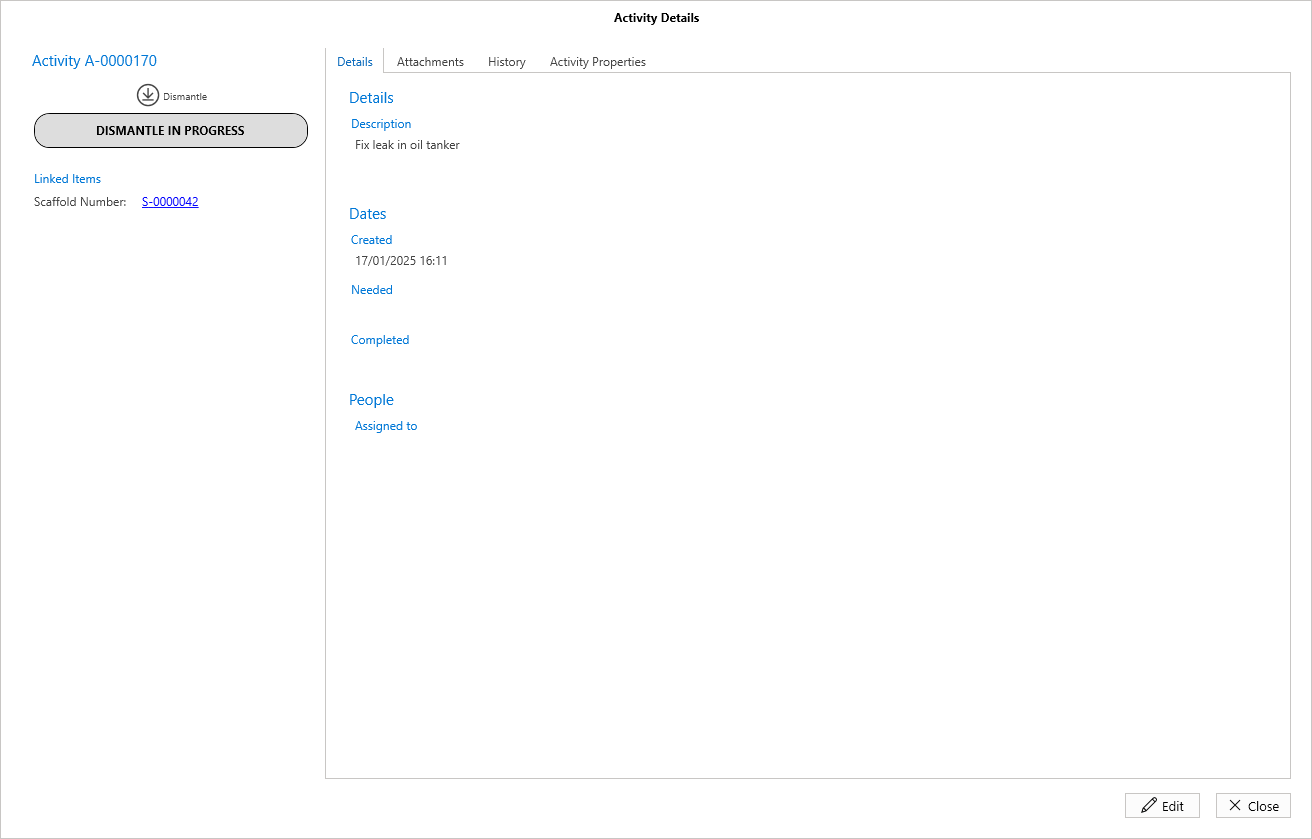
The Scaffold and Request fields details what scaffold and request the activity is for. Click on the scaffold or request number to be taken to the Details of the selected scaffold or request.
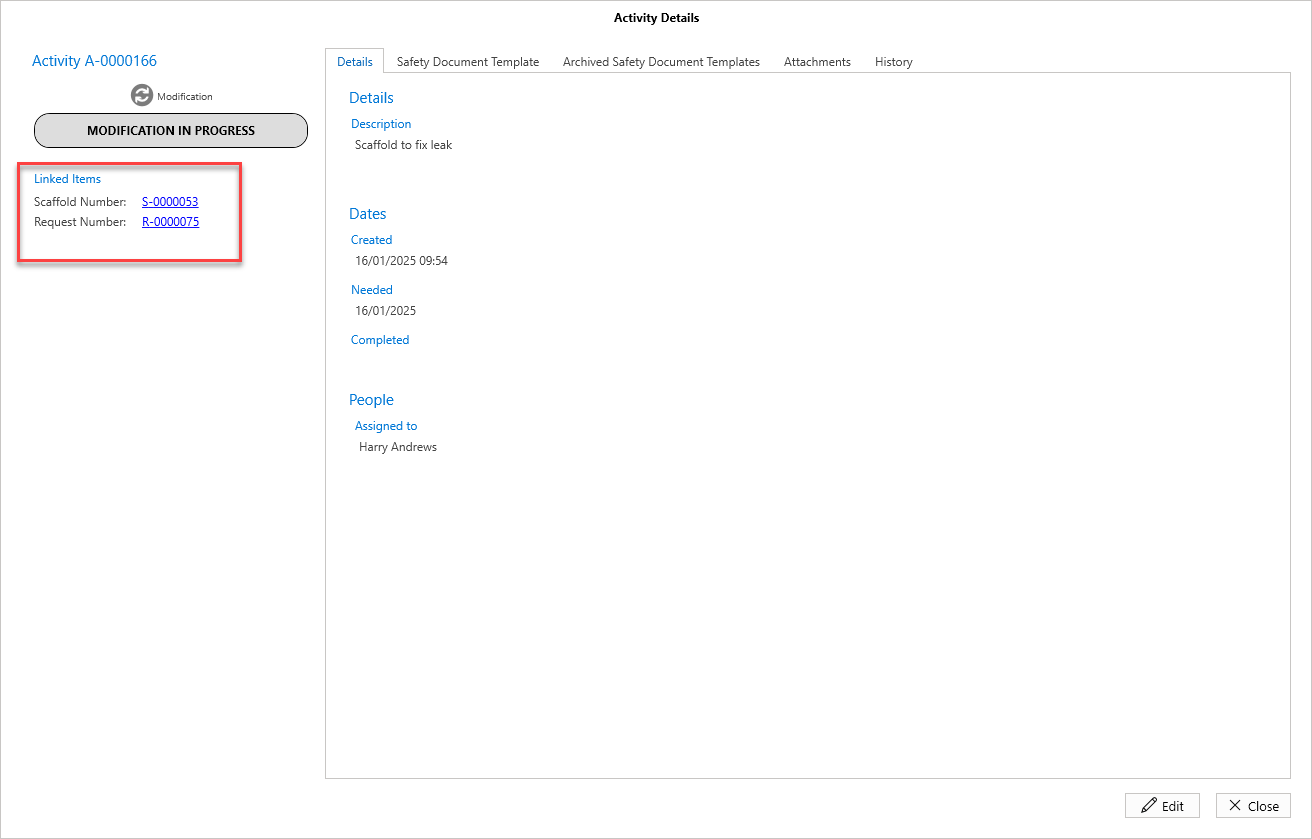
In the Details section, you can provide a description of the Activity.
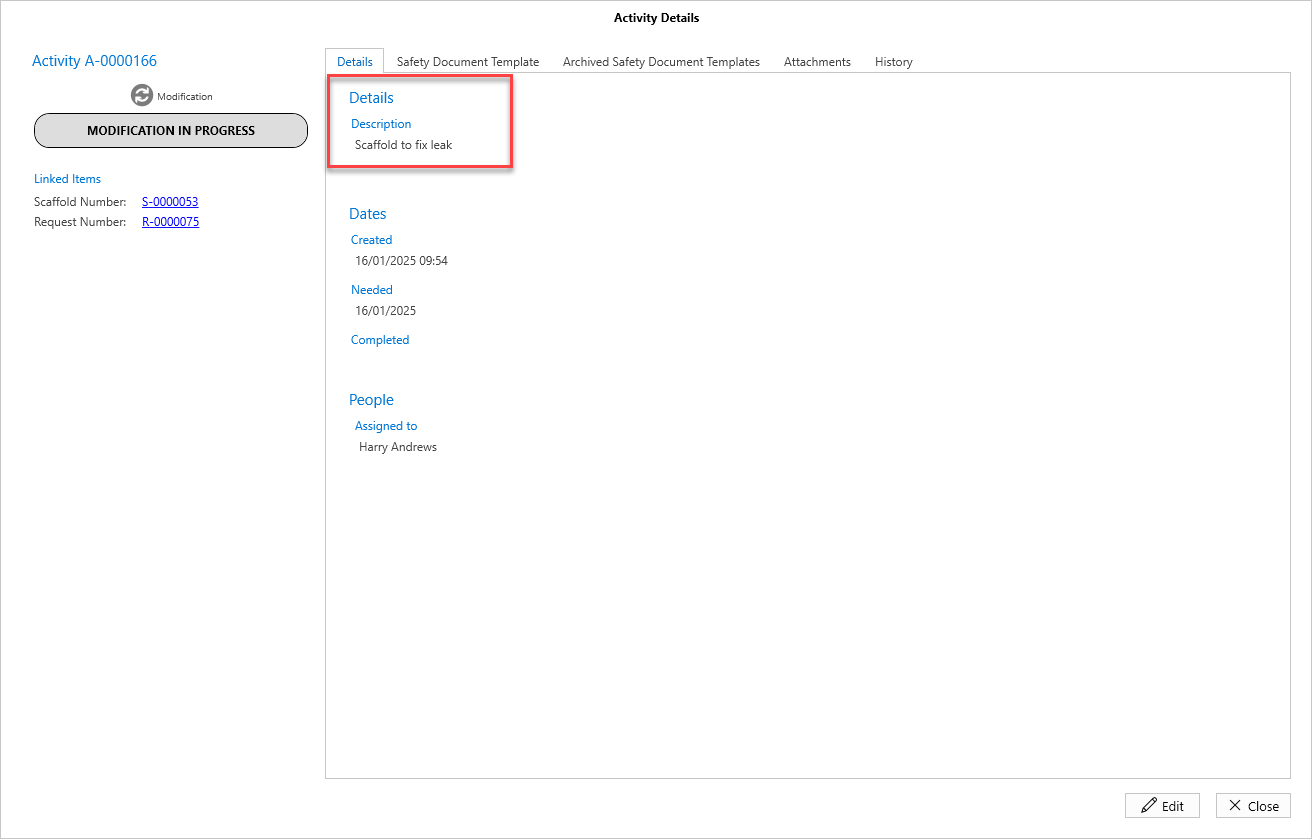
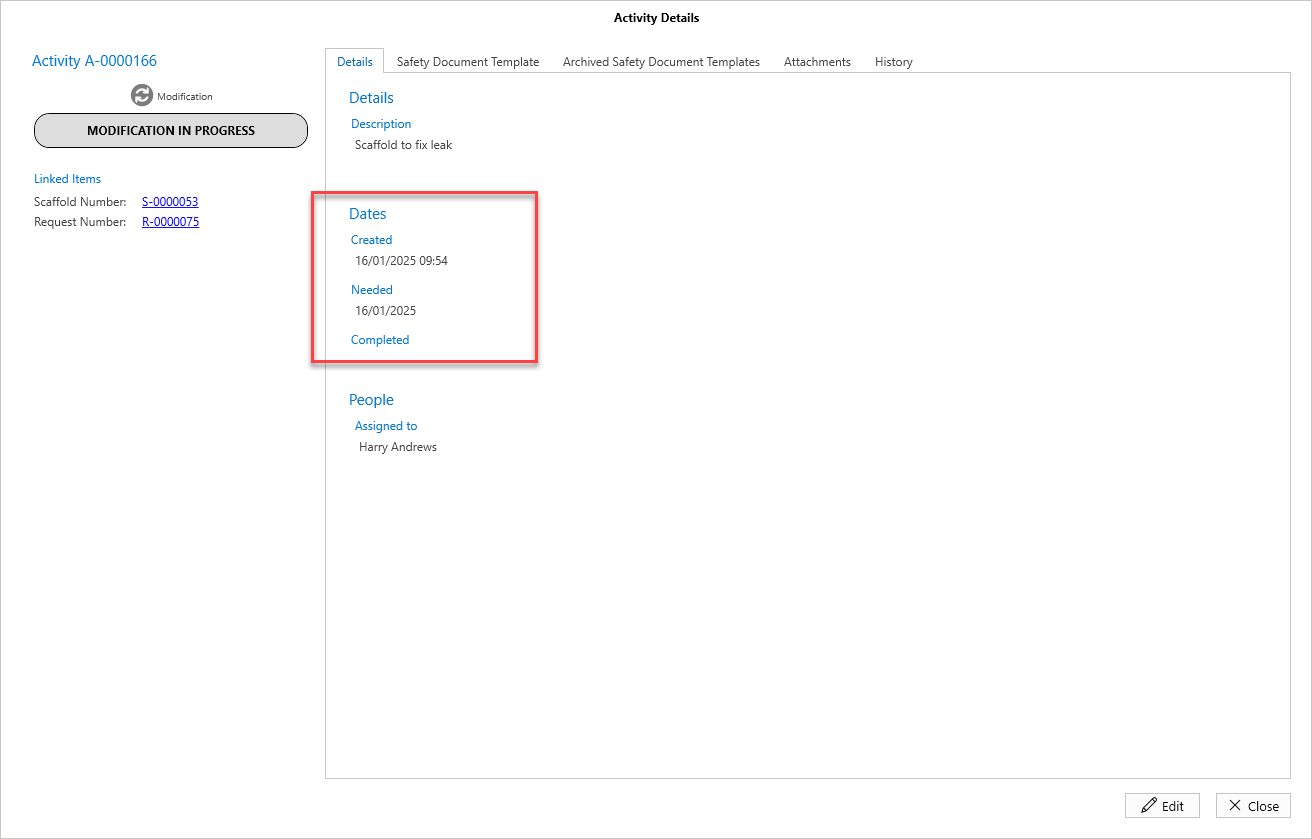
In the Details section, the date fields are used for specifying the created and required dates of the Activity.
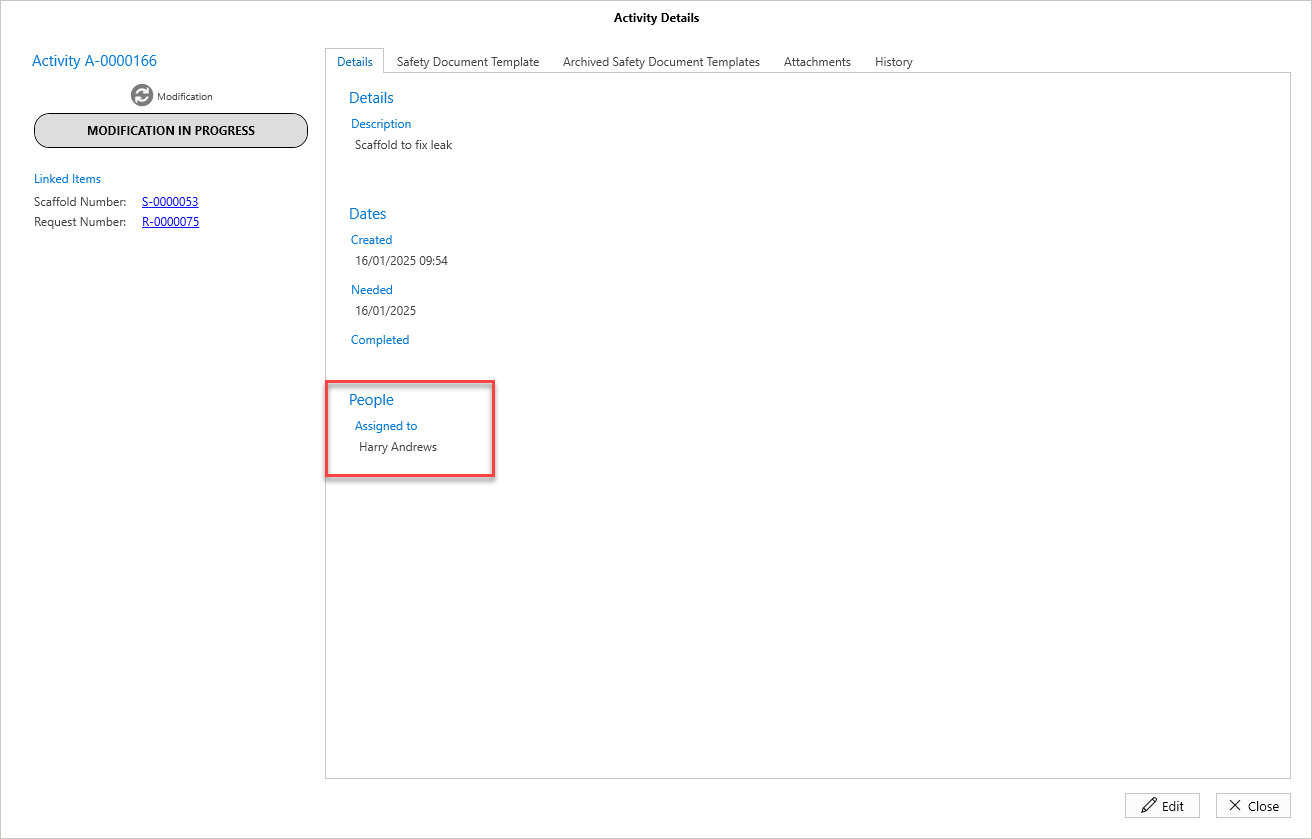
You can also see who is assigned to the Activity in the Details section.
Safety Document Template
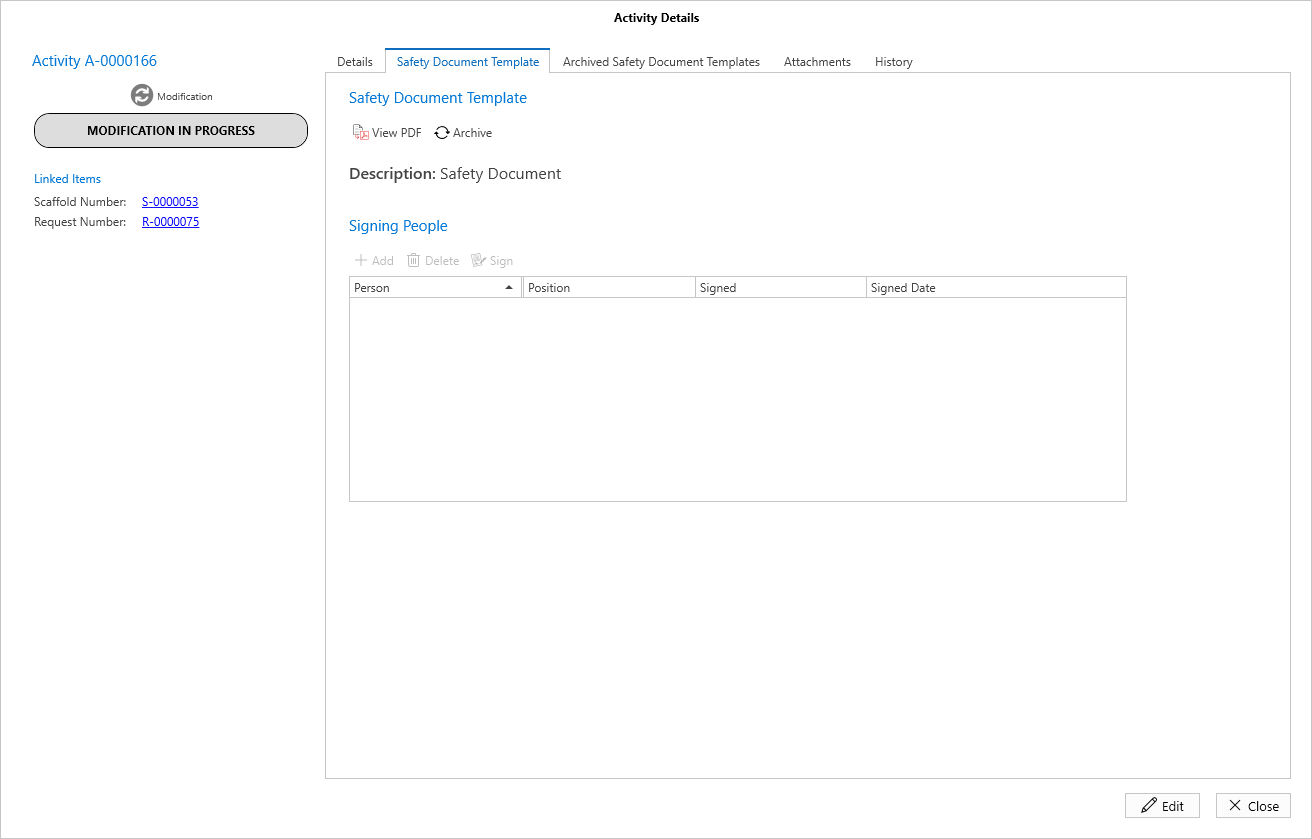
The Safety Document Template tab is where you can find the safety document template for this activity. This template is taken from the Request or Scaffold linked to the activity.
Click View PDF to view the document template. 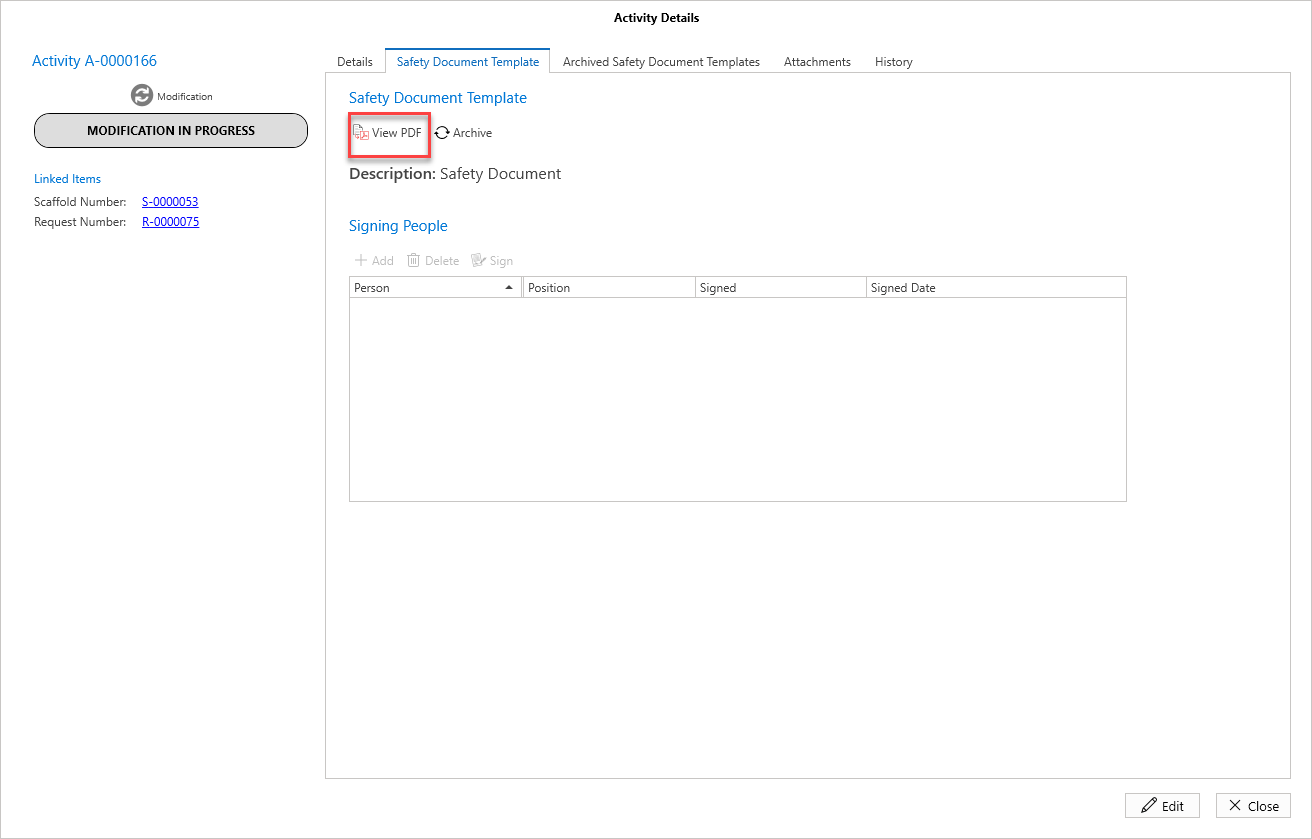
Click Archive to save the template and add it to the Activity, allowing the relevant users to sign off the documents.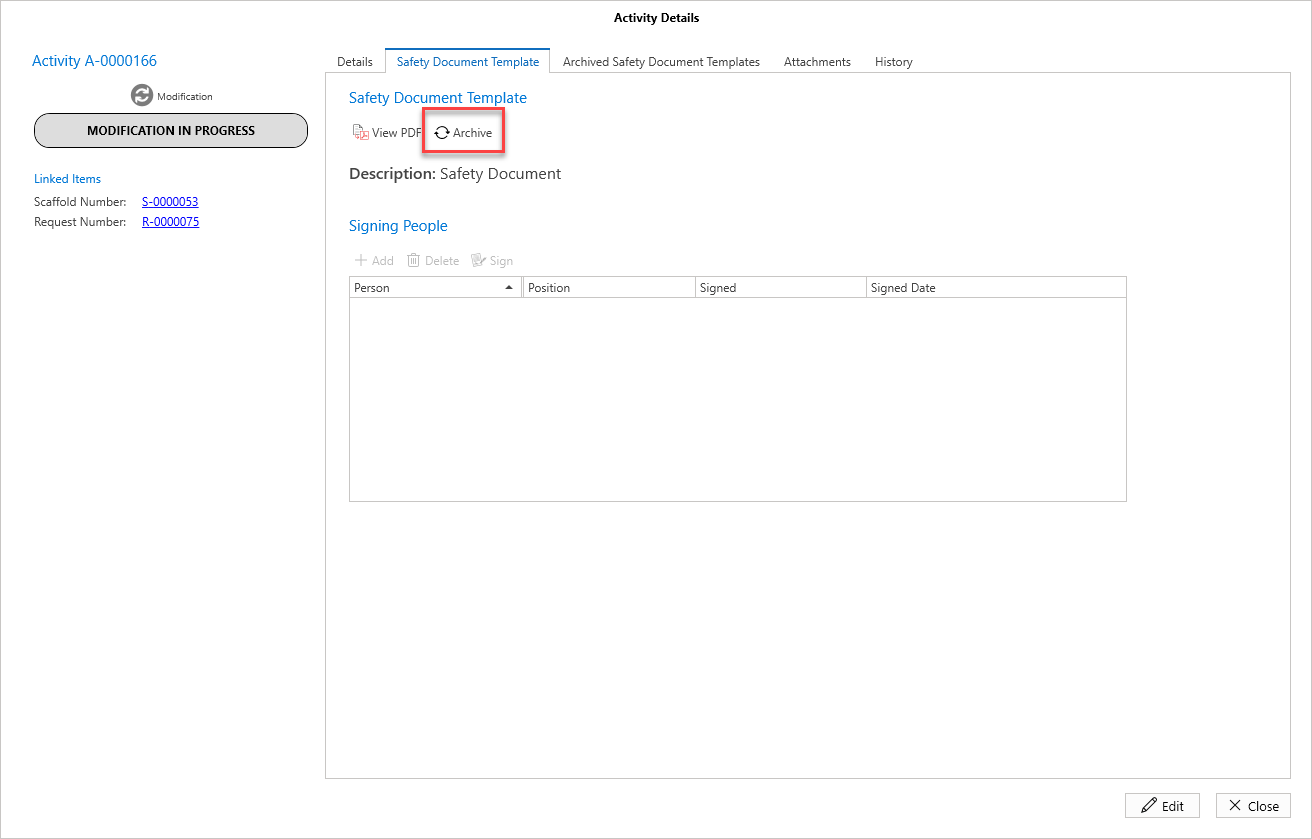
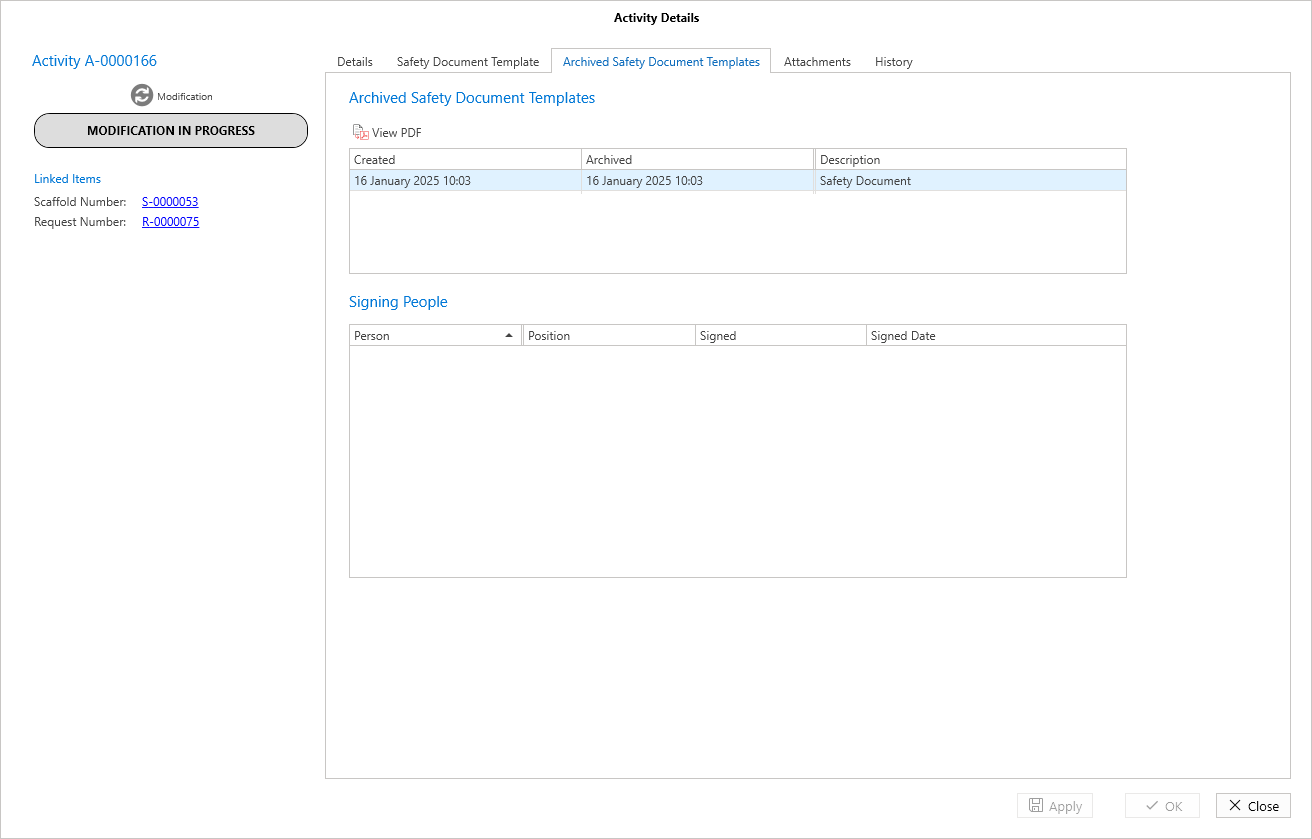
These can then be viewed in the archived Safety Document Templates tab.
You can add people who will sign off the template. If you added any names to the Safety Document Template tab in the Scaffold Details screen, they will appear here. Otherwise, you can add your own users by clicking the Add button.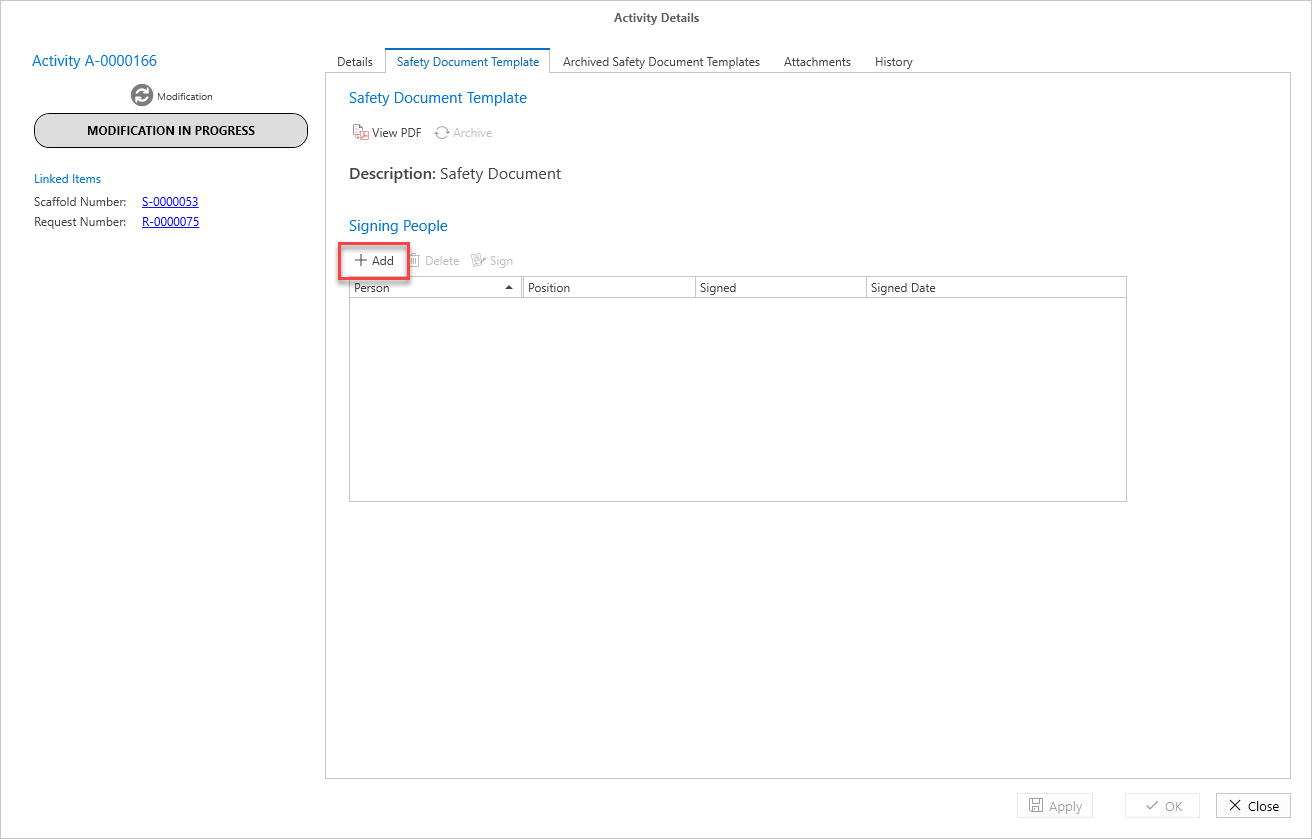
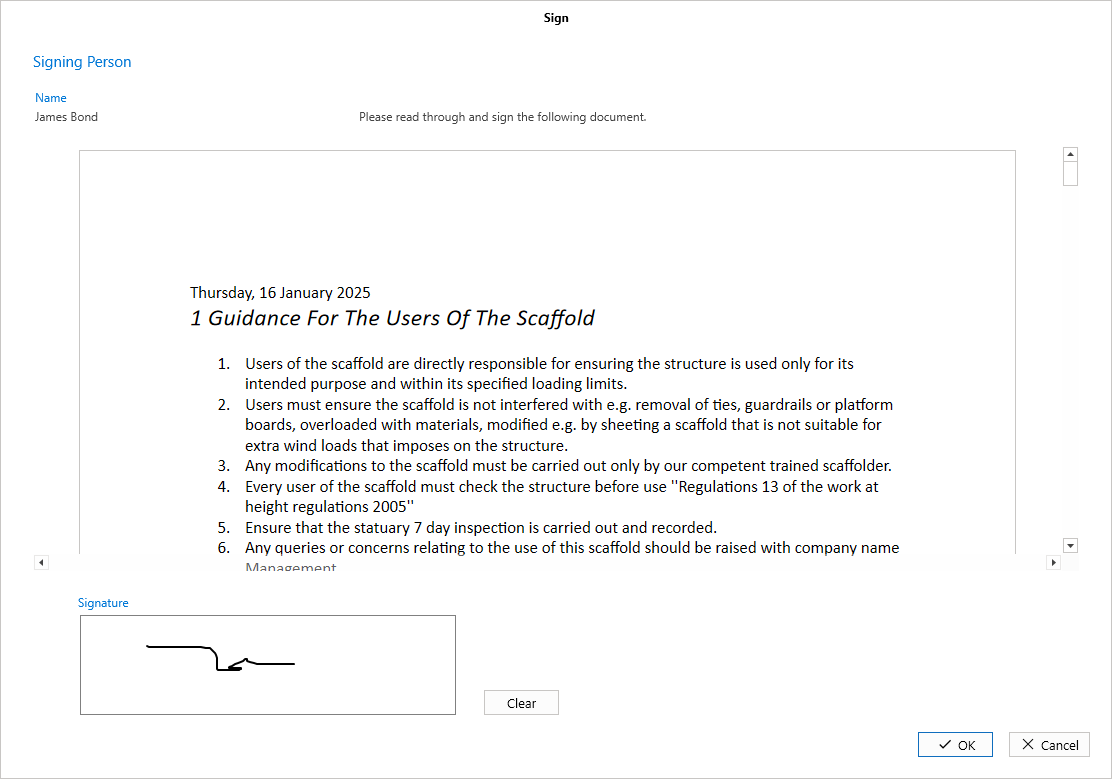
When a person has been added, you can then sign the document template under that person’s name.
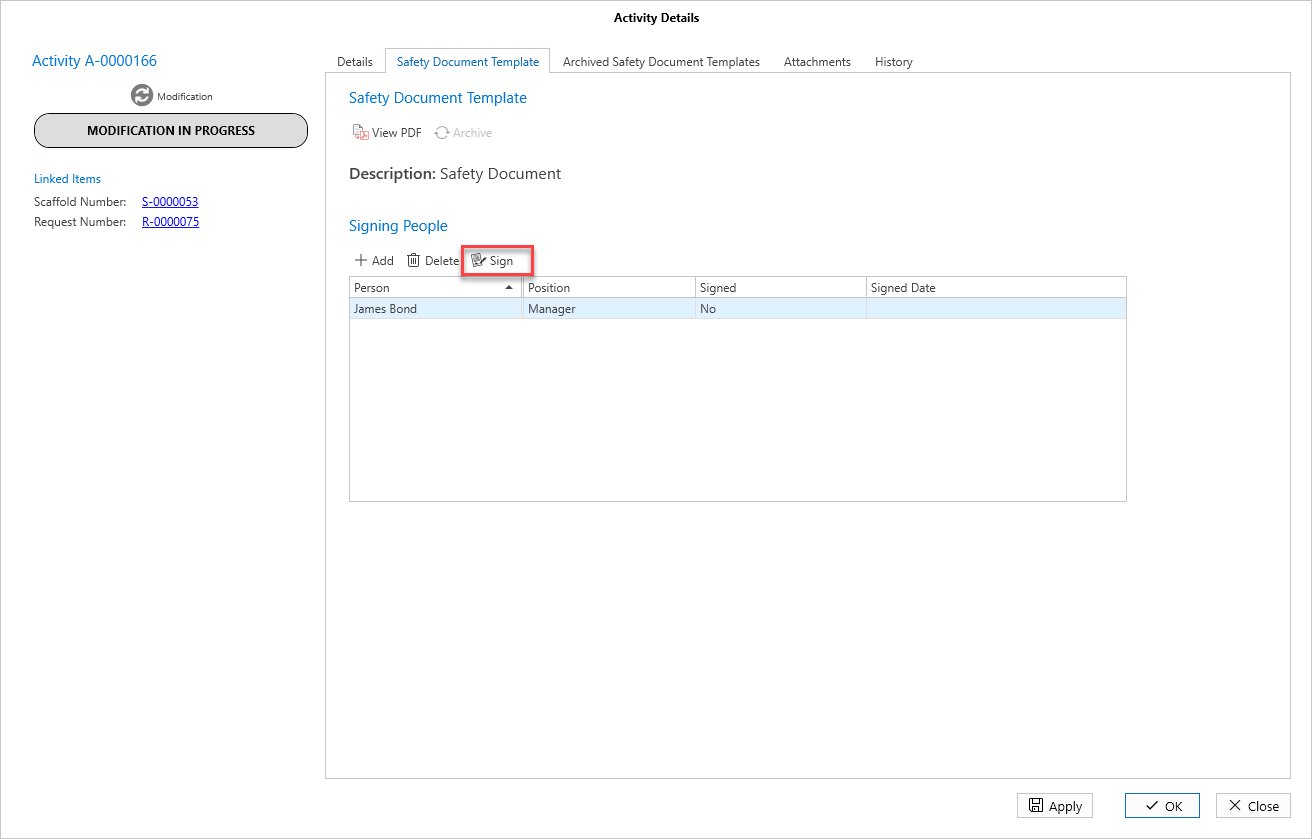
Sign the document template.
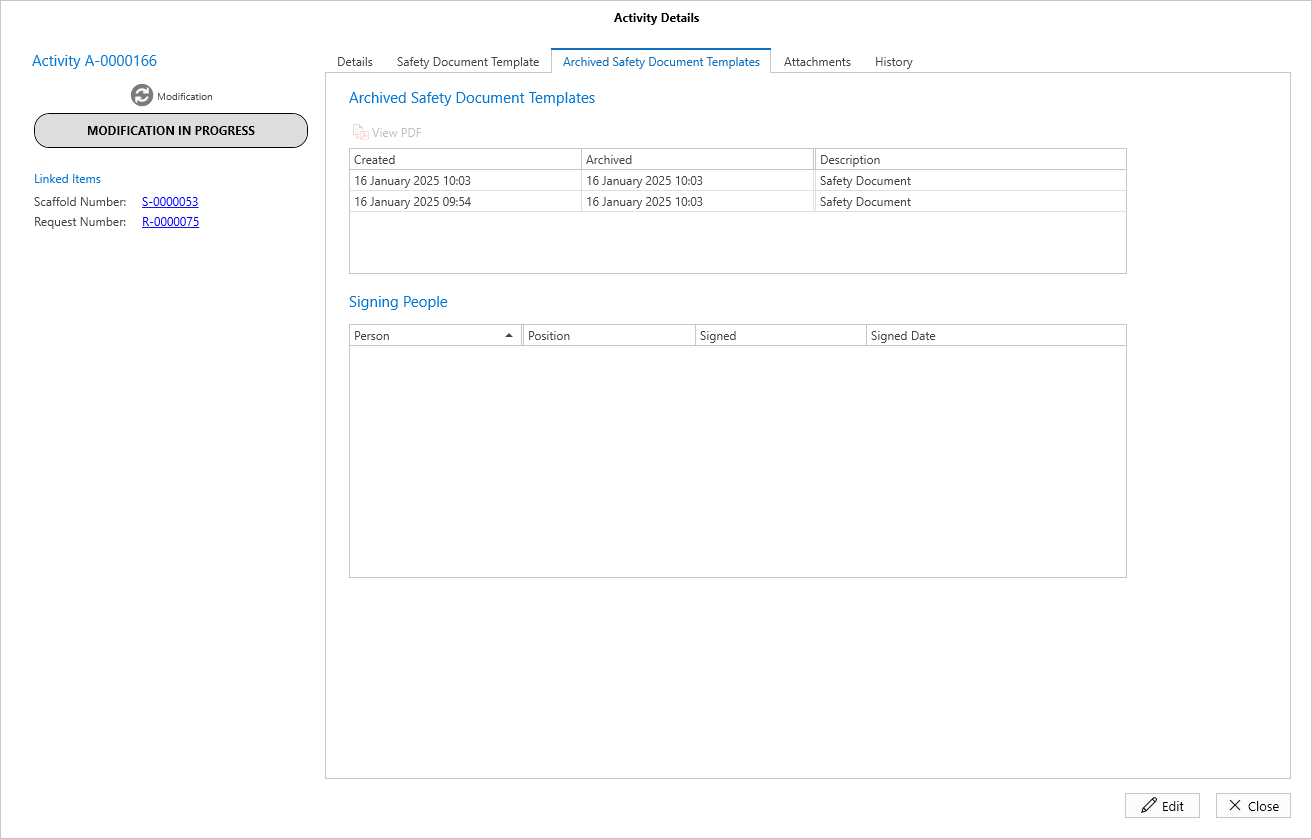
Archived Safety Document Templates
Any archived document templates in the previous tab will appear here.
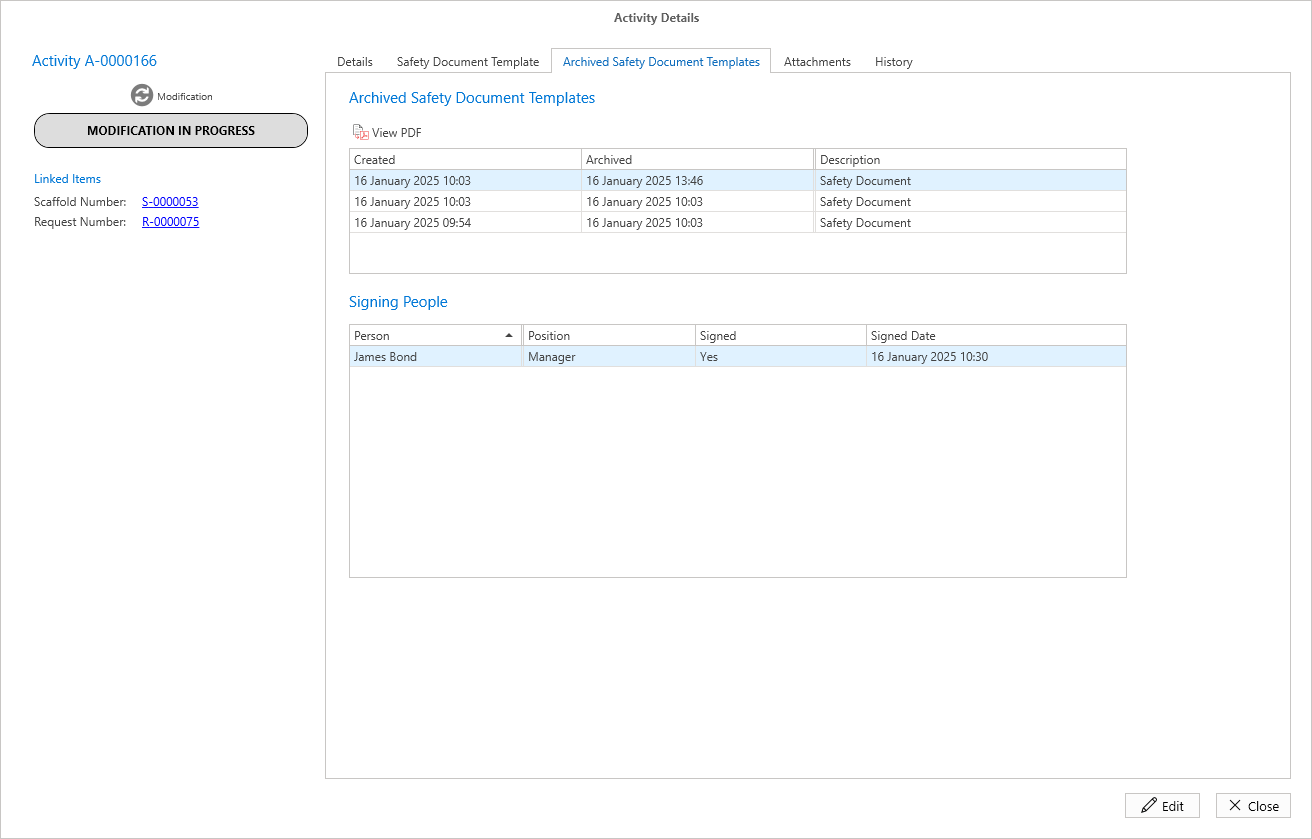
if you select on a template, you can see who signed it, and you can view a PDF of the document template.
Attachments
Attachments can be viewed or added in the Attachments tab of the Activity Details screen. Attachments could include scaffold plans, an image of the scaffold, or any related handover documents
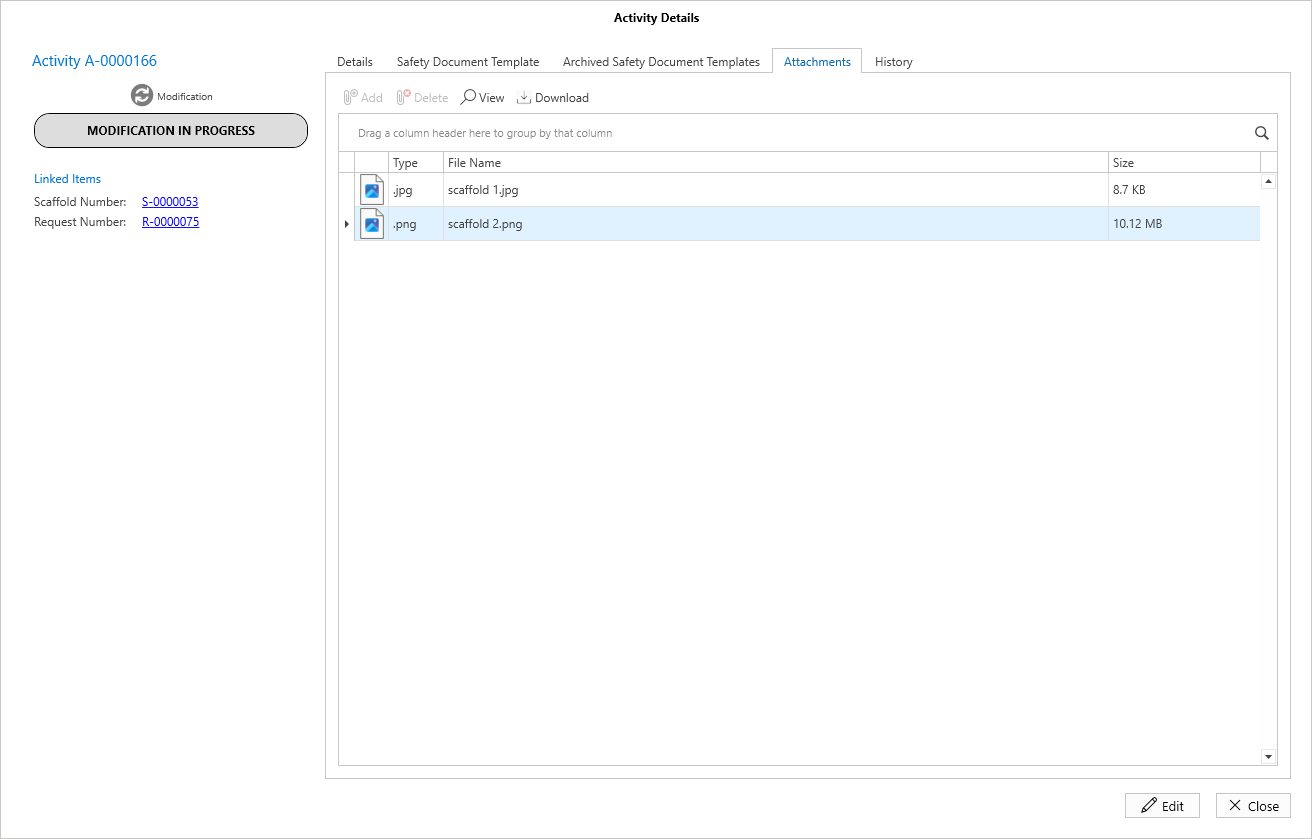
Add attachments using the Add button.
Note: You will need to be in Edit mode to add attachments
For more information, please see the relevant guides on Adding Attachments and Modifying Activity Details.
History
The History tab provides an overview of all changes, including status changes, on that Activity.
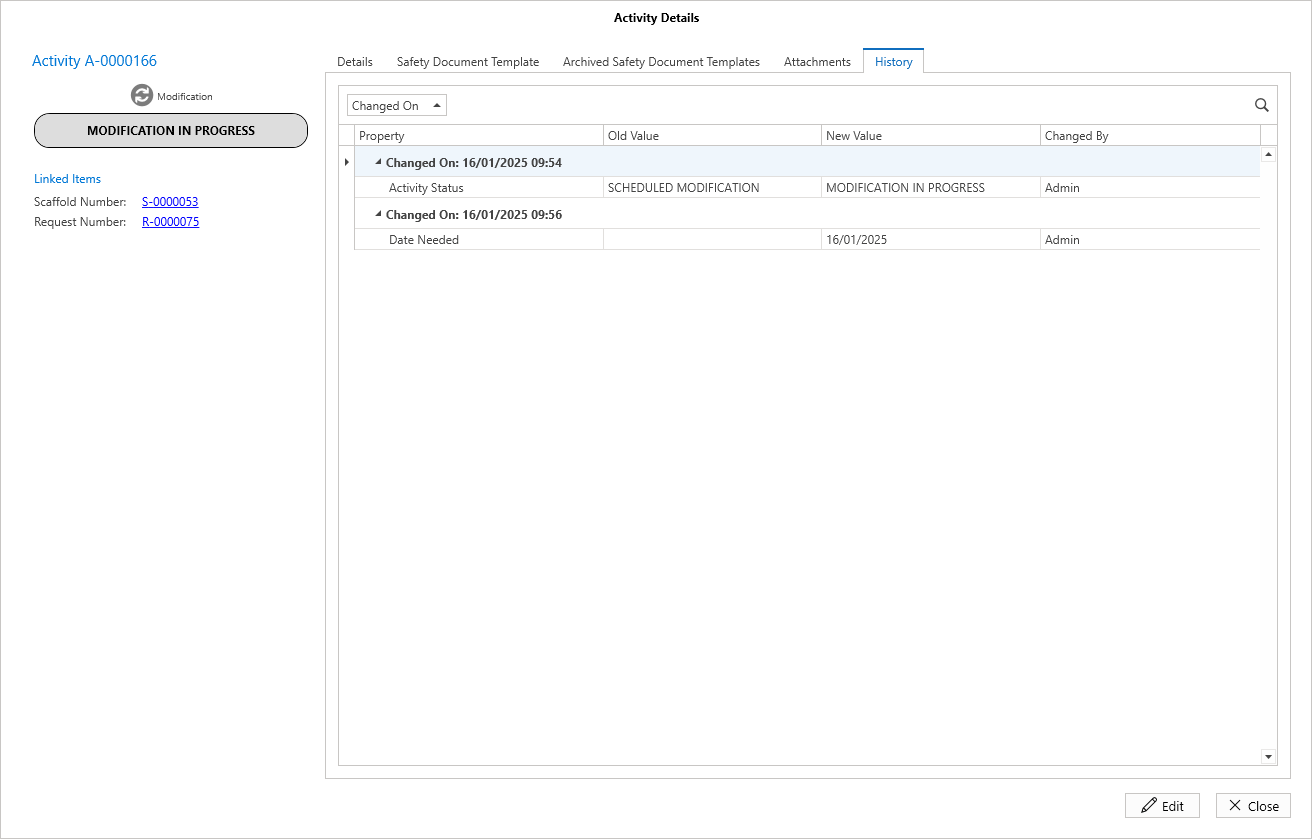
The following columns in the History table are:
Column | Purpose |
Property | What was changed such as an approver moving the status of a request from Initial Approval to Secondary Approval. |
Old Value | The original value. |
New Value | The new value. |
Changed On | When the date the user made the change. |
Changed By | The user who made the change. |
Note: You can also group columns in the same way as you would when grouping on the Activity screen.