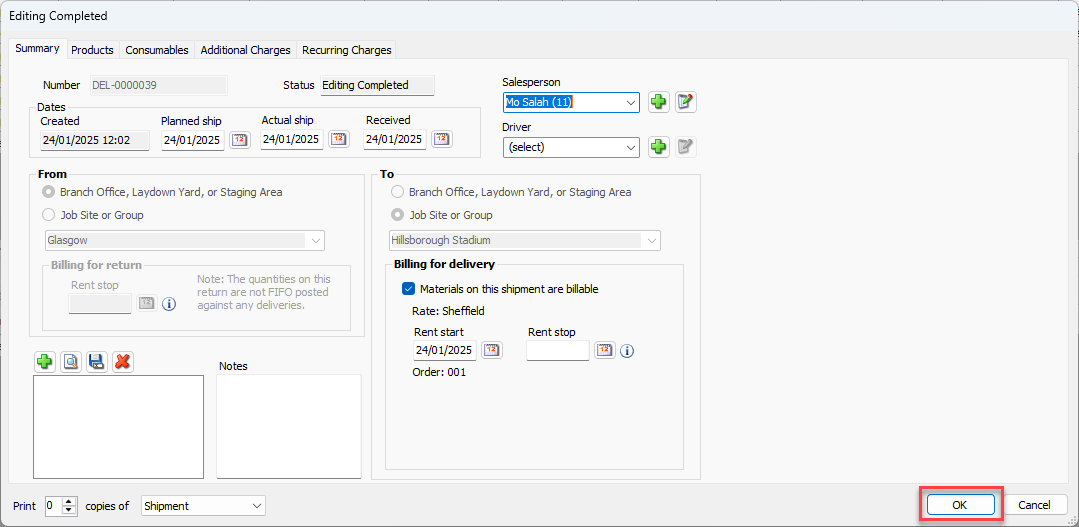
Quantify enables you to edit a Shipment up until the Shipment is invoiced. You can always edit Shipment properties that are not billing-related.
Note: If the Shipment's destination was incorrectly entered, you must void the Shipment and create a new one. However, if the relevant Branch Office is configured to require counting of equipment when received and you receive the Shipment with discrepancies, you cannot edit or void the Shipment until the you have resolved the discrepancies.
To edit a shipment:
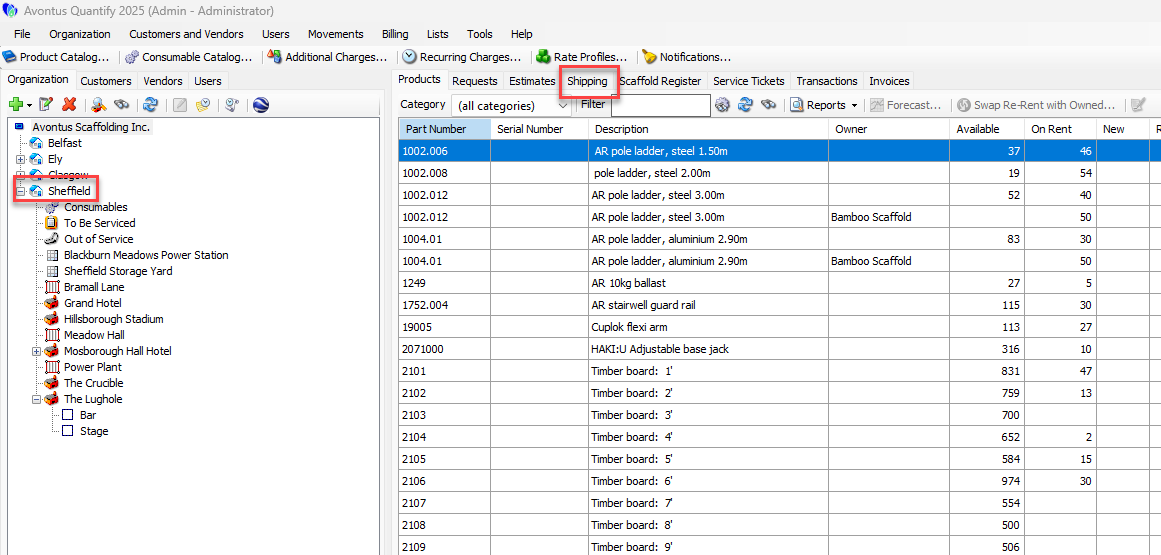
Locate and click the appropriate location and click the Shipping tab.
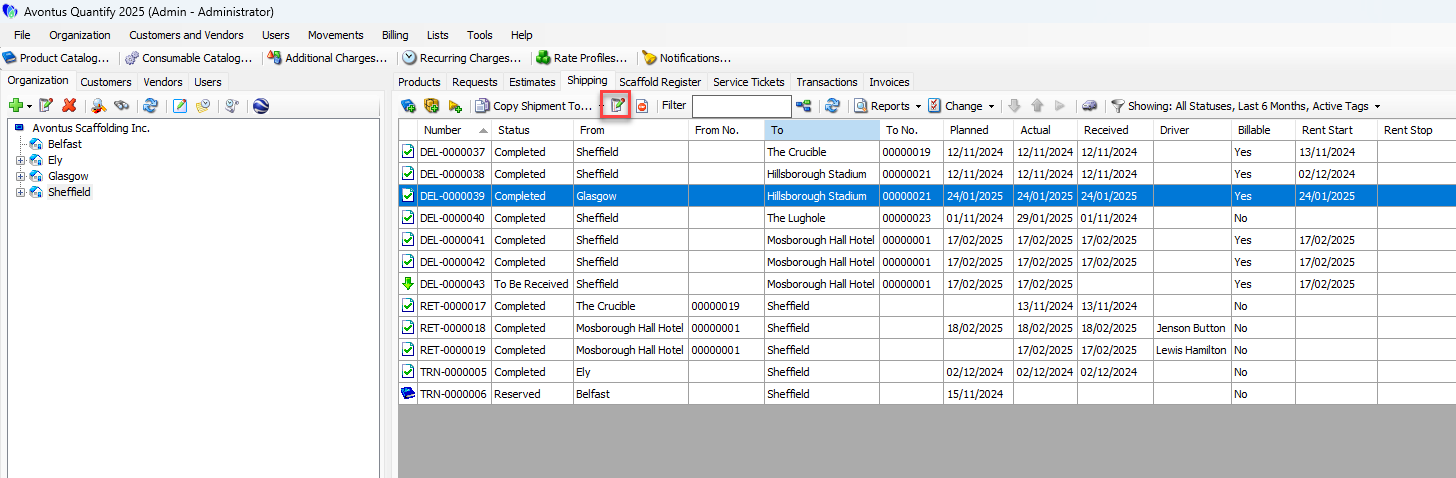
Click the appropriate shipment(s), then click the Edit Shipment button (
 ).
).Note: You can also double-click the Shipment.
The Editing Completed dialog for this Shipment appears.
Edit this dialog, as necessary.
To learn more about the items in this dialog, refer to: The New Direct Ship Dialog.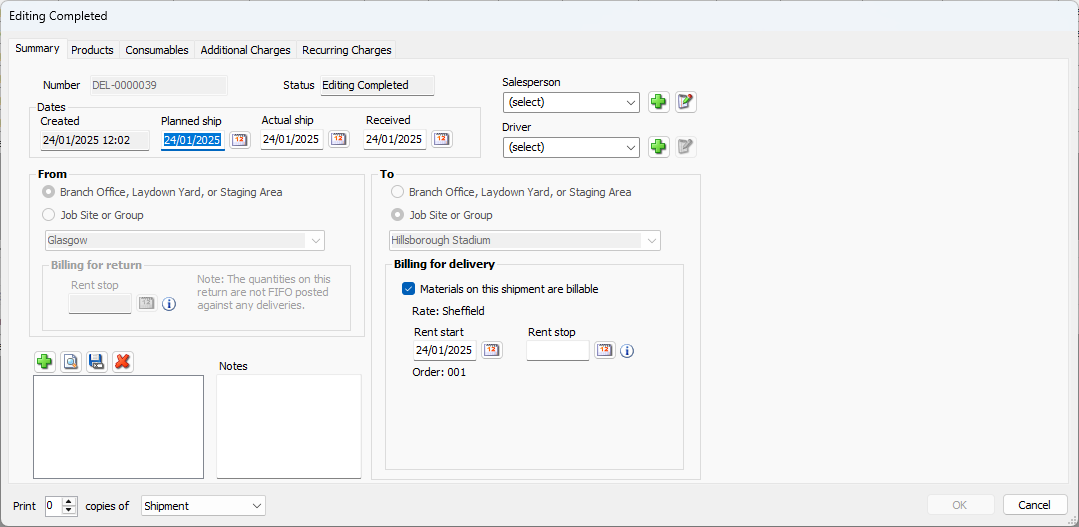
Note: Once a Shipment is created, you cannot edit the To and From sections of the Summary tab.
Note: To add Products and Consumables, click the View dropdown and select All.
Click OK.