To ensure safety, scaffolds will need to be inspected routinely. You can inspect scaffolds manually or you can set scaffolds up to be inspected routinely. You can do this via the Scaffold Settings in the Settings screen.
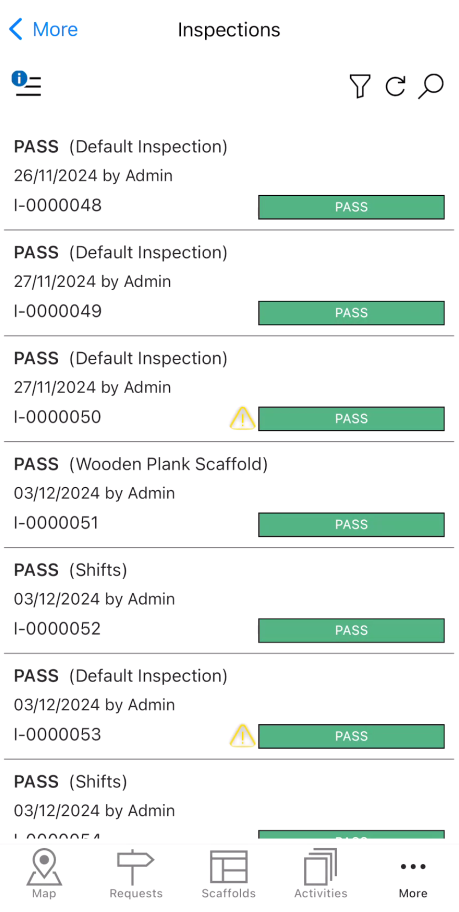
To access the inspections screen
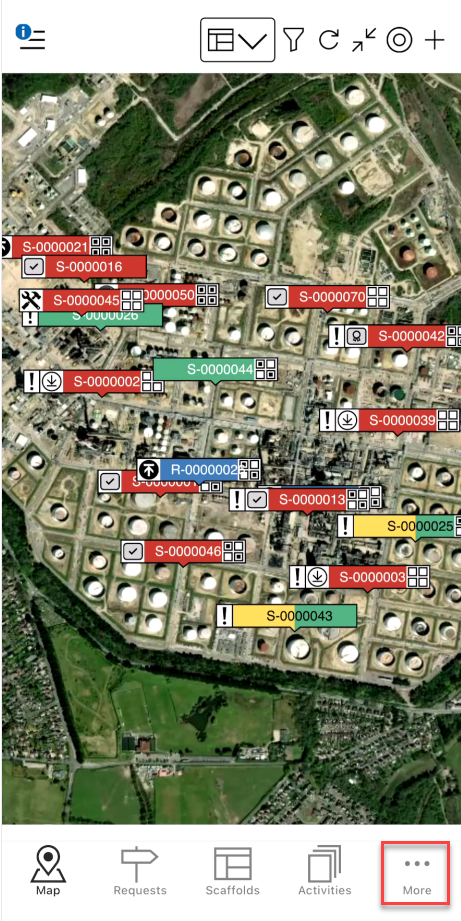
From any screen, tap More
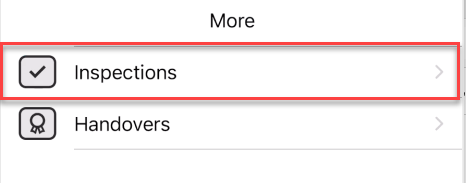
Select Inspections
Tap the inspection to open its details.
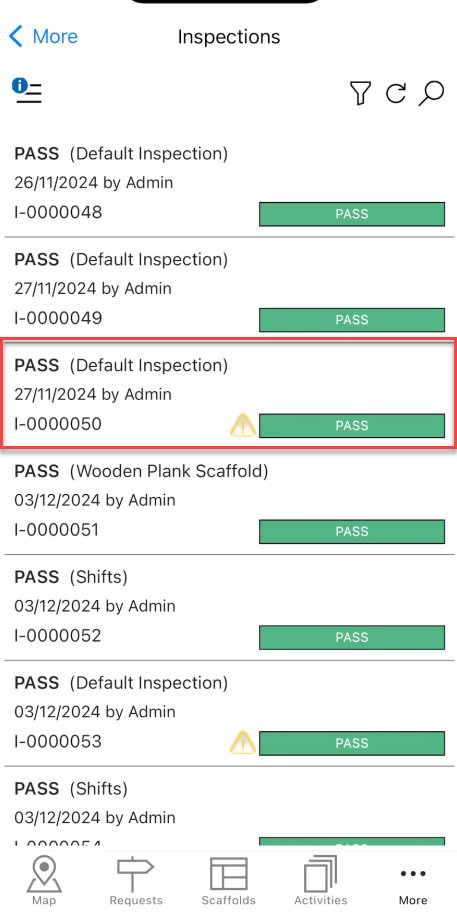
The Inspection screen will be launched.
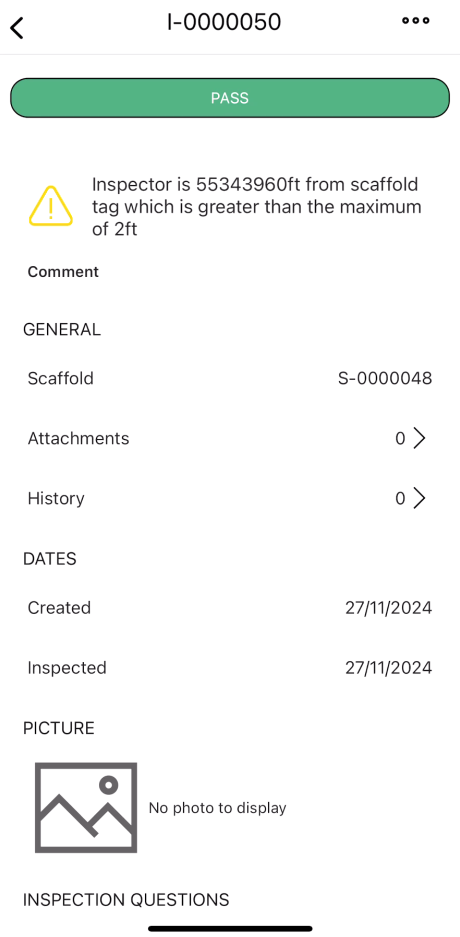 Result
Select the result. You can also see a warning if an inspector completed the inspection further than the specified amount.
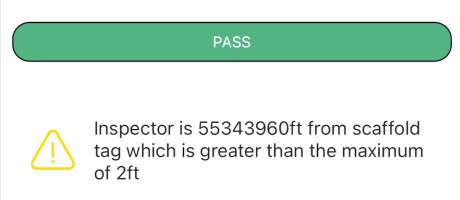
Comment
Add a relevant comment that highlights the purpose of the Inspection.
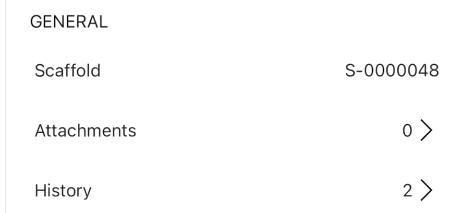
General
This section details the attachments and the history of the Inspection.
Scaffold - The scaffold undergoing Inspection.
Attachment - Any attachments linked to this Inspection.
History - The history of this Inspection.
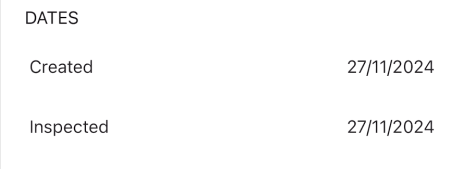
Dates
This section is for dates related to the Inspection.
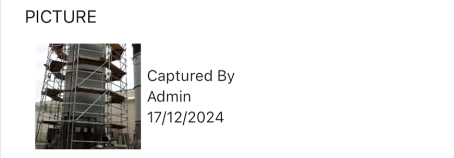
Picture
An image of the scaffold.
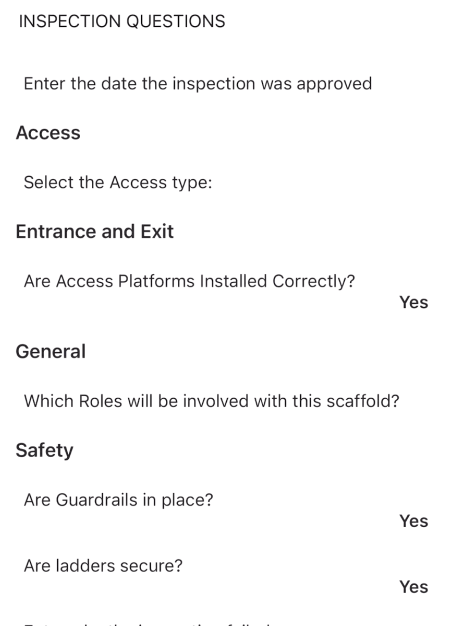
Inspection Questions
These are questions that can be answered by the user completing the inspection form.
Inspector
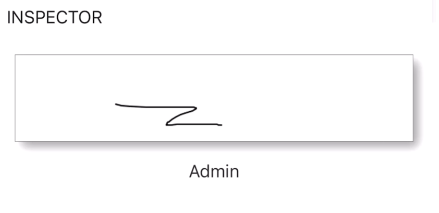
The people section shows the inspector assigned to the scaffold Inspection and provides a space for the Inspection to provide a signature.