Quantify has a simple process for those times you need to make Out of Service Products available for use at a Branch Office.
To move an Out of Service Product to the Branch Office available inventory:
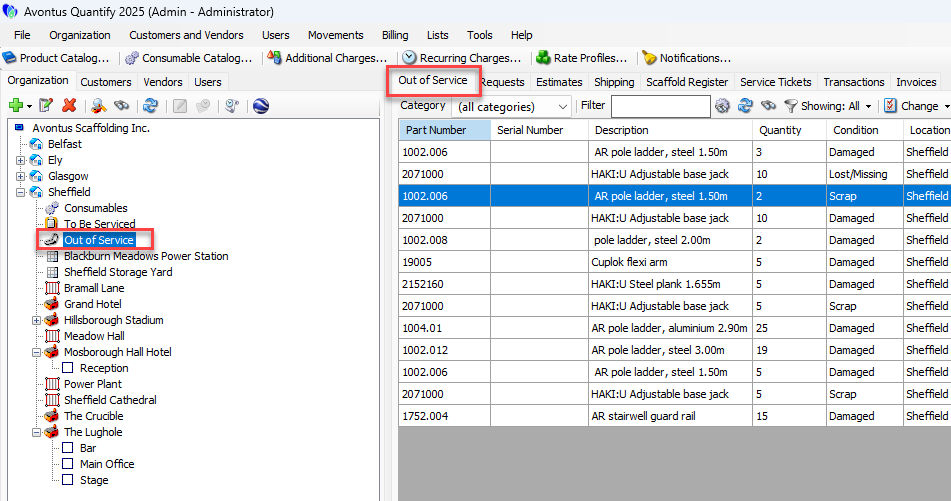
Locate and click the Out of Service node for the appropriate Branch Office, then click the Out of Service tab.
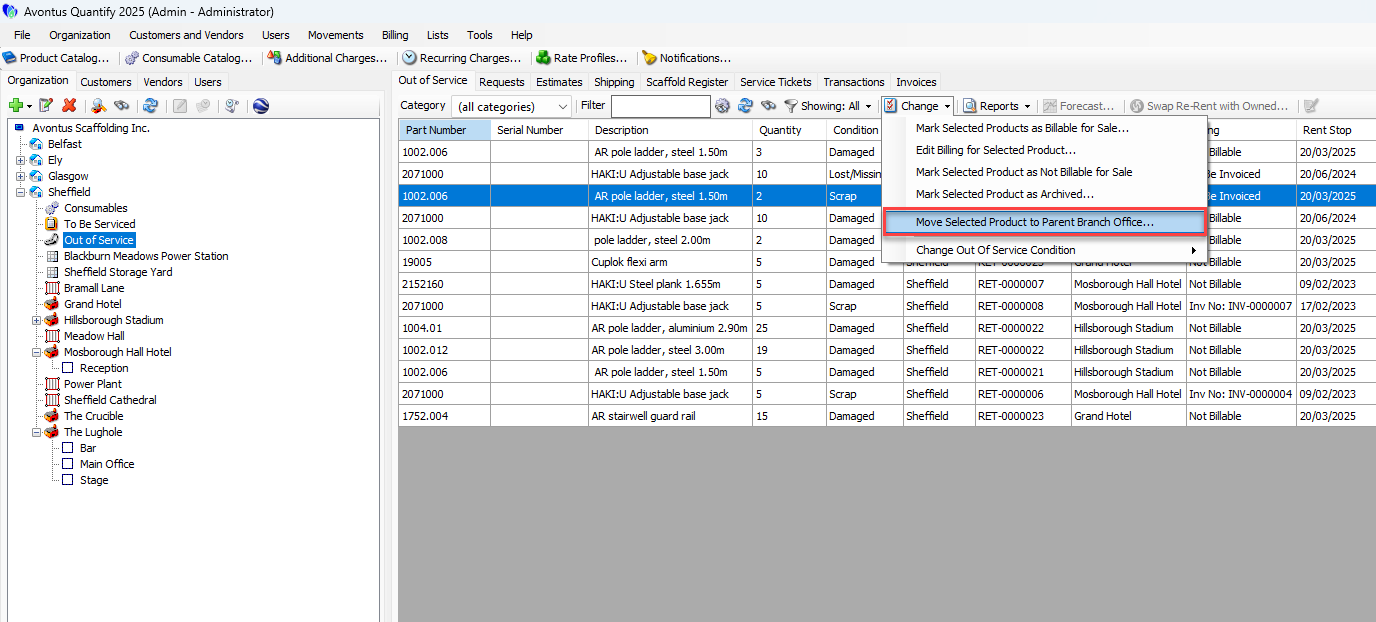
Locate and click the item you want to change, then click the Change dropdown and select Move Selected Product to Parent Branch Office.
A confirmation message appears.
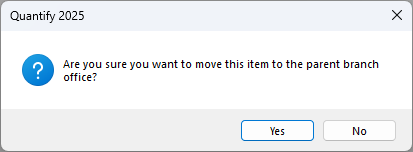
Click Yes.
Quantify changes the status for the Product in the Stocked column to Moved to Branch Office.
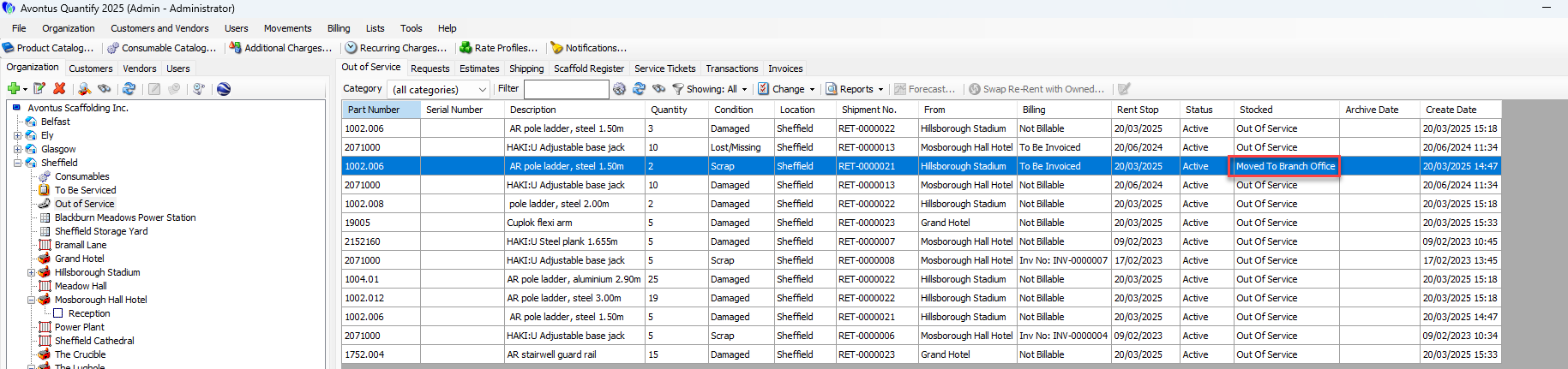
Quantify adds the Product to the available inventory stock at the parent Branch Office and removes it from the Out of Service queue.Note: Quantify has not removed the out of service line item from the Out of Service tab. See Archiving an Out of Service Item to archive line items.