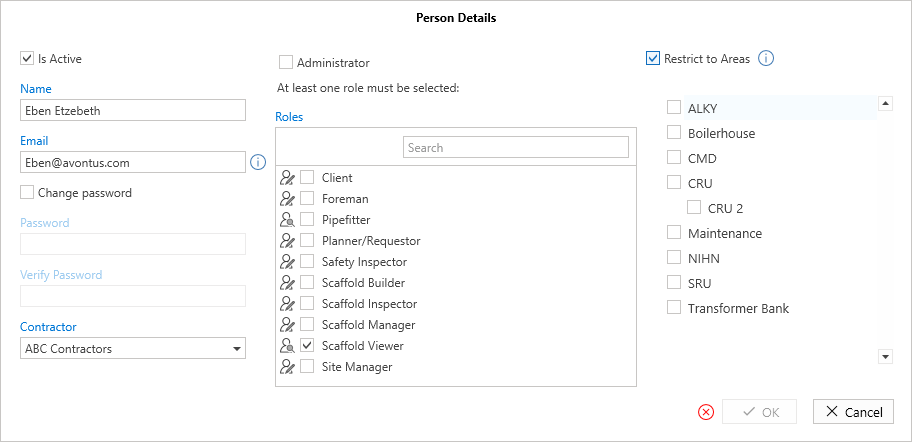
The Details screen is where the details for any new users are provided. This screen is accessed by selecting either Add or Edit.
Double-click on a user to open their details
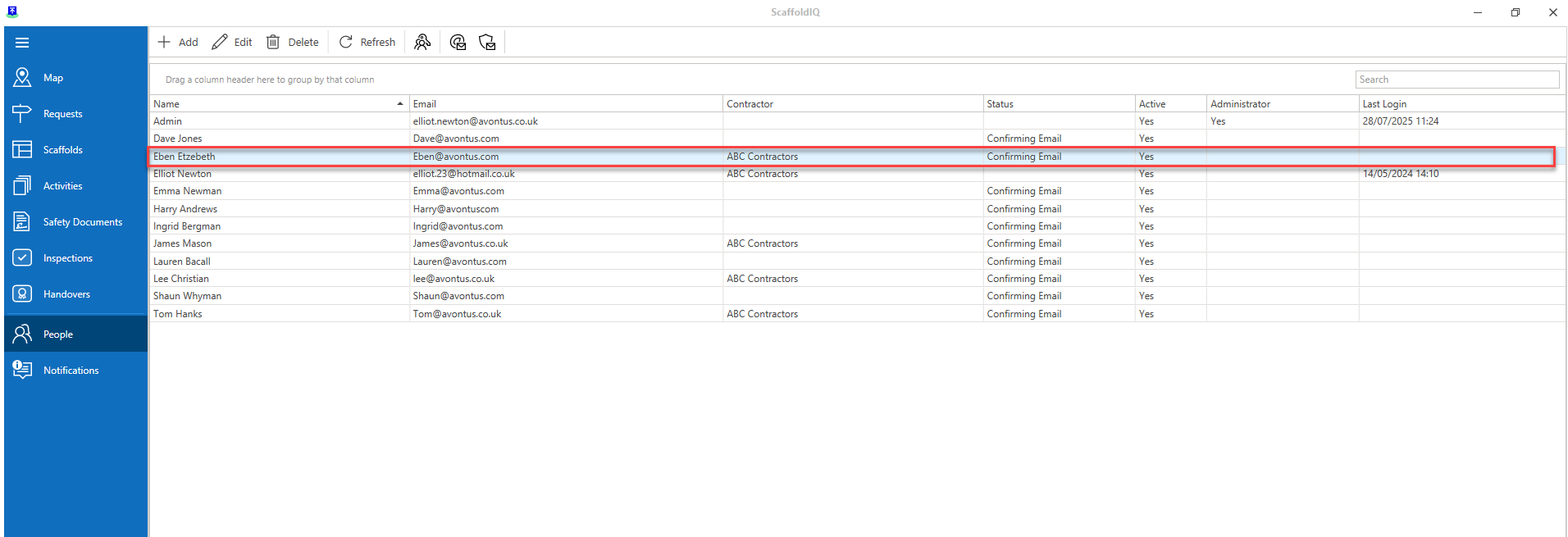
For more information on adding/editing users, please visit the Adding a Person and Editing a Person guides.


Name - The name of the person.
Email - The person's email address.
Password - The person's password - This must contain a capital letter and be six characters or greater.
Contractor - The contractor this person is assigned to works for.
Is Active - Ticking this box indicates that the person's account is active. If the account is inactive, the user will not be able to log in.
Assigned Roles - Assigns the person to a role. The role will determine what they can and can't do in ScaffoldIQ. For more information on roles and permissions please see the Roles and Permission section.
Restrict to Areas - Select to assign the person to specific areas. If you enable this, you must select at least one area.
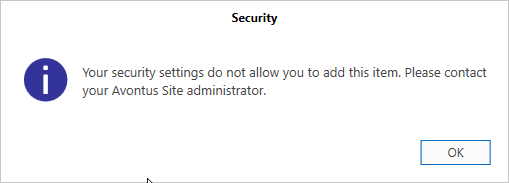
Note: If the user does not have permission to add a user, they will see a message instructing them to contact the ScaffoldIQ administrator when they attempt to create a user.