When a scaffold or request is selected, further details on the selected request or scaffold will be displayed to the right of the map. This section will show the status of the scaffold or request (Awaiting Build, Standing, Build in Progress), an image of the scaffold and provide a 3D rendering of the scaffold via Avontus Viewer if one has been uploaded.
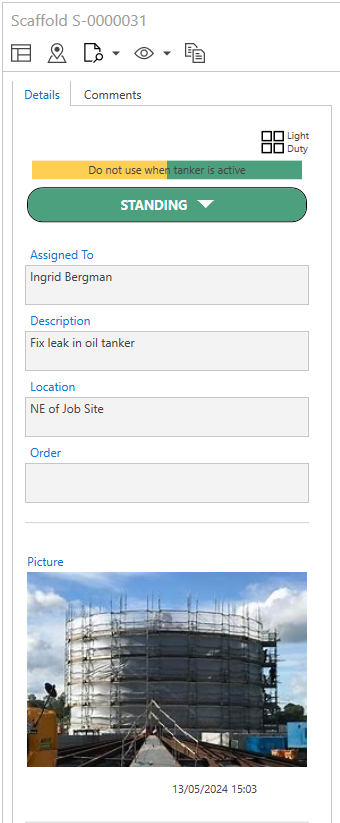
There are five icons along the top for the details panel. These are:
Icon | Purpose |
|---|---|
| Select this icon to display further details on the request or scaffold. This is where you can edit the details of the scaffold. |
| Select this icon to change the location of the selected request. |
| Select this icon to launch a report or an Inspection or Handover form for the selected Scaffold or Request |
| Select this icon to receive notifications regarding any changes or status updates on this scaffold or request. |
| Copy a dismanted Scaffold |
 /
/


The details section is split into two sections, Details and Comments.
The Details section displays the current status of the scaffold, who the scaffold is assigned to, a description, and a location. A user can also view a picture and a 3D rendering of the scaffold.
The Comments section is where you can find additional comments that are relevant to the selected scaffold or request. These comments can either be added via the comment box or they are added during a status change, such as a scaffold handover.
For example, when making a status change you are required to add a comment.

These comments will then appear in the comments tab of that request or scaffold.

Note: This section differs slightly between a request and a scaffold, for information on either please visit the Request or Scaffold sections.