There are two ways to modify a scaffold. You can create a modification request or a scheduled modification. A scheduled modification allows a user to modify a scaffold without creating a request. This saves time as you can start the modification without waiting for another user to approve the request.
Creating a Scheduled modification from the Map screen
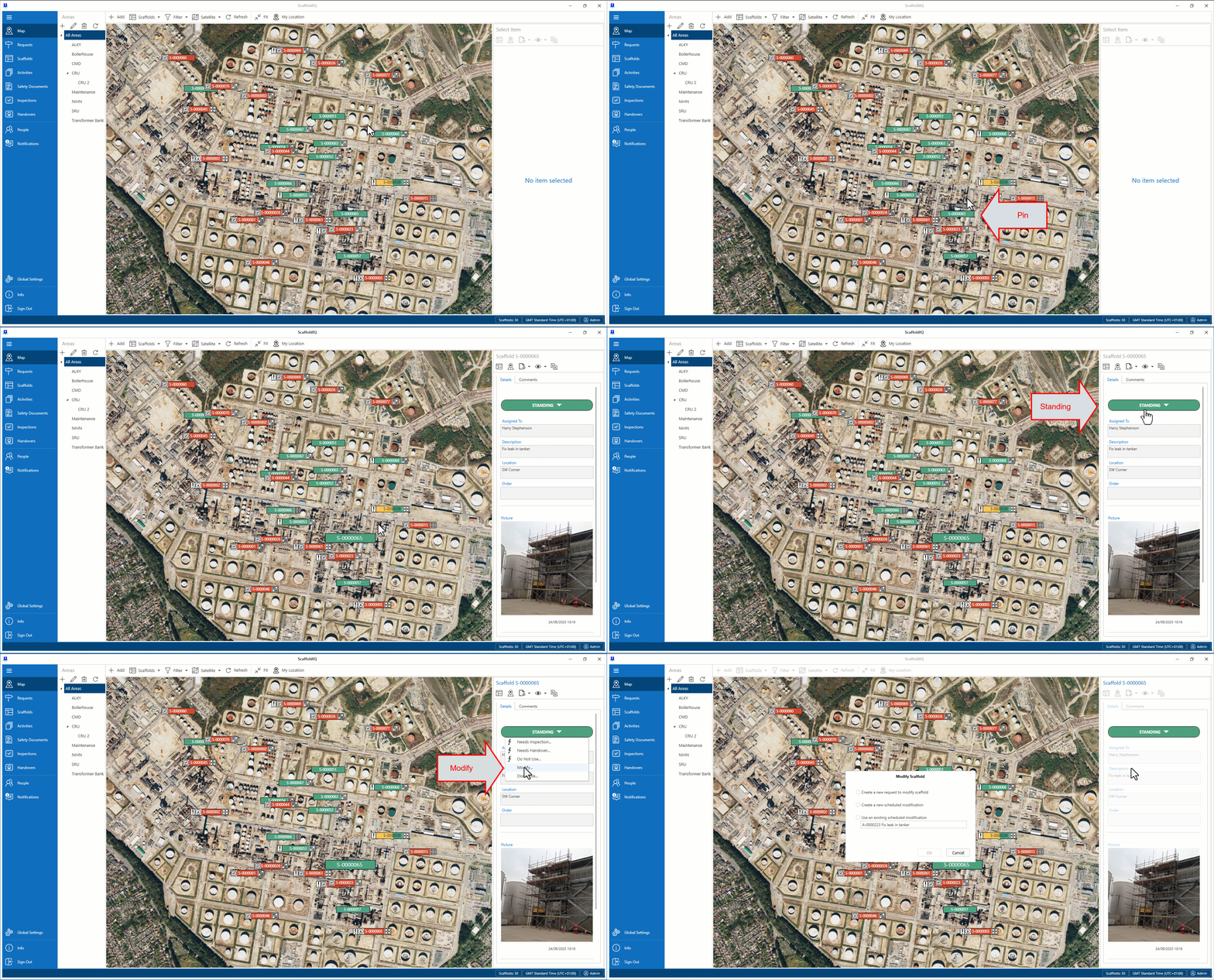
On the Map screen, select the scaffold and then select Standing
Select Modify
.gif)
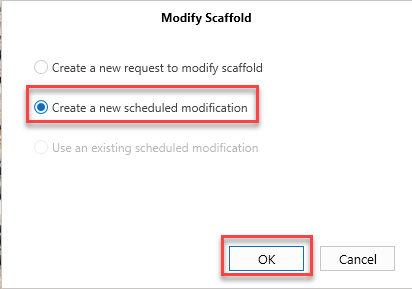
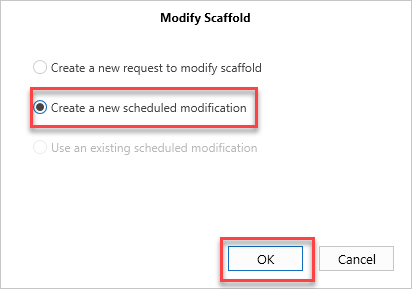
Select Create a new Scheduled Modification and click OK
When modifying a scaffold, you will be given three options:Create a new request to Modify Scaffold - This opens the Request Details screen allowing the requestor to specify the changes that need to be made to the scaffold and creates this as a new request. This request can be viewed in the Request screen and the Request screen of the scaffold. Once approved, this will create a modification that can be used again by selecting the Use an existing scheduled modification option.
Create a new scheduled modification - Create a scheduled modification without creating a new request. This will create a modification that can be used again by selecting the Use an existing scheduled modification option.
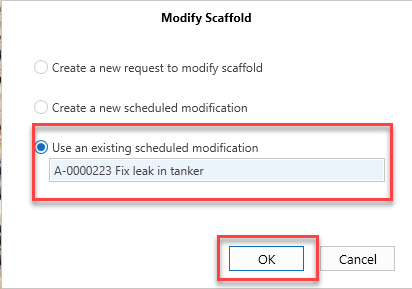
Use an existing scheduled modification - Create a scheduled modification from an already existing modification
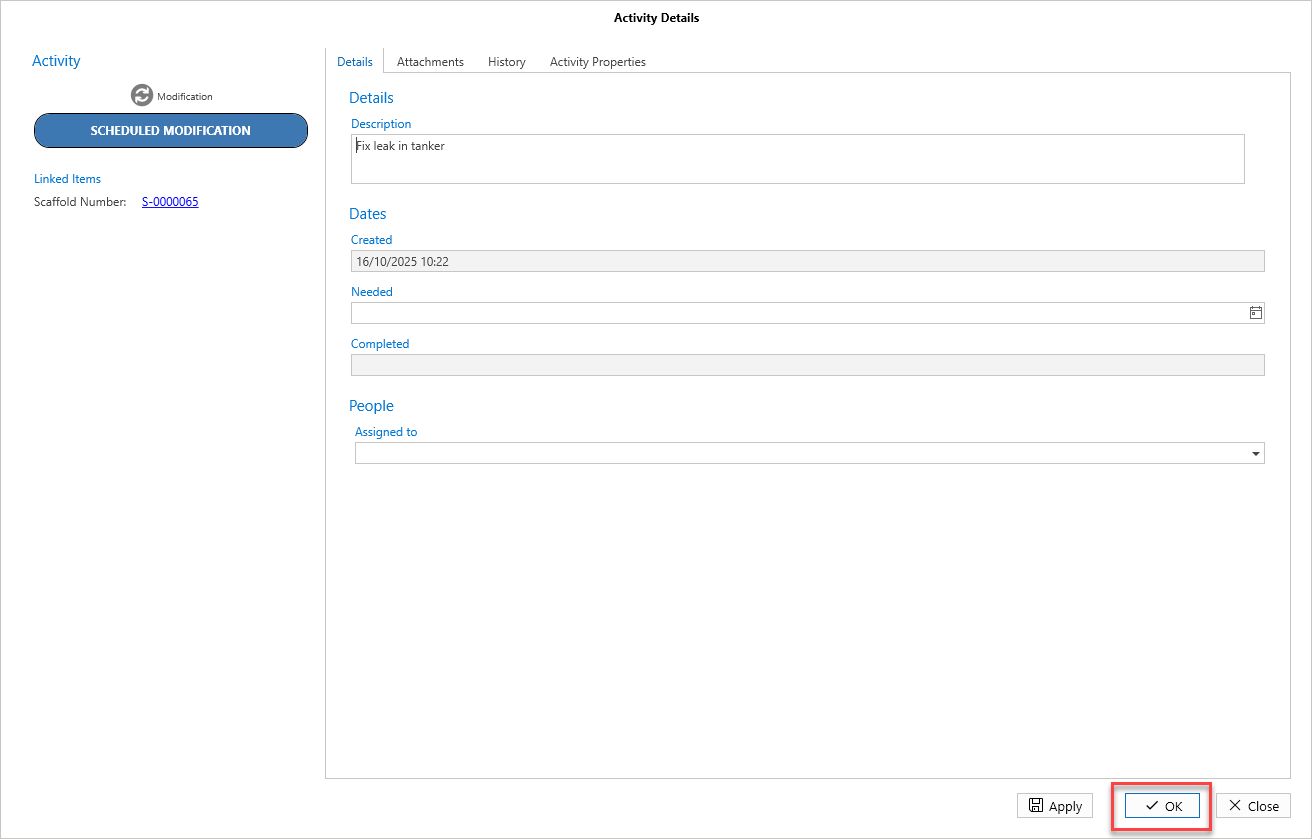
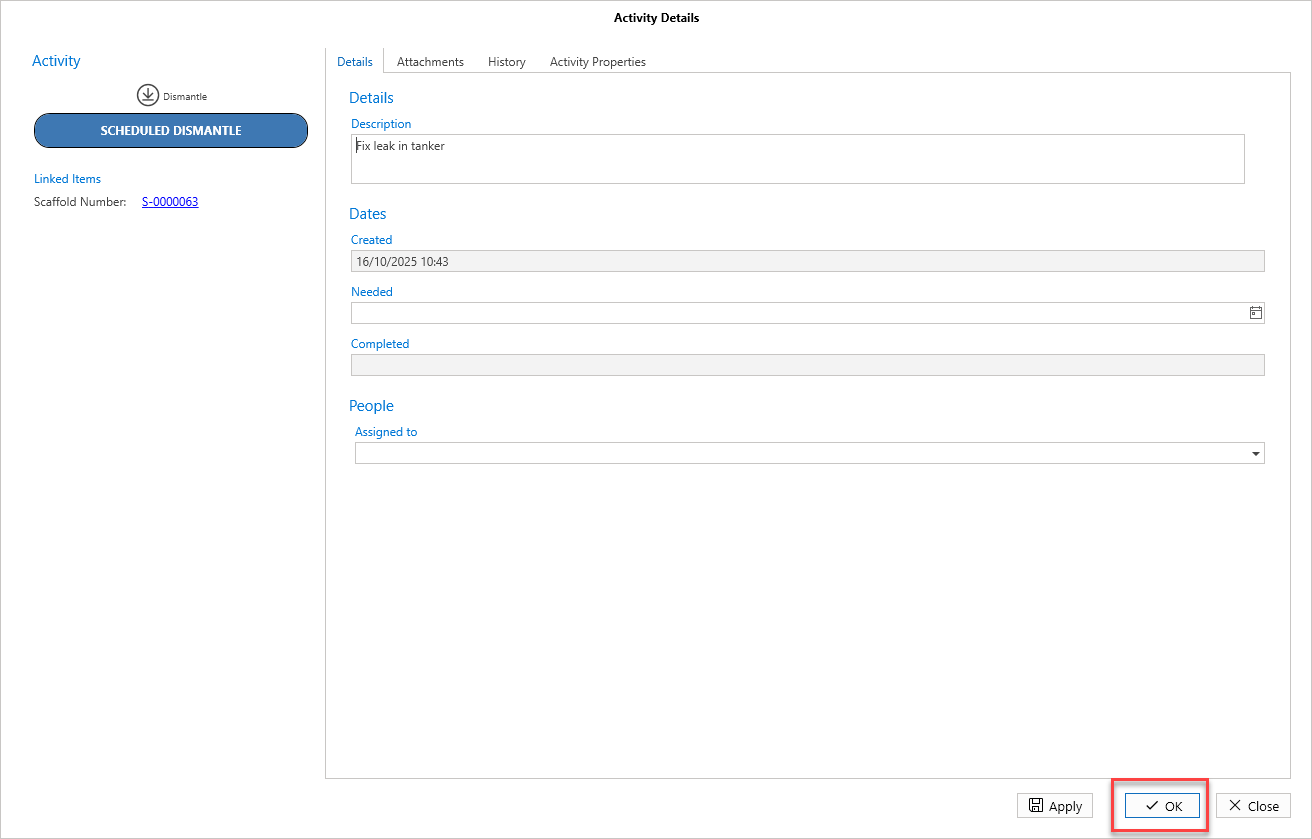
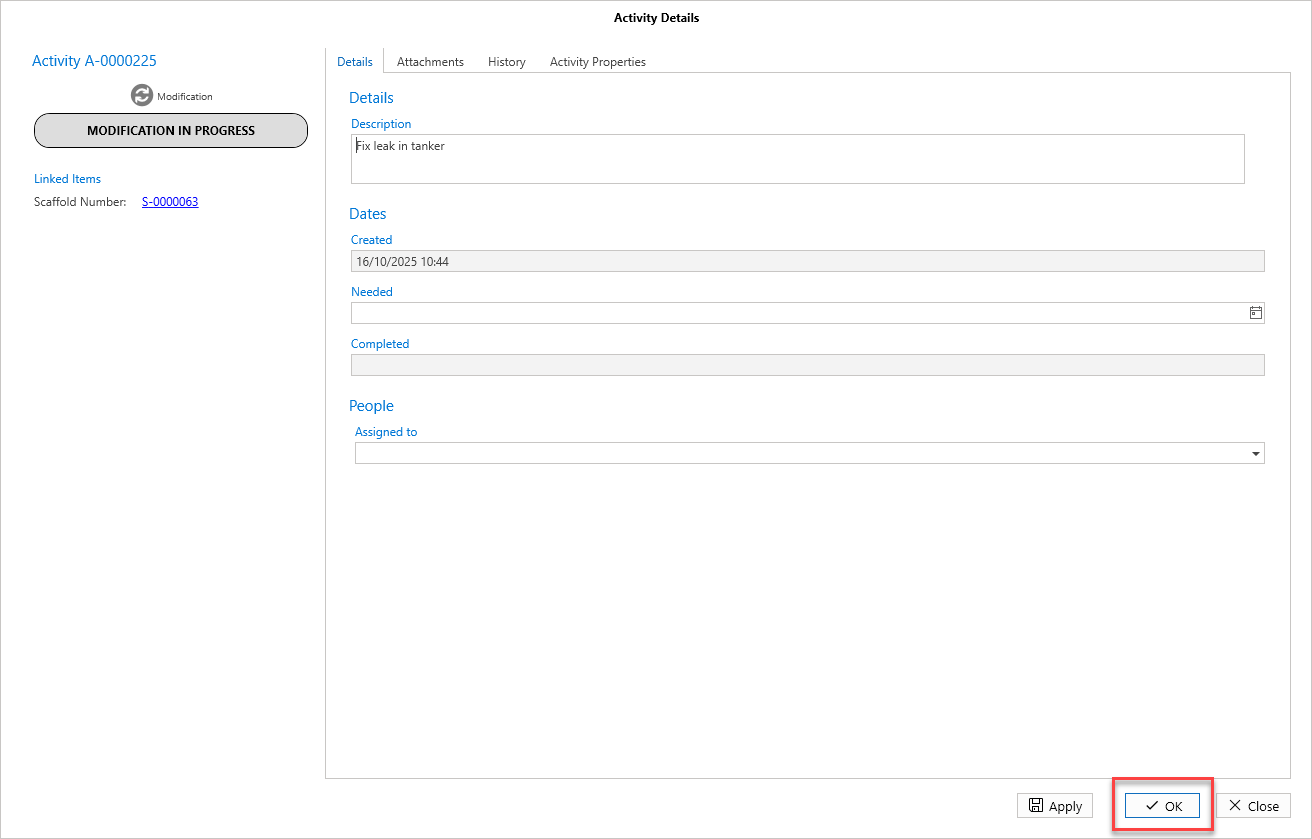
In the Activity Details screen, enter information on the Activity (such as the Need Date) and click OK
On the Map screen, select the scaffold and then select Standing
Select Modify
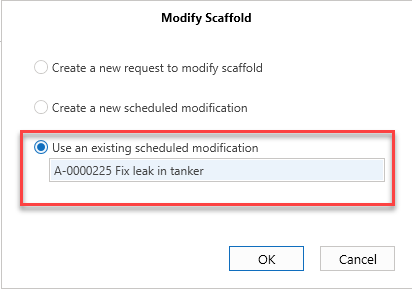
Select Use an Existing Scheduled Modification and click OK
Click OK
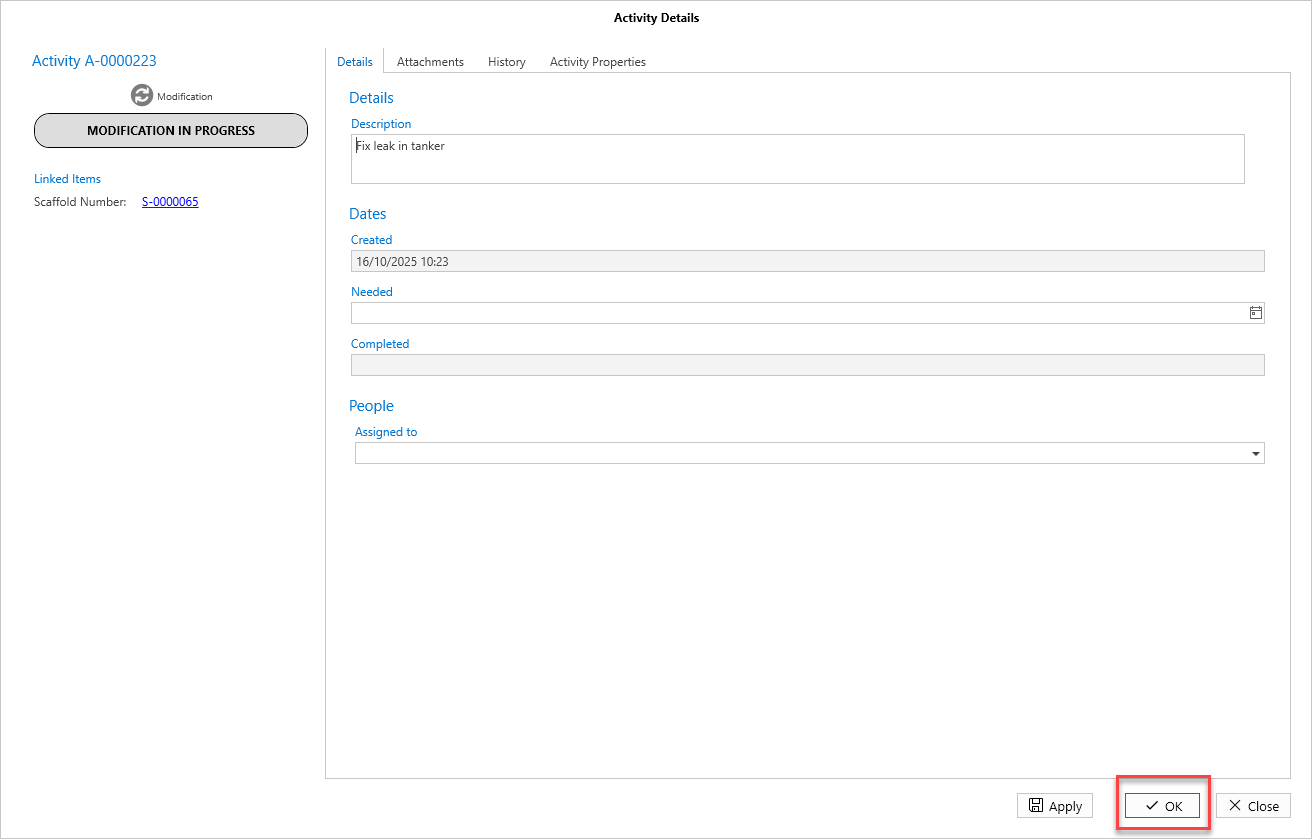
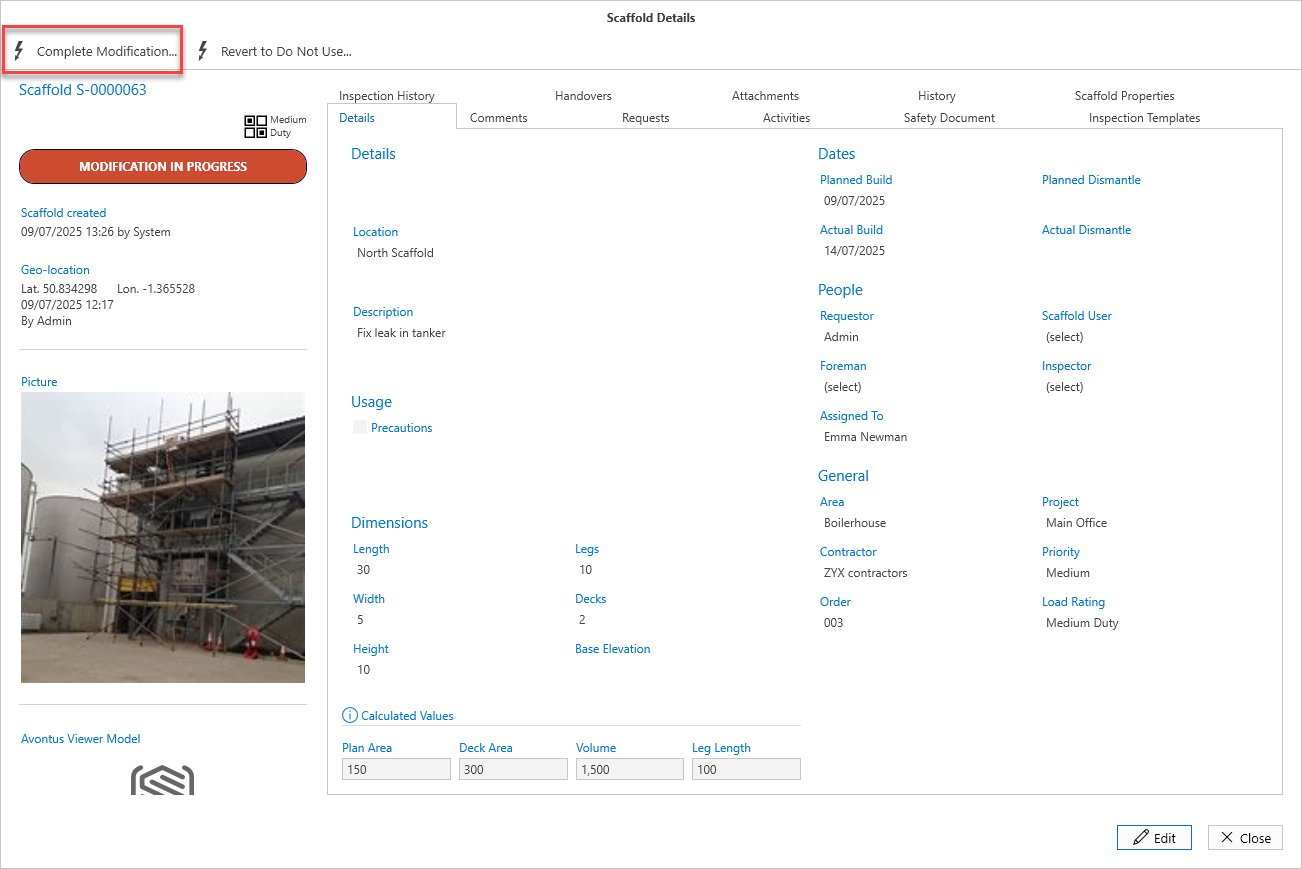
Select the Scaffold pin and click Modification in Progress
Select Complete Modification
Click OK
The Scaffold will change to Awaiting Inspection, Awaiting Handover or Standing.
For more information on Handovers, please see Passing or Failing a Handover
For more information on Inspection, please see Working With InspectionsNote: Admin users have the ability to specify what happens after a Scaffold is modified in the Scaffold Settings.
Creating a Modification from the Scaffold Details Screen
From the Map screen, select Scaffolds
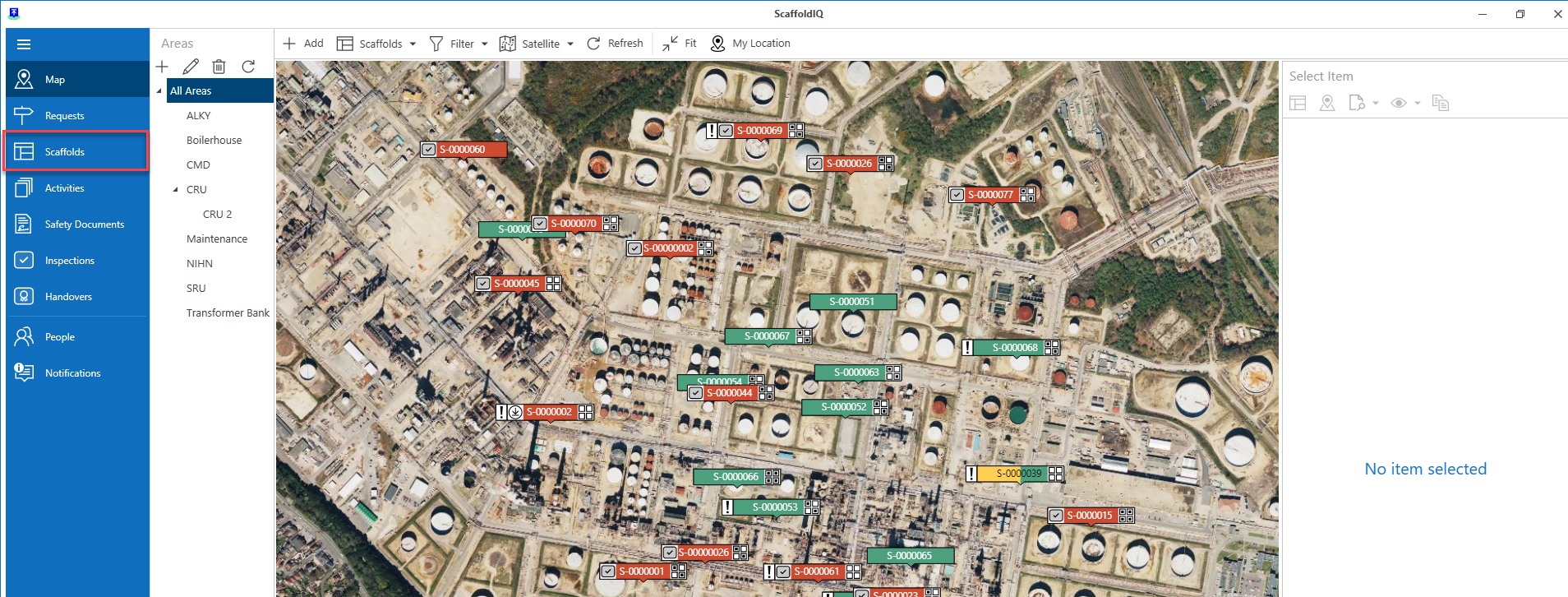
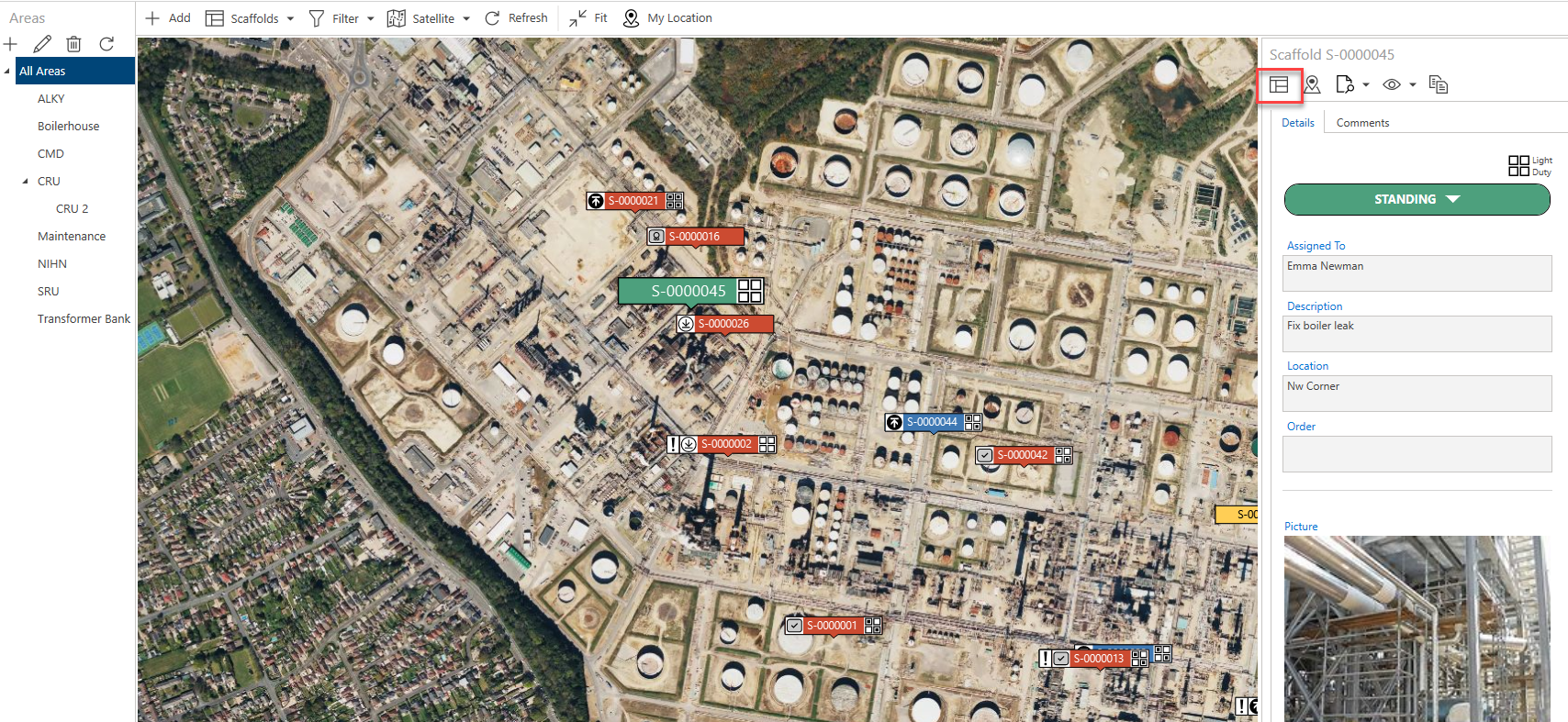
Note: You can also select a scaffold from the Map and click Scaffold Details
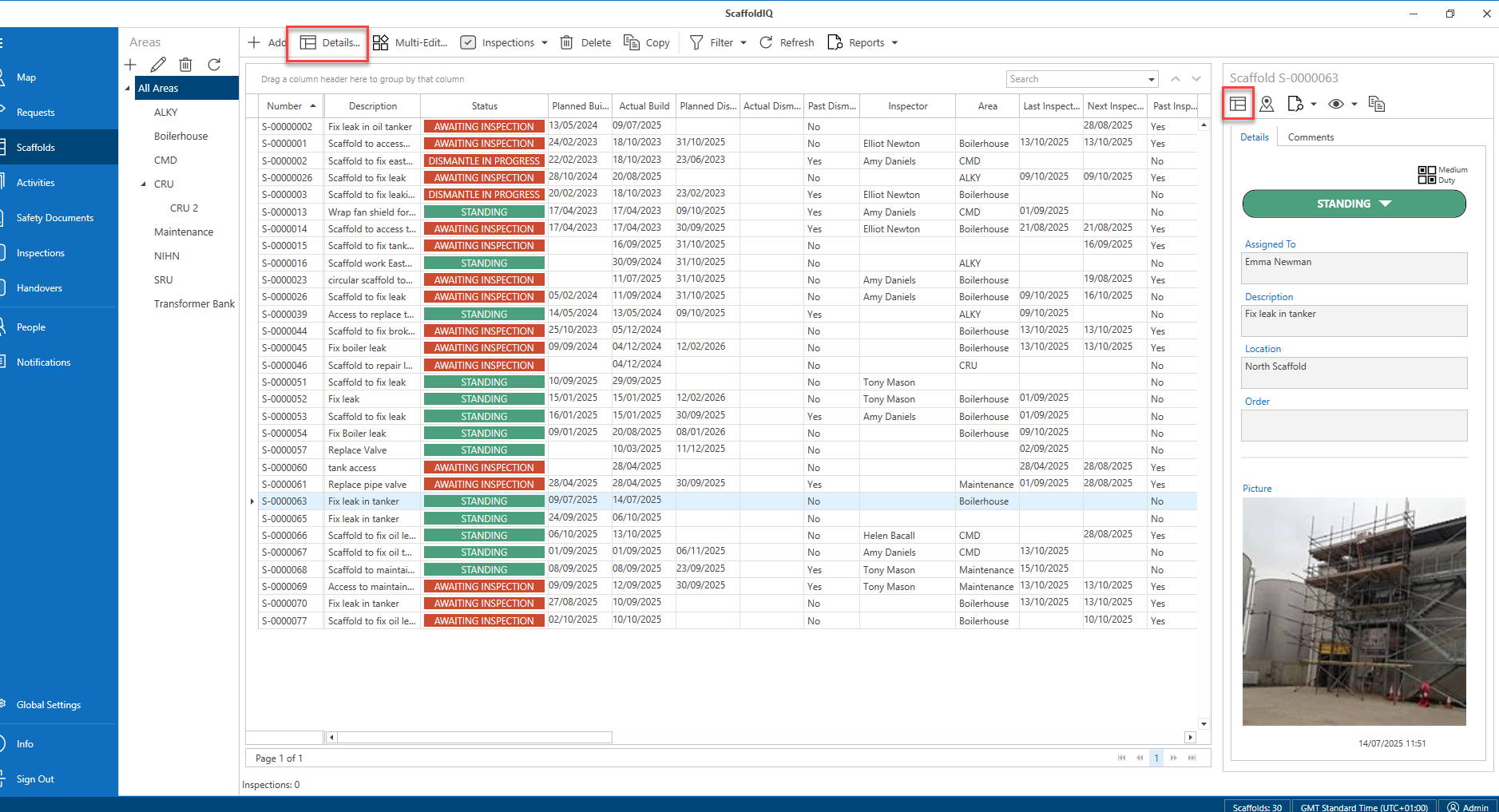
Double-click the scaffold that needs to be modified.
Note: You can also select Details
In the Scaffold Details screen, select Modify
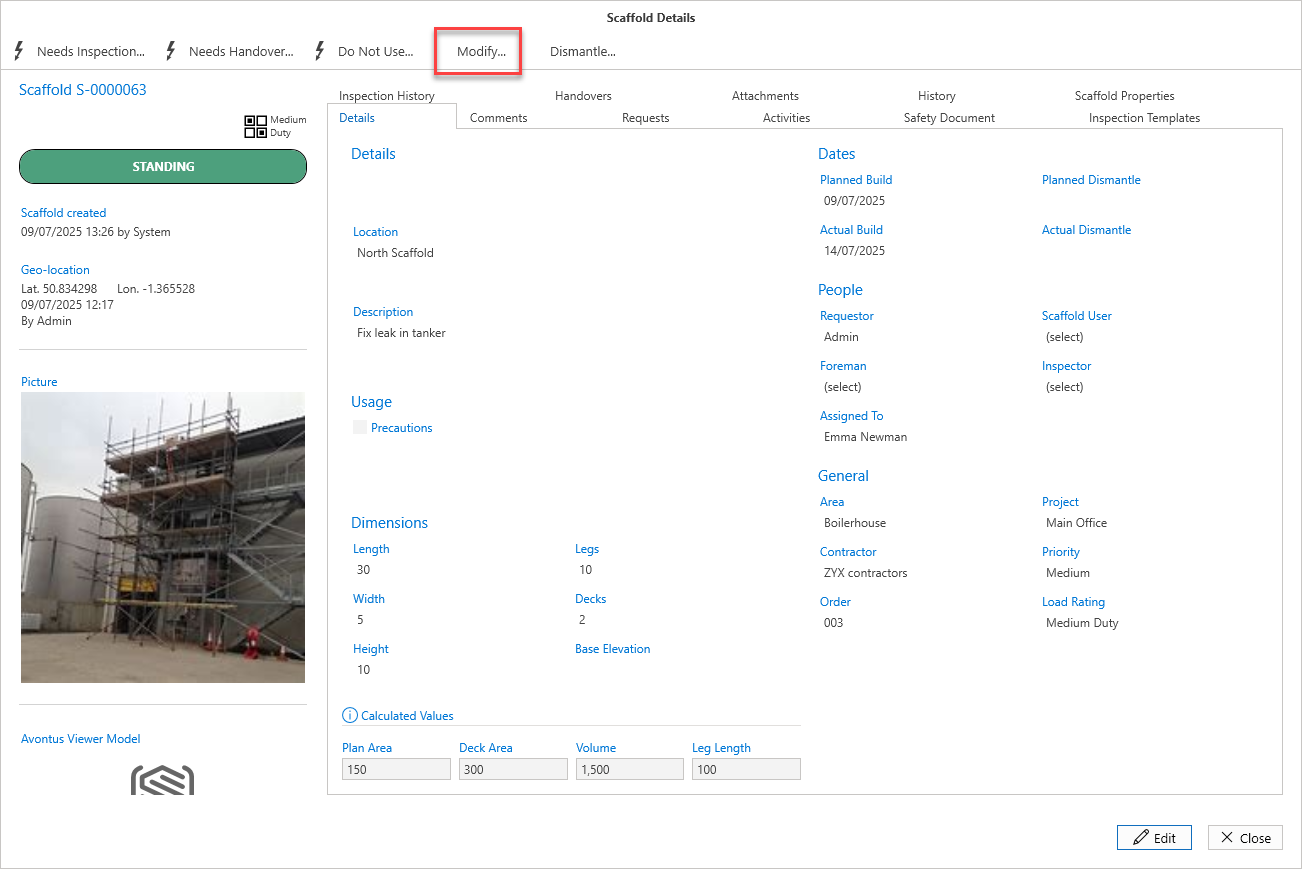
Select the modify type and click OK.
Enter the details of the modification and click OK.
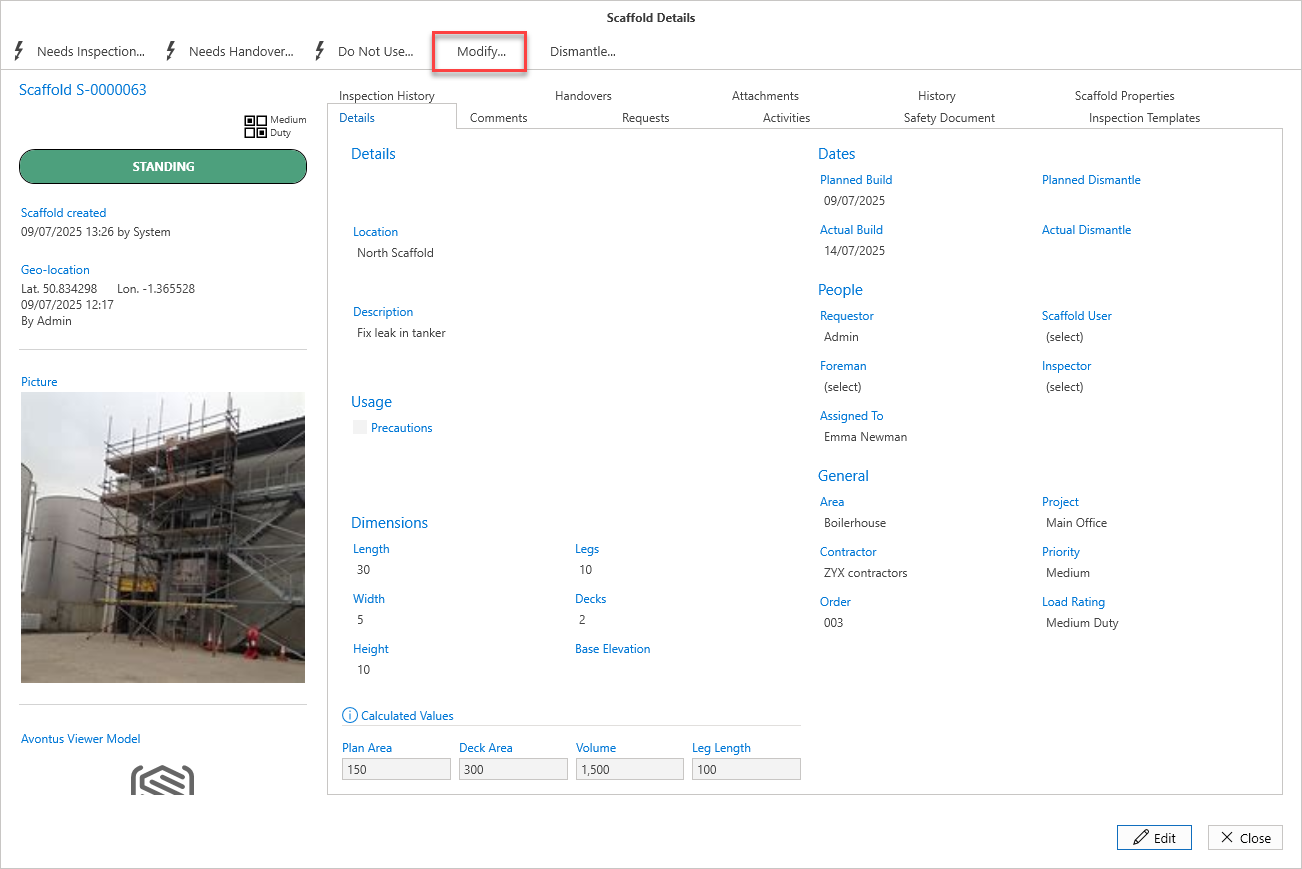
On the Scaffold Details screen, click Modify
Select Use an Existing Scheduled Modification and click OK
Click OK
Click Complete Modification
Click OK
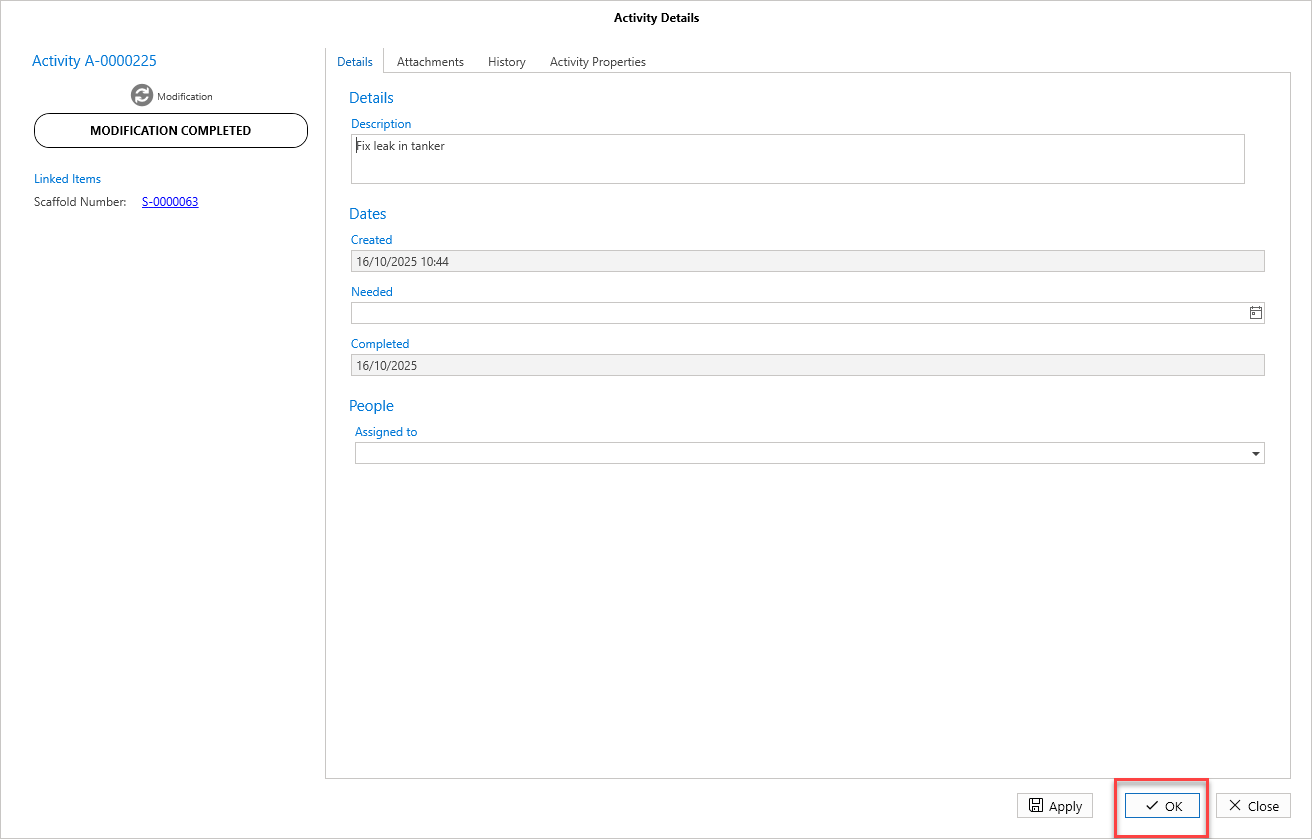
The modification will be complete.
The Scaffold will change to Awaiting Inspection, Awaiting Handover or Standing.
For more information on Handovers, please see Passing or Failing a Handover
For more information on Inspection, please see Working With Inspections
Note: Admin users have the ability to specify what happens after a Scaffold is modified in the Scaffold Settings.