Shifts can be created and assigned to a Request or Scaffold. These can be changed to a time appropriate for you. For example, you could create a morning and evening/night shift with the morning shift starting at 7am, and the evening shift starting at 6pm.
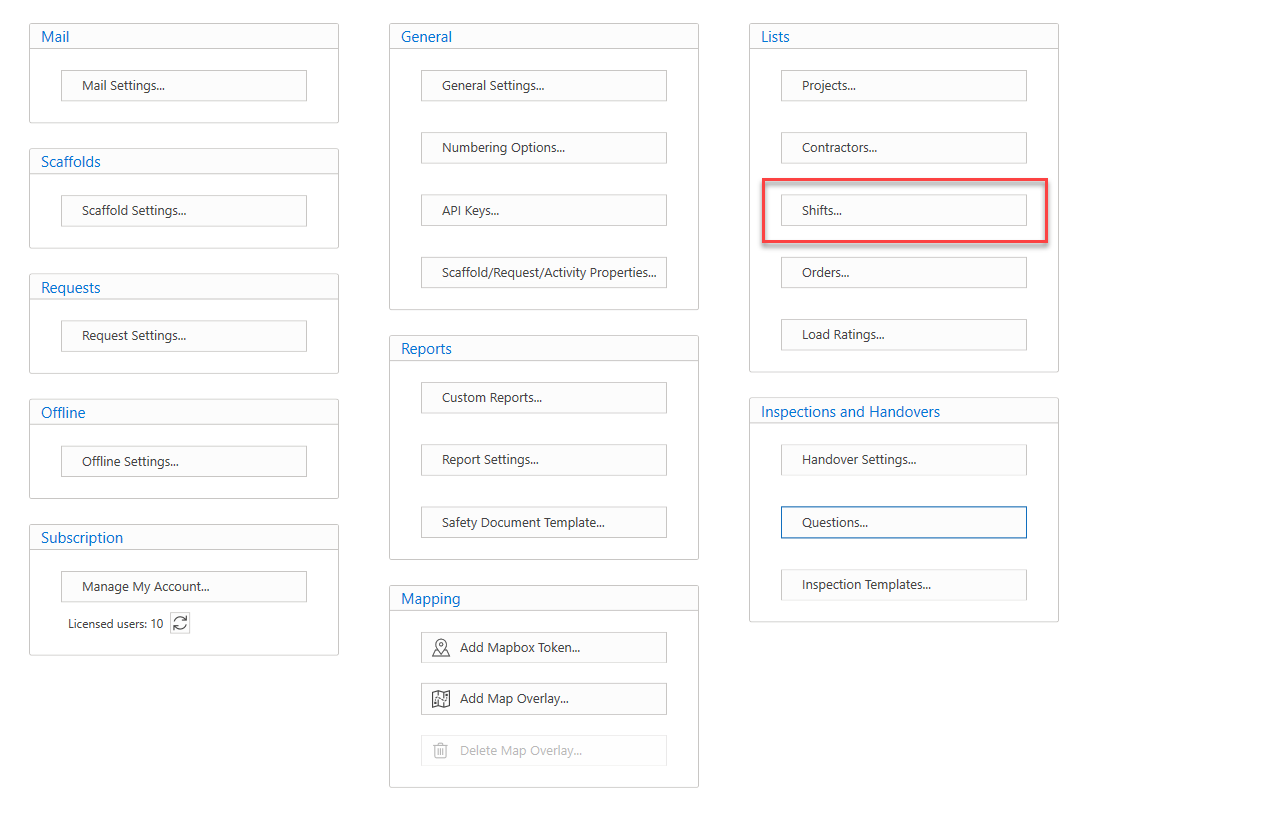
You can access Shifts from the Global Settings screen.
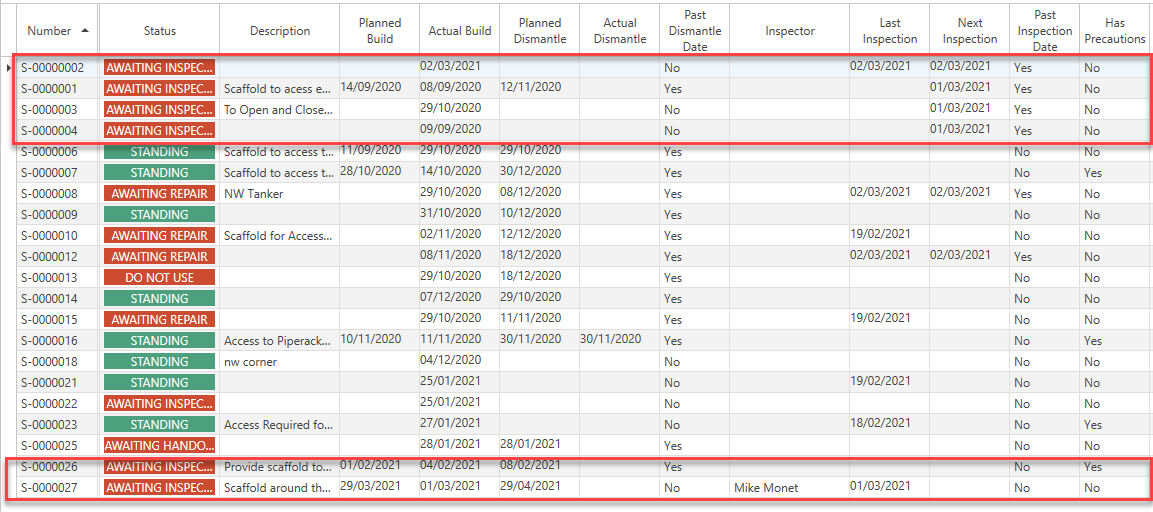
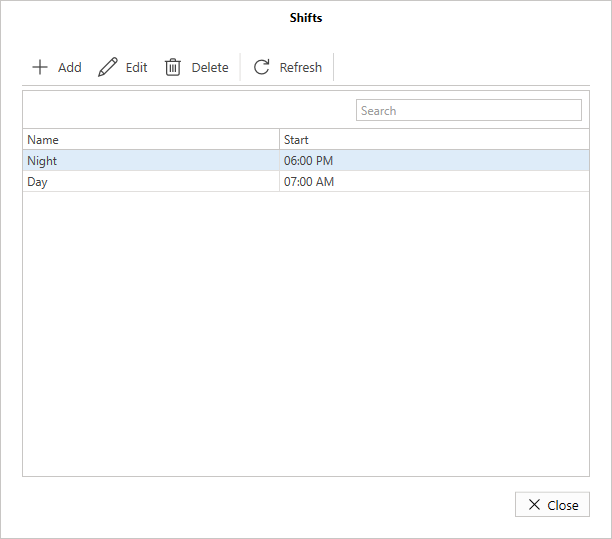
Shifts are used with Inspections on scaffolds and determine when an inspection is required. In the example below, the shifts start at 6am and 7pm. This means all scaffolds on a Job site will change to Awaiting Inspection at both 6pm and 7am if the option is enabled in the Scaffold Settings screen.
You can access the Shifts screen directly from the Scaffold Settings screen where you can set how often Scaffolds are inspected.
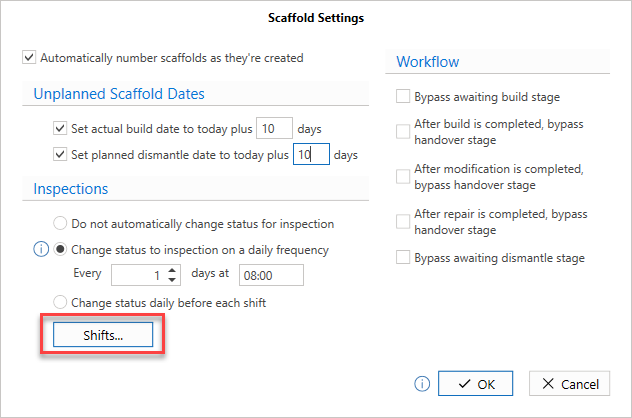
Do not automatically change status for inspection - Selecting this option means inspections on Scaffolds need to be done manually done the user
Change status to inspection on a daily frequency - Selecting this option means users can set scaffolds to be inspected at a specific time every x amount of days.
In this example, inspections are performed every day at 8am
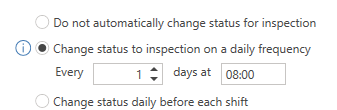
If you select the Change status daily before each shift in Scaffold Settings, then the status of the scaffolds will change to Awaiting Inspection at the start of each shift but only if its Inspection Date (set in the Scaffold Details screen) has been passed.
You can create Shifts by clicking the Shifts button.
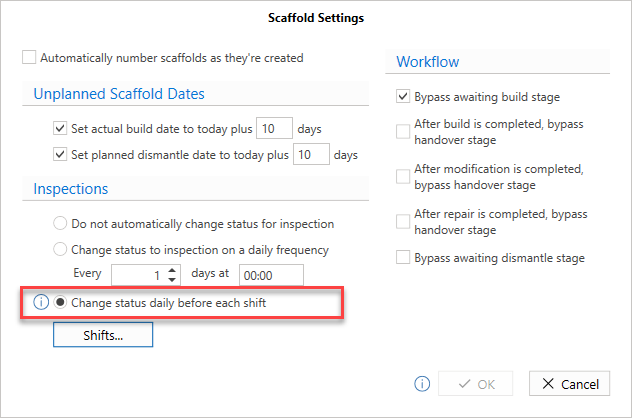
For instance, you can create two shifts for 6pm and 7am
Every day at 6pm and 7am any scaffold passed its Inspection Date will have its status changed to Awaiting Inspection.