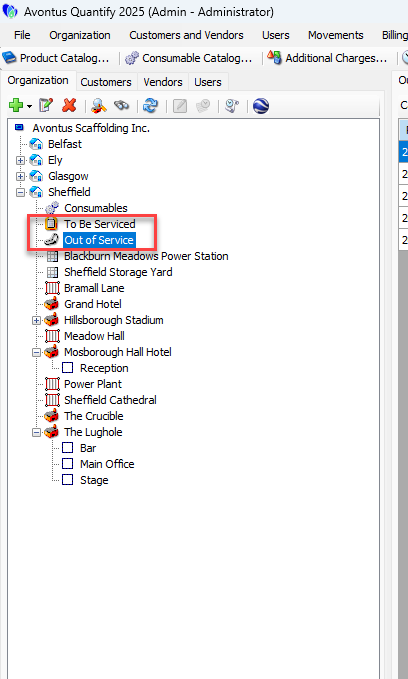
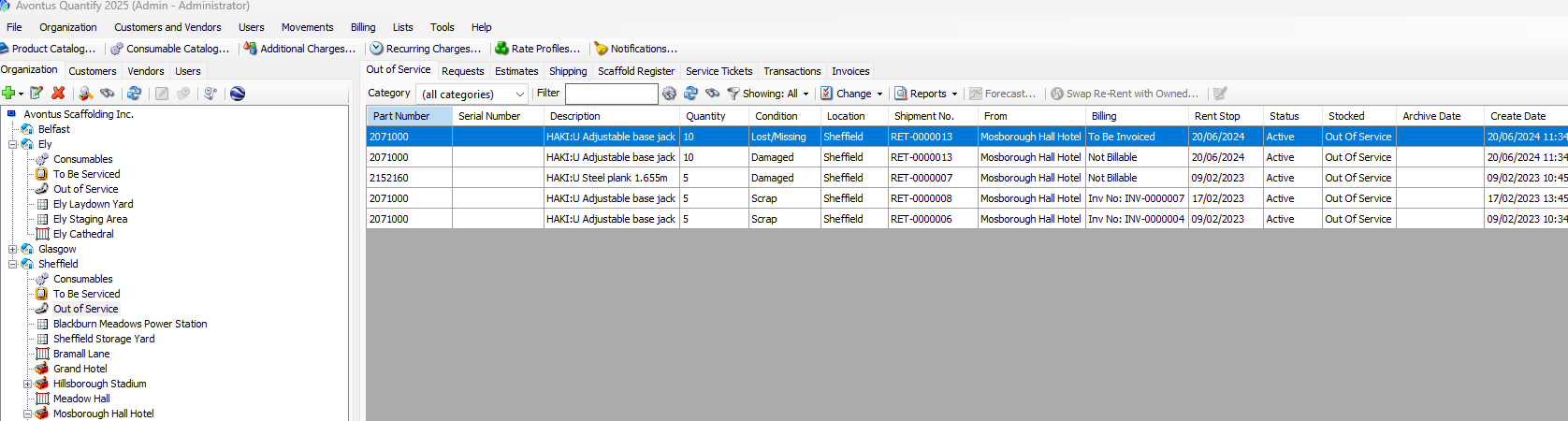
Once the To Be Serviced and Out of Service features have been enabled, the To Be Serviced and Out of Service nodes appear under each Branch Office. When you click a node, the appropriate tab appears in the table to the right, showing you what items need servicing or have been placed out of service, with relevant details.
The Service Tickets Tab
The Service Tickets tab displays both general and detailed information about current Service Tickets and provides the means for creating, editing and void Service Tickets. The upper grid displays general information and the lower grid displays specifics.
Service Tickets
Once a Product has been moved to the To Be Serviced queue, create a Service Ticket to track the servicing of the Product. The Service Ticket enables you to specify any Additional Charges that were needed and Consumable items that were used to repair or maintain the Product. In this way, the Job Site can be billed for the servicing of the Product.
Quantify removes Consumables used in the servicing of the Products from the Branch Office Consumable stock, thus accurately maintaining the inventory of these items. You can create tickets from either the Service Tickets tab or on the To Be Serviced tab (Refer to to Creating a Service Ticket for a Product in the To Be Serviced Queue in Creating a New Service Ticket).
You can edit or void Service Tickets until they have been invoiced. Products on voided Service Tickets will be returned to the To Be Serviced queue.
Service Ticket Invoicing
Quantify invoices Service Tickets with charge entries to the Job Site at the next billing cycle following the date the Service Ticket was created.
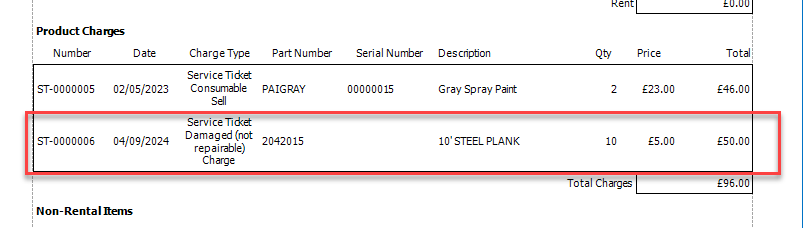
Once the Service Ticket has been associated with an Invoice, the associated Invoice number will appear in the Service Ticket grid.