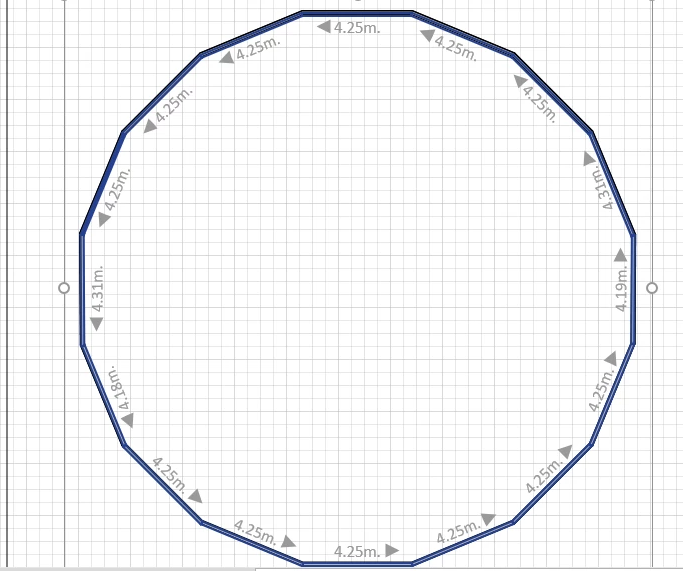
Avontus Designer's flexible features facilitate the creation of complete and accurate drawings. In this case, they enable you to import a CAD drawing, convert the appropriate layers into Avontus Designer lines and then convert the lines in those layers to Walls.
Importing the Drawing and Converting it into Avontus Designer Lines
To begin the process, import the CAD drawing and convert it.
To import the drawing and convert it into Avontus Designer lines:
- Use these instructions to import the CAD 2007 drawing.
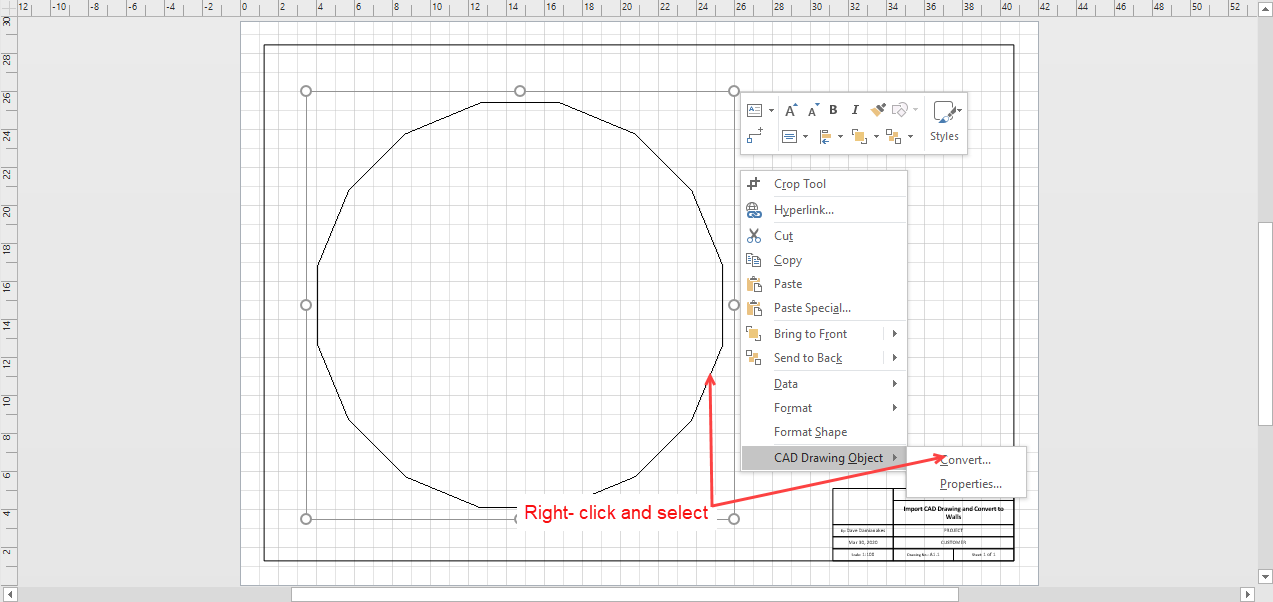
- Right-click the imported drawing and select Convert from the CAD Drawing Object sub-menu.
The Convert CAD Object dialog appears. - Make sure the checkbox for each layer you want to convert into lines is checked.
Note: Also make sure the checkbox for each layer you do not want to convert is unchecked.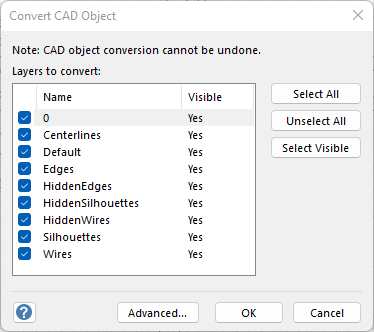
- Click OK.
Avontus Designer converts the appropriate layers into Avontus Designer lines.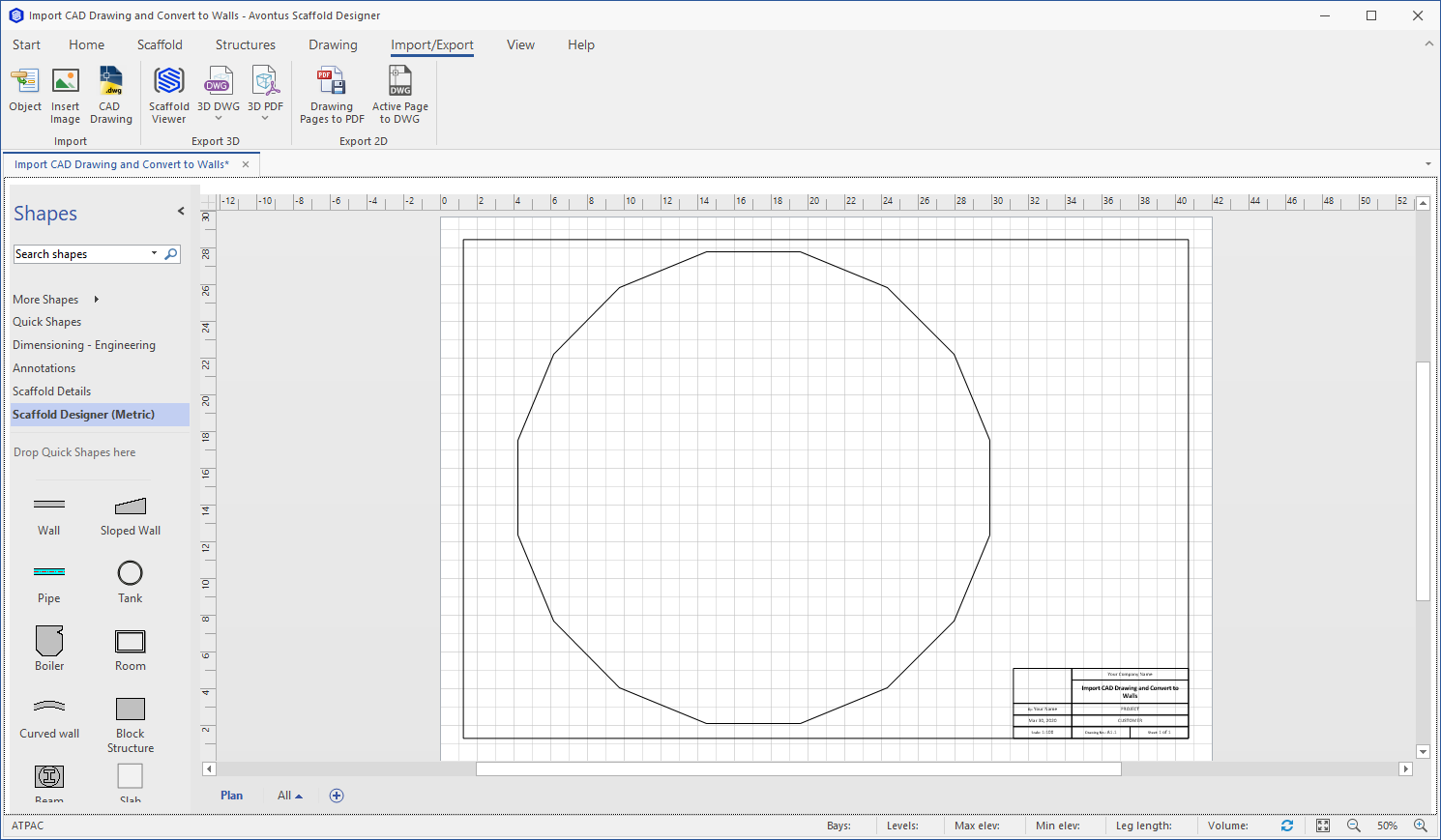
Converting the Drawing's Lines to Walls
Finally, convert the appropriate lines into Walls that you can use in your drawing.
To convert the drawing's lines to Walls:
- Select the line(s) you want to convert.
- Click the Drawing tab and click Convert to Walls in the Plan group.

The Convert to Walls dialog appears. - Click the appropriate wall shape in the Wall Shapearea. Your options are:
Exterior Wall This is a thicker Wall, commonly used for exterior Walls. 200mm. (Metric Units) / 9 in. (US Units) default thickness. Wall This is a standard Wall. 150mm. (Metric Units) / 6 in. (US Units) default thickness. 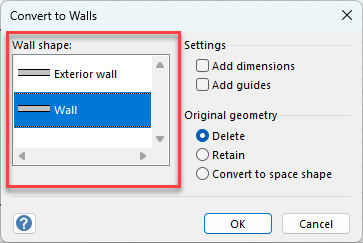
- Click the appropriate checkbox(es) in the Settingsarea. Your options are:
Add Dimensions This option will add the Controller Dimension to each Wall, displaying the Wall length on the page. Add Guides This option will add Guides to the page at the original position of each line. 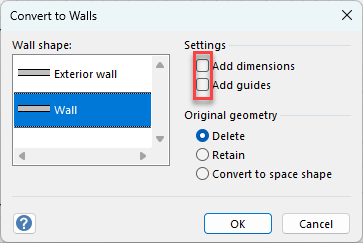
- Click the appropriate Original Geometry radio button. Your options are:
Delete Deletes the selected line(s), leaving just the Wall(s) on the page Retain Keeps the selected line(s) with the Wall(s) on the page Convert to Space Shape Keeps the selected line(s) with the Wall(s) on the page. Calculates total square area of an enclosed shape and displays the area and shape name on the page.The line(s) will be used as a guide for the right side of the Wall(s) on the Drawing Page. Wall dimensions and justification can be edited through Shape Data 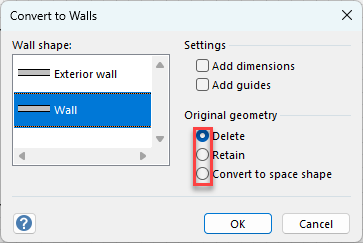
- Click OK.
Avontus Designer converts the lines to Walls.