Users are assigned to roles that determine their level of access within site. For example, a user assigned to a Scaffold Inspector may have access to the Inspections screen while a Welder may not.
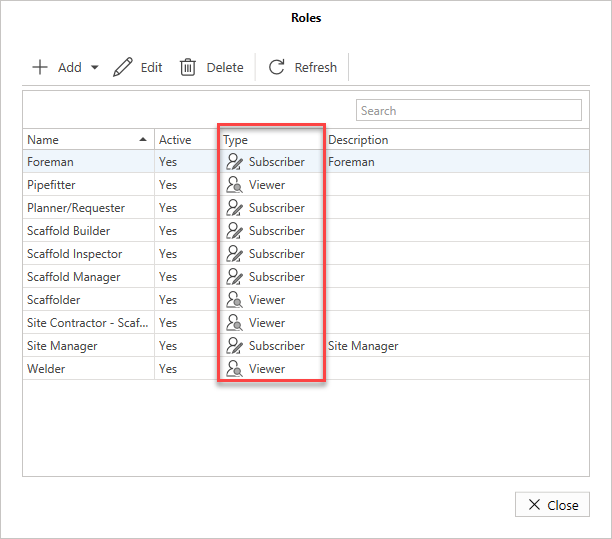
A user with the required permissions can create these roles and assign them to a role type. There are two role types, each with different levels of permissions. These roles are called Subscriber and Viewer. Subscriber users are assigned to Subscriber Roles, and Viewer users are assigned to Viewer Roles.
Note: Viewer users do NOT contribute to the subscriber count.
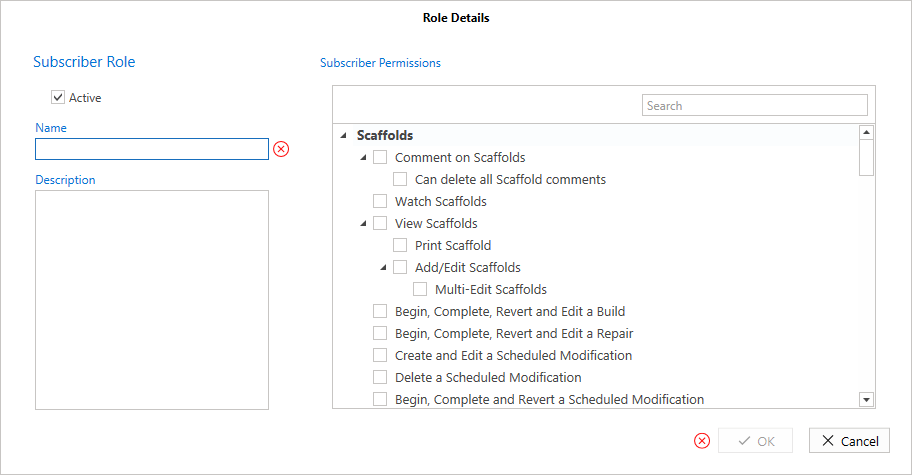
Subscriber - A Subscriber role can have access to a wider part of the software, including Global Settings. Subscriber users have the ability to add Requests, Scaffolds, Activities, etc. to the ScaffoldIQ application.
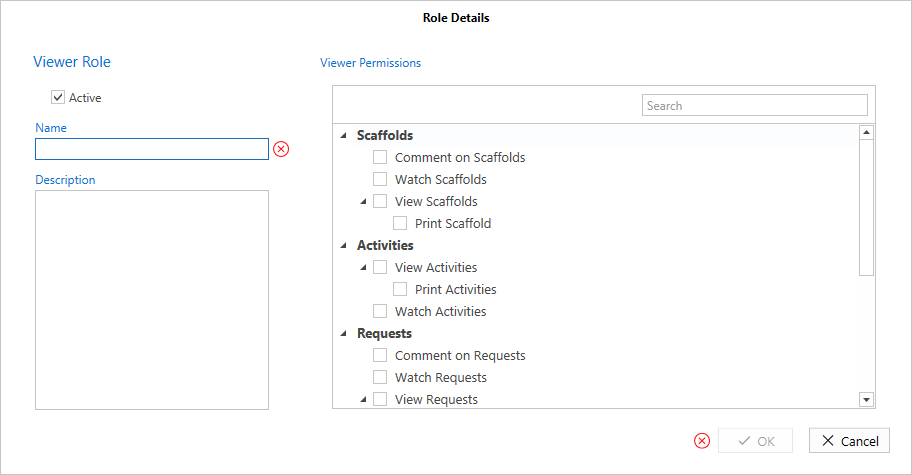
Viewer - A Viewer role is limited to viewing, watching, and commenting on Scaffolds, Activities, and Requests. Viewers do not have the ability to add anything (including Requests and Scaffolds) to ScaffoldIQ.
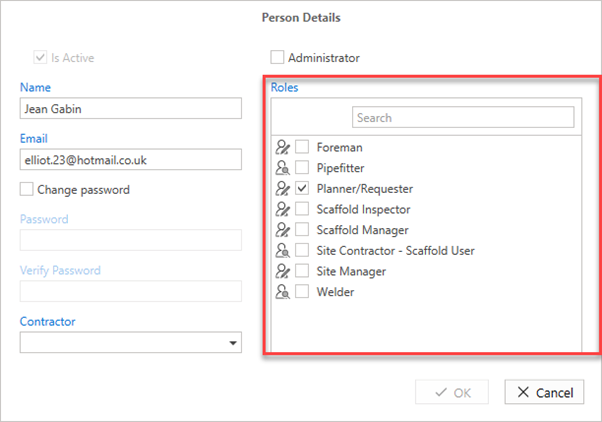
Roles are assigned to a person in the Person Details screen. Select the checkbox of the appropriate role to assign the user to that role.
Toolbar
You can use the toolbar to manage the roles, such as adding roles, deleting roles, etc.

Add - Add a role type, select from either Subscriber or Viewer
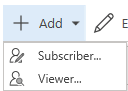
Edit - Select a role to edit.

Delete - Delete the selected user role.

Refresh - Refresh the Roles screen.

The grid contains all the created roles.
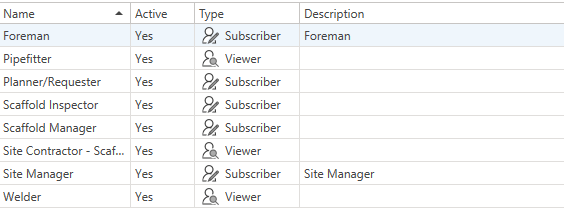
Name - This is the name of the role. A user will be assigned to the role.
Active - indicates whether the role is active.
Type - The Role Type (subscriber, viewer) that the role (Foreman, Welder) is assigned to.
Description - A description of the role.