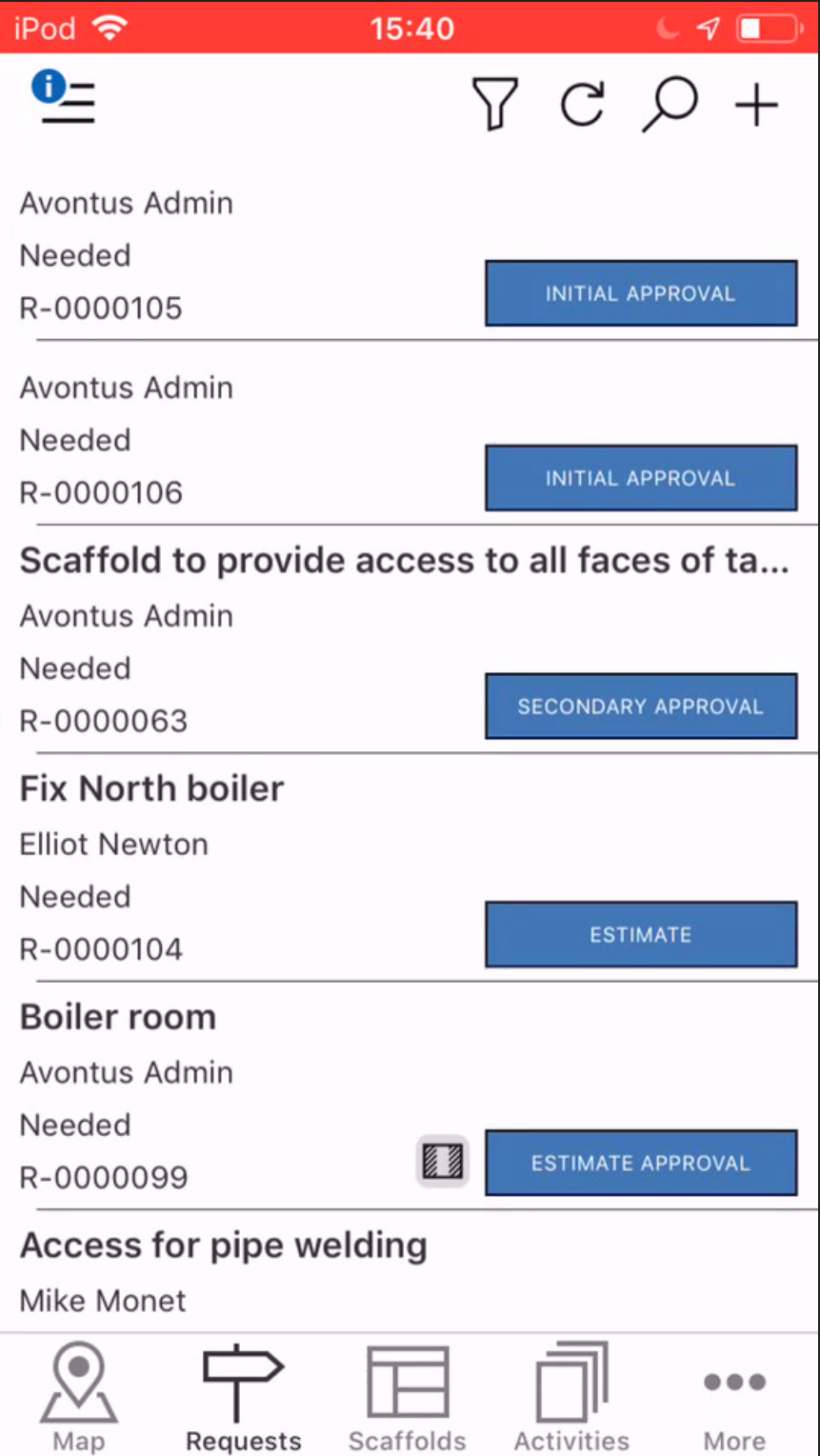
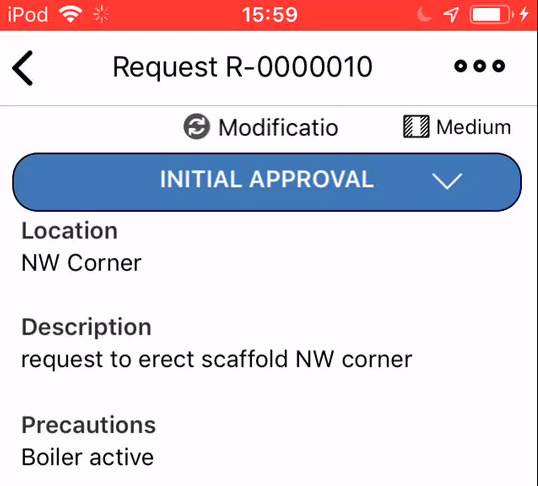
The Request screen provides an overview of the selected request such as the location of the request, a description of the request (its purpose) and any precautions an onsite worker should take when erecting the scaffold. Tap on the request to open the details screen.
Tapping on a request in the Request screen will open details for the selected request.
Watching and Editing the Request.
The three dots (in the top right of the window) allows the user to edit the request and "watch" the request for any changes made to its details or any status changes.
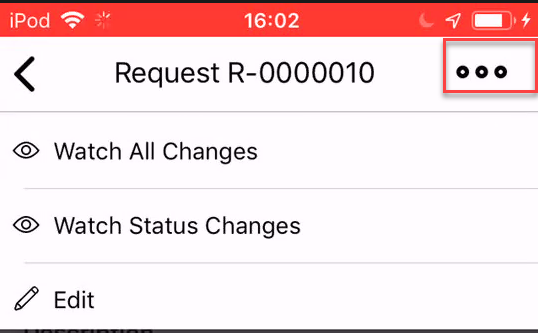
Watch All Changes - This will send a notification to you whenever any changes, including changes to the request's details and any status changes, are made.
Watch Status Changes - This will send a notification only when the request's status is changed.
Edit - Make changes to the request.
For more information on notifications, please see the Notification section.
Request Details
Past Need Date
The Past Need Date warning indicates that the request has passed the date that was specified as the date it was needed when the request was created.
Status Icons
These icons will be related to what type of request the request is.
| Indicates that the request is a build request |
| Indicates that the request is a dismantle request. |
| Indicates that the request is a modification request. |


Note: For more information on statuses, please visit the Working with Statuses section
Priority
There is a small priority icon that indicates the importance of the request. The three levels are
Low

Medium

High

Status
This indicates the status of the request. Select the status button to approve or reject the request.

Location
This indicates the location of the request and where the scaffold will be erected. Tapping on this section will take to you to the location of the request on the Map screen.

Description
This is a description of the request, best used by explaining the purpose of the request.

Precautions
Indicate to onsite workers of any potential issues and warnings they should take notice of when erecting or working on the scaffold.

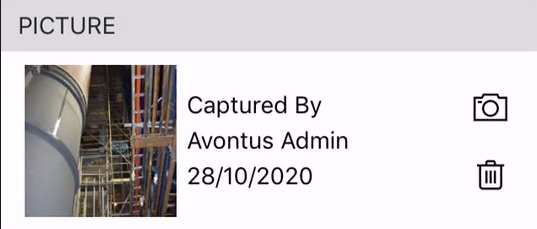
Picture
The Picture section is where you can view or upload an image of where the scaffold will be erected.
General
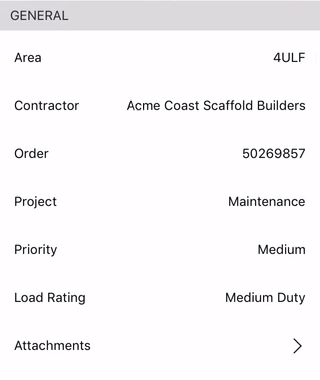
The general section provides a general overview of the scaffold, including the area it is assigned to.
Area
An area is a useful way to group scaffolds or requests together allowing users to easily organise their scaffolds or requests into relevant groups. These areas can be geographical (an area in a jobsite) or they could be used group scaffolds together depending on the unit that the scaffold is built on. For example, an area could be created that groups together scaffold that are erected around an Alkylation Unit. The area could then be called ALKY. This can be changed by using the Edit button.
To assign an area to a request or scaffold, please see the Assigning an Area to a Request guide.
Note: It is not possible to create an area on the mobile app. Please do this on the desktop.

Contractor
This is the contracting company hired erect the scaffold. This can be changed by selecting the three dots in the top-right and then Edit.

For more information on Contractors, please visit Contractors
Order
The order number of the request. This can be changed by selecting the three dots in the top-right and then Edit.

For more information on Orders, please visit Orders
Priority
Indicates the importance of the request. The three levels are
Low
Medium
High
This can be changed by selecting the three dots in the top-right and then Edit.

Load Rating
Indicates how much load the scaffold will endure. This can be changed by selecting the three dots in the top-right and then Edit.
The load ratings are:
Low

Medium
High

For more information on Load Ratings, please visit Load Ratings.
Attachments
This section displays any documents, plans, images or models attached to the request. Tap on the Attachments section to see any documents attached to the request.
The number proceeding attachments indicates how many attachments this Request has

This will display all documents, plans, images, etc that have been attached to this request.
Tap on an attachment to open it. Attachments can be added by tapping the + button.
For more information on adding attachments, please see the Adding an Attachment guide.
History
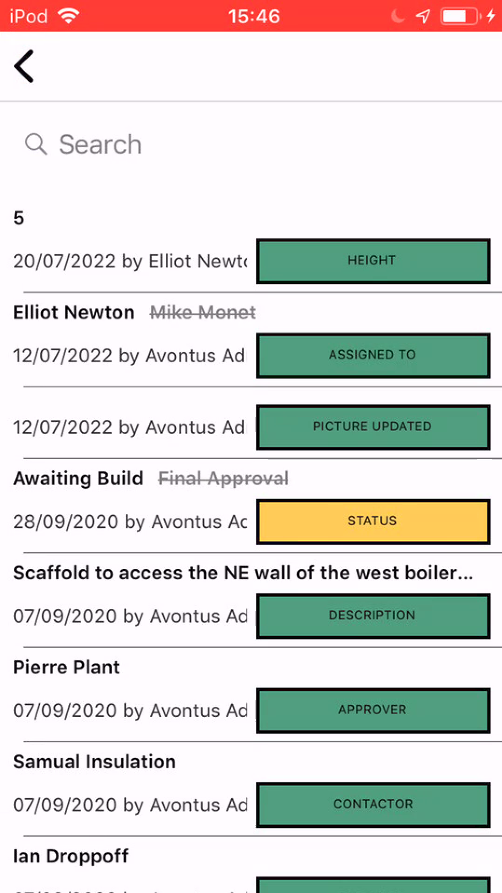
The History screen provides an overview of all changes, including status changes, on the request.
The number indicates how many changes have been made on this Request

Tap on the History section to open the History screen where you can find all changes (such as a change to the Requestor), and status changes (from Estimate Approval to Final Approval).
People
These are the people associated with the request. These names can be changed by selecting the three dots in the top-right and then Edit.
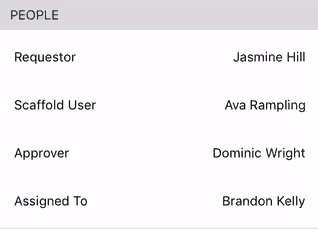
Requestor - The person who made the request.
Scaffold User - The onsite worker who will be using the scaffold.
Approver - The person who will approve the request.
Assigned To - The person who the request is assigned to.
Location
Indicates the location of the request. Tap on the Location section to be taken to the request's position on the map.
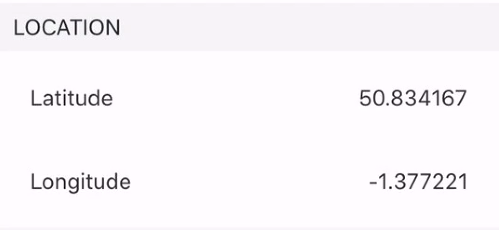
The location can be changed by tapping the three dots in the top-right and selecting Edit.
For more information on changing a location, please view the Changing a Request Location guide.
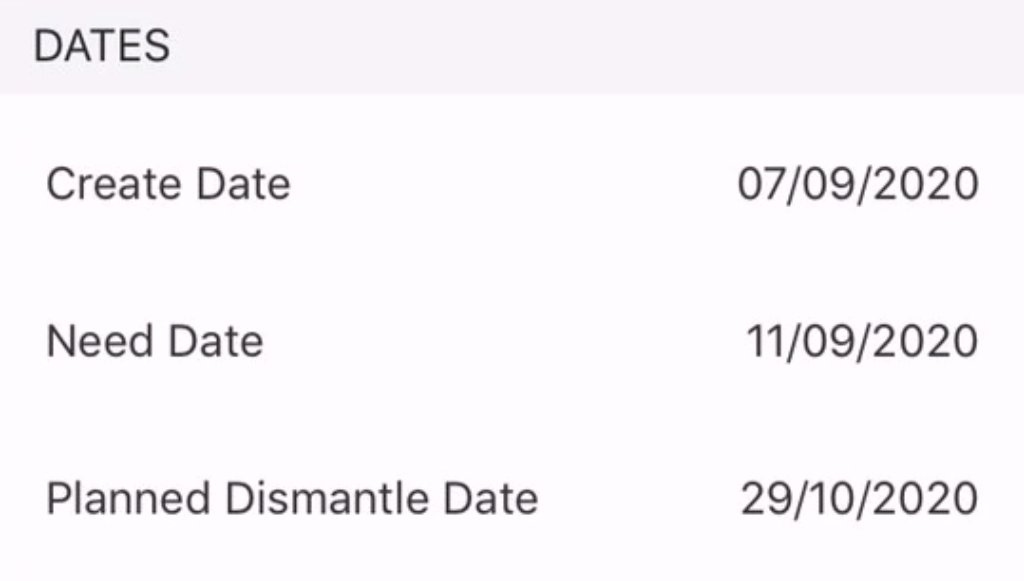
Dates
These are the important dates for the selected request including the creation date, the date the request needs to be completed and the anticipated dismantle date. These dates can be changed by tapping the three dots in the upper right corner and selecting Edit.
Avontus Viewer Model
This is a 3D model of the scaffold created in Avontus Designer. This will be viewed in the Avontus Viewer Model.
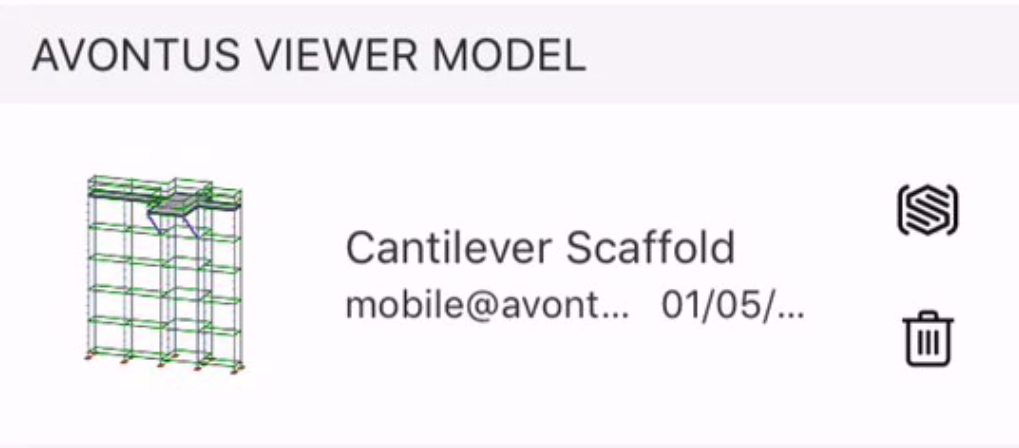
Tap on the Avontus Viewer Model section to open the model in Avontus Viewer.
Note: You will need to install the Avontus Viewer Model on your phone.
You can add a model by tapping the three dots in the upper right corner and selecting Edit.
For more information on adding a 3D model, please see the Uploading a 3D Model guide.
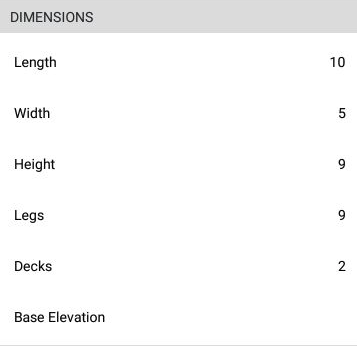
Dimensions
The Dimensions section is where the requestor provides the estimated dimensions for the scaffold. This will include the length, height and width as well the number of decks, legs and the base elevation.
Note that the units are agnostic meaning the unit the scaffold will be measured in will be dependent upon what is the most commonly used system (metric or imperial) in your geographical region.
You can change the dimensions by selecting the three dots in the top-right.
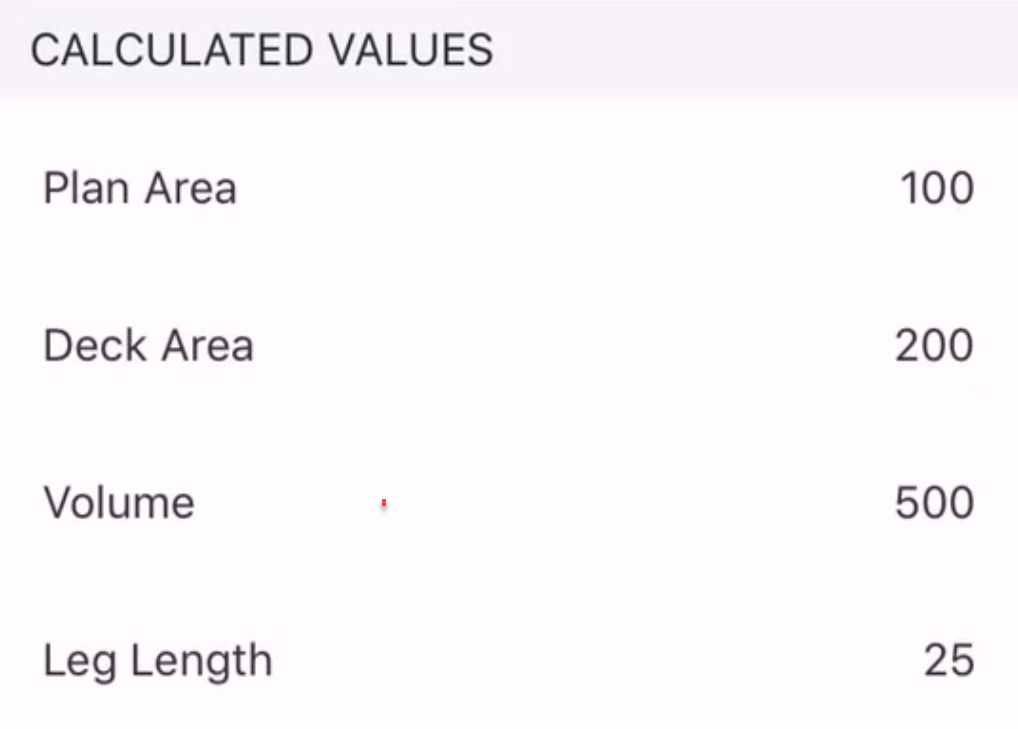
Calculated Values
This section calculates the size of the scaffold from the dimensions provided.
Comments
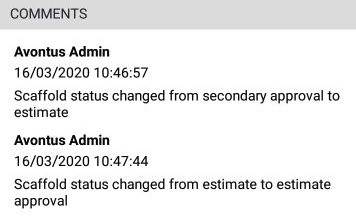
The Comments section is where you can find miscellaneous comments that are related to the scaffold or request. These comments can either be added via the comment box or they are added during a status change such as a scaffold Handover.