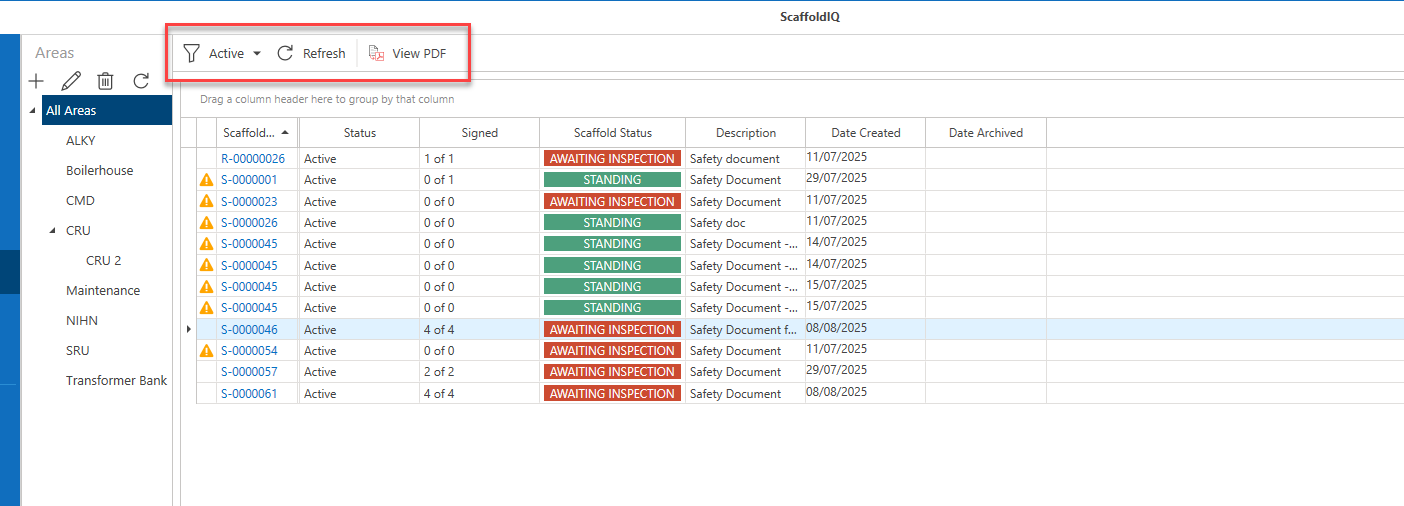
The Safety Documents screen displays a list of Safety Documents that have been added to a Request or Scaffold. Safety Documents Templates are configured in the Global Settings, then these templates are added to a Request or Scaffold. The document is then added to the Request or Scaffold, and then signed by the relevant users.
For more information, please see
Adding a Safety Document to a Scaffold
Adding Signees to a Safety Document
Safety Document Template Options
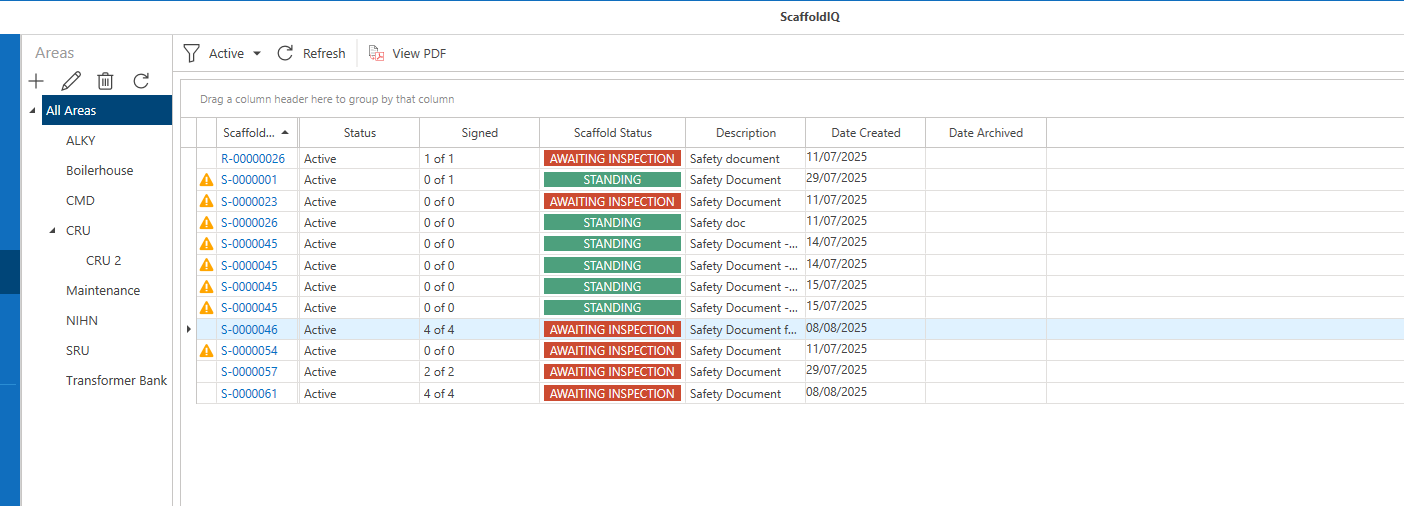
This screen is for display only, you can only view PDF versions of Safety Documents here. Safety Documents are edited in the Safety Document Template Options dialog in the Global Settings.
To sign a safety document, you will need to go to the Scaffold that the document is assigned to.
The table displays the documents in the system.
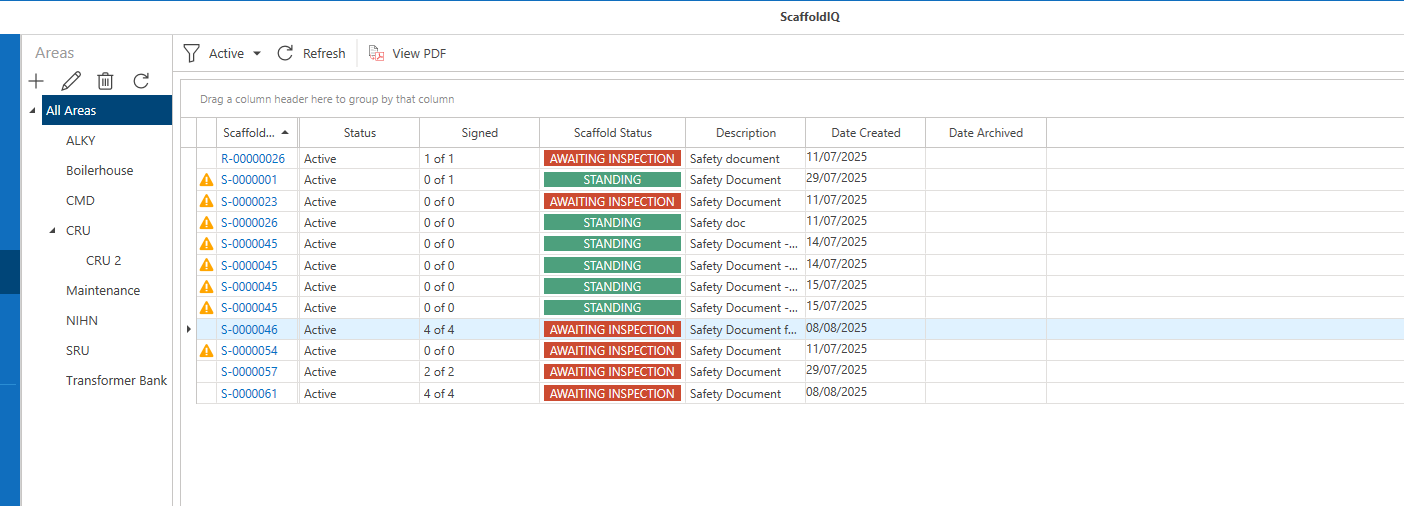
Scaffold Number - The Scaffold Numer associated with the document. Click this to be taken to the Scaffold.
Status - Displays the status of the Safety Document
Signed - Displays how many people have signed the document
Scaffold status - The status of Scaffold that the Safety Document is assigned to
Description - A Description of the safety document
Date created - The date the safety document template entry was created
Date archived - The date the document template was archived.
The orange warning icon indicates that there are issues with the Safety Document, this could be that not all users have signed the document or no signing people have been assigned to the document.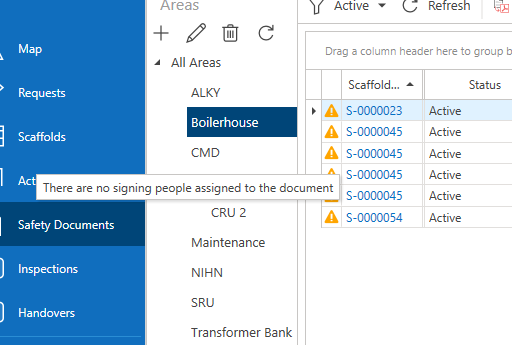
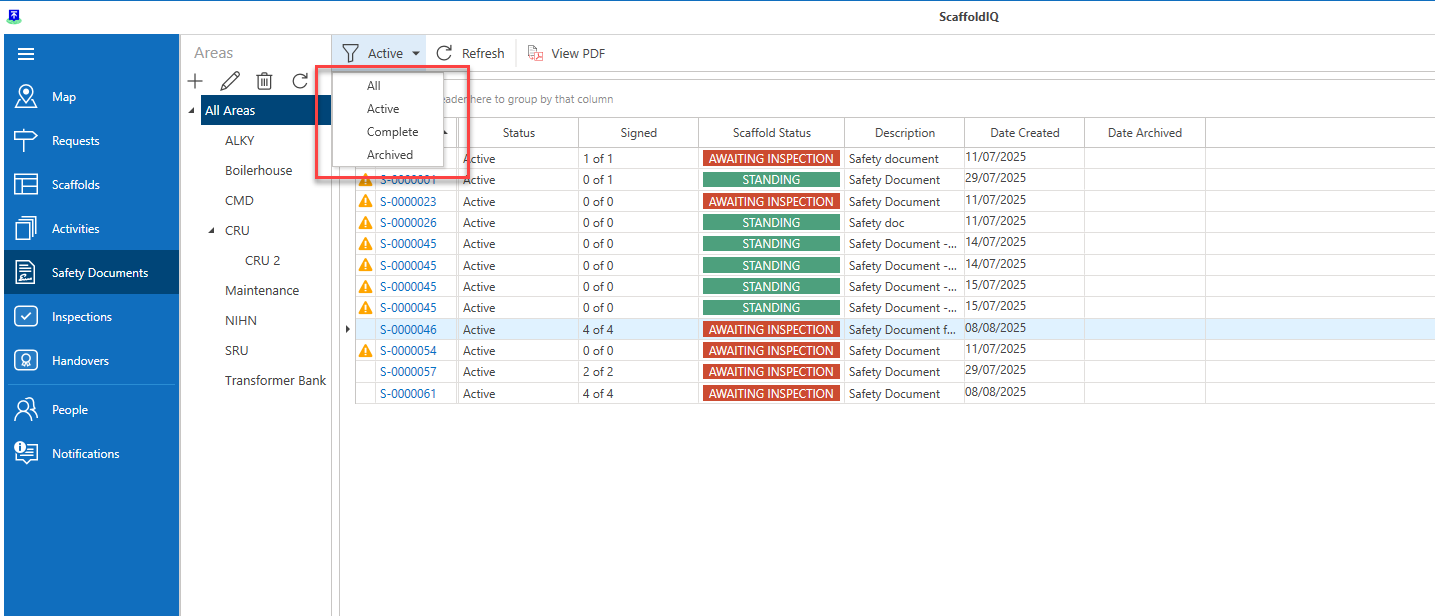
Along the toolbar you can choose what type of documents to display, and open a PDF..
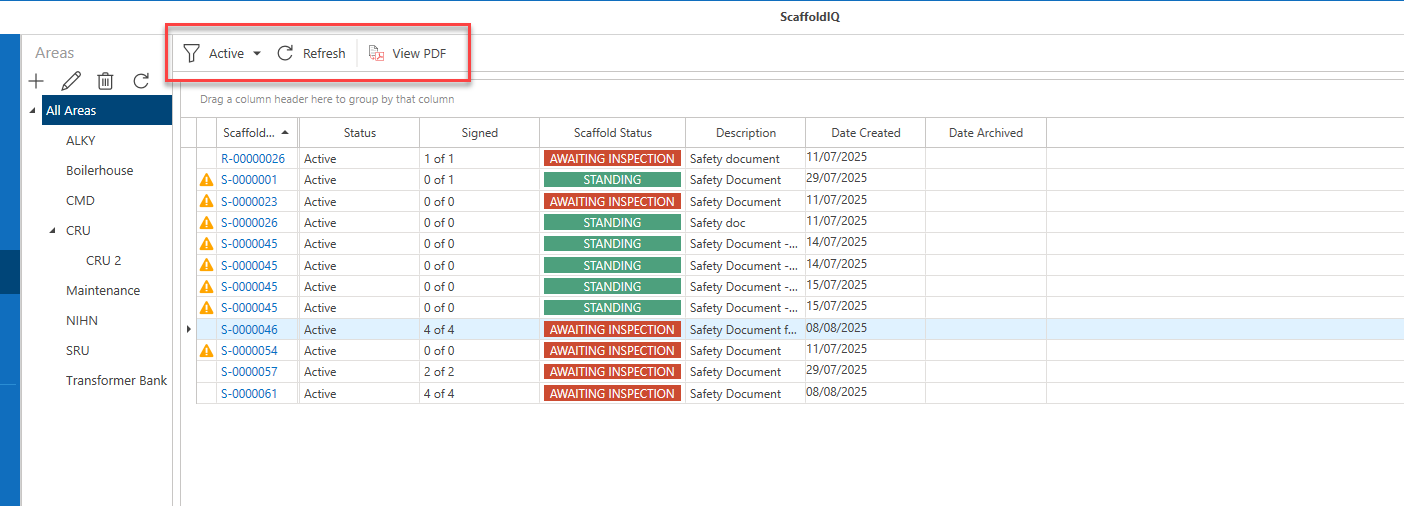
Filter
Select to filter between
All
Incomplete
Complete
Archived
Refresh - Refresh the screen
View PDF - View the document template