Avontus Designer's flexible Ladders features provides a variety of ladder options. You can add customized ladders. You can also edit existing ladders and skip one or more ladders, creating an intentional gap in decking.
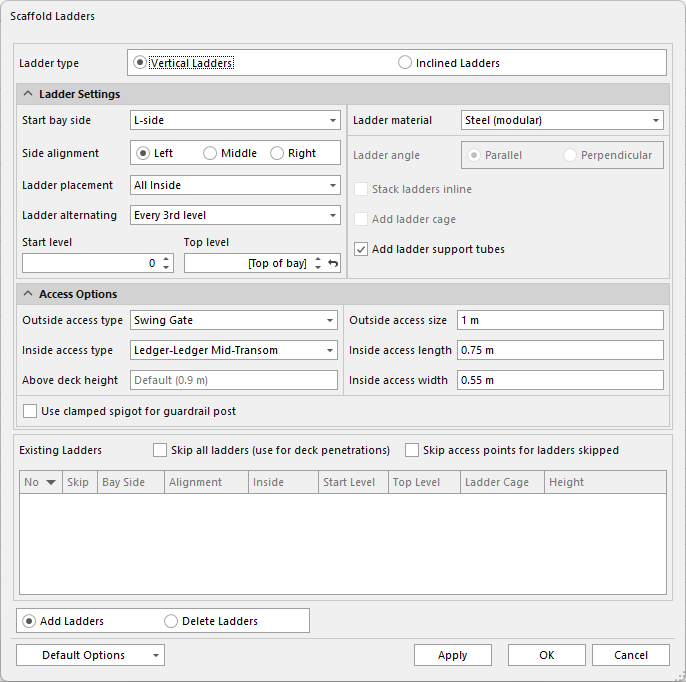
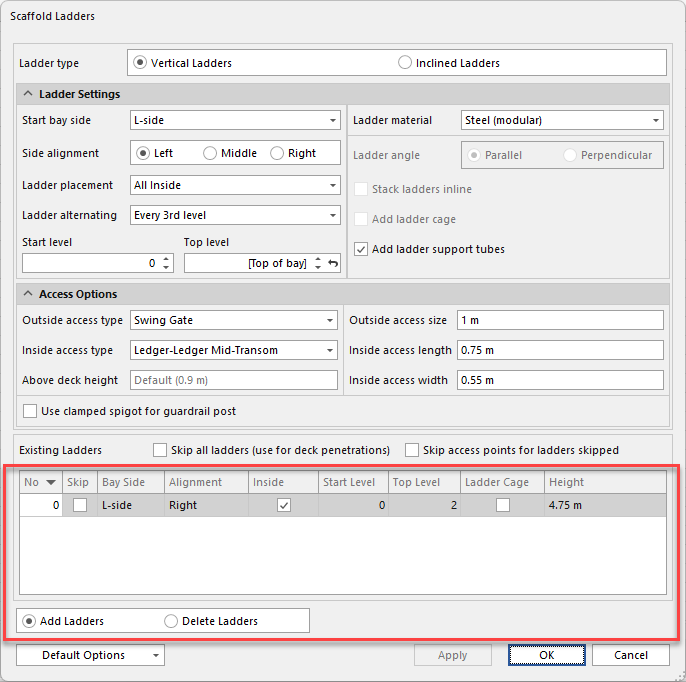
To launch this dialog, click the appropriate Bay, click the Scaffold tab and click Ladders.
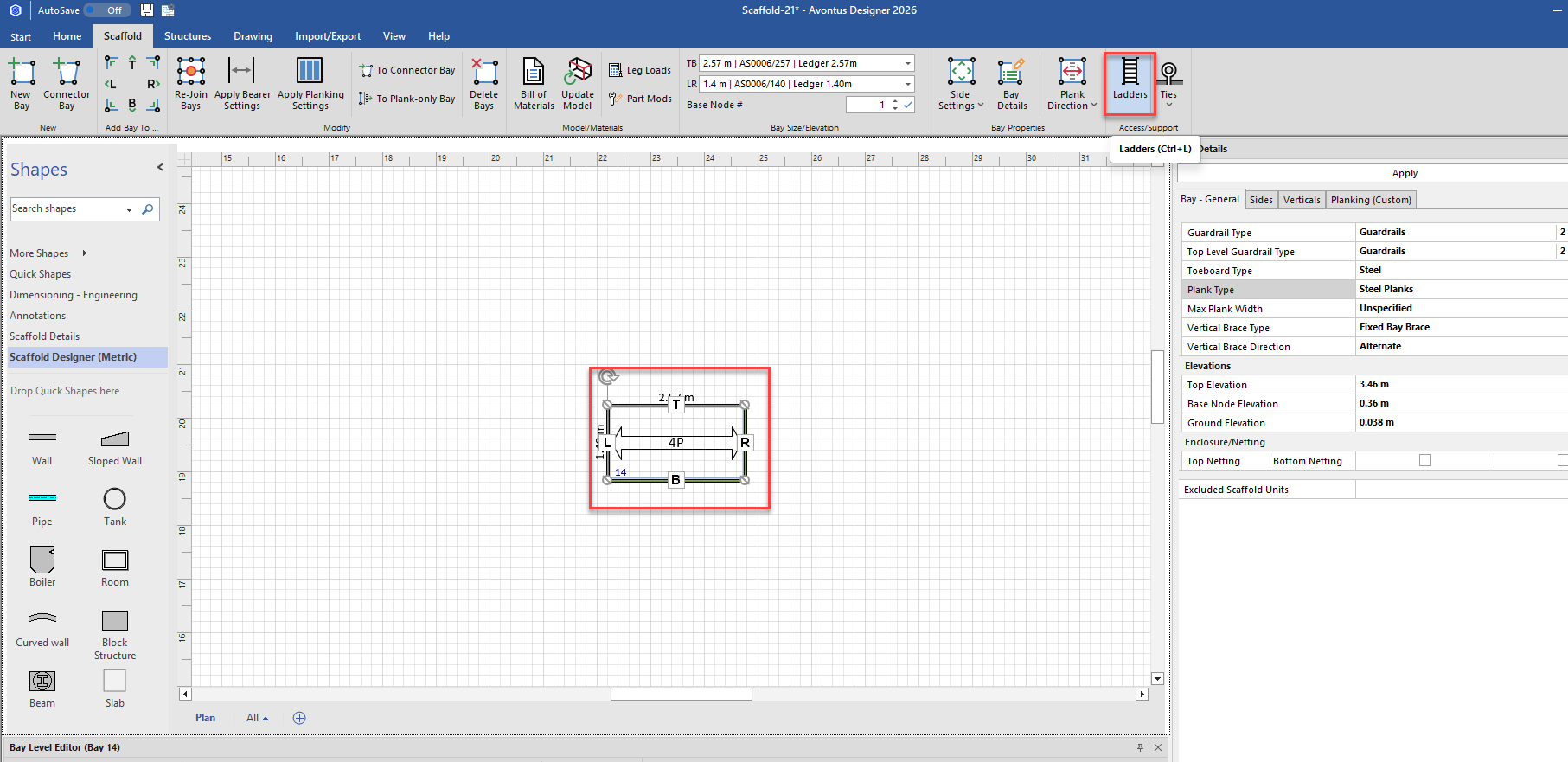
Ladder Settings
You can configure the following settings for a ladder:
The Ladder Settings area of the Scaffold Ladders dialog enables you to determine ladder placement, type, material, etc.
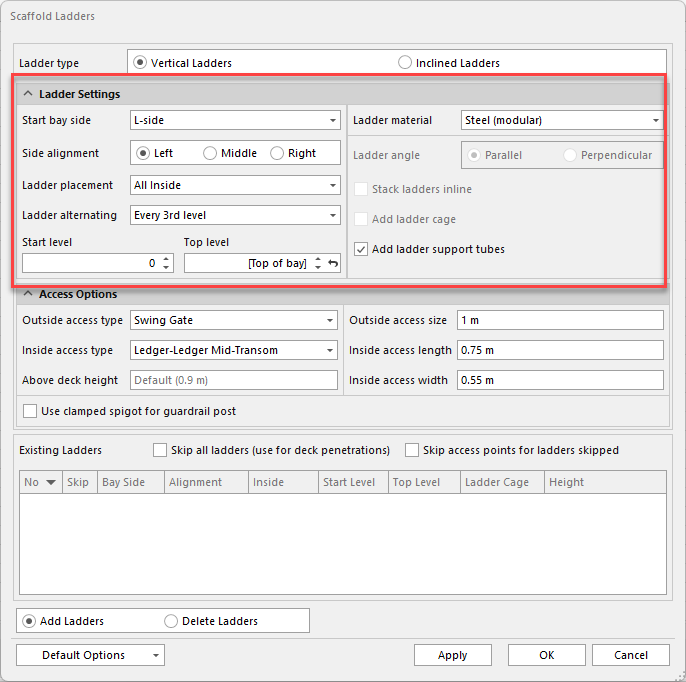
Ladder type | Click to select between vertical or inclined |
Start Bay Side | Click the Start Bay Side dropdown to determine which side of the Bay (T, B, L, or R) Avontus Designer will place the first ladder. |
Side Alignment | Click the appropriate Side Alignment radio button to determine where on the side of the Bay Avontus Designer will place ladders: left of the side, center, or right of the side. These settings are relative to someone standing facing towards the bay. |
Ladder Placement | Click the Ladder Placement dropdown to determine where Avontus Designer will place ladders. If you selected Vertical as the Ladder Type, your options are:
If you selected Inclined as the Ladder Type, your options are:
|
Ladder Alternating | Click the Ladder Alternating dropdown to determine whether ladders will alternate as the Bay reaches certain levels, and how frequently that alternation will occur. If you selected Vertical as the Ladder Type, your options are:
If you selected Inclined as the Ladder Type, your options are:
|
Start Level | Click in the Start Level text field and enter the level at which you want Avontus Designer to place the first ladder. If you enter zero (0), Avontus Designer will place the first ladder on the ground level. |
Top Level | Click in the Top Level text field and enter the level at which you want Avontus Designer to stop placing ladders. If you enter nothing, Avontus Designer will place the ladders up through the top of the selected Bay. |
Ladder Material | Click the Ladder Material dropdown to determine what you want the ladders to be made of. If you selected Vertical as the Ladder Type, your options are:
If you selected Inclined as the Ladder Type, your options are:
|
Ladder Angle | If you select any outside ladder setting from the Ladder Placement dropdown, the Ladder Angle radio buttons become active. Click one to determine whether Avontus Designer will place outside ladders parallel or perpendicular to the Bay side. |
Ladder Cage | If you select any outside ladder setting from the Ladder Placement dropdown, the Ladder Cage checkbox becomes active. Click it to add a ladder cage to outside ladders. |
Stack Ladders Inline | If you selected Inclined as the Ladder Type, the Stack Ladders Inline checkbox becomes active. Click it if you want Avontus Designer to place all inclined ladders inline. In this case, Avontus Designer, places all the ladders directly above each other along the same side of the Bay in the same direction. |
Add Ladder Support Tubes | If you selected Vertical as the Ladder Type, the Add Ladder Support Tubes checkbox becomes active. Click it if you want Avontus Designer to place ladder support tubes along all ladders. |
Ladder Access Options
The Access Options area of the Scaffold Ladders dialog enables you to determine what type of access you want to provide (and what size that access should be) with both inside and outside ladders.
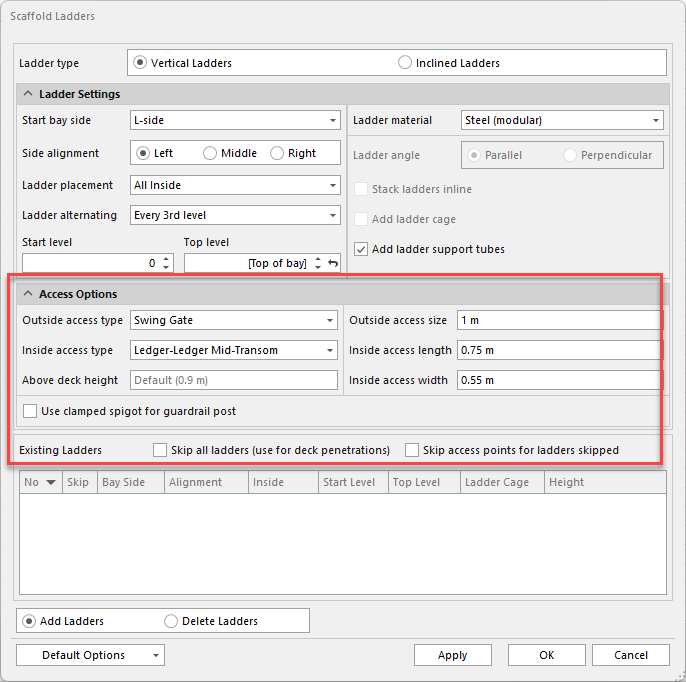
Outside Access Type | Click the Outside Access Type dropdown to determine which type of access you want to provide with outside ladders. For more information, refer to About Outside Ladders below. |
Outside Access Size | Click in the Outside Access Size text field and enter the size of the access opening you want to provide with outside ladders. |
Inside Access Type | Click the Inside Access Type dropdown to determine which type of access you want to provide with inside ladders. |
Inside Access Length | Click in the Inside Access Size text field and enter the length of the access opening you want to provide with inside ladders. |
Above Deck Height | This adjusts how high the ladder will go above the height of the highest deck. The max is 2m. |
Inside Access Length | Click in the Inside Access Size text field and enter the length of the access opening you want to provide with inside ladders. |
Inside Access Width | Click in the Inside Access Size text field and enter the width of the access opening you want to provide with inside ladders. |
Use Clamped Spigot for Guardrail Post | Click this to use a clamped spigot as guardrail post. |
Existing Ladders Area
The Existing Ladders area displays a list of all ladders created for the selected Bay and some of their configuration. Avontus Designer enables you to click the Skip checkbox in this area.
Skip All Ladders | Click the Skip All Ladders checkbox (to put a check in it) to skip all ladders for the selected Bay. |
Add Ladders | Click the Add Ladders radio button once you have configured a ladder to add it to the Bay. Once you click Apply, Avontus Designer adds the ladder to the Existing Ladder area. |
Delete Ladders | Click the Delete Ladders radio button to remove a configure ladder from the Bay. Once you click Apply, Avontus Designer removes the ladder to the Existing Ladder area. |
Save These Settings as Default | Click Save Current Settings as Default if you want the current settings to be the default settings for all subsequent new ladders. |
Restore Default Settings | Click Restore Default Settings if you want to return the current settings to the default settings. |
Apply | Click Apply to apply the current ladder configuration. This does not close the Scaffold Ladder dialog. |
About Outside Ladders
Avontus Designer enables you to add five types of outside ladders.
Swing Gate | Handrail Only | Full Guardrails (Closed) | Partially Open (No Gate) | Fully Open |
|
|
|
|
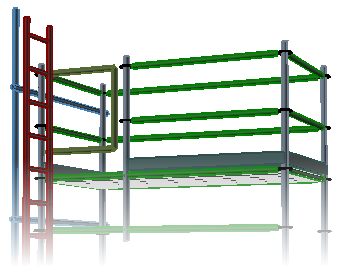
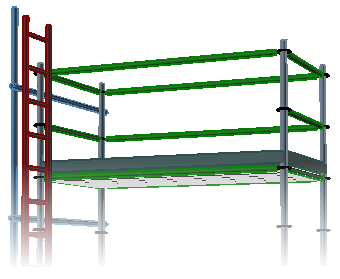
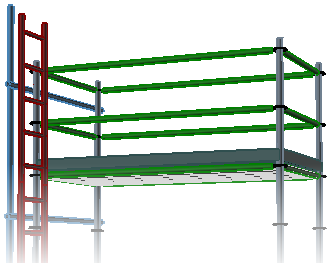
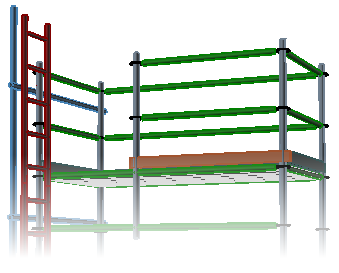
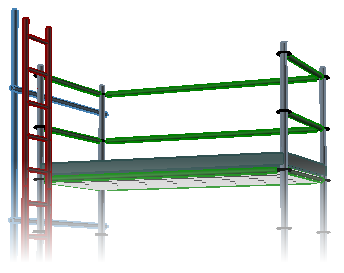
You can adjust the size of the access opening for any Bay with an outside ladder.
Partially Open (No Gate)
|
|
|
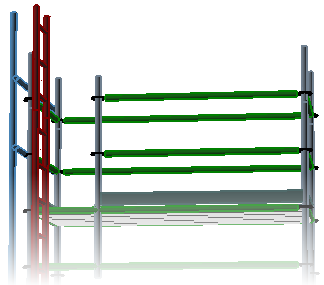
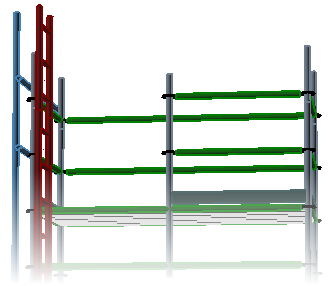
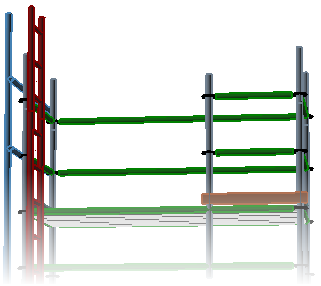
In the Scaffold Ladders dialog, simply enter the size of the opening in the Outside access size text field in the Scaffold Ladders dialog. (The actual size of the opening will be determined by the available materials.)
Swing Gate
|
|
|
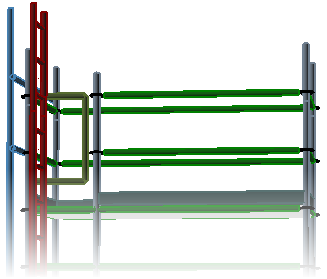

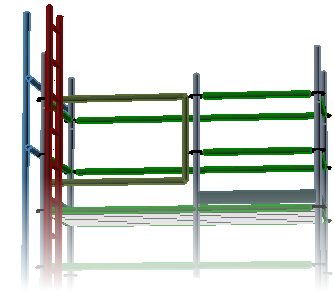
To create a swing gate, select the desired opening size by activating the appropriate Swing Gate material in the Material Master. (You may need to de-activate other swing gate materials.)